
Introduction
The Edimax EdiGreen Airbox AI-1001W V3 is a smart wireless air quality detector designed to monitor indoor air conditions. It accurately measures PM2.5 levels, temperature, and humidity, providing real-time data and historical trends through the EdiGreen mobile application. This manual provides instructions for setting up, operating, maintaining, and troubleshooting your device.
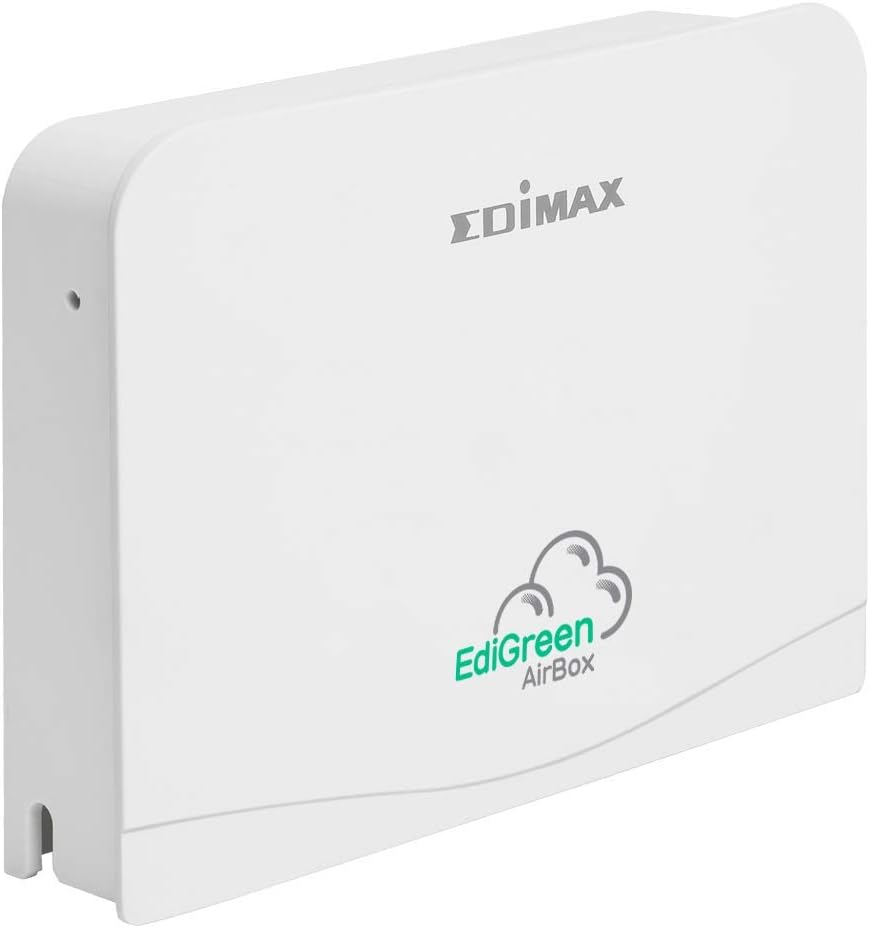
Figure 1: Front view of the Edimax EdiGreen Airbox AI-1001W V3, showing the EdiGreen AirBox logo.
Setup
Package Contents
Before proceeding with installation, ensure all items are present:
- Edimax EdiGreen Airbox AI-1001W V3 unit
- Power Adapter
- Mounting Bracket and Screws (if included with your model)
- Quick Installation Guide
Physical Installation
The Airbox can be placed on a flat surface or mounted on a wall. For optimal readings, place the device in a central location away from direct airflow sources like vents or windows.
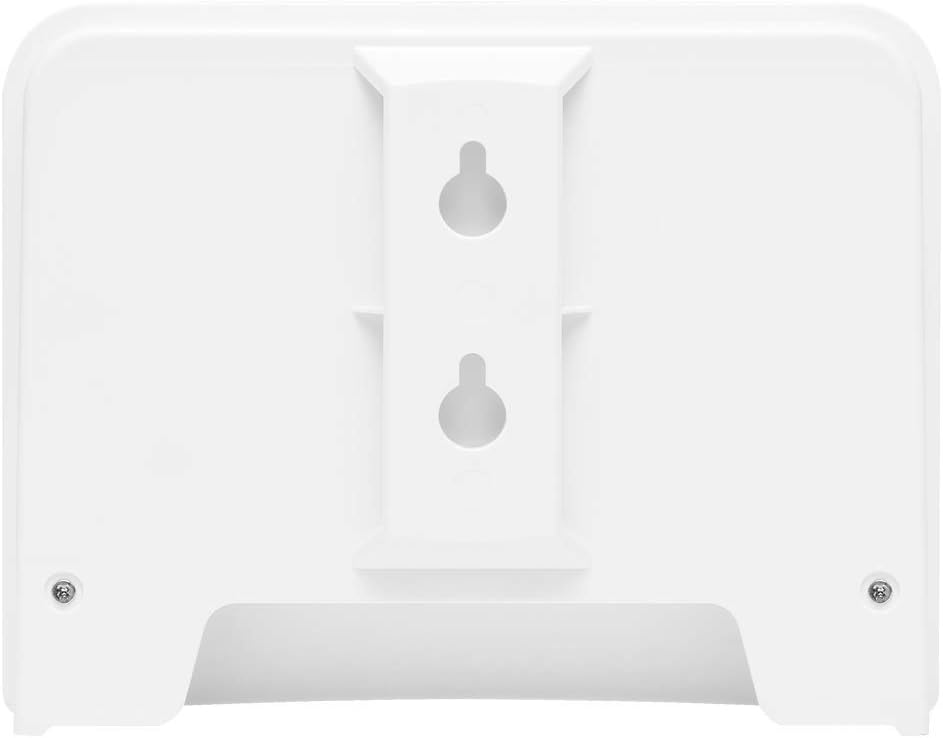
Figure 2: Back view of the Edimax EdiGreen Airbox AI-1001W V3, illustrating keyhole slots for wall mounting.
To wall mount the device:
- Select a suitable location on a wall.
- Mark the positions for the mounting screws using the keyhole slots on the back of the device as a template.
- Drill pilot holes and insert wall anchors if necessary.
- Drive screws into the wall, leaving a small gap for the device to hang.
- Align the keyhole slots with the screws and slide the device down to secure it.

Figure 3: Side view of the Airbox with an optional mounting arm, demonstrating flexible placement options.

Figure 4: Detailed view of the adjustable mounting arm, allowing for varied installation angles.
Power Connection
Connect the provided power adapter to the DC input port on the back of the Airbox. Plug the adapter into a standard electrical outlet. The device will power on automatically.
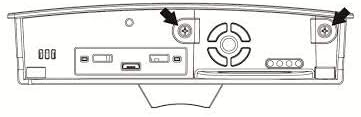
Figure 5: Line drawing of the Airbox back panel, highlighting the power input and other ports.
App Installation and Device Pairing
- Download the EdiGreen app from the Apple App Store or Google Play Store.
- Open the app and follow the on-screen instructions to create an account or log in.
- Select "Add Device" and choose the EdiGreen Airbox AI-1001W V3 from the list.
- Follow the app's prompts to connect the Airbox to your Wi-Fi network. Ensure your mobile device is connected to the same 2.4GHz Wi-Fi network during setup.
- Once connected, the device will begin transmitting data to the app.
Operating the Device
Understanding Indicators
The EdiGreen Airbox features LED indicators that provide status information:
- Power LED: Indicates power status.
- Wi-Fi LED: Indicates network connectivity.
- Air Quality LED: Changes color based on PM2.5 levels (e.g., Green for Good, Yellow for Moderate, Red for Unhealthy). Refer to the app for specific thresholds.
Using the EdiGreen App
The EdiGreen app is the primary interface for monitoring and managing your Airbox. Through the app, you can:
- View real-time PM2.5, temperature, and humidity readings.
- Access historical data and trend graphs.
- Set custom alerts for specific air quality thresholds.
- Manage device settings and firmware updates.
For detailed app functionalities, refer to the in-app help section or the Edimax support website.
Maintenance
Cleaning the Device
To ensure accurate readings and prolong the life of your Airbox, perform regular cleaning:
- Disconnect the power adapter before cleaning.
- Wipe the exterior of the device with a soft, dry cloth.
- Do not use liquid cleaners, aerosols, or abrasive materials, as these can damage the sensors or casing.
- Ensure the air intake and exhaust vents are free from dust accumulation. Use a soft brush or compressed air if necessary.

Figure 6: Internal view of the Airbox, revealing the sensor module. Handle with care during any maintenance.
Battery Information
The EdiGreen Airbox AI-1001W V3 is primarily powered by an external power adapter. While it may contain internal components that require power, it is not designed for user-replaceable batteries for primary operation. For any battery-related concerns, please contact Edimax support.
Troubleshooting
If you encounter issues with your EdiGreen Airbox, refer to the following common problems and solutions:
| Problem | Possible Cause | Solution |
|---|---|---|
| Device does not power on | Power adapter not connected or faulty outlet | Ensure power adapter is securely connected and try a different power outlet. |
| No data in EdiGreen app | No Wi-Fi connection or app issue | Check Wi-Fi LED on device. Restart device and router. Re-pair device in app if necessary. Ensure app is updated. |
| Inaccurate readings | Sensor obstruction or environmental factors | Clean device vents. Move device away from direct airflow, heat sources, or high humidity areas. Allow time for sensors to stabilize. |
| Wi-Fi connection drops frequently | Weak Wi-Fi signal or interference | Move device closer to the Wi-Fi router. Ensure no large obstructions. Check for other devices causing interference. |
If the problem persists after attempting these solutions, please contact Edimax customer support.
Specifications
| Feature | Detail |
|---|---|
| Model Number | AI 1001W V3 |
| Brand | Edimax |
| Sensors | PM2.5, Temperature, Humidity |
| Connectivity | Wireless (Wi-Fi) |
| Power Source | Battery Powered (Primary: External Power Adapter) |
| Color | WHITE |
| Material | Plastic |
| Item Weight | 0.59 Kilograms (1.3 pounds) |
| Package Dimensions | 6.8 x 4.9 x 3.5 inches |
| Alarm | Audible (via app alerts) |
| UPC | 649659035034 |
| ASIN | B07ZQSWQWQ |
| Date First Available | October 28, 2019 |
Warranty Information
Edimax products are covered by a limited warranty. For specific warranty terms and conditions, including duration and coverage, please refer to the warranty card included with your product or visit the official Edimax website. Keep your proof of purchase for warranty claims.
Support
For technical assistance, product inquiries, or further support, please visit the Edimax official support website or contact their customer service department. You can typically find contact information and FAQs on the Edimax website:
- Edimax Website: www.edimax.com
- Support Page: Refer to the support section on the Edimax website for your specific model.


