
1. Product Overview
The Cactus Kids Digital Watch CAC-109-M12 is designed for children, featuring a clear digital display and robust construction. This watch includes essential functions such as a daily alarm, stopwatch, and backlight, making it suitable for everyday use. Its 10 BAR water resistance provides enhanced protection against splashes and rain, though it is not suitable for swimming or bathing.
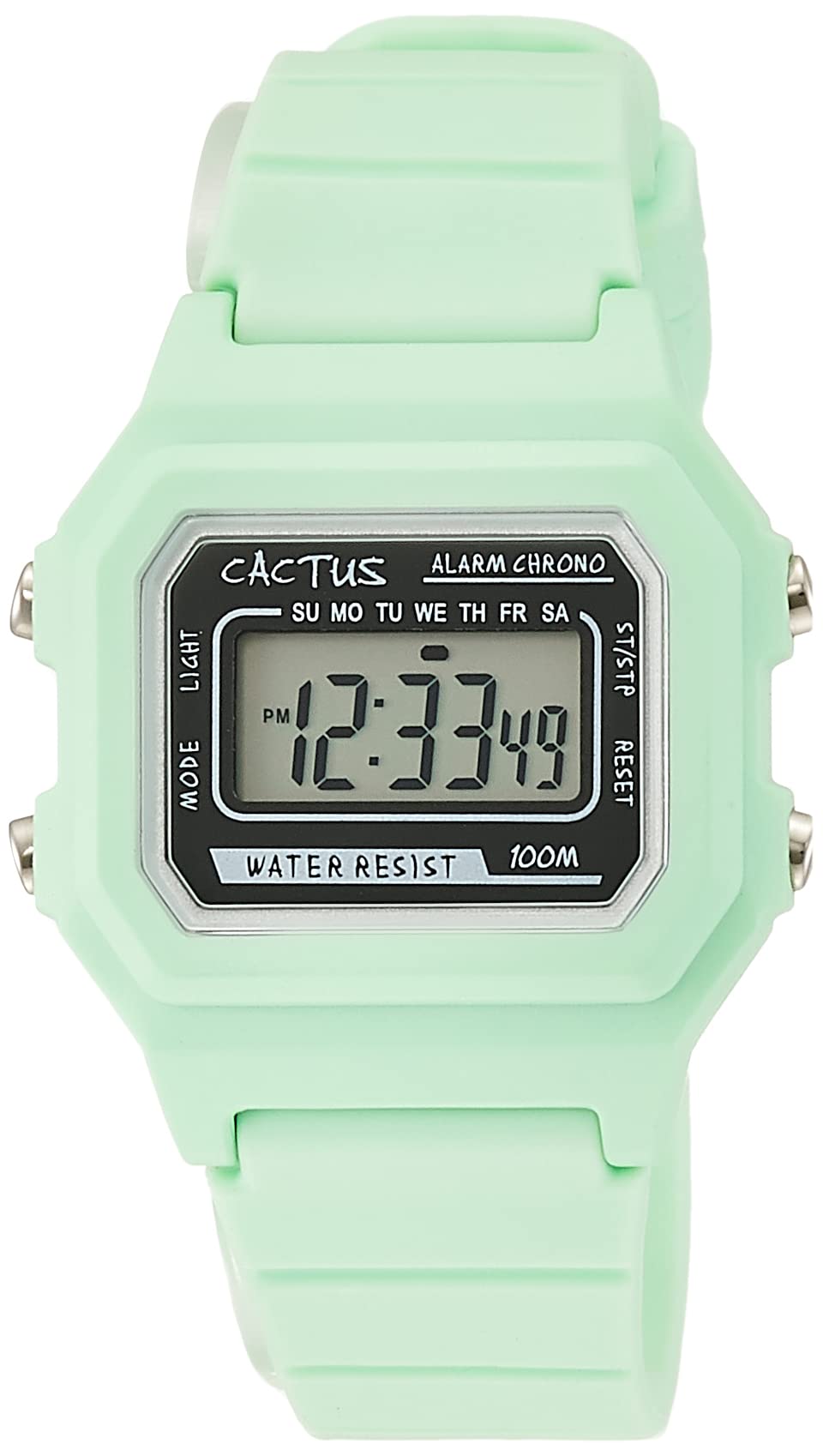
Figure 1: Front view of the Cactus Kids Digital Watch CAC-109-M12.
2. Safety Information
- Water Resistance: This watch features 10 BAR (100 meters) enhanced water resistance for daily life. This means it is resistant to splashes, rain, and brief immersion in water. However, it is not suitable for bathing, showering, swimming, or diving. Avoid exposing the watch to water pressure exceeding 10 atmospheres, such as direct strong jets from a tap or heavy rain.
- Temperature: Avoid exposing the watch to extreme temperatures (hot or cold) for prolonged periods, as this may affect its accuracy and battery life.
- Chemicals: Keep the watch away from solvents, detergents, perfumes, and cosmetics, as these can damage the case, band, or seals.
- Impact: Protect the watch from strong impacts or drops, which can cause internal damage or scratches.
3. Package Contents
Please ensure all the following items are present in the package:
- Cactus Kids Digital Watch CAC-109-M12 (Main Unit)
- Plastic Storage Case
- Instruction Manual (this document)
- International Warranty Card
4. Setup
4.1 Button Functions
Familiarize yourself with the watch buttons:
- MODE Button: Used to switch between time display, alarm, and stopwatch modes.
- RESET Button: Used to reset stopwatch, adjust settings, or change values.
- START/STOP Button: Used to start/stop stopwatch, adjust settings, or change values.
- LIGHT Button: Activates the backlight for a few seconds.

Figure 2: Button layout on the watch. (Note: Button labels may vary slightly depending on production batch).
4.2 Setting the Time and Date
- From the normal time display, press the MODE button three times to enter the time setting mode. The seconds digits will start flashing.
- Press the RESET button to advance the flashing selection to the hour digits.
- Press the START/STOP button to adjust the hour. (Note: Pay attention to AM/PM if in 12-hour format).
- Press the RESET button to advance the flashing selection to the minute digits.
- Press the START/STOP button to adjust the minutes.
- Continue pressing the RESET button to cycle through year, month, and day settings, adjusting each with the START/STOP button.
- Once all settings are correct, press the MODE button to exit the setting mode and return to the normal time display.
4.3 Setting the Daily Alarm
- From the normal time display, press the MODE button twice to enter the alarm setting mode. The hour digits will flash.
- Press the START/STOP button to adjust the alarm hour.
- Press the RESET button to advance the flashing selection to the minute digits.
- Press the START/STOP button to adjust the alarm minutes.
- Press the MODE button to exit the alarm setting mode.
- To turn the alarm ON/OFF, in alarm mode, press the START/STOP button. An alarm icon will appear/disappear on the display.
5. Operating Instructions
5.1 Switching Modes
Press the MODE button to cycle through the following modes:
- Normal Time Display
- Stopwatch Mode
- Alarm Mode
- Time/Date Setting Mode
5.2 Using the Stopwatch
- From the normal time display, press the MODE button once to enter stopwatch mode. The display will show "00:00:00".
- Press the START/STOP button to start the stopwatch.
- Press the START/STOP button again to pause the stopwatch.
- To resume, press the START/STOP button.
- To reset the stopwatch to zero, press the RESET button while the stopwatch is paused.
- Press the MODE button to return to the normal time display.
5.3 Activating the Backlight
Press the LIGHT button (usually located on the top left) to illuminate the display for a few seconds, allowing you to read the time in low-light conditions.

Figure 3: The watch comfortably worn on a wrist.
6. Maintenance
6.1 Cleaning
- Wipe the watch case and band with a soft, dry cloth. For stubborn dirt, a slightly damp cloth can be used, followed by a dry cloth.
- Do not use chemical cleaners or abrasive materials, as these can damage the watch's finish.
6.2 Battery Replacement
When the display becomes dim or the watch stops functioning, the battery may need replacement. Battery replacement should ideally be performed by a qualified watch technician to ensure the water resistance seal is properly maintained. Attempting to replace the battery yourself may void the warranty and compromise water resistance.

Figure 4: Back view of the watch, showing the case back where the battery is accessed.
7. Troubleshooting
| Problem | Possible Cause | Solution |
|---|---|---|
| Display is blank or dim. | Low or dead battery. | Replace the battery (recommended by a professional). |
| Time is incorrect. | Time not set correctly or accidental button press. | Refer to Section 4.2 to reset the time. |
| Alarm does not sound. | Alarm is turned off or set incorrectly. | Refer to Section 4.3 to ensure the alarm is set and activated. |
| Water inside the watch. | Exposure to water beyond specified resistance (e.g., swimming, hot shower) or damaged seal. | Immediately take the watch to a professional watch repair service. Do not attempt to open it yourself. |
8. Specifications
| Model Number | CAC-109-M12 |
| Brand | Cactus |
| Display Type | Digital |
| Movement | Quartz |
| Case Material | Resin |
| Band Material | Urethane/Rubber |
| Windshield Material | Acrylic |
| Case Shape | Square |
| Case Diameter | 32 mm |
| Case Thickness | 11 mm |
| Product Weight | 24 grams |
| Band Color | Green |
| Dial Color | Gray Digital LCD |
| Water Resistance | 10 BAR (100 meters) - Enhanced for daily life. Not suitable for swimming or bathing. |
| Special Features | Daily Alarm, Stopwatch, Backlight |
| Clasp Type | Buckle |
| Intended Age Range | Kids |
9. Warranty and Support
9.1 Warranty Information
This Cactus Kids Digital Watch CAC-109-M12 comes with a 1-year international warranty from the date of purchase. The warranty covers manufacturing defects under normal use. Please refer to the included International Warranty Card for detailed terms and conditions, including what is covered and how to make a claim.
Important: Please retain your proof of purchase and the International Warranty Card, as these will be required for any warranty service.
9.2 Customer Support
For any questions, technical assistance, or warranty claims, please refer to the contact information provided on your International Warranty Card or visit the official Cactus website for support details.


