
MoKo B07ZLP253T
MoKo Smart Plug Mini WiFi Outlet User Manual
Model: B07ZLP253T
1. Product Overview
The MoKo Smart Plug Mini WiFi Outlet is a compact and intelligent device designed to bring smart control to your home appliances. It allows you to manage connected devices remotely via a smartphone application, use voice commands through smart assistants like Amazon Alexa and Google Home, and monitor energy consumption. Its compact design ensures it occupies only one socket, allowing for convenient stacking.
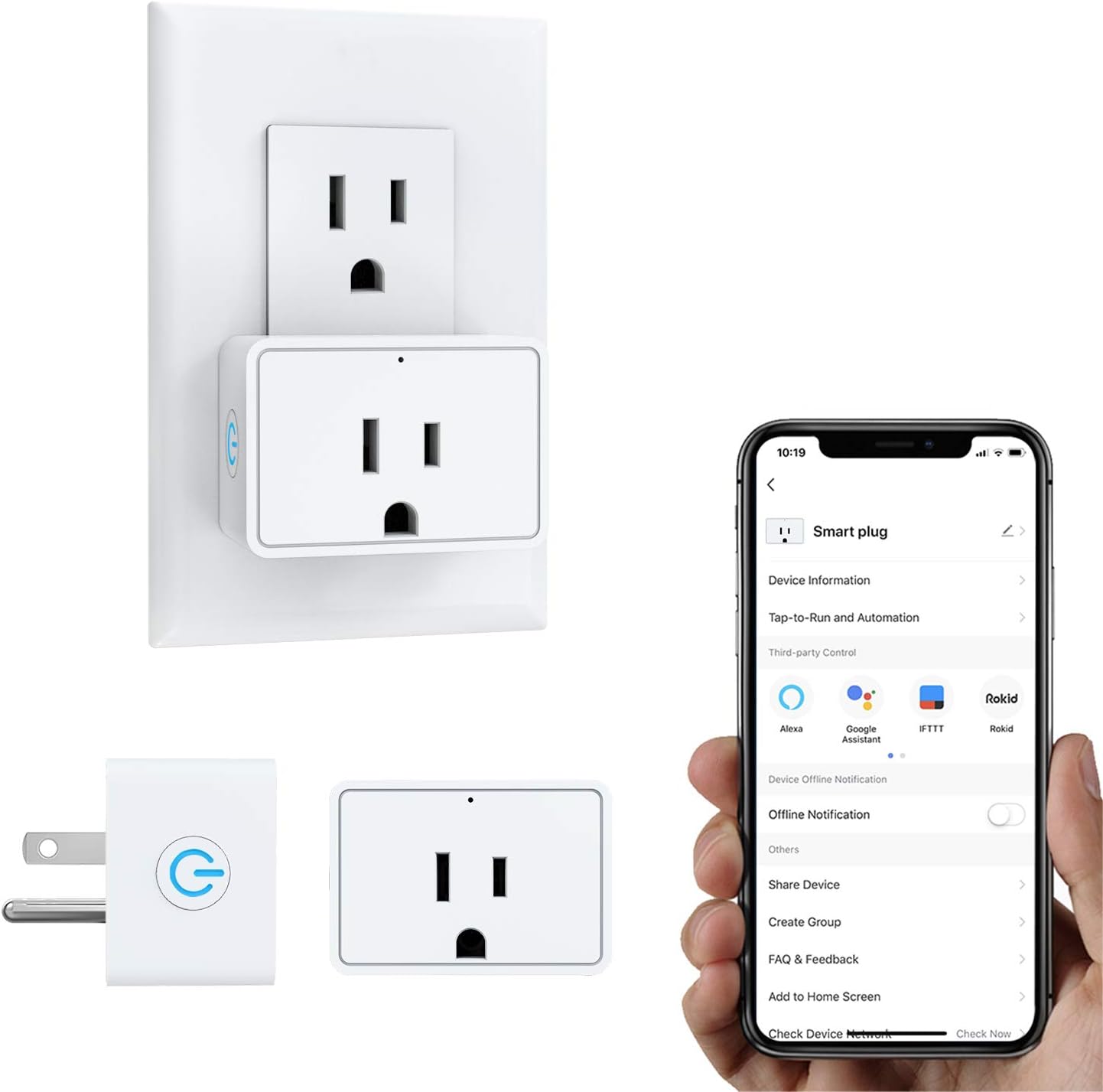
Image: The MoKo Smart Plug Mini WiFi Outlet plugged into a wall outlet, alongside a smartphone displaying the "Smart Life" app interface for controlling the plug.
Key Features:
- APP Remote Control: Control appliances from anywhere using the "Smart Life" APP.
- Voice Control: Compatible with Amazon Alexa and Google Home for hands-free operation.
- Energy Monitoring: Check electrical quantity consumption of connected devices.
- Scheduling & Timer: Set independent schedules to turn devices ON/OFF automatically.
- Group Control & Scene Creation: Manage multiple smart sockets simultaneously.
- Device Sharing: Share control with family members.
- Compact Design: Occupies only one socket, allowing two plugs in a standard outlet.
- Safety Features: FCC/ROHS certified, flame retardant PC material, safety circuit protection, and current overload protection (16A Resistive Max).
2. Setup Guide
Follow these steps to set up your MoKo Smart Plug:
- Download the "Smart Life" APP: Search for "Smart Life" in the App Store (iOS) or Google Play Store (Android) and download the application.
- Register/Log In: Open the app and register a new account or log in if you already have one.
- Plug in the Smart Plug: Insert the MoKo Smart Plug into a standard wall outlet. Ensure the indicator light on the plug is blinking rapidly. If not, press and hold the power button on the plug for 5 seconds until it blinks rapidly.
- Add Device in APP:
- In the "Smart Life" app, tap the "+" icon in the top right corner to add a device.
- Select "Electrical Outlet" or "Socket (Wi-Fi)" from the device list.
- Confirm that the indicator light on the plug is blinking rapidly.
- Enter your 2.4GHz Wi-Fi network password. Note: The smart plug only supports 2.4GHz Wi-Fi networks. It does not support 5.0GHz networks.
- The app will begin connecting to the device. Once connected, you can rename the smart plug for easier identification.
- Connect to Voice Assistants (Optional):
- For Amazon Alexa: Open the Alexa app, go to Skills & Games, search for "Smart Life", enable the skill, and link your Smart Life account. Then, discover devices.
- For Google Home: Open the Google Home app, tap "Set up device" > "Works with Google", search for "Smart Life", link your account, and assign the device to a room.
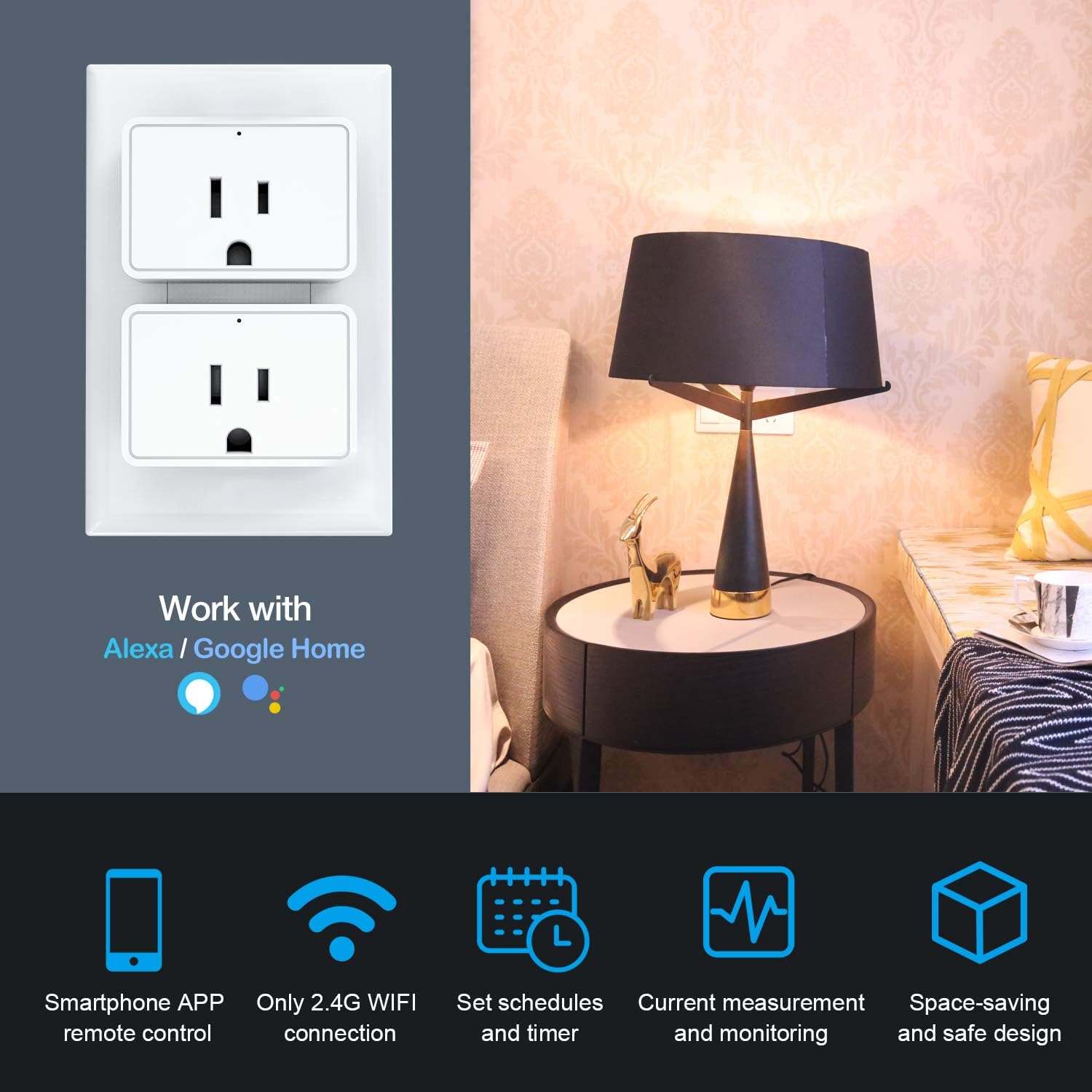
Image: The MoKo Smart Plug Mini WiFi Outlet shown in a home setting, highlighting its compatibility with Amazon Alexa and Google Home for voice control.
3. Operating Instructions
3.1 APP Remote Control
Once connected, you can control your smart plug from anywhere using the "Smart Life" app. Tap on the device icon to toggle it ON/OFF. The app also provides real-time status of the connected device.

Image: A hand holding a smartphone displaying the "Smart Life" app with a large power button, illustrating remote control capabilities.
3.2 Voice Control
After linking with Amazon Alexa or Google Home, you can use voice commands to control your smart plug. Examples:
- "Alexa, turn on the living room light."
- "Hey Google, turn off the fan."

Image: A living room scene with an Amazon Echo device, illustrating voice commands being used to control a lamp.
3.3 Scheduling and Timer
Set up schedules or timers for your devices to automate their operation. This is useful for lights, coffee makers, or other appliances you want to turn on or off at specific times.
- In the Smart Life app, select your smart plug.
- Tap on "Schedule" or "Timer" to create new automation rules.
- Set desired ON/OFF times and repeat days.

Image: A circular diagram illustrating various daily activities and how the smart plug can manage appliances like bedroom lights, bedside lamps, electric kettles, humidifiers, and home appliances through timing management.
3.4 Energy Monitoring
The smart plug provides real-time and historical data on the energy consumption of connected devices. This feature helps you track and manage your electricity usage.
- In the Smart Life app, select your smart plug.
- Look for the "Energy" or "Statistics" section to view current, power, voltage, and total energy consumption (kWh).
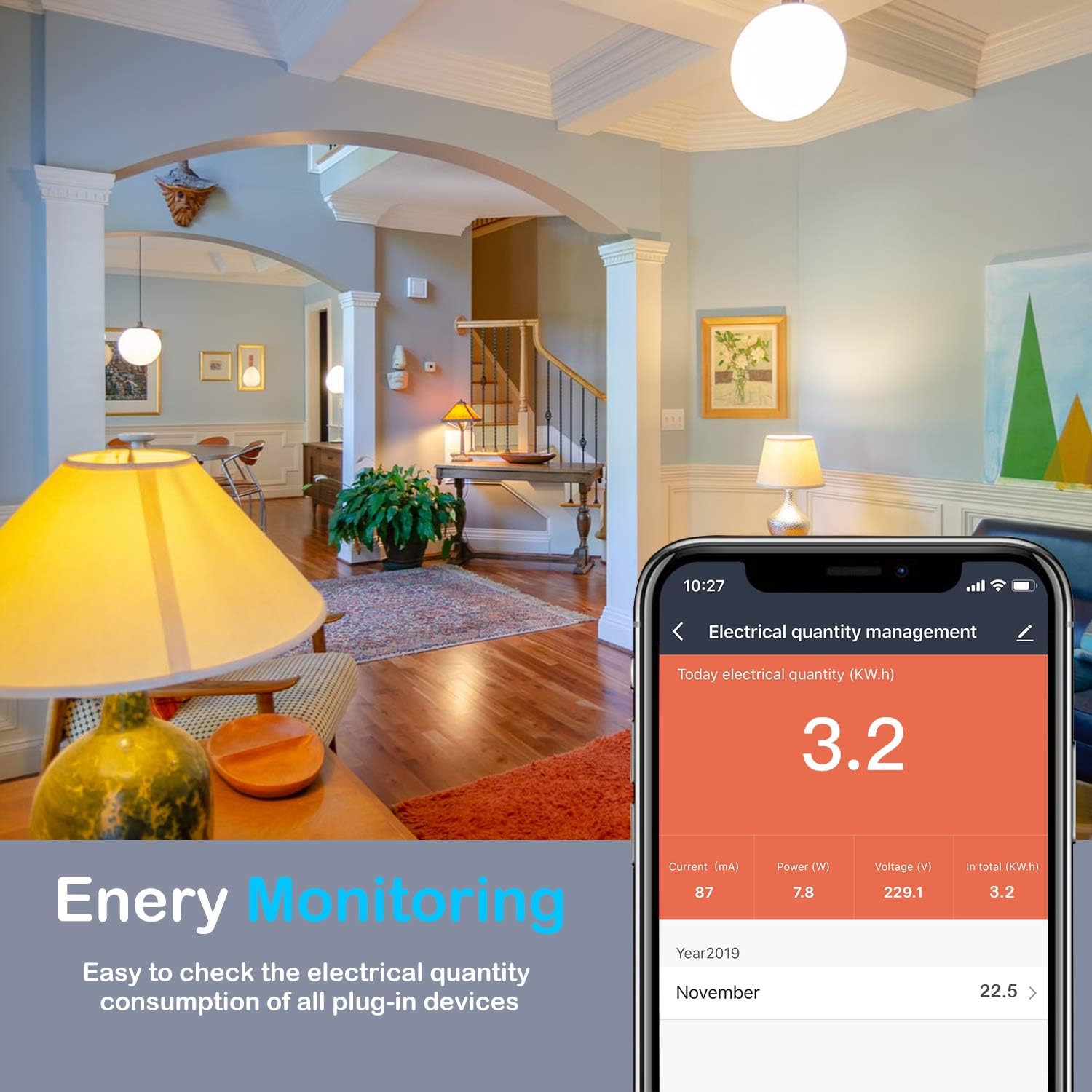
Image: A smartphone screen displaying the "Electrical quantity management" interface within the Smart Life app, showing current, power, voltage, and total kWh consumption data.
3.5 Group Control and Device Sharing
You can create groups to control multiple smart plugs simultaneously or share control of individual devices with family members.
- Group Control: In the app, go to "Smart" or "Scene" and create a new group. Add multiple smart plugs to this group to control them with a single command.
- Device Sharing: Select the device you wish to share, tap on "Share Device", and enter the account details of the family member you wish to share with.

Image: A split image showing "Group Control" with a smartphone displaying a list of devices in a living room group, and "Device Sharing" with two individuals looking at a tablet displaying a device sharing interface.
4. Maintenance
To ensure optimal performance and longevity of your MoKo Smart Plug, follow these simple maintenance guidelines:
- Cleaning: Wipe the smart plug with a soft, dry cloth. Do not use liquid cleaners or abrasive materials.
- Placement: Ensure the plug is used in a dry indoor environment, away from water, excessive humidity, and extreme temperatures.
- Overload Prevention: Do not exceed the maximum load current of 16A. Overloading can damage the device and pose a safety risk.
- Firmware Updates: Periodically check the "Smart Life" app for any available firmware updates for your smart plug to ensure it has the latest features and security enhancements.
5. Troubleshooting
If you encounter issues with your MoKo Smart Plug, refer to the following common problems and solutions:
| Problem | Possible Cause / Solution |
|---|---|
| Smart Plug cannot connect to Wi-Fi. |
|
| Device frequently disconnects from Wi-Fi. |
|
| Smart Plug does not respond to voice commands. |
|
| Timer or schedule does not work. |
|
| Plug fails when connecting high-power appliances. |
|

Image: The MoKo Smart Plug Mini WiFi Outlet with icons representing its security features: FCC & RoHS Certified, Flame Retardant PC, Energy Management, and Current Overload Protection.
6. Specifications
| Specification | Value |
|---|---|
| Brand | MoKo |
| Model Number (ASIN) | B07ZLP253T |
| Current Rating | 16 Amps (Resistive Max) |
| Wattage | 1920 Watts (Max) |
| Connectivity Protocol | Wi-Fi (2.4GHz only) |
| Controller Type | Amazon Alexa, Google Assistant, IFTTT, SmartThings, iOS, Android |
| Control Method | Remote (via Smart Life App) |
| Material | Flame Retardant PC, Copper (Contact Material) |
| Color | White |
| Product Dimensions (L x W x H) | 2.91 x 2.64 x 2.32 inches |
| Item Weight | 2.29 ounces |
| Certifications | FCC, ROHS |
7. Warranty and Support
MoKo products are designed for reliability and performance. For any product inquiries, technical support, or warranty claims, please contact MoKo customer service through the official channels provided at the point of purchase or on the MoKo brand website.
Please retain your proof of purchase for warranty purposes.
Related documentsB07ZLP253T


Ask a question about this manual
Ask about setup, troubleshooting, compatibility, parts, safety, or missing instructions. Manuals+ will review the question and use this page’s manual context to help answer it.