
ORICO M.2 SATA-Gray
ORICO M.2 NGFF SSD Enclosure User Manual
Model: M.2 SATA-Gray
1. Introduction
This user manual provides detailed instructions for the installation, operation, and maintenance of your ORICO M.2 NGFF SSD Enclosure. This device allows you to convert an M.2 NGFF (SATA-based) SSD into a portable external storage solution via a USB Type-C interface, offering high-speed data transfer.

Image: The ORICO M.2 NGFF SSD Enclosure, a sleek, grey aluminum casing designed for portability and efficient heat dissipation.
2. Package Contents
Please verify that all items listed below are present in your package:
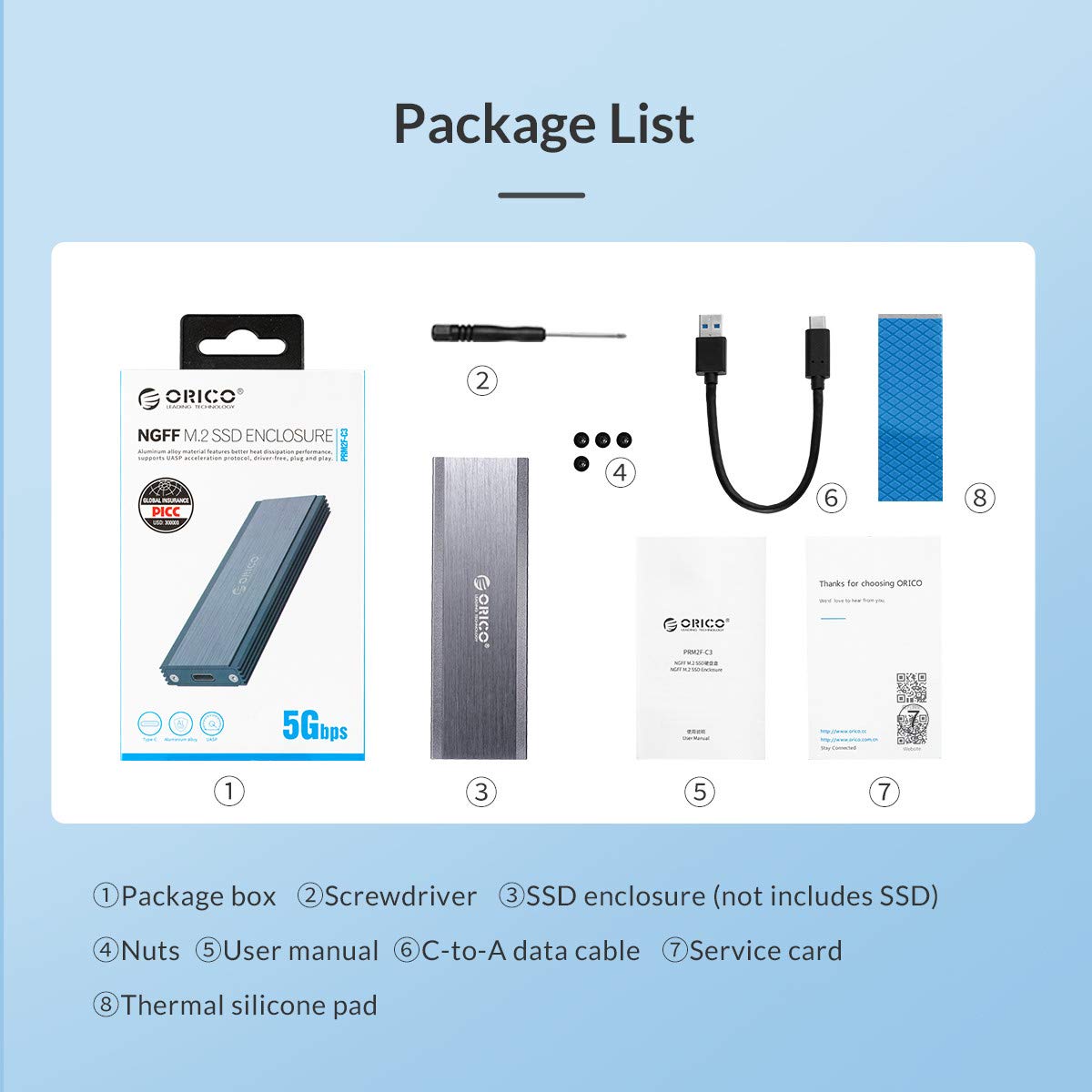
Image: A visual representation of the package contents, showing each item with a corresponding number.
- Package box
- Screwdriver
- SSD enclosure (SSD not included)
- Nuts
- User manual
- C-to-A data cable
- Service card
- Thermal silicone pad
3. Specifications
| Feature | Description |
|---|---|
| Model | M.2 SATA-Gray |
| Compatible SSDs | M.2 NGFF B-Key & B+M Key SSD (SATA based) |
| Supported SSD Sizes | 22x30, 22x42, 22x60, 22x80 mm |
| Interface | USB Type-C (M.2 to Type-C 3.1 Interface Standard) |
| Transfer Speed | Up to 5Gbps (USB 3.1 Gen 1) |
| Heat Dissipation | Triple Heat Dissipation (Porous double-sided copper bar, Aluminum case with fin design, Thermal silicone pad) |
| Dimensions | Length: 103.5mm, Width: 33mm, Height: 10mm |
| Weight | 45 g |
| Features | Ultra-compact, Auto-sleep after 10 minutes of inactivity, LED indicator |
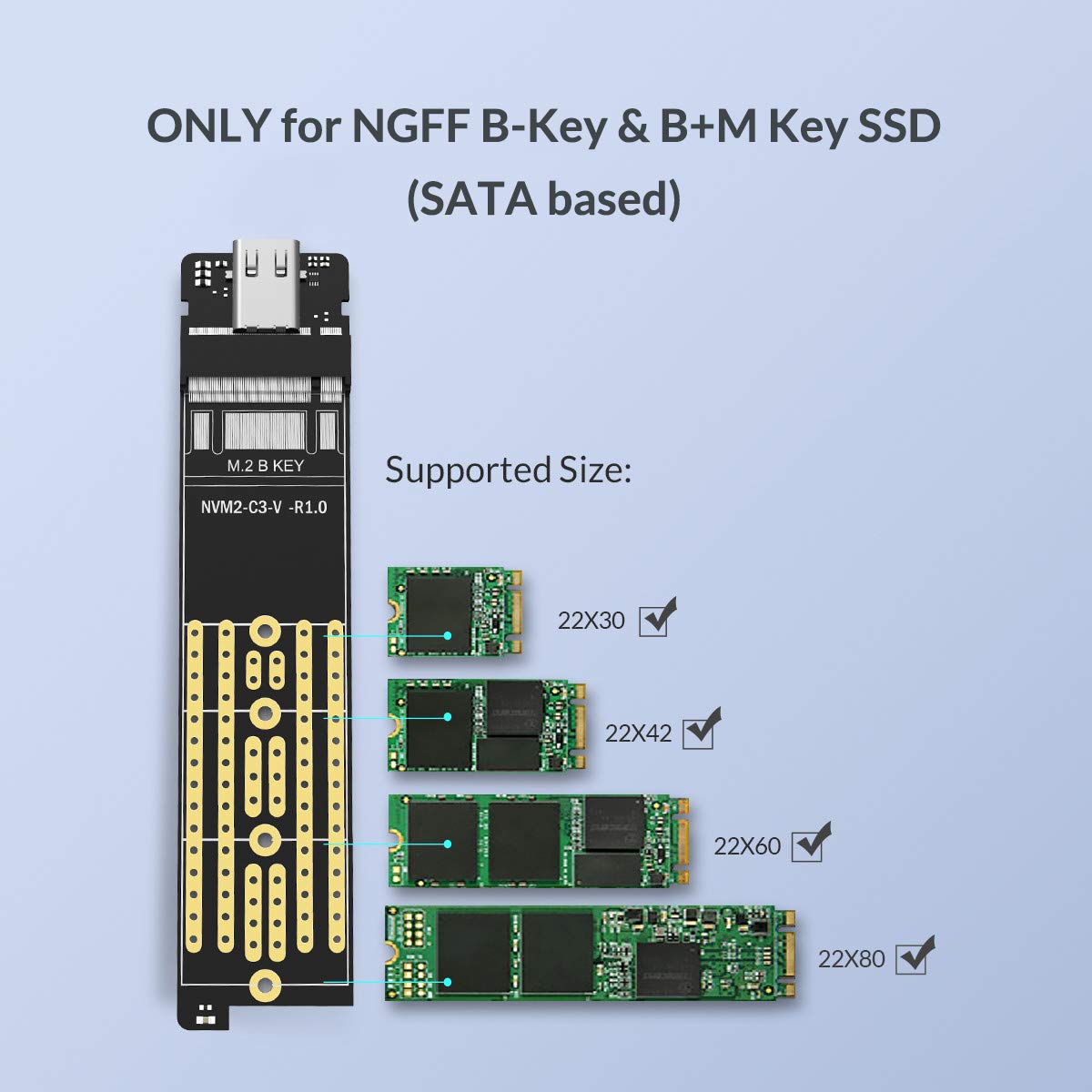
Image: Diagram illustrating the supported M.2 NGFF B-Key and B+M Key SSD sizes (22x30, 22x42, 22x60, 22x80 mm).

Image: Details on the Type-C interface, NGFF SATA Revision 3.0, M.2 to Type-C 3.1 standard, and up to 5Gbps transfer speed.

Image: Illustration of the triple heat dissipation features: porous double-sided copper bar, aluminum case with fin design, and thermal silicone pad.

Image: Visual details highlighting the ultra-compact size, automatic sleep mode after 10 minutes of inactivity, and the blue LED indicator for power and data transfer.
4. Setup and Installation
Follow these steps carefully to install your M.2 NGFF SSD into the enclosure:

Image: Step-by-step visual guide for installing an M.2 SSD into the ORICO enclosure.
- Unscrew the screws: Use the provided screwdriver to loosen and remove the screws at the end of the enclosure.
- Push out the PCBA board: Gently slide the internal PCBA board out of the aluminum casing.
- Fixing SSD on PCBA board: Insert your M.2 NGFF SSD into the slot on the PCBA board. Secure it by installing the screw nuts into the designated holes.
- Apply thermal pad: Tear off the protective film from the thermal silicone pad and carefully stick it between the SSD and the SSD enclosure's internal surface. This ensures optimal heat dissipation.
- Fixing the screws: Slide the assembled PCBA board back into the enclosure. Lastly, fix the screws on both ends of the enclosure to secure it.
Your M.2 NGFF SSD is now securely installed and ready for use.
5. Operating Instructions
5.1 Connecting to a Device
Once the SSD is installed, connect the enclosure to your computer or compatible device using the provided USB Type-C to Type-A data cable. If your device has a Type-C port, you may use a Type-C to Type-C cable (not included).
- Plug the Type-C end of the cable into the enclosure.
- Plug the Type-A (or Type-C) end into an available USB port on your computer.
- The blue LED indicator on the enclosure will light up when connected to power.
5.2 Data Transfer
The enclosure will be recognized as an external drive by your operating system. You can now drag and drop files, copy, paste, or use it for backups just like any other external storage device.
- During data transfer, the blue LED indicator will flash, indicating activity.
- Ensure proper ejection of the drive from your operating system before disconnecting to prevent data corruption.
5.3 Auto-Sleep Function
The ORICO M.2 NGFF SSD Enclosure features an automatic sleep mode. If the enclosure is left unused for approximately 10 minutes, it will enter sleep mode to conserve power and extend the lifespan of the SSD. It will automatically wake up upon access.
6. Maintenance
To ensure the longevity and optimal performance of your ORICO M.2 NGFF SSD Enclosure, please follow these maintenance guidelines:
- Cleaning: Use a soft, dry cloth to wipe the exterior of the enclosure. Avoid using liquid cleaners or abrasive materials.
- Storage: Store the enclosure in a cool, dry place away from direct sunlight, extreme temperatures, and high humidity.
- Handling: Handle the enclosure with care. Avoid dropping it or subjecting it to strong impacts, which could damage the internal components or the installed SSD.
- Disconnection: Always safely eject the drive from your computer's operating system before physically disconnecting the USB cable. This prevents data corruption and potential damage to the SSD.
- Firmware: Periodically check the ORICO official website for any available firmware updates for your enclosure model.
7. Troubleshooting
If you encounter issues with your ORICO M.2 NGFF SSD Enclosure, refer to the following common problems and solutions:
- Enclosure not recognized by computer:
- Ensure the USB cable is securely connected to both the enclosure and the computer.
- Try a different USB port on your computer.
- Try a different USB cable.
- Verify that the M.2 SSD is correctly installed inside the enclosure and secured.
- Check Disk Management (Windows) or Disk Utility (macOS) to see if the drive is detected but uninitialized or unformatted. If so, initialize and format it (this will erase all data on the SSD).
- Ensure your M.2 SSD is NGFF (SATA-based) and not NVMe. This enclosure only supports NGFF SATA SSDs.
- Slow transfer speeds:
- Ensure you are connected to a USB 3.0 (or higher) port on your computer. USB 2.0 ports will limit speeds significantly.
- Verify the SSD itself is capable of high speeds.
- Check if other USB devices are consuming bandwidth.
- Ensure your operating system and drivers are up to date.
- LED indicator not lighting up:
- Check the USB cable connection.
- Try a different USB port or computer.
- Ensure the enclosure is receiving sufficient power from the USB port.
- Enclosure gets hot during use:
- It is normal for the aluminum enclosure to become warm during heavy data transfer, as it is designed to dissipate heat from the SSD.
- Ensure the thermal silicone pad is correctly installed between the SSD and the enclosure.
- Avoid placing the enclosure in enclosed spaces that restrict airflow.
If the problem persists after trying these solutions, please contact ORICO customer support for further assistance. Refer to the "Warranty and Support" section for contact details.
8. Warranty and Support
ORICO products come with a standard manufacturer's warranty. Please refer to the service card included in your package for specific warranty terms and conditions, including the warranty period and coverage details.
8.1 Customer Support
For technical support, warranty claims, or any other inquiries, please contact ORICO customer service through the following channels:
- Official Website: Visit the official ORICO website for FAQs, driver downloads, and support contact information. You can often find a "Support" or "Contact Us" section.
- Email Support: Refer to your service card or the ORICO website for the dedicated support email address.
- Online Retailer: For purchase-related issues, you may also contact the retailer from whom you purchased the product.
When contacting support, please have your product model number (M.2 SATA-Gray) and purchase information readily available.
Related documentsM.2 SATA-Gray


Ask a question about this manual
Ask about setup, troubleshooting, compatibility, parts, safety, or missing instructions. Manuals+ will review the question and use this page’s manual context to help answer it.