
1. Product Overview
This manual provides detailed instructions for the installation and operation of your MPC Factory Remote Activated Remote Start system, designed for 2010-2019 Chevrolet Cruze models with automatic transmission and key-to-start ignition.

Image: The MPC remote start system components, including the module, T-harness, and FlashLink Updater, alongside a compatible Chevrolet Cruze vehicle.
1.1. Key Features
- Factory Remote Activation: Utilizes your existing factory key fobs to initiate remote start by pressing the "lock" button three times. No additional remotes are required.
- Plug & Play Installation: Features a T-Harness design that significantly reduces wiring connections, simplifying the installation process.
- Preloaded Firmware: The system comes with firmware preloaded specifically for your vehicle model.
- FlashLink Updater Included: A tool for programming and updating the module via a Windows PC.
- USA-Based Technical Support: Access to premier technical support for assistance.
1.2. Compatibility
- Vehicle Models: 2010-2019 Chevrolet Cruze.
- Transmission: Automatic Transmission ONLY.
- Engine Type: Gas Engine Only (NOT for Hybrid).
- Ignition Type: Conventional Key-Start ONLY (Does NOT work in Push-To-Start Vehicles).

Image: Visual representation of vehicle compatibility, indicating that only key-start ignition and gas engines are supported.
2. Setup & Installation
The installation process is designed to be plug-and-play, minimizing the need for complex wiring. A person with basic knowledge of car electronics should be able to install this product successfully.


Images: Examples of digital instruction guides available on a laptop and tablet, providing visual assistance for installation.
2.1. General Installation Notes
- A Windows PC with a USB port is required for module setup and programming.
- Concise instructions with plug locations are provided to ensure seamless installation.
- Adding additional options (e.g., smartphone app interface) may require extra wiring connections.
2.2. Installation for Chevrolet Cruze 2010-2015
This video demonstrates the installation process for Chevrolet Cruze models from 2010 to 2015.
Video: Installation guide for the remote start system in a 2010-2015 Chevrolet Cruze. It shows how to access the BCM on the passenger side, remove the panel, disconnect the white, blue, and green connectors, and connect the T-harness inline.
- Locate the Body Control Module (BCM) on the passenger side of the vehicle, near the center console.
- Remove the panel covering the BCM. Some vehicles may require removing a single screw, while others allow direct pulling.
- Press the tabs and disconnect the white, blue, and green connectors from the BCM.
- Connect the T-harness inline with the vehicle's connectors. Ensure each side is properly and fully connected, listening for a click.
2.3. Installation for Chevrolet Cruze 2016+
This video demonstrates the installation process for Chevrolet Cruze models from 2016 and newer.
Video: Installation guide for the remote start system in a 2016+ Chevrolet Cruze. It shows how to locate the BCM under the driver's side dash, disconnect three connectors, and connect the T-harness inline. It also suggests pressing the emergency brake for better access.
- Locate the Body Control Module (BCM) under the driver's side dash. No panels typically need to be removed for access.
- Press down on the emergency brake to gain slightly more access to the BCM.
- Disconnect the three connectors (white, blue, and green) from the BCM by pressing on their tabs.
- Connect the matching connectors from the T-harness inline to each connector removed from the BCM. Ensure a secure connection, listening for a click.
2.4. Module Programming with FlashLink Updater
The FlashLink Updater tool is essential for completing key programming and ensuring the module functions correctly with your vehicle. This process requires a Windows PC.
Video: Guide on how to flash and update a Blade module using a computer and the ADS-USB tool. This process is similar to using the FlashLink Updater for programming your remote start module.
- Connect the FlashLink Updater to your Windows PC via USB.
- Connect the remote start module to the FlashLink Updater.
- Follow the on-screen instructions provided by the FlashLink Updater software to complete the key programming and any necessary firmware updates.
- Ensure all steps are followed carefully to avoid operational issues.
3. Operating Instructions
3.1. Remote Start Using Factory Fob
To activate the remote start function, use your existing factory key fob:
- Press the "lock" button on your factory key fob three (3) times consecutively.
- The vehicle's engine will start, and the doors will remain locked.
- To turn off the vehicle, repeat the three-press sequence on the "lock" button.
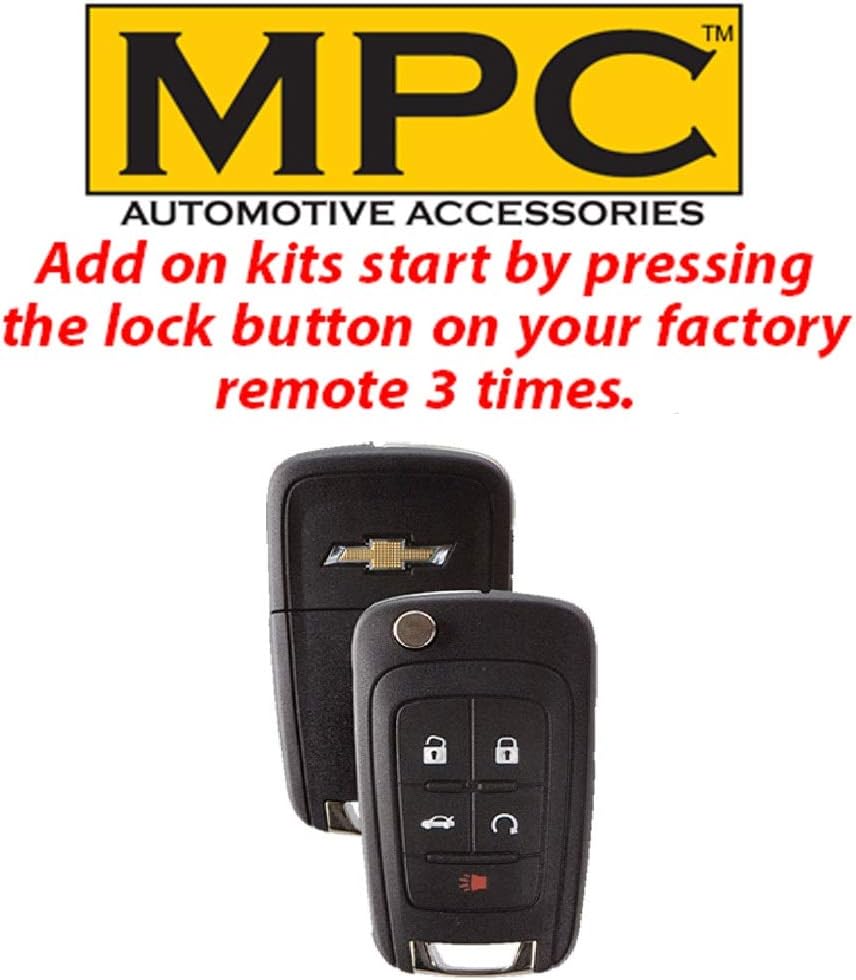
Image: Two Chevrolet factory key fobs, illustrating the method of pressing the lock button three times to activate the remote start function.
3.2. Entering the Vehicle After Remote Start
After remote starting your vehicle, follow these steps to enter and drive:
- Unlock the vehicle doors using your factory key fob.
- Enter the vehicle. The engine will continue to run.
- Insert your key into the ignition and turn it to the "ON" or "RUN" position (do not turn to START).
- Press the brake pedal. The remote start system will disengage, and the vehicle will transfer to normal key operation.
4. Maintenance
To ensure optimal performance and longevity of your remote start system:
- Periodically check all connections to ensure they remain secure.
- Keep the module free from moisture and extreme temperatures.
- Check the manufacturer's website for any available firmware updates for your module.
5. Troubleshooting
If you encounter issues with your remote start system, consider the following:
- System Not Starting: Verify all T-harness connections are fully seated and secure. Ensure the module has been properly programmed using the FlashLink Updater.
- Factory Remote Issues After Start: Some users have reported that the factory remote may not unlock the car after remote start, requiring the physical key. This is a known characteristic for some vehicle models.
- General Malfunction: Re-check the programming steps. If issues persist, contact technical support.
6. Specifications
- Item Weight: 7.8 ounces
- Product Dimensions: 12 x 15.5 x 0.5 inches
- Item Model Number: B-2362-147-A
7. Warranty & Support
7.1. Warranty Information
MPC remote starters and alarms carry a limited lifetime warranty through the manufacturer. Physical damage or damage due to improper installation will void the manufacturer's warranty.
- First Year: Contact MPC for warranty issues. The product must be returned at the customer's expense for service.
- After First Year: Warranty issues must be handled directly through the manufacturer. A receipt from the original purchase will be required.
- The product is warranted to the end user, when properly installed and under normal conditions of use, to be free from defects in workmanship and materials for a period of one year from the provided date of purchase, to the original purchaser.
- This warranty does not cover abuse, operation inconsistent with the product's design, or damage from environmental exposure.
- If a defect is considered "under warranty," MyPushcart will, at its option, repair or replace the product free of charge. MyPushcart is not liable for installation charges, loss, or damage incurred in replacement or repair.
7.2. Technical Support
MPC offers premier USA-based technical support from Tucson, AZ. Several different methods of support are available, and QR code instructions are included for the most up-to-date information.

Image: A technical support representative ready to assist customers with product inquiries.
- Refer to the included QR code for the most current support resources.
- Contact information for technical support is typically provided with the product packaging.