
Gemmy 223261
Gemmy CineMotion Multi-Function Multicolor LED Projector User Manual
Model: 223261
For optimal performance and safety, please read these instructions carefully before use.
1. Introduction
The Gemmy CineMotion Multi-Function Multicolor LED Projector is designed to bring dynamic light shows to your home, perfect for holidays like Halloween and Christmas, or any occasion. This advanced projector allows you to display action scenes with sound onto various flat surfaces, including walls, windows, and doors, using the included fabric screen. It also features external ports for playing your own videos year-round.
Key features include:
- Projects Halloween and Christmas action scenes.
- Fabric screen for dynamic indoor displays on windows, doors, and walls.
- Includes a remote control for convenient operation.
- Utilizes bright, energy-efficient LEDs.
- Equipped with 1 SD card slot, 1 USB port, and 1 audio output for versatile media playback.
2. Safety Information
Please observe the following safety precautions to prevent injury or damage to the projector:
- Do not look directly into the projector lens when the unit is powered on, as the bright light may cause eye damage.
- Ensure the projector is placed on a stable, level surface to prevent tipping.
- Keep the projector away from water, moisture, and extreme temperatures.
- Do not block ventilation openings. Proper airflow is essential to prevent overheating.
- Use only the power adapter supplied with the projector.
- Unplug the projector from the power outlet before cleaning or when not in use for extended periods.
- Do not attempt to disassemble or repair the projector yourself. Refer all servicing to qualified personnel.
3. Package Contents
Verify that all items are present in your package:
- Gemmy CineMotion LED Projector
- Remote Control
- Tripod Stake
- Fabric Screen
- Power Adapter
- User Manual (this document)
4. Product Overview
Familiarize yourself with the components of your CineMotion Projector:

Figure 4.1: Gemmy CineMotion LED Projector and Remote Control. This image shows the compact black projector unit mounted on a small tripod, with its lens facing forward. To the right, a black remote control with various buttons (power, navigation, volume, play/pause) is displayed.
- Projector Lens: Emits the light and image.
- Control Panel: Buttons on top of the projector for basic operation.
- Ventilation Grilles: Located on the sides and back to dissipate heat.
- Input Ports: Includes SD card slot, USB port, and audio output jack.
- Power Input: For connecting the power adapter.
- Tripod Mount: Threaded hole on the bottom for attaching the tripod stake.
- Remote Control: For wireless operation of the projector's functions.
5. Setup
5.1. Remote Control Battery Installation
- Locate the battery compartment on the back of the remote control.
- Slide open the battery cover.
- Insert the required batteries (typically 2x AAA, not specified in product data, so keep it general) ensuring correct polarity (+/-).
- Close the battery cover securely.
5.2. Projector Placement
The CineMotion projector is versatile and can be used indoors or outdoors (in dry conditions). Consider the following for optimal projection:
- Indoor Use: Place the projector on a flat, stable surface or attach it to the included tripod. Position it at an appropriate distance from your projection surface (wall, window, or fabric screen) to achieve the desired image size and clarity.
- Window/Door Projection: For projecting scenes onto windows or doors, hang the included fabric screen on the inside of the window/door. Position the projector inside, facing the screen, to project the image outwards.
- Outdoor Use: If using outdoors, ensure the projector is protected from rain and moisture. The tripod stake can be used to secure the projector in soft ground.
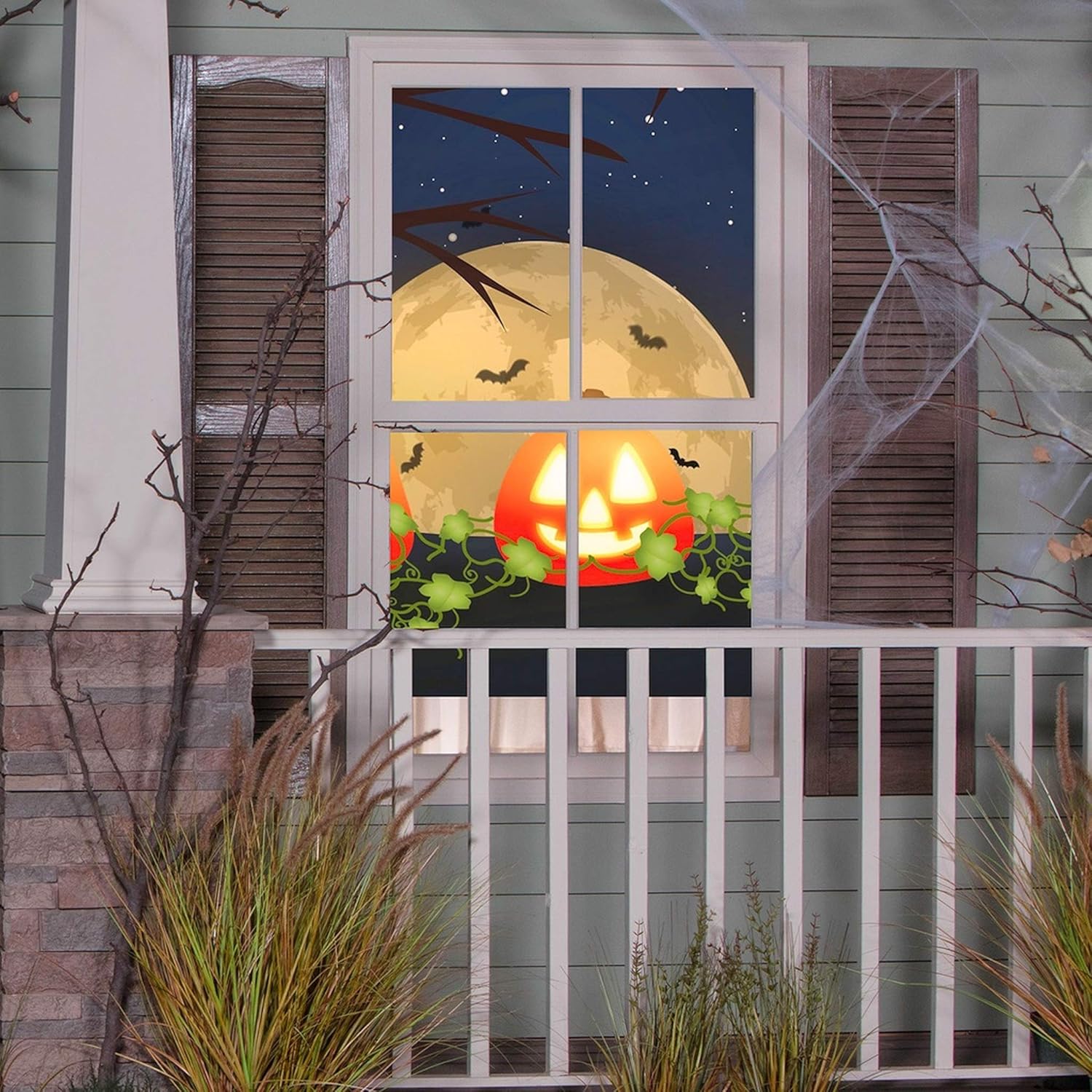
Figure 5.1: Example of a Halloween scene projected onto a window. The image shows a large, glowing pumpkin and bats silhouetted against a full moon, visible through a house window, demonstrating the projector's capability for dynamic outdoor displays.
5.3. Power Connection
- Connect the power adapter cable to the power input port on the projector.
- Plug the power adapter into a standard electrical outlet (120 Volts).
6. Operating Instructions
6.1. Powering On/Off
- Press the Power button on the remote control or the projector's control panel to turn the unit on.
- Press the Power button again to turn the unit off.
6.2. Navigating Menus and Playing Content
The projector comes pre-loaded with Halloween and Christmas scenes. You can also play content from an SD card or USB drive.
- Upon powering on, the projector will display the main menu.
- Use the Arrow buttons (Up, Down, Left, Right) on the remote control or projector to navigate through menu options.
- Press the OK button to select an option or confirm a choice.
- To play pre-loaded scenes, navigate to the "Holiday Scenes" or similar option and select the desired scene.
- To play your own videos:
- Insert a compatible SD card into the SD card slot or a USB drive into the USB port.
- Navigate to the "Media" or "External Input" option in the main menu.
- Select "SD Card" or "USB" as the source.
- Browse through your files using the Arrow buttons and press OK to play.
- Use the Volume +/- buttons on the remote to adjust audio levels.
- The Play/Pause, Stop, Fast Forward, and Rewind buttons on the remote control function during media playback.
- Press the Menu or Return button to go back to the previous screen or main menu.
Note: Some users have reported initial difficulty navigating menus. Take your time to explore the options using the arrow and OK buttons. If the screen appears frozen, try pressing the "Return" or "Menu" button, or power cycling the device.
6.3. Audio Output
The projector includes an audio output jack. You can connect external speakers or headphones to this port for enhanced audio experience.
7. Maintenance
7.1. Cleaning
- Before cleaning, ensure the projector is turned off and unplugged from the power outlet.
- Use a soft, dry cloth to wipe the exterior of the projector.
- For the lens, use a lens cleaning cloth specifically designed for optical surfaces. Do not use abrasive cleaners or solvents.
- Periodically check ventilation grilles for dust accumulation and gently clean them with a soft brush or compressed air.
7.2. Storage
When not in use, store the projector in a cool, dry place, away from direct sunlight and extreme temperatures. It is recommended to store it in its original packaging to protect it from dust and physical damage.
8. Troubleshooting
If you encounter issues with your projector, please refer to the following common problems and solutions:
| Problem | Possible Cause | Solution |
|---|---|---|
| Projector does not turn on. | No power connection. Faulty power adapter. | Ensure the power adapter is securely plugged into the projector and a working electrical outlet. Try a different outlet. |
| No image projected. | Lens cap on. Incorrect input source selected. Projector is in standby mode. | Remove the lens cap. Check if the correct input (e.g., SD, USB) is selected in the menu. Press the power button to wake the projector. |
| Screen frozen / Unresponsive. | Software glitch. | Press the Menu or Return button. If unresponsive, power off the projector by unplugging it, wait a few seconds, then plug it back in and restart. |
| Remote control not working. | Dead batteries. Obstruction between remote and projector. | Replace batteries in the remote control. Ensure there is a clear line of sight between the remote and the projector's IR receiver. |
| No sound. | Volume too low or muted. External speakers not connected properly. | Increase volume using the remote. Check if mute is enabled. Ensure external speakers are properly connected to the audio output jack and are powered on. |
9. Specifications
| Feature | Detail |
|---|---|
| Manufacturer | Gemmy |
| Model Number | 223261 |
| Item Weight | 2.55 pounds |
| Package Dimensions | 10.6 x 7.9 x 4.8 inches |
| Color | Multicolor |
| Material | Plastic |
| Voltage | 120 Volts |
| Wattage | 6 watts |
| Display Style | LED |
| Mounting Type | Tabletop Mount |
| Connectivity Technology | USB |
| Display Resolution | 320 x 240 |
| Included Components | Remote control, tripod stake |
| Batteries Included? | Yes |
| Batteries Required? | No (for projector operation, yes for remote) |
10. Warranty and Support
For warranty information or technical support, please contact Gemmy customer service. Details are typically provided on the product packaging or the official Gemmy website.
Please retain your proof of purchase for any warranty claims.
Related documents223261

Ask a question about this manual
Ask about setup, troubleshooting, compatibility, parts, safety, or missing instructions. Manuals+ will review the question and use this page’s manual context to help answer it.