1. Introduction
This manual provides essential instructions for the installation, operation, and maintenance of your Cisco Aironet 2602I Standalone Wireless Access Point. The Cisco Aironet 2602i is an enterprise-grade wireless access point designed to provide secure and reliable Wi-Fi connectivity for various environments. Please read this manual thoroughly before using the device to ensure proper functionality and safety.
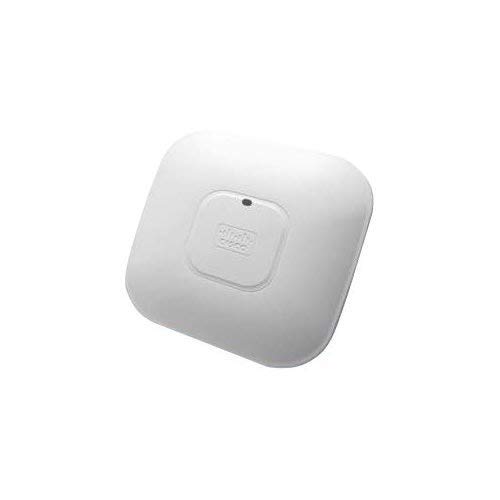
Image showing the front view of the Cisco Aironet 2602I Wireless Access Point.
2. Safety Information
Always observe the following safety precautions to reduce the risk of injury, electric shock, fire, or damage to the device:
- Ensure the power source matches the voltage requirements specified for the device.
- Do not expose the device to water, moisture, or extreme temperatures.
- Avoid placing the device near heat sources or in direct sunlight.
- Do not attempt to open or repair the device yourself. Refer all servicing to qualified personnel.
- Use only accessories and power adapters approved by the manufacturer.
- Ensure proper ventilation around the device to prevent overheating.
3. Package Contents
Verify that your package contains the following items:
- Cisco Aironet 2602I Wireless Access Point (1 unit)
- Mounting Bracket (if applicable)
- Power Adapter (if included, or PoE injector/switch required)
- Documentation (Quick Start Guide, Safety Information)
Note: Specific accessories may vary based on the product bundle or region.
4. Setup
4.1 Physical Installation
- Choose a Location: Select a central location for optimal Wi-Fi coverage, away from obstructions and sources of interference (e.g., microwave ovens, cordless phones).
- Mounting (Optional): If mounting, use the provided bracket to secure the access point to a wall or ceiling. Ensure it is securely fastened.
- Connect Ethernet Cable: Connect an Ethernet cable from your network switch (preferably a Power over Ethernet (PoE) enabled switch) to the Ethernet port on the access point. If PoE is not available, use a compatible power adapter.
- Power On: Once connected, the access point will power on. Observe the LED indicators for status.
4.2 Initial Configuration
The Cisco Aironet 2602I is a standalone access point. Initial configuration typically involves connecting to the device's default Wi-Fi network or via a console cable for command-line interface (CLI) access.
- Default SSID: Look for a default Wi-Fi network broadcast by the access point (e.g., "CiscoAP" or similar).
- Default IP Address: The device may obtain an IP address via DHCP or have a default static IP (refer to Cisco documentation for specific default IP and credentials).
- Web Interface: Access the web-based management interface by entering the access point's IP address into a web browser.
- Security Configuration: Change default passwords immediately. Configure your desired Wi-Fi network name (SSID), security type (WPA2/WPA3 recommended), and password.
For detailed configuration steps, refer to the comprehensive Cisco Aironet 2600 Series documentation available on the Cisco support website.
5. Operation
5.1 Connecting Devices to Wi-Fi
- On your wireless device (laptop, smartphone, tablet), open the Wi-Fi settings.
- Scan for available networks.
- Select the SSID you configured for your Cisco Aironet 2602I.
- Enter the Wi-Fi password when prompted.
- Your device should now be connected to the wireless network.
5.2 LED Indicators
The access point features LED indicators that provide status information:
- Solid Green: Device is operating normally.
- Flashing Green: Device is booting up or performing a firmware upgrade.
- Solid Amber: Device has encountered an error or is in a warning state.
- Off: Device is not powered on.
Refer to the official Cisco documentation for a complete list of LED behaviors and their meanings.
6. Maintenance
6.1 Firmware Updates
Regularly check the Cisco support website for firmware updates. Firmware updates can improve performance, add new features, and address security vulnerabilities. Follow the instructions provided by Cisco for updating the firmware.
6.2 Cleaning
To clean the device, power it off and disconnect it from the power source. Use a soft, dry cloth to wipe the exterior. Do not use liquid cleaners or aerosol sprays directly on the device.
6.3 Environmental Considerations
Ensure the device is operated within its specified temperature and humidity ranges. Avoid placing it in areas with excessive dust or poor ventilation.
7. Troubleshooting
| Problem | Possible Cause | Solution |
|---|---|---|
| No power / Device not turning on | Power cable disconnected, faulty power adapter, no PoE. | Check power connections. Ensure PoE is active on the switch port or use a functional power adapter. |
| Cannot connect to Wi-Fi network | Incorrect Wi-Fi password, SSID not broadcasting, device out of range, Wi-Fi disabled. | Verify password. Check AP configuration. Move closer to the AP. Ensure Wi-Fi is enabled on the AP. |
| Slow Wi-Fi speed or intermittent connection | Interference, too many devices, outdated firmware, poor AP placement. | Change Wi-Fi channel. Reduce number of connected devices. Update firmware. Relocate AP for better signal. |
| Cannot access web management interface | Incorrect IP address, network connectivity issue, firewall blocking access. | Verify AP's IP address. Ensure your device is on the same network segment. Temporarily disable firewalls. |
If the problem persists after trying these solutions, contact technical support.
8. Specifications
| Model Name | AIR-SAP2602IBK9-WS |
| Brand | CISCO DESIGNED |
| Product Type | Networking Device (Wireless Access Point) |
| Wireless Communication Standard | 802.11a/b/g/n |
| Frequency Band Class | Dual-Band |
| Security Protocol | WPS, WPA2, WPA |
| Special Feature | WPS |
| Connectivity Technology | Wireless |
| Compatible Devices | Laptop, Smartphone, Tablet |
| Operating System | Cisco IOS |
| Control Method | Touch (Note: This typically refers to configuration via a web interface or CLI, not a physical touch screen on the AP itself.) |
| Item Weight | 4 pounds |
| Package Dimensions | 10 x 10 x 3 inches |
9. Warranty and Support
9.1 Warranty Information
This product is sold as "Amazon Renewed." Amazon Renewed products are backed by the Amazon Renewed Guarantee, which provides a replacement or refund within 90 days of receipt if the product does not work as expected. For specific warranty details from Cisco, please refer to the official Cisco website or contact Cisco support directly.
9.2 Technical Support
For technical assistance, troubleshooting, or further information regarding your Cisco Aironet 2602I, please visit the official Cisco support website or contact their customer service. For issues related to your Amazon Renewed purchase, please contact Amazon customer service.
- Cisco Support: www.cisco.com/c/en/us/support/index.html
- Amazon Renewed Support: Refer to your Amazon order details for specific return and support options.


