
1. Product Overview
The NovaPro UHD Jr is NovaStar’s new all-in-one controller that features excellent video processing capabilities, sending card functions and LED screen configurations. The NovaPro UHD Jr provides a variety of video input connectors, supporting full HD 4K×2K@60Hz image processing and sending capabilities. Besides, NovaPro UHD Jr supports 8K×1K@60Hz ultra-high resolution settings. With the help of smart control software V-Can from Novastar, the NovaPro UHD Jr can enable richer image mosaic effects and faster and easier operations. The NovaPro UHD Jr can send the processed video to the LED screen via Neutrik Ethernet ports and optical fiber ports. Thanks to its powerful video processing capabilities and sending functions, the NovaPro UHD Jr is well suited for stage control systems, conference sites, activities, exhibition sites and other high-end rental applications as well as fine-pitch LED displays.

Figure 1: Front view of the NovaStar NovaPro UHD Jr. This image displays the front panel of the controller, showing the display screen, control knobs, and input selection buttons.
2. Key Features
- Versatile Inputs and Outputs: Provides 1 × DP 1.2, 4 × DVI, 1 × HDMI 2.0 with loop output, and 2 × 12G-SDI with loop output.
- High Loading Capacity: Features 16 × Neutrik Ethernet output and 4 × optical fiber output, supporting up to 10,000,000 pixels.
- DVI Mosaic: An input source can be composed of up to 4 DVI input sources.
- HDR Output: Enhances display image quality for clearer and more vivid visuals.
- Low-Latency Output: Reduces latency from sending card to receiving card by 2 frames when used with NovaStar A5 or later receiving cards.
- Customized BKG Settings: Supports pure color and image backgrounds.
- Personalized Image Scaling: Offers full screen, pixel to pixel, and custom scaling modes.
- Capture Function: Allows capturing input source images for use as background images.
- Image Mosaic: Up to 4 NovaPro UHD Jr units can be combined for super-large screen loading.
- V-Can Software Support: Compatible with NovaStar's smart control software for enhanced mosaic effects and simplified operations.
- User Presets: Supports creation and saving of up to 10 user presets.
3. Setup Guide
3.1 Unpacking and Inspection
Carefully unpack the NovaPro UHD Jr controller and inspect it for any signs of damage during transit. Ensure all accessories listed in the packing list are present.
3.2 Connecting Power
Connect the provided AC power cable to the power input port on the rear panel of the device. Plug the other end into a grounded electrical outlet (AC 100-240V~ 50/60Hz).
3.3 Input Connections
Connect your video sources (e.g., computers, media players) to the appropriate input ports on the rear panel. The NovaPro UHD Jr supports DP 1.2, DVI, HDMI 2.0, and 12G-SDI inputs. Ensure cables are securely fastened.
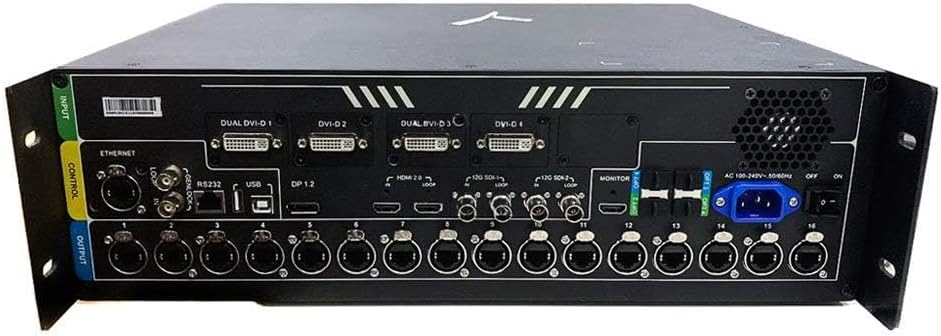
Figure 2: Rear view of the NovaPro UHD Jr. This image illustrates the various input (DP, DVI, HDMI, SDI) and output (Ethernet, Optical Fiber) ports, along with power and control connections.
3.4 Output Connections
Connect the controller to your LED display or video wall using the Neutrik Ethernet ports or optical fiber ports. The specific connection method will depend on your display system's requirements.
3.5 Network Connection (Optional)
For remote control and configuration using NovaStar's V-Can software, connect the device to your network via the Ethernet control port.
4. Operating Instructions
4.1 Powering On/Off
To power on the device, press the power button on the front panel or use the switch on the rear. To power off, press and hold the power button or switch off the rear switch.
4.2 Basic Configuration via Front Panel
Use the integrated display screen and control knobs/buttons on the front panel to navigate menus, select input sources, adjust basic display parameters, and recall presets.
4.3 Advanced Configuration with V-Can Software
For comprehensive control, advanced settings, image mosaic, and detailed screen configuration, install and use NovaStar's V-Can smart control software on a connected computer. Refer to the V-Can software manual for detailed instructions.
4.4 Input Source Selection
Select the desired input source from the available DP, DVI, HDMI, or SDI inputs using the front panel controls or V-Can software.
4.5 Image Scaling and Adjustment
Configure image scaling (full screen, pixel to pixel, custom) and other display adjustments (brightness, contrast, color) through the V-Can software for optimal visual output.
5. Maintenance
5.1 Cleaning
Regularly clean the exterior of the device with a soft, dry cloth. Avoid using liquid cleaners or abrasive materials. Ensure ventilation openings are free from dust and obstructions.
5.2 Firmware Updates
Periodically check NovaStar's official website for firmware updates. Keeping the firmware updated ensures optimal performance, bug fixes, and access to new features. Follow the provided instructions carefully during the update process.
5.3 Environmental Considerations
Operate the device within specified temperature and humidity ranges. Avoid exposing it to direct sunlight, excessive dust, or moisture.
6. Troubleshooting
6.1 No Power
- Ensure the power cable is securely connected to both the device and the power outlet.
- Verify that the power outlet is functional.
- Check the power switch on the rear panel is in the 'ON' position.
6.2 No Video Output
- Confirm that the input source is active and correctly connected to the NovaPro UHD Jr.
- Verify that the output cables to the LED display are securely connected.
- Check the selected input source on the controller's front panel or via V-Can software.
- Ensure the LED display is powered on and configured correctly to receive signal from the controller.
6.3 Image Distortion or Flickering
- Check cable quality and connections. Use high-quality, shielded cables.
- Verify resolution and refresh rate settings are compatible with both the source and the display.
- Ensure proper grounding of all connected equipment.
6.4 V-Can Software Connection Issues
- Ensure the Ethernet control cable is properly connected between the computer and the controller.
- Verify network settings (IP address, subnet mask) on both the computer and the controller.
- Disable any firewalls or antivirus software that might be blocking the connection temporarily for testing.
7. Specifications
| Attribute | Value |
|---|---|
| Model Number | NovaPro UHD Jr |
| Manufacturer | Novastar |
| ASIN | B07ZG51SB2 |
| Package Dimensions | 24.61 x 21.22 x 12.32 inches |
| Item Weight | 28.3 pounds |
| Compatible Devices | Monitor, Projector, Television |
| Connector Type | DVI, HDMI |
| Color | black |
| Finish Type | Hdmi |
| Date First Available | October 22, 2019 |
8. Warranty and Support
For detailed information regarding warranty coverage, technical support, and service, please refer to the official NovaStar website or contact your authorized dealer. Keep your purchase receipt as proof of purchase for warranty claims.


