
1. Introduction
Welcome to the user manual for your ASHATA Mini 4K 1080P Full-HD Digital Media Player. This guide provides essential information for setting up, operating, and maintaining your device, ensuring you get the most out of its features.
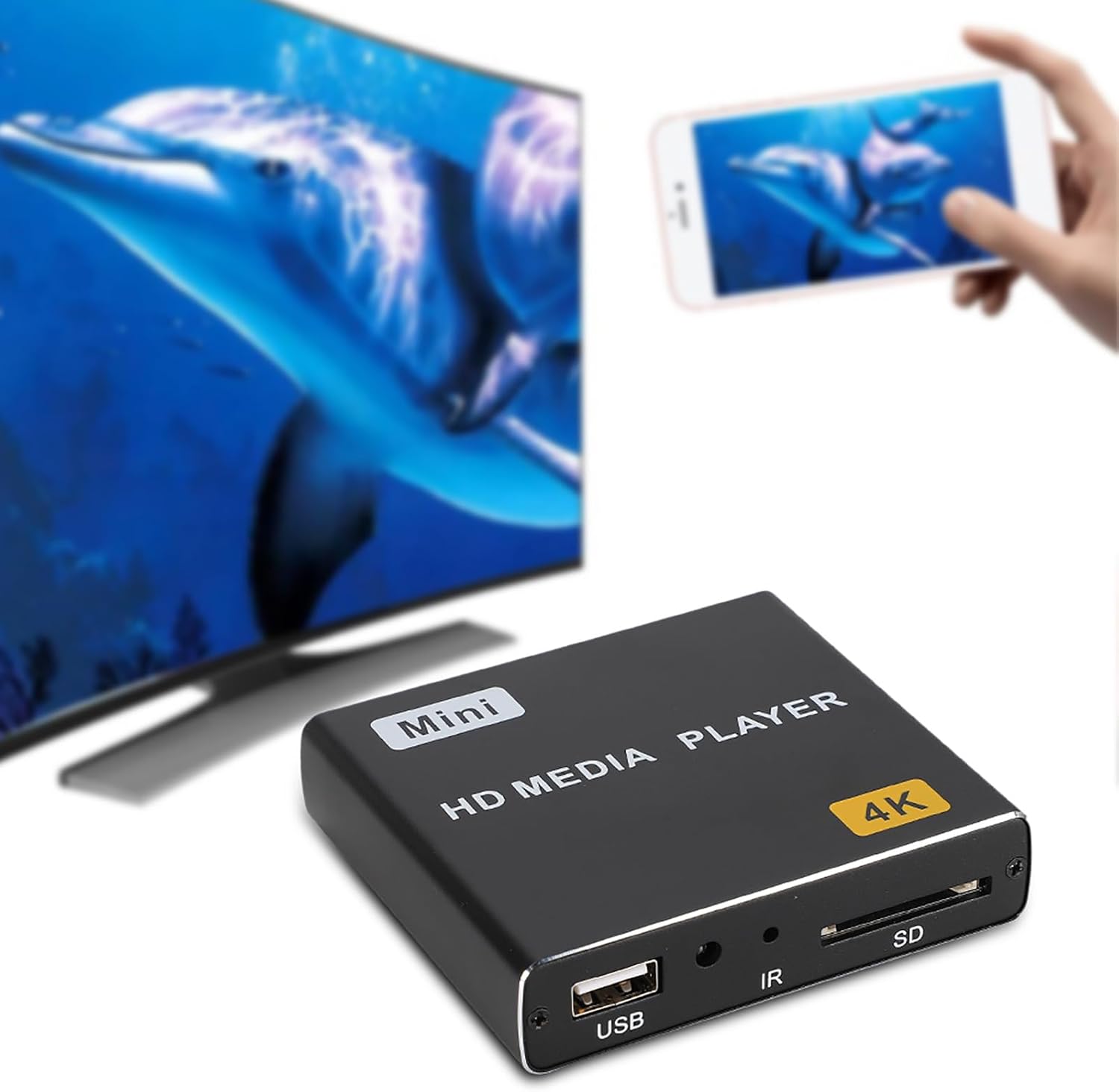
Image: The ASHATA Mini HD Media Player shown in a home entertainment setup, connected to a TV and interacting with a smartphone.
2. Product Overview
2.1 Key Features
- For Android intelligent operating system, playing stable, low power consumption.
- Support HDMI 4K (30-60 frames), 1080P full HD output.
- Support JPEG, BMP, GIF, PNG and other image formats browsing.
- Support MP3, WMA, APE, FLAC, AAC, OGG, AC3, WAV and other video formats.
- Supports audio playback in a variety of formats such as H.265, AVI, H.264.
2.2 Components
The ASHATA Mini HD Media Player is a compact device designed for playing various media files on your television or display.

Image: Front and rear views of the ASHATA Mini HD Media Player, highlighting its compact size and design.

Image: Detailed view of the input/output ports on the ASHATA Mini HD Media Player, including DC power, USB, HDMI, AV, IR receiver, and SD card slot.
- Front Panel: Features a USB port, IR receiver, and SD card slot for media input.
- Rear Panel: Includes DC power input, additional USB ports, HDMI output, AV output, and S/SPDIF output for comprehensive connectivity.
- Remote Control: Used for navigating menus, controlling playback, and adjusting settings.
3. Setup
3.1 Connecting the Media Player
- Power Connection: Connect the provided power adapter to the DC-in jack on the media player and plug it into a standard power outlet.
- HDMI Connection: For optimal 4K/1080P output, connect an HDMI cable from the HDMI port on the media player to an available HDMI input on your television or display.
- AV Connection (Optional): If your display does not have an HDMI input, use the provided AV cable to connect the AV jack on the media player to the corresponding AV inputs (Yellow for video, White/Red for audio) on your television.
- USB/SD Card: Insert your USB flash drive or SD card containing media files into the respective ports on the media player.
- Remote Control: Open the battery compartment on the remote control and insert 2x AAA batteries (not included), ensuring correct polarity.

Image: The media player connected to a television, illustrating its HDMI output capability for 4K and 1080P content.
4. Operating Instructions
4.1 Basic Operation
- Power On: Once connected, the media player will typically power on automatically. If not, press the power button on the remote control.
- Input Selection: On your television, use its remote control to select the correct HDMI or AV input source that the media player is connected to.
- Navigation: Use the directional buttons (Up, Down, Left, Right) and the 'OK' button on the ASHATA remote control to navigate through the on-screen menu.
- Media Playback:
- Navigate to the desired media type (e.g., Video, Music, Photo) on the main menu.
- Select your connected USB drive or SD card from the available storage options.
- Browse to the specific file you wish to play and press 'OK' to start playback.
- Playback Controls: Use the dedicated buttons on the remote control for functions such as Play/Pause, Stop, Fast Forward, Rewind, and Volume Up/Down.

Image: The ASHATA Mini HD Media Player, its remote control, power adapter, and AV cable, showing the complete package contents.

Image: A comparison displaying two versions of the remote control, labeled "New Type" and "Old Type", indicating that models may ship with either.
5. Maintenance
5.1 Cleaning and Care
- Keep the device in a dry, well-ventilated area to prevent moisture buildup and ensure proper heat dissipation.
- Avoid exposing the device to extreme temperatures, direct sunlight, or high humidity, as these can damage internal components.
- Clean the exterior of the device with a soft, dry cloth. Do not use liquid cleaners, abrasive materials, or aerosols, which can scratch the surface or seep into the device.
- Ensure proper ventilation around the device by not blocking any vents, to prevent overheating during extended use.
6. Troubleshooting
6.1 Common Issues and Solutions
| Problem | Solution |
|---|---|
| No Power | Check the power adapter connection to both the media player and the power outlet. Ensure the power outlet is functional. |
| No Picture/Sound | Verify that the HDMI or AV cable connections are secure. Ensure the correct input source (HDMI 1, AV, etc.) is selected on your television. Try a different cable or port if available. |
| Remote Control Not Working | Check the battery orientation and replace batteries if necessary. Ensure there are no obstructions between the remote control and the player's IR receiver. |
| Cannot Play Files | Ensure the file format is supported by the media player (refer to the Specifications section). Check if the USB drive/SD card is properly inserted and formatted correctly (e.g., FAT32, NTFS). |
7. Specifications
7.1 Technical Specifications

Image: A visual representation of the ASHATA Mini HD Media Player's dimensions, indicating its compact size.
| Feature | Detail |
|---|---|
| Condition | Brand New |
| Item Type | 4K Player |
| Material | Metal |
| Voltage | 100-240V |
| CPU | Cortex-A7-1.5G 4Kx2K resolution |
| GPU | Quad Core Mali-400 GPU @400MHz |
| RAM | DDR3 1G |
| ROM | NandFlash, 8G |
| Expand Memory | T-Flash, support max 32G |
| Power Adapter | Input 5V/2A |
| USB Ports | 3xStandard USB, 1xMicro USB with OTG |
| DC-in | 1xDC in Jack |
| HDMI | 1xHDMI A Type 2.0 |
| SPDIF | 1xS/SPDIF (2CH, 5.1CH) |
| SD Card Slot | 1xTF card slot |
| AV | 1xAV Jack |
| Battery (Remote) | AAA x 2 (Not Included) |
| Size | Approx. 8 x 7.3 x 1.8cm / 3.1 x 2.9 x 0.7inch |
| Weight | Approx. 349g / 0.35 Kilograms |
| Resolution | 1080p, 4K (3840 x 2160 Pixels) |
| Compatible Devices | Television |
| Connectivity Technology | USB, HDMI |
| Controller Type | Remote Control |
| Form Factor | TV Box |
| Colour | Black |
8. Package Contents
8.1 What's Included
- 1 x ASHATA Mini 4K Player
- 1 x User Manual (this document)
- 1 x Remote Control
- 1 x Power Adapter
- 1 x Audio Cable (AV Cable)
9. Warranty and Support
9.1 Customer Support
For technical assistance, troubleshooting, or warranty inquiries regarding your ASHATA HDMI Media Player, please contact your retailer or visit the official ASHATA website for support resources.
Note: Warranty terms and conditions may vary by region and retailer. Please refer to your purchase documentation or the retailer's policy for specific warranty details and duration.