
Walfront 3-in-1 Endoscope Borescope Snake Camera (B07Z8YD7SH)
Walfront 3-in-1 Endoscope Borescope Snake Camera User Manual
Model: B07Z8YD7SH
1. Introduction
Thank you for choosing the Walfront 3-in-1 Endoscope Borescope Snake Camera. This device is designed for visual inspection in hard-to-reach areas, offering high-definition imaging and broad compatibility. Please read this manual thoroughly before use to ensure proper operation and maintenance.
2. Safety Information
- Do not use this device for medical purposes or internal human/animal examination.
- Keep the device away from children.
- Ensure the device is disconnected from power sources when not in use or during cleaning.
- Avoid bending the camera cable excessively to prevent damage.
- The camera head is IP67 waterproof, but the USB connector is not. Do not immerse the connector in water.
- Do not attempt to disassemble or modify the device. This will void the warranty.
- The camera head may become warm during extended use. This is normal.
3. Package Contents
Please check the package for the following items:
- Walfront 3-in-1 Endoscope Borescope Snake Camera (with integrated USB, Micro USB, and Type-C connector)
- User Manual (this document)
- Note: Specific accessories may vary.

Image 3.1: Walfront 3-in-1 Endoscope Borescope Snake Camera with its integrated connectors and control box.
4. Product Features
- 3-in-1 Connectivity: Supports Android devices (Micro USB, Type-C) and Windows PCs (USB).
- High Definition Camera: 1280x720 resolution for clear images and videos.
- Compact Lens: 3.9mm diameter lens for accessing narrow spaces.
- Adjustable LED Lights: 6 integrated LEDs with adjustable brightness for optimal illumination in dark environments.
- Waterproof Design: IP67 rated camera head, suitable for wet or submerged inspections (e.g., water sink pipes).
- Optimal Focusing Length: Designed for clear focus between 4-10cm from the object.

Image 4.1: Key features of the endoscope, including its 3-in-1 connector, 3.9mm lens, 6 adjustable LED lights, and IP67 waterproof rating.
5. Setup Guide
5.1. Software Installation (Android)
- Download App: Search for "USB Camera", "OTG View", or similar endoscope applications on the Google Play Store. Ensure the app supports external USB cameras and OTG functionality.
- Install App: Follow the on-screen instructions to install the chosen application.
- Grant Permissions: Allow necessary permissions (e.g., camera, storage) when prompted by the app.
5.2. Software Installation (Windows PC)
- Connect Device: Plug the USB connector into an available USB port on your computer.
- Access Camera:
- For Windows 10/11, open the built-in "Camera" application. The endoscope should be recognized as an external camera.
- Alternatively, download and install a third-party camera software that supports USB webcams.
5.3. Connecting the Endoscope
- For Android Devices:
- Ensure your Android device supports OTG (On-The-Go) functionality.
- Connect the appropriate connector (Micro USB or Type-C) to your phone's charging port.
- Open the installed endoscope application. The camera feed should appear.
- For Windows PC:
- Connect the standard USB connector to your computer's USB port.
- Open the camera application.
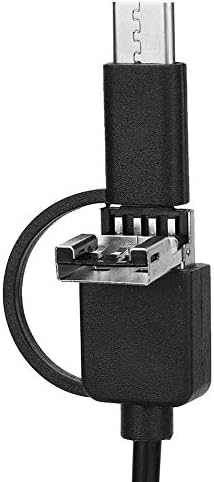
Image 5.1: Detail of the versatile 3-in-1 connector, allowing compatibility with various devices.
6. Operating Instructions
6.1. Adjusting LED Brightness
Locate the control wheel on the cable. Rotate the wheel to adjust the brightness of the 6 LED lights around the camera lens. This allows for optimal visibility in different lighting conditions.

Image 6.1: The control box on the cable features a wheel for adjusting the brightness of the camera's LED lights.
6.2. Capturing Images and Videos
Once the endoscope is connected and the application is running, you can use the software interface to:
- View Live Feed: The application will display the real-time view from the endoscope camera.
- Take Photos: Look for a camera icon or "Capture" button within the app to take still images.
- Record Videos: Look for a video camera icon or "Record" button to start and stop video recording.
- Access Gallery: Saved photos and videos can typically be found in the app's gallery or your device's photo/video storage.
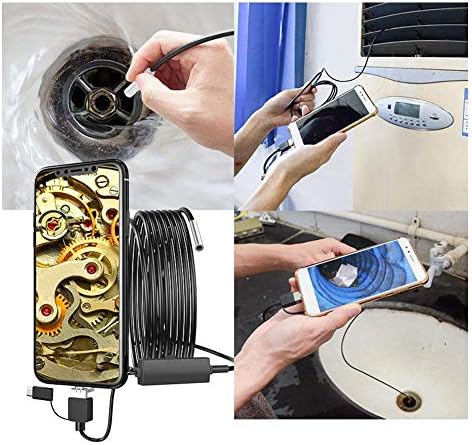
Image 6.2: The endoscope being used for inspecting a sink drain and behind an appliance, demonstrating its practical applications.
6.3. Optimal Viewing Distance
The endoscope is designed for an optimal focusing length of 4-10cm. For the clearest image, position the camera lens within this range of the object you are inspecting.
7. Maintenance
- Cleaning the Lens: Gently wipe the camera lens with a soft, dry cloth. For stubborn dirt, a slightly damp cloth can be used, followed by drying. Do not use abrasive cleaners.
- Cleaning the Cable: Wipe the cable with a damp cloth as needed.
- Storage: Store the endoscope in a clean, dry place, away from extreme temperatures and direct sunlight. Avoid tightly coiling the cable to prevent damage.
- Water Exposure: While the camera head is waterproof (IP67), ensure the USB connector and control box remain dry. If they get wet, dry them thoroughly before use.
8. Troubleshooting
| Problem | Possible Cause | Solution |
|---|---|---|
| No image on screen / Device not recognized. |
|
|
| Image is blurry. |
|
|
| LED lights are not working or too dim/bright. |
|
|
| Camera head gets warm. |
|
|
9. Specifications
| Feature | Detail |
|---|---|
| Lens Diameter | 3.9mm |
| Resolution | 1280x720, 640x480 |
| Frame Rate | 25fps |
| Viewing Angle | 70 Degrees |
| Focusing Length | 4-10cm |
| Waterproof Rating | IP67 (for camera head) |
| Light Source | 6pcs Adjustable LED Light |
| Cable Length Options | 1m/3.3ft, 3.5m/11.5ft, 5m/16.4ft (optional) |
| Support System | Android, Windows PC |
| Photo Format | PNG |
| Video Format | MP4 |
| Item Weight | Approximately 4.6 ounces |
10. Warranty and Support
Walfront products are designed for reliability and performance. For specific warranty details, please refer to the warranty card included with your purchase or contact Walfront customer support directly. Keep your purchase receipt as proof of purchase.
For technical support, troubleshooting assistance, or inquiries about replacement parts, please visit the official Walfront website or contact their customer service department. Contact information can typically be found on the product packaging or the brand's official online presence.
Online Support: Visit the Walfront Store on Amazon
Ask a question about this manual
Ask about setup, troubleshooting, compatibility, parts, safety, or missing instructions. Manuals+ will review the question and use this page’s manual context to help answer it.