
1. Product Overview
The Philips ActionFit SN503 Wireless Bluetooth Earphones are designed for active lifestyles, featuring heart rate monitoring and IPX5 water resistance. This manual provides instructions for setup, operation, and maintenance to ensure optimal performance.
What's in the Box
- Philips ActionFit SN503 Earphones
- USB Charging Cable
- Ear Caps (3 sizes: Small, Medium, Large)

Image 1.1: Philips ActionFit SN503 Earphones with USB cable and ear caps.
2. Setup
2.1 Charging the Earphones
Before first use, fully charge the earphones. A full charge takes approximately 2 hours.
- Connect the supplied USB cable to the charging port on the earphones.
- Connect the other end of the USB cable to a powered USB port (e.g., computer, USB wall adapter).
- The LED indicator will show charging status and turn off when fully charged.
2.2 Bluetooth Pairing
The earphones feature smart pairing for quick connection.
- Ensure the earphones are turned off.
- Press and hold the multi-function button until the LED indicator flashes blue and red alternately, indicating pairing mode.
- On your Bluetooth-enabled device (smartphone, tablet), enable Bluetooth and search for available devices.
- Select "Philips SN503" from the list of devices.
- Once paired, the LED indicator will flash blue periodically, and a voice prompt will confirm the connection.
The earphones will automatically reconnect to the last paired device when turned on, if the device's Bluetooth is active and within range.
2.3 Wearing the Earphones
For optimal sound quality and heart rate monitoring accuracy, ensure a secure and comfortable fit.
- Select the ear caps that best fit your ears from the three provided sizes.
- Insert the earbud into your ear canal and rotate it slightly to ensure the soft rubberized wing tip sits securely in your outer ear.
- Adjust the cable for comfort, ensuring it does not pull on the earbuds during activity.

Image 2.1: Proper wearing of the Philips ActionFit SN503 earphones.
3. Operating Instructions
3.1 Basic Controls
The inline remote control allows for media playback and call management.
- Power On/Off: Press and hold the multi-function button.
- Play/Pause: Press the multi-function button once.
- Next Track: Double-press the multi-function button.
- Previous Track: Triple-press the multi-function button.
- Volume Up: Press the '+' button.
- Volume Down: Press the '-' button.
- Answer/End Call: Press the multi-function button once during an incoming call or active call.
- Reject Call: Press and hold the multi-function button during an incoming call.
- Activate Voice Assistant: Press and hold the multi-function button (when not on a call).
3.2 Heart Rate Monitoring
The built-in heart rate monitor tracks your heartbeat with precision, providing data to compatible fitness-tracking applications.
- Ensure the earphones are securely fitted in your ears.
- Connect the earphones to your smartphone via Bluetooth.
- Open a compatible fitness-tracking app (e.g., Strava, Runkeeper) on your smartphone.
- Follow the app's instructions to connect to the heart rate sensor.
- Your heart rate data will be displayed and recorded by the application.
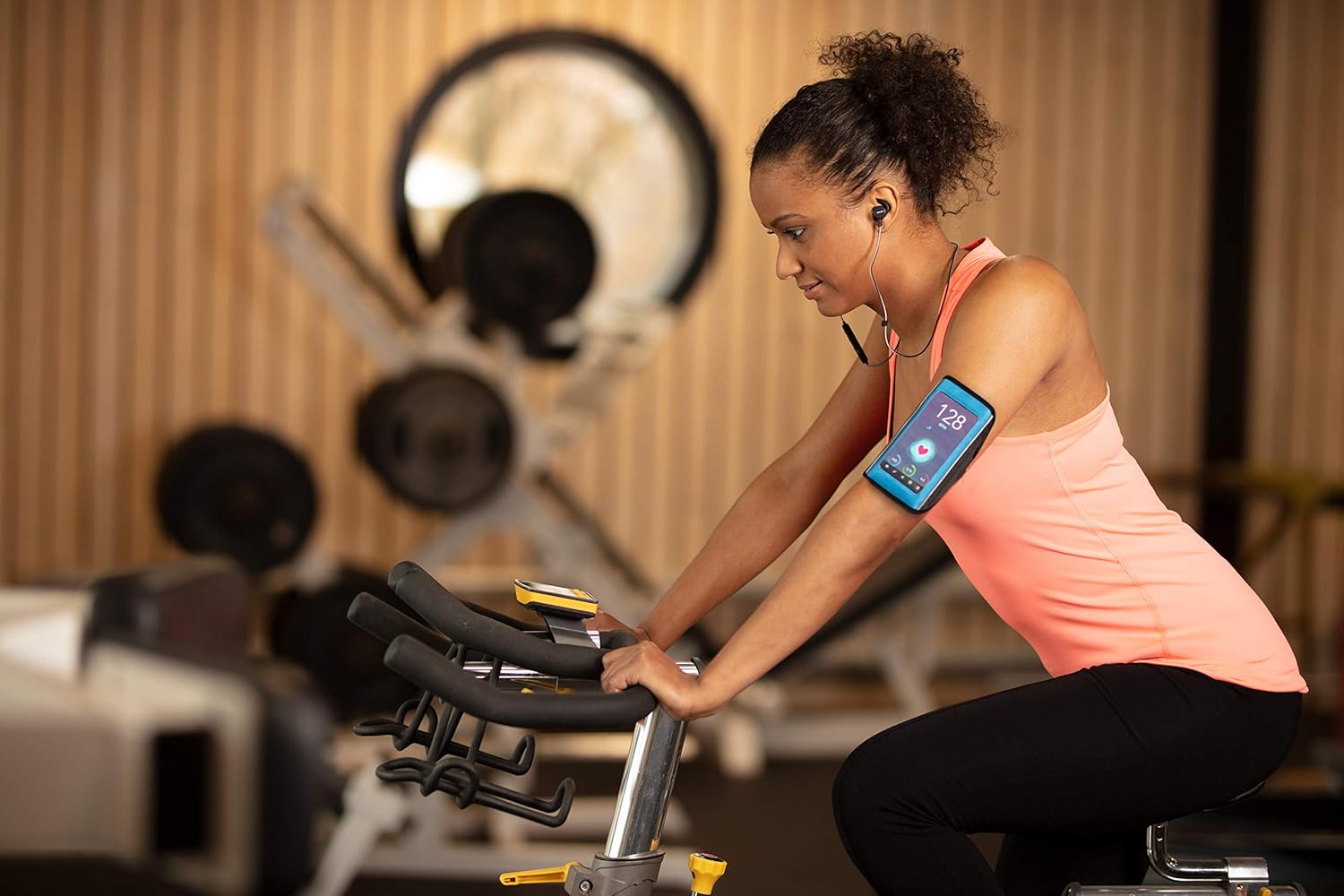
Image 3.1: Heart rate monitoring in use during exercise.
Video 3.1: Official Philips video demonstrating the SN503 earphones, including heart rate monitoring features.
3.3 Water Resistance (IPX5)
The earphones are IPX5 rated, meaning they are protected against low-pressure water jets from any direction. This makes them suitable for use during sweaty workouts or in light rain.
- Do not submerge the earphones in water.
- Ensure the charging port cover is securely closed when exposed to water or sweat.
- After exposure to sweat or water, wipe the earphones dry before charging.

Image 3.2: Earphones in use during rainy conditions, demonstrating water resistance.
4. Maintenance
4.1 Cleaning
Regular cleaning helps maintain performance and hygiene.
- Wipe the earphones and ear caps with a soft, damp cloth after each use, especially after workouts.
- Remove ear caps periodically and clean them with mild soap and water. Ensure they are completely dry before reattaching.
- Do not use abrasive cleaners or solvents.
4.2 Storage
Store the earphones in a cool, dry place away from direct sunlight and extreme temperatures.
5. Troubleshooting
If you encounter issues with your Philips ActionFit SN503 earphones, refer to the following common solutions.
| Problem | Possible Cause | Solution |
|---|---|---|
| Earphones do not power on. | Low battery. | Charge the earphones for at least 2 hours. |
| Cannot pair with Bluetooth device. | Earphones not in pairing mode; Bluetooth disabled on device; device out of range. | Ensure earphones are in pairing mode (flashing blue/red). Enable Bluetooth on your device. Move device closer to earphones (within 10 meters). |
| No sound or poor sound quality. | Volume too low; improper fit; ear caps dirty. | Adjust volume on earphones and device. Ensure ear caps are correctly sized and fitted. Clean ear caps and earbud nozzles. |
| Heart rate monitor not working or inaccurate. | Improper fit; sensor obstructed; app not connected. | Ensure earphones are securely and snugly fitted. Clean the sensor area on the earbud. Verify the fitness app is correctly connected to the heart rate sensor. |
| Short battery life. | Not fully charged; high volume usage. | Ensure earphones are fully charged. Reduce listening volume. |
6. Specifications
| Model Name | SN503 |
| Connectivity Technology | Bluetooth 5.0 |
| Wireless Range | 10 Meters (33 feet) |
| Water Resistance Level | IPX5 (Waterproof) |
| Battery Life | Up to 6 Hours |
| Charging Time | 2 Hours |
| Audio Driver Size | 6 Millimeters |
| Sensitivity | 95 dB |
| Item Weight | 0.04 Kilograms (1.41 ounces) |
| Compatible Devices | Smartphones, Tablets, Laptops, Smart TVs, Fitness Trackers, Cars with Bluetooth capability |
| Special Features | Heart Rate Monitor, Microphone Included, Noise Isolation, Volume Control |
7. Warranty and Support
For warranty information and customer support, please refer to the warranty card included with your product or visit the official Philips support website.
You can also find additional resources and FAQs on the Philips Sound Store on Amazon.


