
Introduction
The Basesailor USB-C Female to USB-A Male Adapter is designed to bridge the connectivity gap between modern USB-C devices and traditional USB-A ports. This compact and durable adapter allows you to utilize your existing USB-A ports for charging and data transfer with USB-C compatible devices.
Key Features
- USB-A to USB-C Conversion: Converts standard USB-A ports into USB-C inputs.
- Charging & Data Sync: Supports USB 2.0 data transfer up to 480 Mbps and charging up to 5V/2A.
- Durable Construction: Features an aluminum alloy housing for enhanced durability and heat dissipation.
- Compact Design: Low-profile and lightweight, designed to remain plugged in without obstruction.
- Broad Compatibility: Works with various USB-C accessories including cables, phones, tablets, earphones, flash drives, and card readers.
Setup Instructions
- Identify USB-A Port: Locate an available USB-A port on your device (e.g., laptop, wall charger, car charger, USB hub, power bank).
- Insert Adapter: Gently insert the USB-A male end of the Basesailor adapter into the identified USB-A port. Ensure a secure connection.

Image: The Basesailor USB-C adapter being inserted into a USB-A port on a power strip, demonstrating how to convert a standard USB-A port into a USB-C charging input for an iPhone.
- Connect USB-C Cable/Device: Plug your USB-C cable or USB-C enabled device directly into the USB-C female port of the Basesailor adapter.

Image: Various scenarios demonstrating the plug-and-play nature of the Basesailor USB-C adapter, including charging an iPad via a wall adapter, connecting to a laptop, and charging a phone in a car.
- Verify Connection: Confirm that your USB-C device begins charging or is recognized for data transfer.
Operating Instructions
The Basesailor USB to USB-C Adapter operates on a simple plug-and-play principle, requiring no additional drivers or software installation.
- Charging: Connect your USB-C charging cable to the adapter, then plug the adapter into any standard USB-A power source (e.g., wall charger, car charger, power bank). The adapter supports charging up to 5V/2A.
- Data Transfer: For data synchronization, connect your USB-C data cable to the adapter, then plug the adapter into a USB-A port on your computer or laptop. The adapter supports USB 2.0 data transfer speeds up to 480 Mbps.
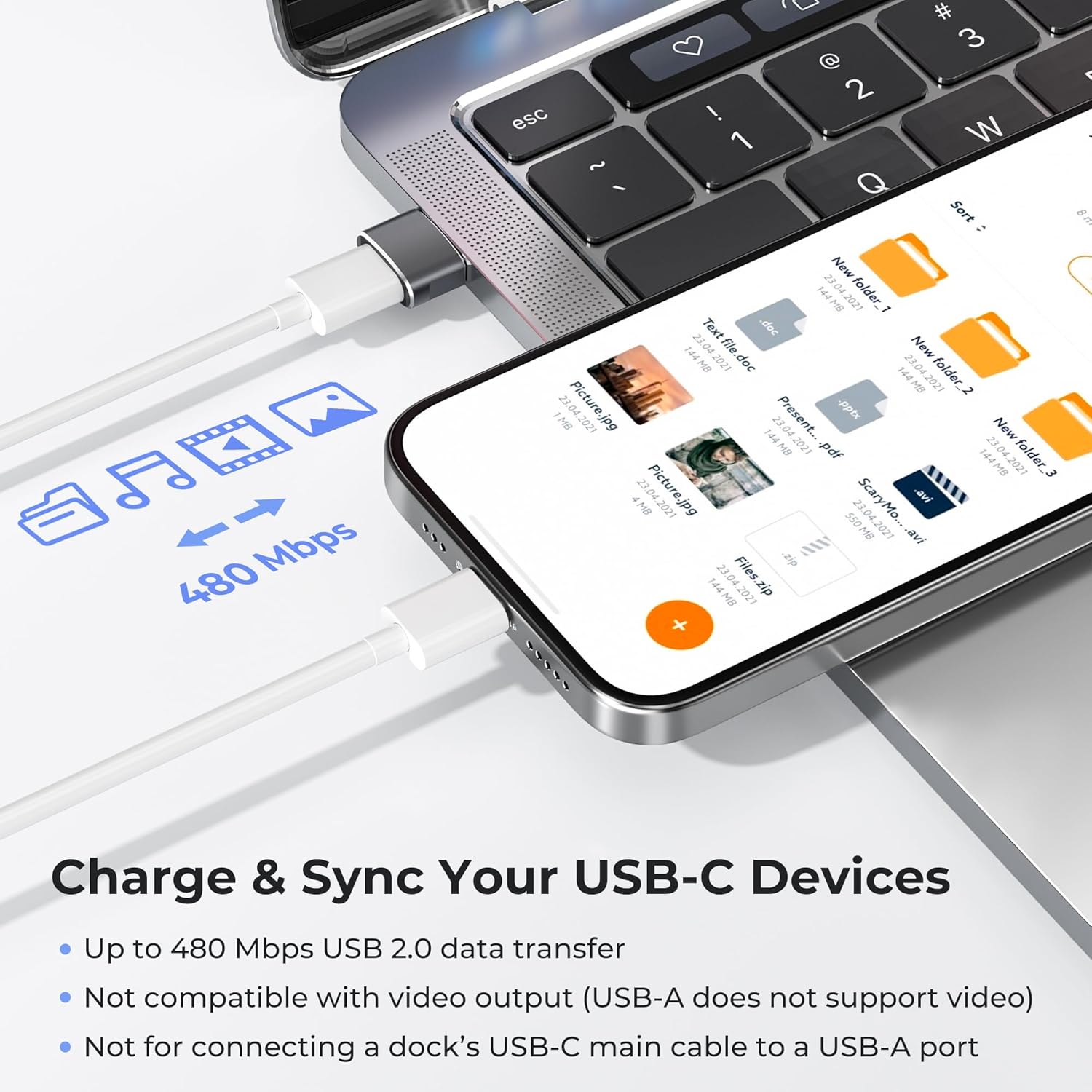
Image: An iPhone displaying file icons, connected to a laptop via a USB-C cable and the Basesailor adapter, illustrating data transfer capabilities at 480 Mbps.
- Device Compatibility: This adapter is compatible with a wide range of USB-C devices and USB-A hosts.

Image: A visual guide to the universal compatibility of the Basesailor USB-C adapter, detailing various USB-A sources and USB-C devices it can connect.
Important Note:
- This adapter does NOT support HDMI, DisplayPort, VGA, or any other type of video output.
- It is not designed for driving a dock's main USB-C host cable or high-power USB-C fast-charging protocols (PD/PPS).
Maintenance and Care
- Cleaning: Use a soft, dry cloth to clean the adapter. Avoid liquid cleaners or abrasive materials.
- Storage: Store the adapter in a cool, dry place away from direct sunlight and extreme temperatures.
- Handling: Avoid excessive force when plugging or unplugging the adapter to prevent damage to the connectors.
- Portability: Its compact size makes it ideal for travel.

Image: Two Basesailor USB-C adapters are shown on a laptop next to a tablet, emphasizing their small size and ease of transport.
Troubleshooting
- Device Not Charging/Connecting:
- Ensure both the adapter and the USB-C cable/device are fully and correctly inserted.
- Try connecting the USB-C cable/device directly to a native USB-C port (if available) to confirm the cable/device is functional.
- Test the adapter with a different USB-A port or power source.
- Slow Charging:
- Verify that your USB-A power source provides sufficient power (up to 5V/2A). Some older USB-A ports may offer lower output.
- Ensure your USB-C cable is not damaged and supports the required charging speed.
- Data Transfer Issues:
- Confirm that your USB-C device is set to allow data transfer (e.g., "File Transfer" mode on Android phones).
- Try a different USB-C data cable.
- Ensure your computer's USB-A port is functioning correctly.
- Adapter Overheating:
- While the aluminum alloy aids in heat dissipation, prolonged high-power usage can cause slight warmth. If the adapter becomes excessively hot, disconnect it immediately and allow it to cool.
- Ensure adequate ventilation around the adapter and connected devices.
Specifications
| Feature | Detail |
|---|---|
| Product Dimensions | 0.6 x 0.85 x 0.28 inches |
| Item Weight | 0.353 ounces |
| Item Model Number | USB-CF-AM |
| Connector Type | USB Type C (Female) to USB Type A (Male) |
| Data Transfer Speed | Up to 480 Mbps (USB 2.0) |
| Charging Output | Up to 5V/2A (depending on USB-A source) |
| Material | Aluminum Alloy Housing |
| Color | Gray |

Image: A close-up view of the Basesailor USB-C adapter, highlighting its compact dimensions (0.85in long, 0.60in wide, 0.28in thick) and aluminum alloy construction.
Warranty Information
Basesailor products are designed for reliability and performance. For specific warranty details and terms, please refer to the product packaging or visit the official Basesailor website. Typically, Basesailor offers a limited warranty against defects in materials and workmanship under normal use.
Customer Support
Should you encounter any issues or have questions regarding your Basesailor USB to USB C Adapter, please contact our customer support team:
- Email: Refer to product packaging or the official Basesailor website for the most current contact information.
- Online: Visit the Basesailor Store on Amazon for FAQs and additional product information.
Please have your product model number (USB-CF-AM) and purchase details ready when contacting support.
