
Tapo Tapo P100
Tapo P100 Smart WiFi Plug User Manual
Model: Tapo P100 | Brand: Tapo
Product Overview
The Tapo P100 is a compact smart Wi-Fi plug designed to make your home appliances smart. It allows you to control connected devices remotely via the Tapo app, set schedules and timers, and manage them using voice commands through Amazon Alexa or Google Assistant. Its mini design ensures it doesn't block adjacent outlets.

Image: Tapo P100 Smart WiFi Plug with its retail packaging, highlighting its compact size and smart features.
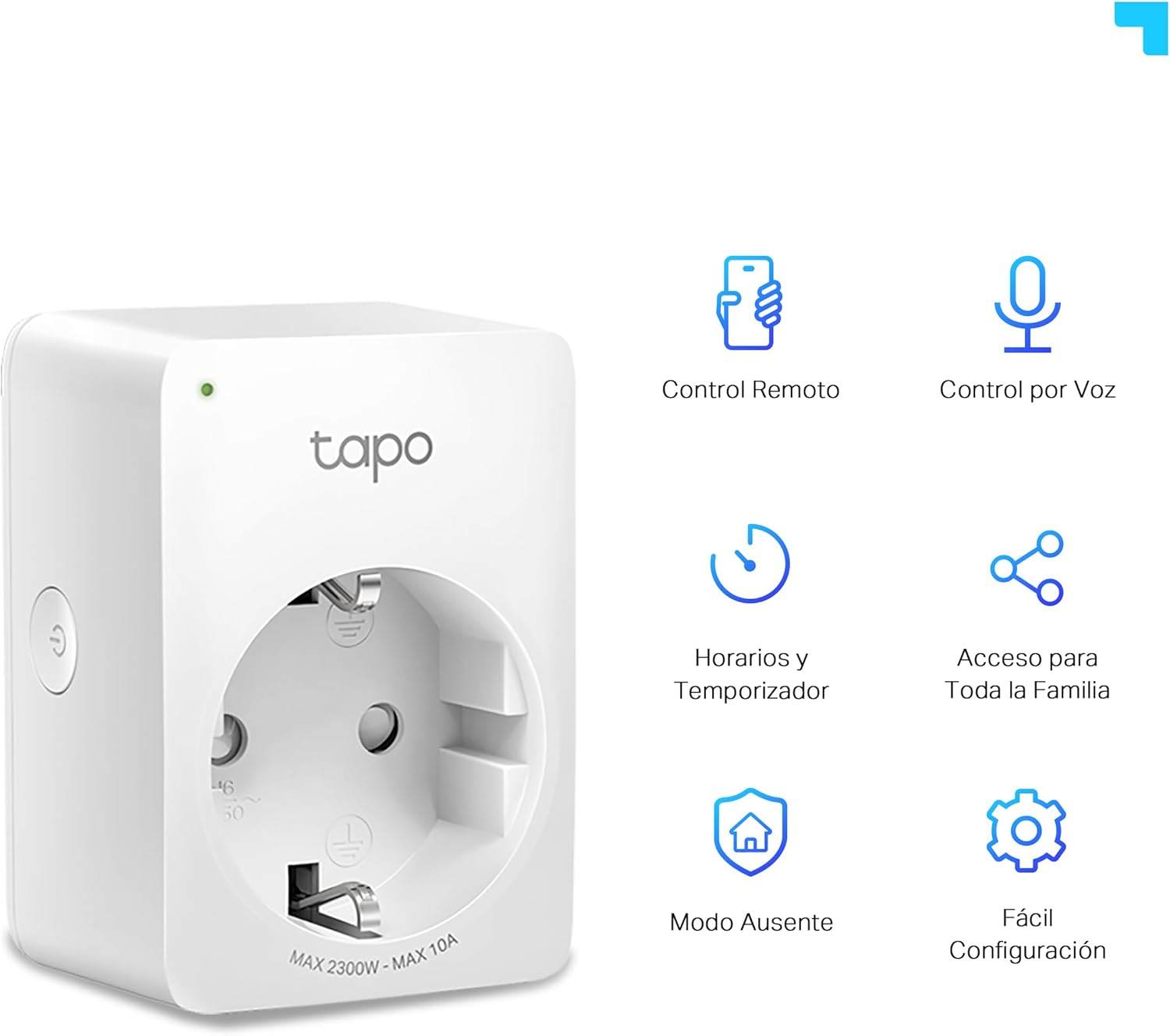
Image: The Tapo P100 plug alongside icons representing its key features: Remote Control, Voice Control, Schedules & Timer, Family Access, Away Mode, and Easy Setup.
Setup Guide
Follow these steps to set up your Tapo P100 Smart WiFi Plug:
- Download the Tapo App: Search for "Tapo" in the Apple App Store or Google Play Store and download the official Tapo app.
- Plug In Your Device: Insert the Tapo P100 into any standard electrical outlet. Ensure the outlet is within range of your 2.4 GHz Wi-Fi network.
- Open the Tapo App: Launch the Tapo app and log in or create a new TP-Link ID.
- Add Your Device: Tap the "+" icon in the top right corner of the app to add a new device. Select "Smart Plug" and follow the on-screen instructions to connect your Tapo P100 to your home Wi-Fi network.
- Name Your Device: Once connected, you can give your smart plug a custom name, such as "Living Room Lamp" or "Coffee Maker," for easy identification and control.
No additional hub is required for the Tapo P100, making setup quick and straightforward.
Operating Instructions
Remote Control
Control your connected devices from anywhere using the Tapo app. Simply open the app, select your Tapo P100 plug, and toggle the power button to turn devices on or off.

Image: A person using the Tapo app on a smartphone to remotely control a device connected to the smart plug, demonstrating convenience from anywhere.
Voice Control
The Tapo P100 is compatible with Amazon Alexa and Google Assistant. Link your Tapo account in the Alexa or Google Home app to enable voice commands. You can then say commands like:
- "Alexa, turn on the living room lamp."
- "Hey Google, turn off the fan."

Image: A diagram illustrating how the Tapo P100 integrates with voice assistants like Alexa and Google Home, showing example voice commands for controlling connected appliances.
Schedules and Timers
Automate your devices by setting schedules and countdown timers through the Tapo app. This feature is ideal for managing lights, charging devices, or small appliances.
- Schedules: Set specific times for your plug to turn on or off daily or on selected days of the week.
- Timers: Create countdown timers to automatically turn off a device after a set duration.

Image: A smartphone screen showing options for setting schedules and countdown timers for the smart plug, with examples like turning off a phone charger or turning on a fan.
Away Mode
Activate "Away Mode" to automatically turn connected lights on and off at random intervals. This simulates occupancy, deterring potential intruders when you are not home.

Image: A house at dusk with some lights on and some off, illustrating the "Away Mode" feature which randomly switches lights to simulate someone being home.
Maintenance
To ensure optimal performance and longevity of your Tapo P100 Smart WiFi Plug:
- Cleaning: Disconnect the plug from the power outlet before cleaning. Use a soft, dry cloth to wipe the surface. Do not use liquid cleaners or aerosols.
- Environment: Keep the device in a dry environment, away from excessive heat, humidity, and direct sunlight.
- Power Rating: Do not exceed the maximum load capacity of 2300W (10A) to prevent overheating and potential damage.
- Firmware Updates: Regularly check for and install firmware updates via the Tapo app to ensure the best performance and security features.
Troubleshooting
Connection Issues
- Wi-Fi Band: Ensure your router is broadcasting a 2.4 GHz Wi-Fi signal. The Tapo P100 only supports 2.4 GHz networks, not 5 GHz.
- Signal Strength: Place the smart plug within good Wi-Fi signal range of your router.
- Router Reboot: If connection issues persist, try restarting your Wi-Fi router.
- Reset Device: If necessary, perform a factory reset on the Tapo P100 by pressing and holding the power button for approximately 5 seconds until the LED blinks rapidly. Then, re-add the device through the Tapo app.
Device Not Responding After Power Outage
The Tapo P100 operates based on programmed events (ON/OFF). If there is a power outage, the plug may not automatically return to its previous state when power is restored. It will wait for the next scheduled ON event. To resolve this, you may need to manually turn it on via the app or wait for the next scheduled ON event. Newer firmware versions may offer an option to define the default state after a power cut; ensure your device firmware is up to date.
Voice Control Not Working
- Account Linking: Verify that your Tapo account is correctly linked to your Amazon Alexa or Google Home account.
- Device Name: Ensure the device name used in your voice command matches the name set in the Tapo app and your voice assistant app.
- Internet Connection: Confirm that both your smart plug and voice assistant device have a stable internet connection.
Specifications
| Feature | Specification |
|---|---|
| Model Number | Tapo P100 |
| Dimensions | 5.1 x 7.7 x 7.2 cm |
| Weight | 100 g |
| Input Voltage | 220-240V AC |
| Maximum Load | 10 A |
| Maximum Power | 2300 W |
| Wireless Connectivity | Wi-Fi 2.4 GHz |
| Compatibility | Amazon Alexa, Google Assistant |
| Operating Mode | AUTOMATIC |
| Material | Plastic |

Image: The Tapo P100 Smart WiFi Plug shown next to a wall outlet, with its compact dimensions (72mm height, 51mm width) highlighted to demonstrate it does not block adjacent sockets.
Warranty and Support
For warranty information, please refer to the warranty card included with your product or visit the official Tapo website. Tapo products typically come with a manufacturer's warranty covering defects in materials and workmanship.
For technical support, FAQs, and additional resources, please visit the Tapo Support Website or contact Tapo customer service directly. The Tapo app also provides in-app support and troubleshooting tips.
Ask a question about this manual
Ask about setup, troubleshooting, compatibility, parts, safety, or missing instructions. Manuals+ will review the question and use this page’s manual context to help answer it.