
1. Introduction
This manual provides comprehensive instructions for the installation, operation, and maintenance of your AMICCOM Outdoor Security Camera. Please read this manual carefully before using the product to ensure proper setup and functionality. This camera is designed for outdoor surveillance, offering 1080P HD video, two-way audio, motion detection, and night vision.
2. What's in the Box
Please check the contents of your package. If any items are missing or damaged, contact customer support.
- AMICCOM Outdoor Security Camera (Z5-New)
- Power Adapter
- USB Power Cable
- Mounting Screws and Wall Anchors
- Antenna
- User Manual (this document)

Image: The AMICCOM Outdoor Security Camera, showing the main unit, power cable, and mounting hardware.
3. Setup
3.1 Physical Installation
- Choose a Location: Select an outdoor location that provides the desired viewing angle and is within range of your 2.4GHz Wi-Fi network. Ensure the camera is protected from direct heavy rainfall if possible, despite its IP66 rating.
- Mount the Camera: Use the provided mounting screws and wall anchors to securely attach the camera to a wall or suitable surface.
- Attach Antenna: Screw the antenna firmly into the designated port on the camera.
- Connect Power: Connect the power adapter to the camera's power input and plug it into a power outlet.
3.2 Network Connection & App Setup
The camera requires a 2.4GHz Wi-Fi network for operation. 5.0GHz networks are not supported.
- Download the App: Search for and download the 'JAWA' app from your device's app store (available for iOS and Android).
- Create Account: Open the JAWA app and follow the on-screen instructions to create a new user account.
- Add Device: In the app, select the option to add a new device. Follow the prompts to connect your camera to your 2.4GHz Wi-Fi network. This typically involves scanning a QR code on the camera or entering network details.
- Initial Configuration: Once connected, you can name your camera, set up motion detection zones, and configure recording preferences within the app.

Image: Overview of key features including wireless support, HD night vision, quick setup, 110-degree viewing angle, motion detection, IP66 weatherproofing, two-way talk, and 1080P HD resolution.
4. Operating the Camera
4.1 Live View
Open the JAWA app and select your camera from the device list to view the live feed. You can switch between SD and HD resolution for optimal viewing based on your network speed.
4.2 Two-Way Audio
To use the two-way audio feature, tap the microphone icon in the live view interface of the app. You can speak into your phone, and your voice will be transmitted through the camera's speaker. Release the icon to listen. This allows for communication with visitors or to deter unwanted individuals.
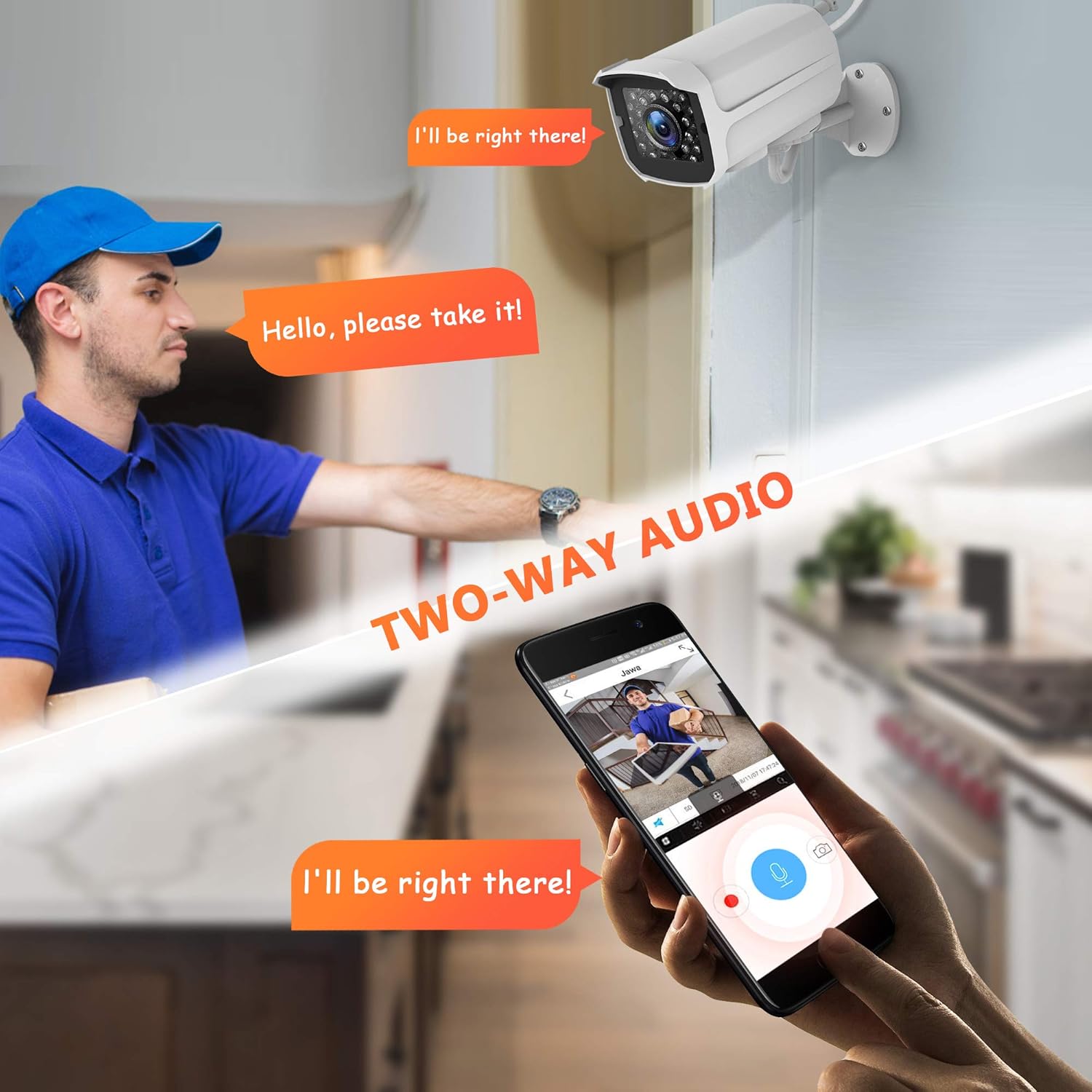
Image: A visual representation of the two-way audio function, showing a person communicating through the camera via a smartphone app.
4.3 Motion Detection & Alerts
The camera features motion detection with adjustable sensitivity. When motion is detected, the camera can send activity alerts to your smartphone and begin recording. You can define specific motion detection areas within the app to reduce false alarms.

Image: A smartphone displaying the JAWA app interface, showing a motion detection alert and options for email, FTP, and push notifications.
4.4 Night Vision
The camera automatically switches to night vision mode in low-light conditions, providing clear black-and-white images up to 32 feet. This ensures continuous surveillance even in complete darkness.

Image: A split image demonstrating the clarity difference between 720P and 1080P resolution during night vision, highlighting the enhanced detail of 1080P.

Image: A visual comparison of the camera's view during day (color) and night (infrared, black and white), illustrating the 110-degree wide viewing angle.
4.5 Recording & Storage
The camera supports local storage via a Micro SD card (not included) up to 128GB. You can configure continuous recording or event-triggered recording (motion detection). The camera will automatically overwrite older footage when the SD card is full.
5. Maintenance
To ensure optimal performance and longevity of your camera, regular maintenance is recommended.
- Cleaning: Periodically clean the camera lens and housing with a soft, damp cloth. Avoid using harsh chemicals or abrasive materials that could damage the surface.
- Weather Resistance: The camera has an IP66 waterproof rating, meaning it is protected against dust and powerful water jets. While designed for outdoor use, ensuring it is securely mounted and not exposed to extreme, prolonged environmental stress (e.g., direct, constant water flow) will help maintain its integrity.

Image: The camera demonstrating its IP66 weatherproof rating, capable of withstanding various weather conditions.
6. Troubleshooting
| Problem | Possible Cause | Solution |
|---|---|---|
| Camera offline in app | Incorrect Wi-Fi band (5GHz), weak Wi-Fi signal, router blocking connection, power issue. | Ensure your Wi-Fi is 2.4GHz. Check Wi-Fi signal strength at camera location. Restart camera and router. Verify router settings are not blocking the camera's connection (some routers, like Xfinity, may flag it as a threat). Re-add camera in app. |
| No motion detection alerts | Motion detection disabled, sensitivity too low, incorrect detection zone, app notifications off. | Enable motion detection in app settings. Adjust sensitivity. Configure detection zones correctly. Check phone notification settings for the JAWA app. |
| Poor video quality | Weak Wi-Fi signal, dirty lens, app resolution setting. | Improve Wi-Fi signal. Clean the camera lens. Switch to HD resolution in the app if currently on SD. |
| Two-way audio unclear or not working | Microphone/speaker obstruction, volume settings, network delay. | Ensure nothing is blocking the camera's microphone or speaker. Adjust volume in the app. Be aware of slight network delays. |
| SD card not recording | SD card full, corrupted, or not inserted correctly; incorrect recording settings. | Check if SD card is full (camera should overwrite). Reinsert or replace SD card. Format SD card via app. Verify recording settings (continuous/event) are enabled. |
7. Specifications
| Feature | Detail |
|---|---|
| Model Number | Z5-New |
| Video Capture Resolution | 1080p |
| Connectivity Technology | Wireless (Wi-Fi) |
| Wi-Fi Frequency | 2.4GHz only |
| Compatible Devices | iOS, Android |
| Night Vision Range | Up to 32 Feet |
| International Protection Rating | IP66 (Waterproof) |
| Operating Temperature | -4°F to 122°F (-20°C to 50°C) |
| Storage | Micro SD card (Max 128GB, not included) |
| Dimensions (L x W x H) | 4 x 3 x 5 inches |
| Item Weight | 13.1 ounces |
8. Warranty and Support
For warranty information or technical support, please refer to the contact details provided with your product packaging or visit the official AMICCOM website. Keep your purchase receipt as proof of purchase for warranty claims.