
TP-Link DECO W2400(2 PACK)
TP-Link Deco AC1200 Whole Home Mesh WiFi System
Model: DECO W2400(2 PACK)
Introduction
The TP-Link Deco AC1200 Whole Home Mesh WiFi System is designed to provide seamless, reliable wireless internet coverage throughout your entire home. This system replaces your traditional router and range extenders with multiple units that work together to create a unified WiFi network, eliminating dead zones and buffering. This manual provides essential information for setting up, operating, and maintaining your Deco system.
Safety Information
- Operate the device within the specified temperature and humidity ranges.
- Keep the device away from water, fire, humidity, or hot environments.
- Do not attempt to disassemble, repair, or modify the device. If you need service, please contact support.
- Use only the power adapter provided with the device.
- Ensure proper ventilation around the device to prevent overheating.
Package Contents
Verify that all items are present in your package:
- Two (2) TP-Link Deco Whole Home Mesh WiFi System Units
- Two (2) Power Adapters
- One (1) Ethernet Cable
- Quick Installation Guide
Product Overview
The Deco units are designed for simple integration into your home environment. Each unit features a minimalist cylindrical design with essential ports for connectivity.
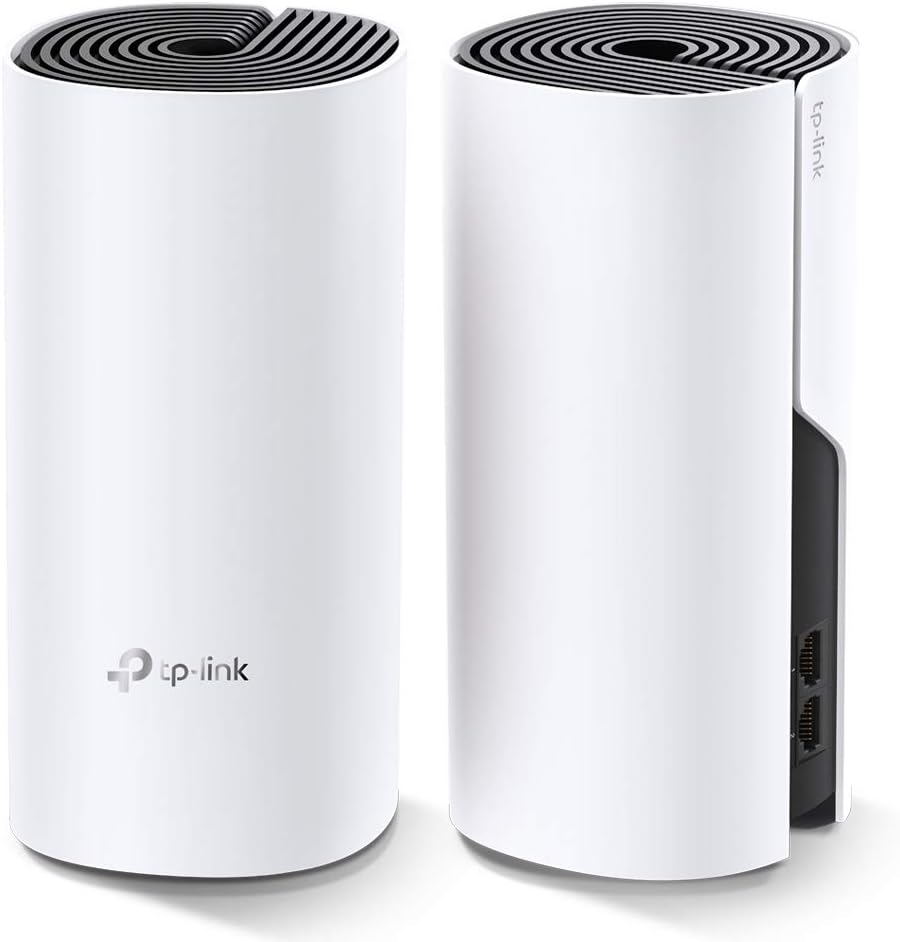
Image: Front and rear view of two TP-Link Deco units, highlighting the compact design and port locations.
Deco Unit Components:
- LED Indicator: Located on the top of the unit, indicates the status of the Deco unit (e.g., solid white for connected, pulsing blue for ready for setup).
- Ethernet Ports (x2): Located on the back, these ports automatically detect WAN/LAN connections.
- Power Port: For connecting the power adapter.
- Reset Button: A small button on the bottom of the unit, used to reset the device to factory settings.
Setup
Setting up your TP-Link Deco system is straightforward using the Deco app. Ensure your mobile device is connected to the internet before starting.
- Download the Deco App: Search for "TP-Link Deco" in the App Store (iOS) or Google Play (Android) and install the app.
- Log In or Sign Up: Open the Deco app and log in with your TP-Link ID. If you don't have one, sign up first.
- Connect the First Deco Unit:
- Power off your modem.
- Connect one Deco unit to your modem using the provided Ethernet cable.
- Power on your modem, then power on the Deco unit.
- Wait for the Deco's LED to pulse blue, indicating it's ready for setup.
- Configure the First Deco: Follow the on-screen instructions in the Deco app to configure your first Deco unit. This includes creating your WiFi network name (SSID) and password.
- Add More Deco Units: Once the first Deco is set up, the app will guide you through adding additional Deco units. Place them strategically to ensure optimal coverage.

Image: Two Deco units positioned on a table, illustrating a common setup scenario for whole-home coverage.
Operating Your Deco System
Connecting Devices:
Once your Deco system is operational, connect your wireless devices (smartphones, tablets, laptops, smart home devices) to the WiFi network name (SSID) you created during setup. For wired devices, connect them to the Ethernet ports on any Deco unit.
Using the Deco App:
The Deco app provides comprehensive control over your network:
- Network Map: View all connected devices and their status.
- Parental Controls: Manage internet access for family members.
- Antivirus: Protect your network from malicious content.
- QoS (Quality of Service): Prioritize devices or activities for optimal performance.
- Guest Network: Create a separate network for guests.
- Firmware Updates: Keep your Deco units up-to-date for security and performance enhancements.
Maintenance
- Regular Firmware Updates: Check for and install firmware updates via the Deco app to ensure optimal performance and security.
- Cleaning: Gently wipe the exterior of the Deco units with a soft, dry cloth. Do not use liquid cleaners or aerosols.
- Ventilation: Ensure the Deco units are placed in well-ventilated areas, away from direct sunlight or heat sources, to prevent overheating.
- Rebooting: If you experience network issues, try rebooting your Deco units and modem.
Troubleshooting
Common Issues and Solutions:
- Deco LED is Red:
- This indicates a problem with the internet connection. Check the connection between the main Deco unit and your modem. Ensure your modem is working correctly.
- No Internet Access:
- Verify that your modem is online. Restart your modem and the main Deco unit. Check all cable connections. If the issue persists, contact your Internet Service Provider (ISP).
- Cannot Connect to Deco WiFi:
- Ensure you are entering the correct WiFi password. Try forgetting the network on your device and reconnecting. If the Deco LED is red, resolve the internet connection issue first.
- Slow WiFi Speed:
- Check the placement of your Deco units to ensure optimal coverage. Avoid placing units near large metal objects or appliances that emit electromagnetic interference. Use the Deco app to run a network speed test and check the signal strength between units.
Specifications
| Feature | Detail |
|---|---|
| Wireless Standard | 802.11ac/a/b/g/n |
| Frequency Band Class | Dual-Band (2.4 GHz & 5 GHz) |
| Ethernet Ports | 2 Gigabit ports per Deco unit |
| Dimensions (Each Unit) | 7.4 x 3.5 x 3.5 inches (188 x 90.7 x 90.7 mm) |
| Weight (Each Unit) | Approximately 1.9 pounds |
| Power Input | 100-240V ~ 50/60Hz |
| Operating Temperature | 0°C~40°C (32°F~104°F) |
Warranty and Support
TP-Link products come with a limited warranty. For detailed warranty information, please refer to the warranty card included in your package or visit the official TP-Link website.
For technical support, firmware updates, and FAQs, please visit the TP-Link support page:
You can also contact TP-Link customer service directly through the Deco app or via the contact information provided on their website.
Related documentsDECO W2400(2 PACK)


Ask a question about this manual
Ask about setup, troubleshooting, compatibility, parts, safety, or missing instructions. Manuals+ will review the question and use this page’s manual context to help answer it.