
1. Product Overview
This manual provides instructions for the JVC KD-TD71BT CD Receiver and the PAC SWI-RC Steering Wheel Control Interface. The JVC KD-TD71BT is a car audio receiver featuring Bluetooth connectivity, front USB and AUX inputs, and Amazon Alexa compatibility. The PAC SWI-RC allows for the retention of factory steering wheel control functions when installing an aftermarket radio.
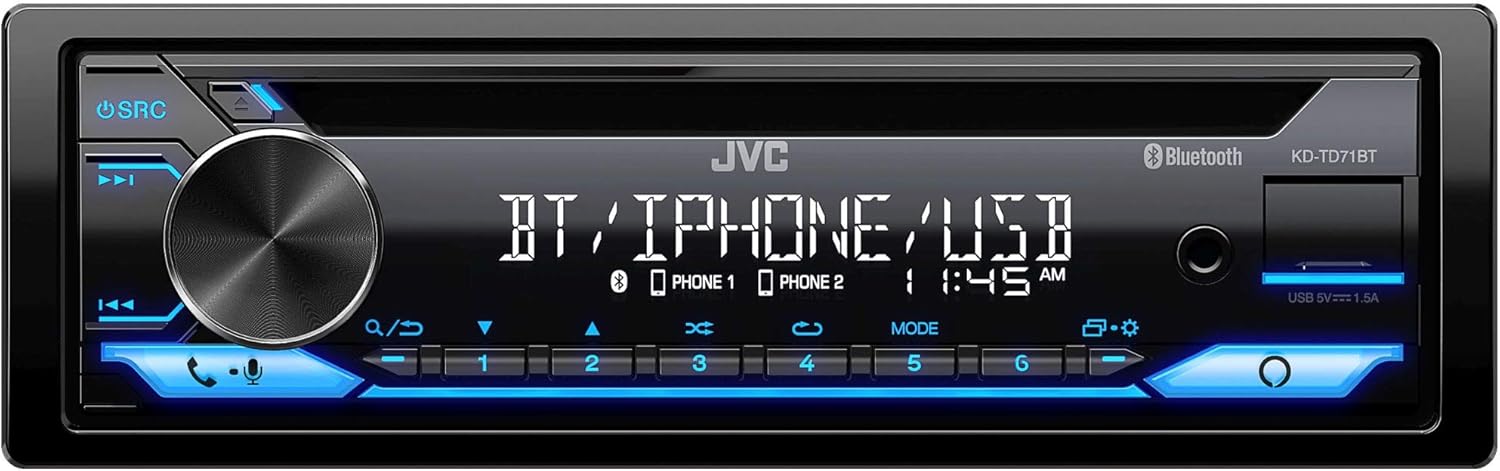
Figure 1: Front view of the JVC KD-TD71BT CD Receiver, showing the display, control knob, and various buttons.
2. What's in the Box
Verify that all components are present before beginning installation.
- JVC KD-TD71BT CD Receiver
- PAC SWI-RC Steering Wheel Control Interface
- Wired Microphone (for JVC KD-TD71BT)
- Wiring Harnesses and Connectors
- Mounting Hardware
3. Key Features
- Amazon Alexa Compatible: Integrate voice commands for various functions.
- Bluetooth Wireless Technology: Supports hands-free calling (HFP 1.7) and audio streaming (A2DP, AVRCP) with JVC Streaming DJ (up to 5 BT-Audio connections). Includes a wired microphone.
- Front USB Input: Provides up to 1.5A charging and supports FLAC (96kHz/24bit), MP3, WMA, WAV, AAC playback.
- Front AUX Input: For connecting external audio devices.
- Audio Control: 13-Band Graphic EQ with 11 Preset EQ Settings, Time Alignment, Space Enhancement, Sound Lift, K2 Technology, Loudness Control, Bass Boost Control.
- Pre-Outs: 1 Pair 2.5V Pre-Outs (Rear/Subwoofer Selectable) with High-Pass and Low-Pass Filters, and Subwoofer Level Control.
- Display: 2-Line VA (Vertical Alignment) LCD Display with Music Sync Illumination Effect.
- Steering Wheel Control Retention: The PAC SWI-RC retains factory steering wheel control functions (volume, mode, track) for compatible radios.
- Non-Volatile Memory: The PAC SWI-RC retains programming even if the vehicle's battery is disconnected.
4. Safety Information
Read all instructions carefully before installation and use. Improper installation or operation can lead to serious injury or damage. Always consult a professional for installation if you are unsure.
- Do not operate the unit in a way that distracts you from driving.
- Ensure all wiring is correctly connected to prevent short circuits or damage.
- Avoid installing the unit in locations exposed to direct sunlight, high temperatures, or excessive moisture.
- Use only specified fuses.
- Keep the volume at a level where you can still hear outside traffic sounds.
5. Setup and Installation
Professional installation is recommended. Disconnect the vehicle's negative battery terminal before starting any electrical work.
5.1 JVC KD-TD71BT CD Receiver Installation
Follow the wiring diagram provided with your unit. Connect the power, ground, speaker, and accessory wires correctly. Secure the unit in the dashboard opening using the supplied mounting hardware.

Figure 2: Rear view of the JVC KD-TD71BT CD Receiver, illustrating the various wiring harness connections and audio output ports.
5.2 PAC SWI-RC Steering Wheel Control Interface Installation
The SWI-RC connects between your vehicle's factory steering wheel control wiring and the JVC KD-TD71BT's wired remote input. Refer to the specific vehicle application guide provided by PAC for detailed wiring instructions for your vehicle model.
- Identify the steering wheel control wires in your vehicle.
- Connect the SWI-RC's wires to the vehicle's wiring and the JVC receiver's wired remote input.
- Program the SWI-RC according to the PAC instructions to map the steering wheel buttons to the desired functions on the JVC receiver.

Figure 3: The PAC SWI-RC Steering Wheel Control Interface packaging and included components, including the main module and wiring harness.
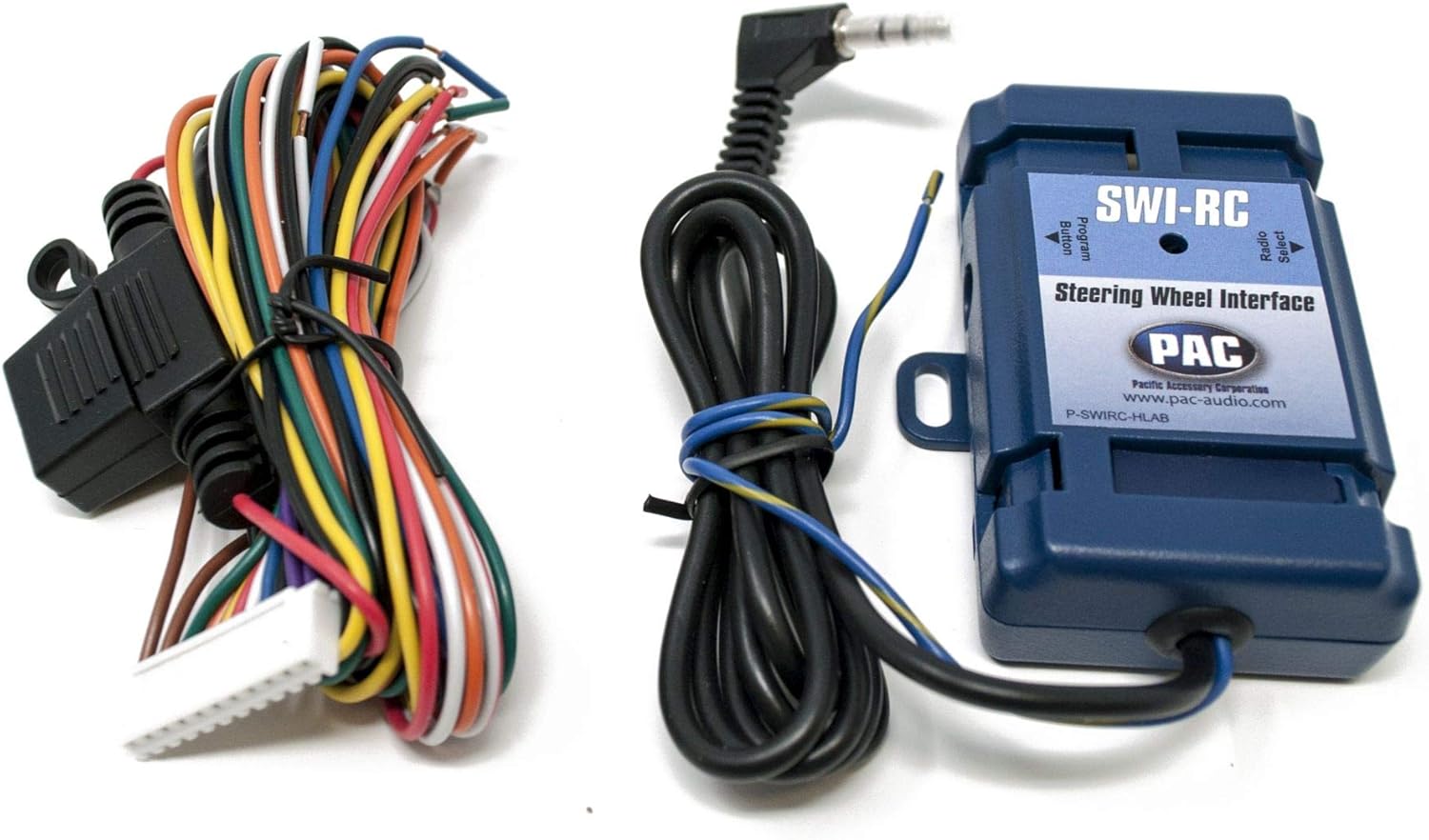
Figure 4: A detailed view of the PAC SWI-RC module and its multi-colored wiring harness, essential for connecting to the vehicle's electrical system.
6. Operating Instructions
6.1 JVC KD-TD71BT Basic Operation
- Power On/Off: Press the SRC button to turn the unit on. Press and hold SRC to turn it off.
- Volume Control: Rotate the large rotary knob to adjust the volume.
- Source Selection: Press the SRC button repeatedly to cycle through available sources (CD, Tuner, Bluetooth, USB, AUX, Alexa).
6.2 Bluetooth Operation
- Pairing: Enable Bluetooth on your smartphone. Select 'KD-TD71BT' from the device list. Confirm the pairing code if prompted.
- Audio Streaming: Once paired, select Bluetooth as the source. Play audio from your smartphone, and it will stream to the receiver. Use the receiver's controls or your phone to manage playback (play/pause, skip track).
- Hands-Free Calling: When a call comes in, the display will show the caller ID. Press the phone button to answer, or press and hold to reject. Use the wired microphone for clear communication.
- JVC Streaming DJ: Connect up to 5 Bluetooth audio devices simultaneously. Switch between devices for audio playback.
6.3 USB/AUX Operation
- USB: Connect a USB storage device to the front USB port. The unit will automatically switch to the USB source and begin playback.
- AUX: Connect an external audio player to the front AUX input using a 3.5mm stereo cable. Select AUX as the source.
6.4 Amazon Alexa Integration
To use Amazon Alexa, ensure your smartphone is connected via Bluetooth and the JVC Alexa app is installed and configured. Press the dedicated Alexa button on the receiver to activate Alexa and issue voice commands for music, navigation, and more.
6.5 Audio Settings
Access the audio menu to adjust sound settings:
- Equalizer: Select from 11 preset EQ settings or customize the 13-band graphic equalizer.
- Time Alignment: Adjust the sound output timing for each speaker to create an optimal sound stage.
- Space Enhancement / Sound Lift: Digital sound processing features to enhance the listening experience.
- K2 Technology: JVC's proprietary technology to reproduce the original master sound by expanding the bit rate and frequency range.
- Loudness Control / Bass Boost: Enhance low and high frequencies at lower volumes.
6.6 Steering Wheel Control (via SWI-RC)
Once the PAC SWI-RC is correctly installed and programmed, your vehicle's factory steering wheel buttons will control corresponding functions on the JVC KD-TD71BT, such as:
- Volume Up/Down
- Track Up/Down
- Mode/Source Selection
- Answer/End Call
7. Maintenance
- Cleaning: Use a soft, dry cloth to clean the unit's front panel. For stubborn dirt, dampen the cloth with water. Avoid abrasive cleaners or solvents.
- CD Slot: Keep the CD slot free of dust and debris. Do not insert foreign objects.
- Connections: Periodically check all wiring connections to ensure they are secure.
8. Troubleshooting
| Problem | Possible Cause | Solution |
|---|---|---|
| No power | Blown fuse; incorrect wiring; vehicle battery low. | Check and replace fuse; verify wiring connections; charge vehicle battery. |
| No sound | Volume too low; speaker wires disconnected; incorrect source selected. | Increase volume; check speaker connections; select correct audio source. |
| Bluetooth pairing fails | Bluetooth not enabled on phone; incorrect device selected; interference. | Ensure phone Bluetooth is on; select 'KD-TD71BT'; move closer to unit; restart both devices. |
| Steering wheel controls not working | SWI-RC incorrectly wired; SWI-RC not programmed; radio not compatible. | Verify SWI-RC wiring; reprogram SWI-RC; ensure JVC unit has wired remote input. |
| USB device not recognized | Incompatible file format; damaged USB device; device requires too much power. | Check file formats; try a different USB device; ensure device is self-powered if needed. |
9. Specifications
| Feature | Specification |
|---|---|
| Brand | JVC |
| Model Number | KD-TD71BT |
| Product Dimensions | 17 x 15.25 x 9.75 inches |
| Item Weight | 5 pounds |
| Connectivity Technology | Auxiliary, Bluetooth, USB |
| Controller Type | Amazon Alexa, Android |
| Special Features | Equalizer, Pandora, Spotify |
| Compatible Devices | Smartphone, Speaker |
| Connector Type | 3.5mm Jack, USB |
| Audio Output Mode | Mono, Stereo |
| Output Wattage | 50 Watts (MOS-FET 50W x 4 Power Output, 22W RMS x 4) |
10. Warranty and Support
This product is covered by a manufacturer's warranty. Please refer to the warranty card included with your purchase for specific terms and conditions. For technical support, troubleshooting assistance, or warranty claims, please contact JVC customer service or visit the official JVC website. For support regarding the PAC SWI-RC interface, please refer to PAC Audio's official documentation and support channels.


