
Introduction
Welcome to your new Humanscale M/Flex M2.1 Dual Monitor Arm. This manual provides detailed instructions for the safe and efficient installation, operation, and maintenance of your monitor arm system. This specific model features a 24-inch post with a bolt-through mount and is designed to support two monitors.
Key Features:
- Supports two monitors for enhanced productivity.
- Features a polished aluminum finish with white trim.
- Equipped with 8-inch straight links for flexible positioning.
- Secure bolt-through mount for stable desk attachment.
- Capable of supporting up to 100 lbs total weight.
Setup Instructions
1. Unpack Components
Carefully remove all components from the packaging. Verify that all parts are present according to the packing list. Keep packaging materials for future transport or storage.
2. Install the Bolt Mount Post
The M/Flex M2.1 system utilizes a bolt-through mount for secure attachment to your desk. Identify a suitable location on your desk for the monitor arm post. Ensure the desk surface is strong enough to support the arm and monitors.
The image below illustrates the main components, including the bolt-through mounting base.
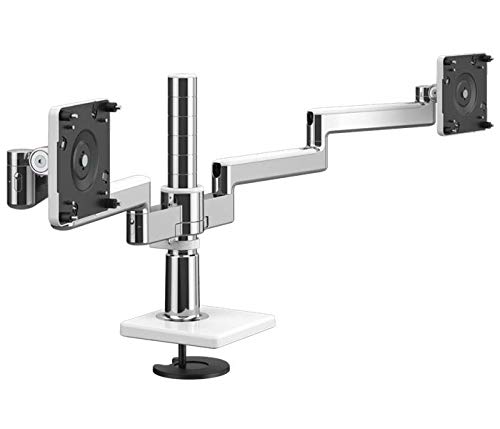
Image: The central post of the Humanscale M/Flex M2.1 Monitor Arm, featuring a bolt-through mounting base designed for secure attachment to a desk surface.
- Drill a hole through your desk surface at the chosen location, if one does not already exist. Refer to the template provided with your product for the correct hole size.
- Insert the bolt-through post assembly through the drilled hole.
- Secure the post from underneath the desk using the provided washer and nut. Tighten firmly to ensure stability.
3. Attach Monitor Arms
Slide the monitor arm assemblies onto the central post. Adjust the height as desired and secure them in place using the locking mechanism.
The image below shows the assembled dual monitor arm.

Image: A fully assembled Humanscale M/Flex M2.1 Dual Monitor Arm, showcasing the two articulating arms extending from the central post, ready to hold monitors.
4. Mount Monitors
Attach your VESA-compatible monitors to the monitor brackets at the end of each arm. Ensure the VESA mounting screws are securely fastened.
5. Cable Management
Utilize the integrated cable management features of the monitor arm to route and conceal monitor cables. This helps maintain a tidy workspace and prevents cable damage.
Operating Your Monitor Arm
The Humanscale M/Flex M2.1 monitor arm allows for easy adjustment of your monitors to achieve optimal ergonomic positioning.
Height Adjustment
To adjust the height of your monitors, gently lift or lower the entire arm assembly along the central post. Once at the desired height, ensure the locking mechanism is engaged.
Tilt and Swivel
Each monitor can be independently tilted and swiveled. Grasp the monitor firmly and adjust its angle to reduce glare and achieve a comfortable viewing position. The arm also allows for horizontal swivel to share your screen.
Depth Adjustment
The articulating arms allow you to adjust the depth of your monitors relative to your desk edge. Push or pull the monitors to find the ideal viewing distance.
Video: Humanscale Monitor Arm Features
Video: This video demonstrates the various features and adjustments of Humanscale monitor arms, including height, tilt, and swivel capabilities, showcasing how to achieve an ergonomic setup. The video is provided by BACKSTORE.
Maintenance
To ensure the longevity and optimal performance of your Humanscale M/Flex M2.1 monitor arm, follow these simple maintenance guidelines:
- Cleaning: Wipe down the arm surfaces with a soft, damp cloth. Avoid abrasive cleaners or solvents that could damage the finish.
- Check Connections: Periodically check all mounting screws and connections to ensure they remain tight and secure. Retighten if necessary.
- Smooth Operation: If any joints feel stiff, consult the troubleshooting section or contact support. Do not apply lubricants unless specifically instructed by Humanscale.
Troubleshooting
This section addresses common issues you might encounter with your monitor arm.
Monitor Sagging or Not Holding Position
Possible Cause: Tension adjustment is too loose for the monitor weight.
Solution: Refer to the arm's tension adjustment mechanism (usually a screw or knob) and tighten it gradually until the monitor holds its position firmly. Do not overtighten.
Arm Movement is Stiff
Possible Cause: Tension adjustment is too tight or joints require minor adjustment.
Solution: Loosen the tension adjustment slightly. If the issue persists, ensure no cables are obstructing movement. Avoid applying lubricants.
Monitors Not Level
Possible Cause: Monitors are not mounted evenly or the VESA plate is not perfectly aligned.
Solution: Re-check the monitor mounting to ensure it is flush with the VESA plate. Some monitor arms have a fine-tune leveling adjustment on the VESA plate itself.
Specifications
The following are the technical specifications for the Humanscale M/Flex M2.1 Dual Monitor Arm (Model HS-M21-M/Flex-Bolt-24):
A detailed specification sheet is provided below for reference.

Image: A detailed specification sheet for Humanscale M/Flex monitor arms, outlining features, specifications, and configuration details for various models, including the M2.1.
| Feature | Detail |
|---|---|
| Model Number | HS-M21-M/Flex-Bolt-24 |
| Mounting Type | Tabletop Mount (Bolt-Through) |
| Movement Type | Tilt |
| Brand | Humanscale |
| Material | Metal |
| Color | Aluminum Bolt Mount (Polished Aluminum with White Trim) |
| Compatible Devices | Monitor |
| UPC | 663185749432 |
| Item Weight | 10 pounds |
| Maximum Supported Screen Size | 24 inches |
| Minimum Supported Screen Size | 24 inches |
Warranty Information
The Humanscale M2.1 and M8.1 Monitor Arms come with a comprehensive 15-year, 24/7 warranty. This warranty covers defects in materials and workmanship under normal use. Please retain your proof of purchase for warranty claims.
Support
For further assistance, technical support, or to inquire about replacement parts, please visit the official Humanscale website or contact their customer service department.
Official Humanscale Store: Humanscale Store on Amazon


