
Introduction
This manual provides essential instructions for the setup, operation, maintenance, and troubleshooting of your TCL 32S312 Smart TV. Please read this manual thoroughly before operating your television and retain it for future reference.
The TCL 32S312 is a 32-inch HD Smart TV designed to provide an immersive viewing experience with integrated smart features, allowing access to various streaming services and applications.
Safety Information
To ensure safe operation and prevent damage, observe the following precautions:
- Do not block ventilation openings.
- Do not place the TV near heat sources or in direct sunlight.
- Protect the power cord from being walked on or pinched.
- Only use attachments/accessories specified by the manufacturer.
- Unplug the TV during lightning storms or when unused for long periods.
- Refer all servicing to qualified service personnel.
Package Contents
Verify that all items are present in the package:
- TCL 32S312 Smart TV
- Remote Control (with batteries)
- TV Stand (2 pieces)
- Screws for Stand Attachment
- Power Cord
- Quick Start Guide (this manual provides detailed instructions)
Setup
1. Attaching the TV Stand
Carefully place the TV face-down on a soft, clean surface to prevent screen damage. Align each stand piece with the corresponding slots on the bottom of the TV. Secure the stands using the provided screws.

Image: Front view of the TCL 32S312 Smart TV with its two-piece stand securely attached, ready for placement.
2. Connecting Power
Plug the power cord into the TV's power input, then plug the other end into a wall outlet. Ensure the connection is secure.
3. Connecting External Devices
The TCL 32S312 supports various external devices via HDMI and USB ports. Connect your devices (e.g., game consoles, Blu-ray players, USB drives) to the appropriate ports on the TV.
- HDMI: For high-definition audio and video.
- USB: For media playback from USB storage devices.
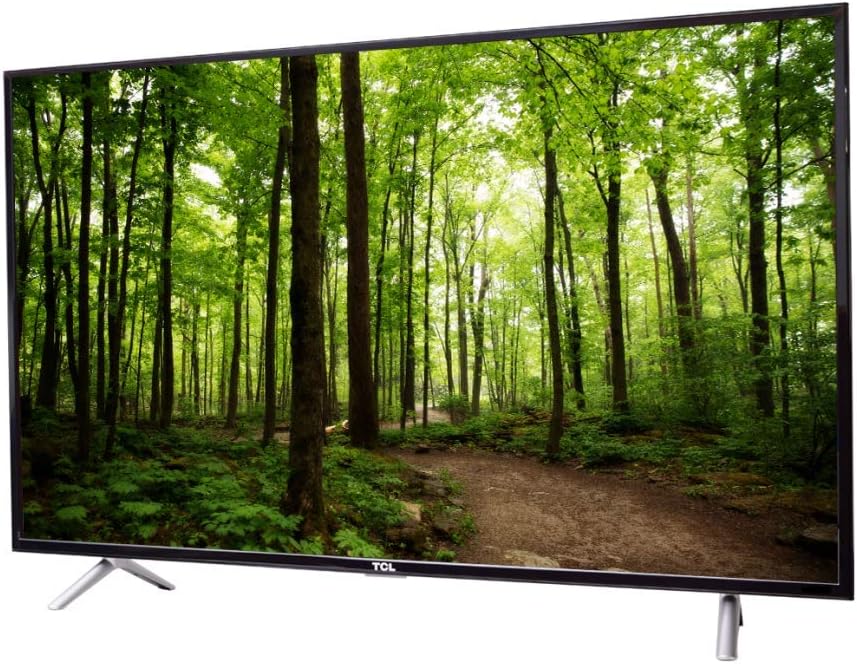
Image: Left side view of the TCL 32S312 Smart TV, illustrating the placement of various input ports such as HDMI and USB.
4. Initial Power-On and Setup Wizard
Press the power button on the remote control or the TV. The TV will guide you through the initial setup wizard, including language selection, time zone, and channel scanning (if applicable).
5. Network Connection (Smart TV Features)
To access Smart TV features, connect your TV to the internet. Navigate to the network settings menu and select your Wi-Fi network. Enter the password if prompted. A stable internet connection is required for optimal Smart TV performance.
Operating
Remote Control Overview
The TCL 32S312 comes with a Bluetooth remote control. Ensure batteries are correctly inserted. The remote allows control over power, volume, channel selection, input source, and navigation within the Smart TV interface.
Note: Specific button functions may vary slightly depending on the operating system version.
Basic Functions
- Power On/Off: Press the Power button.
- Volume Control: Use the Volume Up/Down buttons.
- Channel Selection: Use the Channel Up/Down buttons or number pad.
- Input Source: Press the Input or Source button to switch between HDMI, USB, and other inputs.
Smart TV Features
Access the Smart TV home screen to browse and launch applications such as streaming services, web browser, and other installed apps. Navigation is typically done using the directional pad and OK/Enter button on the remote.
Ensure your TV is connected to the internet for full Smart TV functionality.
Maintenance
Cleaning the Screen
Gently wipe the screen with a soft, lint-free cloth. For stubborn marks, lightly dampen the cloth with water or a specialized screen cleaner. Avoid using harsh chemicals, abrasive materials, or excessive moisture.
General Care
- Keep the TV in a well-ventilated area.
- Avoid placing heavy objects on the TV.
- Do not expose the TV to extreme temperatures or humidity.
Troubleshooting
If you encounter issues with your TCL 32S312 Smart TV, refer to the following common solutions:
No Power
- Ensure the power cord is securely plugged into both the TV and the wall outlet.
- Check if the wall outlet is functioning by plugging in another device.
- Try a different power outlet.
No Picture or Poor Picture Quality
- Verify the correct input source is selected.
- Check all cable connections (HDMI, antenna) for looseness or damage.
- Adjust picture settings (brightness, contrast, sharpness) in the TV menu.
- If using an antenna, rescan for channels.
No Sound
- Increase the volume on both the TV and any connected external devices.
- Check if the TV is muted.
- Verify audio cable connections.
- Check audio output settings in the TV menu.
Network Connection Issues
- Ensure your Wi-Fi router is powered on and functioning correctly.
- Restart your router and modem.
- Re-enter your Wi-Fi password in the TV's network settings.
- Move the TV closer to the router or consider a Wi-Fi extender.
Factory Reset
If problems persist, a factory reset may resolve them. This will erase all personalized settings and installed apps. Consult the TV's on-screen menu for the exact steps to perform a factory reset (usually found under System or Device Preferences).
Specifications
| Feature | Description |
|---|---|
| Brand | TCL |
| Model Name | TCL 32S312 |
| Screen Size | 32 Inches |
| Display Technology | LED-LCD |
| Aspect Ratio | 16:9 |
| Connectivity Technology | Bluetooth |
| Remote Control Technology | Bluetooth |
| Compatible Internet Services | Smart TV |
| Audio Input | HDMI, USB |
| Mounting Type | Table Stand |
| Color | Black |
| Compatible Devices | Laptop, Game Console, Speaker, Tablet |
Warranty and Support
Your TCL 32S312 Smart TV is covered by a limited warranty. Please refer to the warranty card included with your product for specific terms and conditions, including coverage duration and service procedures.
For technical support, service inquiries, or additional information, please visit the official TCL support website or contact their customer service. You can find more information on the TCL Electronics Store.


