
Introduction
This manual provides detailed instructions for the safe and efficient operation of your JVC KD-T812BT CD Receiver. Please read this manual thoroughly before using the product and keep it for future reference. This unit features integrated Alexa, Bluetooth hands-free calling and audio streaming, a high-performance tuner, sound processor, USB, AUX, and Spotify Control.
Setup
Unpacking and Package Contents
Carefully remove all items from the packaging. Ensure all components are present before proceeding with installation.
- KD-T812BT Main Unit
- Front Panel
- Front Frame
- Installation Sleeve
- ISO Wiring Harness
- Release Hooks (2x)
- Microphone
Installation
Professional installation is recommended for optimal performance and safety. Refer to the included wiring harness diagram for correct connections. Ensure the vehicle's battery is disconnected before starting installation.
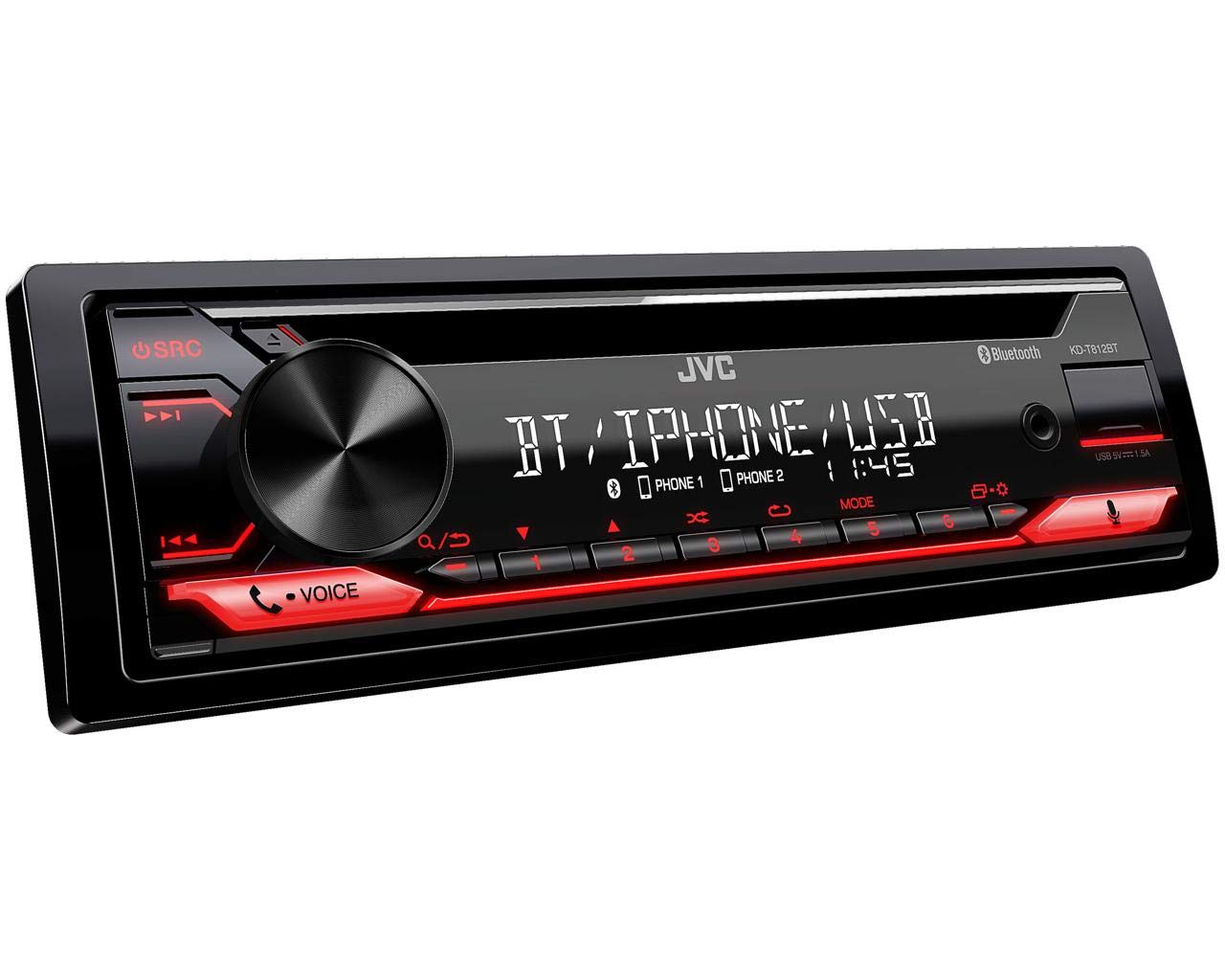
Figure 1: Front view of the JVC KD-T812BT CD Receiver. This image shows the main display, control knob, source button, and various function buttons with red illumination.

Figure 2: Rear view of the JVC KD-T812BT CD Receiver, illustrating the wiring harness connector, antenna input, and RCA pre-out connections.
Initial Power-On
- After installation, reconnect the vehicle's battery.
- Press the SRC button to power on the unit.
- Follow the on-screen prompts for initial setup, including language selection.
Bluetooth Pairing
To use Bluetooth features, you must pair your smartphone with the receiver.
- Turn on Bluetooth on your smartphone.
- On the KD-T812BT, navigate to the Bluetooth menu.
- Select "Pairing" or "Device Search".
- Select "KD-T812BT" from your smartphone's Bluetooth device list.
- Confirm the pairing code on both devices if prompted.
- Up to two phones can be connected simultaneously for hands-free calls, and up to five smartphones for audio playback.

Figure 3: Illustration representing the Bluetooth hands-free calling feature, highlighting wireless connectivity for communication.
JVC Remote App
Download the JVC Remote App from your smartphone's app store to control the receiver directly from your device.

Figure 4: Icon representing the JVC Remote App, which allows smartphone control of the receiver.
Operating Instructions
Basic Controls
- Power On/Off: Press the SRC button. Hold to turn off.
- Volume Control: Rotate the large central knob.
- Source Selection: Press the SRC button repeatedly to cycle through sources (CD, USB, Tuner, Bluetooth Audio, AUX).
- Menu Navigation: Use the central knob and surrounding buttons to navigate menus.
CD Playback
- Insert a CD into the disc slot with the label side up. The unit will automatically begin playback.
- Use the Skip buttons (<< / >>) to change tracks.
- Press the Pause/Play button to pause or resume playback.
- To eject a CD, press the Eject button.
USB Playback
Connect a USB storage device to the USB port. The unit supports AAC, MP3, WMA, WAV, and FLAC audio formats. The USB port also provides 1.5A charging for smartphones.

Figure 5: Logo indicating compatibility with iPhone and iPod devices for direct connection via USB.

Figure 6: Icon illustrating the USB port's capability to provide up to 1.5A charging current for connected devices.
Radio Tuner
Select the Tuner source. Use the Seek buttons to find stations. Press and hold to auto-seek. Store your favorite stations using the preset buttons (1-6).
- RDS (Radio Data System): Displays station information, program type, and traffic announcements where available.
- Station Memory: The unit supports 18 FM and 6 MW station presets.
Bluetooth Audio Streaming
Once paired, select Bluetooth Audio as the source. You can stream music from your smartphone. The advanced AVRCP 1.6 profile allows for convenient searching of individual music tracks directly from the car stereo.
Hands-Free Calling
When a paired phone receives a call, the unit will display caller information. Use the Answer and End Call buttons on the unit to manage calls. The external microphone ensures clear communication.
Alexa Integration
With the Alexa app installed on your smartphone and connected via Bluetooth, you can use voice commands for various functions, including playing music, checking traffic, creating shopping lists, and getting news updates.

Figure 7: Logo indicating the integration of Amazon Alexa voice services within the receiver.
Spotify Control
Connect your smartphone running the Spotify app via Bluetooth or USB. You can then control Spotify playback directly from the receiver, including track selection and playlist browsing.

Figure 8: Logo representing the Spotify Control feature, allowing direct control of Spotify from the head unit.
Sound Settings
Access the sound menu to adjust audio settings:
- 13-Band Parametric iEQ: Allows precise adjustment of frequency response.
- DSP (Digital Signal Processor) with Time Alignment: Optimizes sound staging by adjusting the delay for each speaker.
- Active Crossover: Configures frequency ranges for connected speakers and subwoofers.

Figure 9: Icon representing the Digital Sound Processor (DSP) capabilities for advanced audio tuning.
Display Settings
Adjust the brightness of the display and button illumination through the system settings menu. The unit features a 13-digit VA LCD display for good readability.
Maintenance
Cleaning the Unit
Wipe the unit's surface with a soft, dry cloth. For stubborn dirt, use a cloth lightly dampened with water. Avoid using abrasive cleaners or solvents, as they can damage the finish.
Cleaning CDs
Handle CDs by their edges. If a CD is dirty, wipe it gently from the center outwards with a soft, lint-free cloth. Do not use solvents or abrasive cleaners.
Troubleshooting
If you encounter issues with your KD-T812BT, refer to the following common problems and solutions:
| Problem | Possible Cause | Solution |
|---|---|---|
| No power | Loose wiring connection; Blown fuse. | Check power and ground connections. Inspect and replace fuse if necessary. |
| No sound | Volume too low; Mute activated; Speaker wiring issue. | Increase volume. Deactivate mute. Check speaker connections. |
| Bluetooth connection fails | Device not in pairing mode; Interference; Already connected to another device. | Ensure both devices are in pairing mode. Move closer to the unit. Disconnect from other devices. |
| CD/USB playback error | Dirty or scratched disc; Incompatible file format; Damaged USB device. | Clean or replace disc. Ensure files are supported formats. Try a different USB device. |
If the problem persists after attempting these solutions, please contact JVC customer support.
Specifications
| Feature | Specification |
|---|---|
| Model Number | KD-T812BT |
| Brand | JVC |
| Connectivity Technology | Bluetooth, USB |
| Controller Type | Amazon Alexa |
| Special Features | RDS, Spotify |
| Compatible Devices | Smartphone |
| Audio Encoding | Stereo |
| Audio Output Mode | Stereo |
| Surround Sound Channel Configuration | 4.0 |
| Output Power | 200 Watts (4 x 50 W) |
| Number of Channels | 4 |
| Internet Application | Spotify |
| Control Method | Application |
| Digital Media Format | MP3 audio, WAV, WMA, AAC, FLAC |
| Color | Black |
| USB Charging Current | Up to 1.5 A |
| Display | 13-digit VA LCD |
Warranty Information
This product is covered by a 2-year manufacturer's warranty. Please retain your proof of purchase for warranty claims. The warranty covers defects in materials and workmanship under normal use. It does not cover damage caused by misuse, accident, unauthorized modification, or improper installation.
For detailed warranty terms and conditions, please refer to the warranty card included with your product or visit the official JVC website.
Customer Support
For further assistance, technical support, or service inquiries, please contact JVC customer support. You can find contact information on the official JVC website or in the documentation provided with your product.
Before contacting support, please have your product model number (KD-T812BT) and purchase details ready.
Official JVC Website: www.jvc.com


