
1. Introduction
Thank you for choosing the MeterMall HuntVision E3-W 3MP Indoor WiFi PT Camera. This camera is designed to provide reliable indoor surveillance with advanced features such as 3MP Full HD resolution, pan/tilt functionality, two-way audio, and smart AI detection. This manual will guide you through the setup, operation, and maintenance of your new security camera to ensure optimal performance.
The HuntVision E3-W camera offers industry-leading image quality with advanced 3MP Full HD resolution, smart AI features for accurate detection and reduced false alarms, flexible storage solutions including local and cloud options, an intuitive mobile app for complete control from anywhere, and reliable performance backed by professional-grade components.
2. Product Overview
2.1 Key Features
- Crystal-Clear 3MP Full HD Resolution: Enjoy sharp, detailed footage day and night with full-color vision.
- Two-Way Audio & Smart Alerts: Communicate via built-in microphone and speaker, plus trigger security camera alarms remotely through the HUNTVISION app.
- Easy Wi-Fi & Bluetooth Setup: Connects seamlessly via 2.4G WiFi and Bluetooth 4.2 for quick installation. Supports QR code or button reset.
- Flexible Viewing & Storage Options: Switch between HD/ultra HD streams and customize playback. Supports local storage (TF card) and cloud options.
- Versatile & User-Friendly: Adjust day/night modes, flip views, and control OSD displays via app.

Figure 2.1: Key features of the HuntVision E3-W camera.
2.2 Camera Components
The HuntVision E3-W camera features a compact design with essential components for effective surveillance.
- Camera Lens: Captures video footage.
- Infrared LEDs: For night vision capabilities.
- Microphone: For audio input and two-way communication.
- Speaker: For audio output and two-way communication.
- Status Indicator Light: Indicates camera status (e.g., power, connection).
- Reset Button: Used for resetting the camera to factory settings.
- Micro SD Card Slot: For local video storage (TF card).
- Power Port: For connecting the power adapter.

Figure 2.2: Front view of the HuntVision E3-W Camera.
3. Setup Guide
3.1 Unboxing and Power On
- Carefully unbox your HuntVision E3-W camera and check for all included accessories.
- Connect the power adapter to the camera's power port and plug it into a wall outlet.
- Wait for the camera's status indicator light to begin flashing, indicating it is ready for setup.
3.2 App Download and Account Registration
- Download the "Ivy Smart APP" from your mobile device's app store (App Store for iOS, Google Play Store for Android).
- Open the Ivy Smart APP and register a new account if you don't have one, or log in with your existing credentials.
3.3 Connecting the Camera to Wi-Fi
- In the Ivy Smart APP, tap the "+" icon to add a new device.
- Select "Security Camera" or "Smart Camera" from the device list.
- Follow the on-screen instructions to connect the camera. This typically involves selecting your 2.4GHz Wi-Fi network and entering the password. The camera supports Bluetooth for quick pairing.
- Scan the QR code displayed on your phone with the camera lens, or follow the voice prompts for button reset pairing.
- Once connected, the status indicator light will turn solid, and you will hear a confirmation sound from the camera.
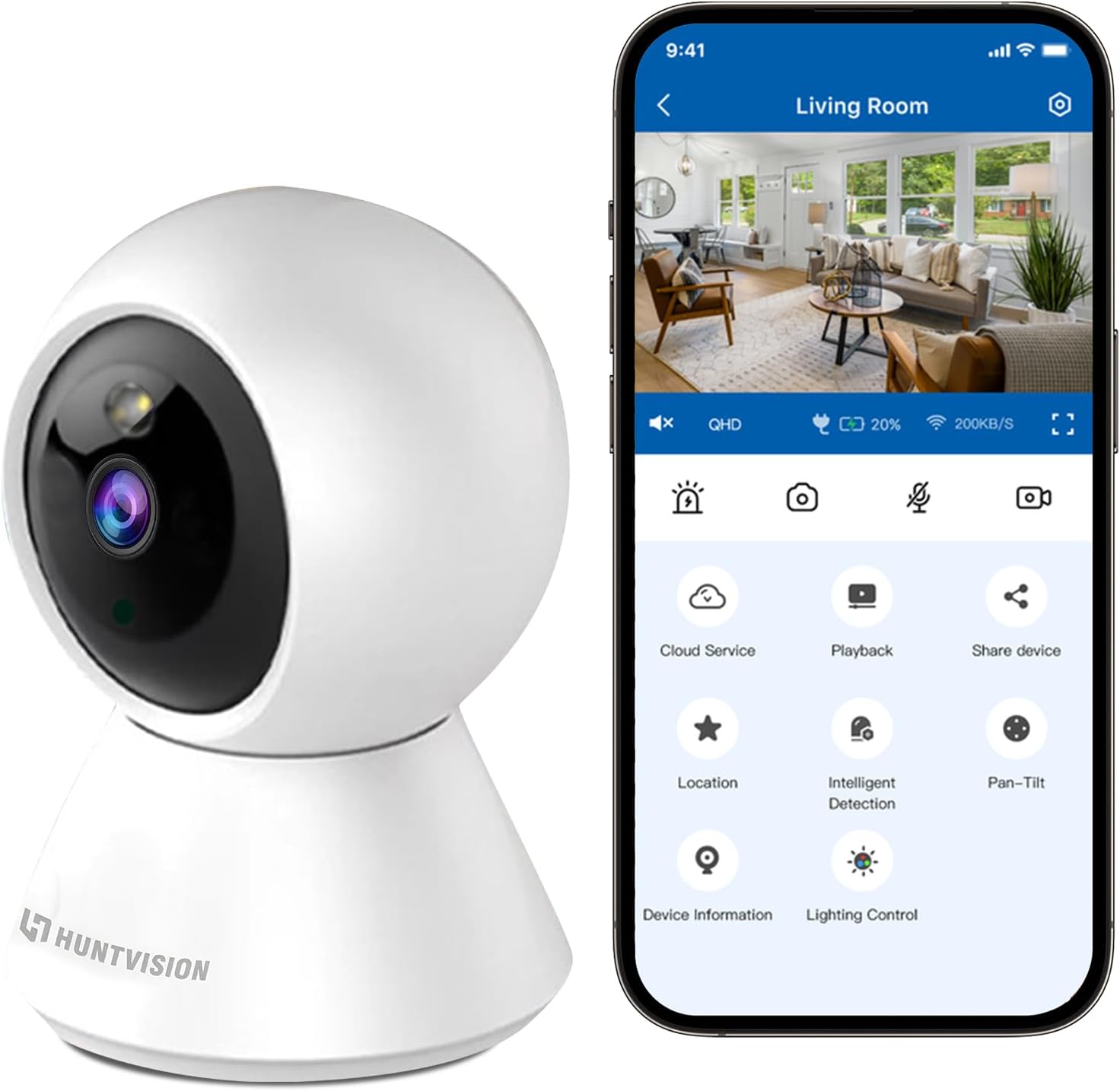
Figure 3.1: Connecting the camera via the Ivy Smart APP.
4. Operating Instructions
4.1 Live View and Pan/Tilt Control
- Open the Ivy Smart APP and select your E3-W camera from the device list to access the live view.
- Use the on-screen joystick or swipe gestures to control the camera's pan (355°) and tilt (85°) movements.
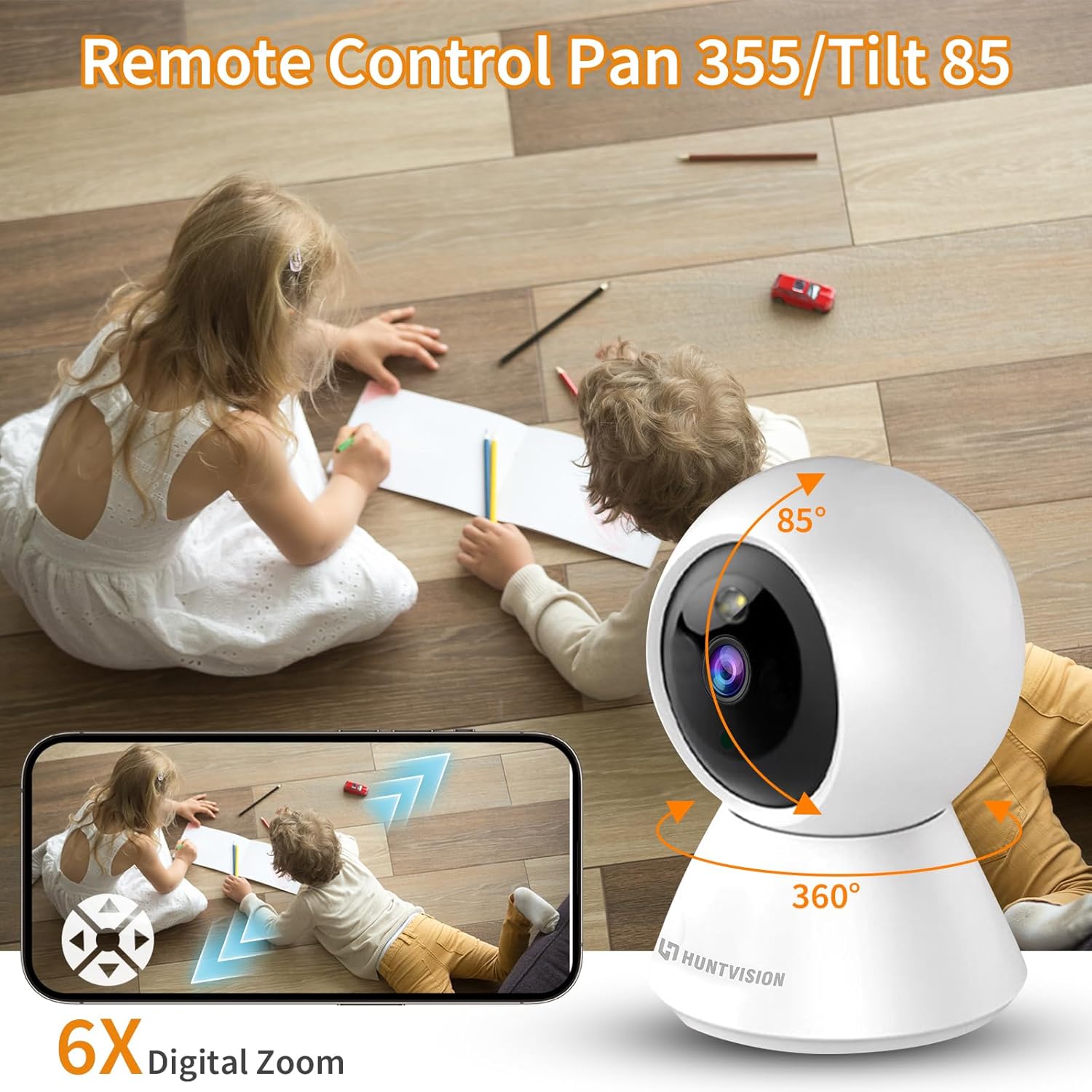
Figure 4.1: Remote Pan/Tilt control via the app.
4.2 Two-Way Audio
- From the live view interface, tap the microphone icon to enable two-way audio.
- Press and hold the talk button to speak through the camera's speaker. Release to listen.
4.3 Motion Detection and Alerts
- Navigate to the camera settings in the Ivy Smart APP.
- Enable "Motion Detection" and configure sensitivity levels and detection zones as needed.
- Set up push notifications to receive alerts on your mobile device when motion is detected.
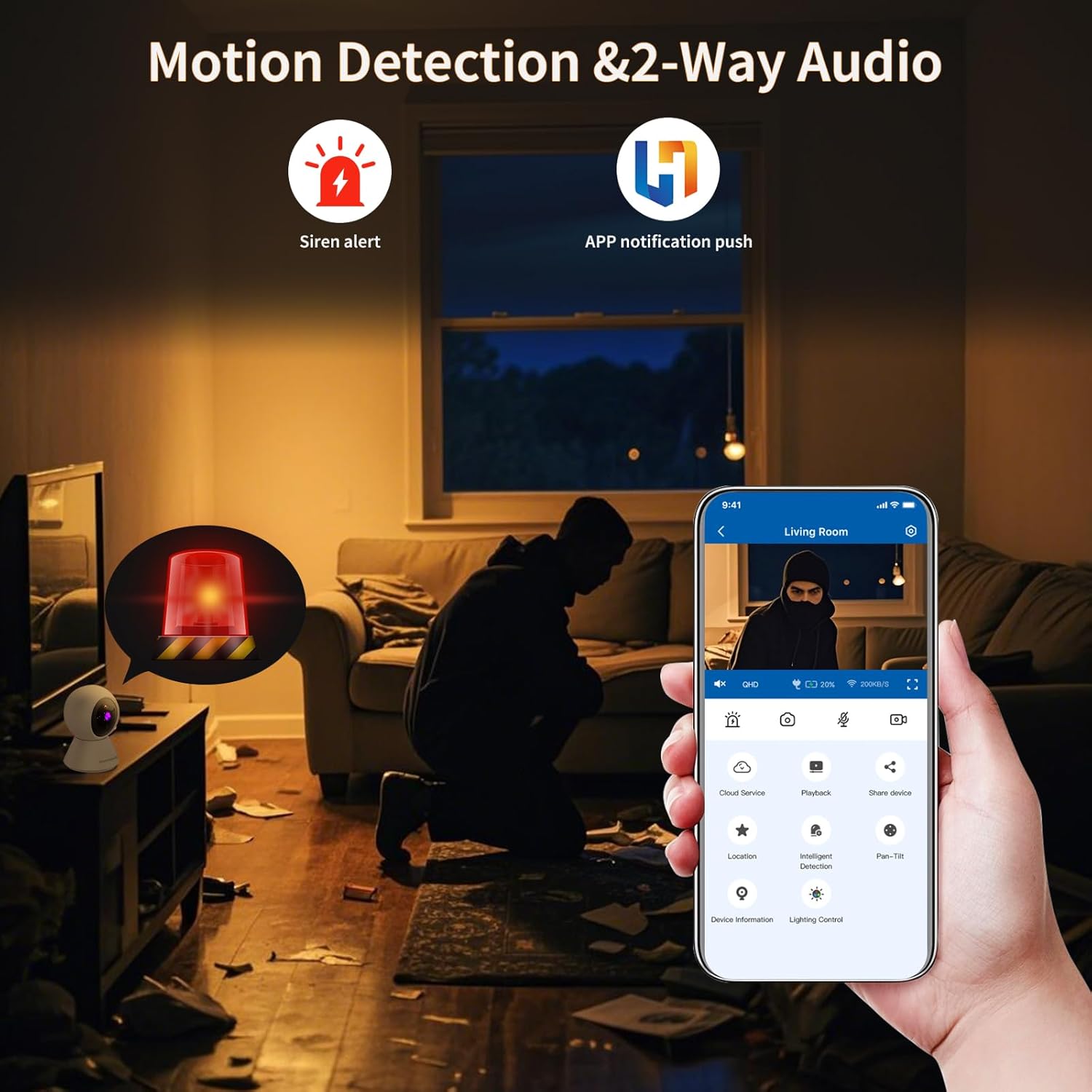
Figure 4.2: Motion detection and app notifications.
4.4 Night Vision
- The camera automatically switches to night vision mode in low-light conditions.
- You can manually adjust day/night modes within the app settings if desired.

Figure 4.3: Night vision capability of the camera.
4.5 Video Recording and Playback
- Insert a Micro SD (TF) card (not included) into the camera's card slot for local storage. The camera supports continuous recording or event-triggered recording.
- Alternatively, subscribe to cloud storage services through the Ivy Smart APP for secure off-site storage.
- Access recorded footage via the "Playback" option in the app.
5. Maintenance
- Cleaning: Gently wipe the camera lens and body with a soft, dry cloth. Do not use harsh chemicals or abrasive cleaners.
- Firmware Updates: Regularly check for and install firmware updates via the Ivy Smart APP to ensure optimal performance and security.
- Power Cycle: If the camera becomes unresponsive, unplug it from the power source for 10 seconds, then plug it back in.
6. Troubleshooting
- Camera Offline: Ensure the camera is powered on and within range of your Wi-Fi router. Check your Wi-Fi network status. Try restarting the camera and your router.
- Failed to Connect: Verify your Wi-Fi password is correct and you are connecting to a 2.4GHz network. Ensure the camera's status light is flashing before pairing. Try resetting the camera.
- Poor Image Quality: Check your internet connection speed. Ensure the camera lens is clean and free from obstructions. Adjust video quality settings in the app.
- No Audio: Check the microphone and speaker settings in the app. Ensure volume is not muted on your device or in the app.
- Motion Alerts Not Received: Verify motion detection is enabled and sensitivity is set appropriately. Check app notification settings on your phone.
7. Specifications
| Feature | Specification |
|---|---|
| Model Name | E3-W |
| Indoor/Outdoor Usage | Indoor |
| Power Source | Corded Electric |
| Mounting Type | Tabletop Mount |
| Video Capture Resolution | 1296p (3MP) |
| Item Dimensions (L x W x H) | 3.15 x 3.15 x 4.73 inches |
| Item Weight | 6.1 ounces |
| Connectivity Technology | Wireless (2.4G WiFi, Bluetooth 4.2) |
| Special Features | Motion Sensor, Night Vision |
| Recommended Uses | Indoor Security |
| Manufacturer | Foscam Intelligent Technology Co., Ltd |
8. Warranty and Support
8.1 Warranty Information
The MeterMall HuntVision E3-W camera comes with a 2-year warranty from the date of purchase. This warranty covers manufacturing defects and malfunctions under normal use. Please retain your proof of purchase for warranty claims.
8.2 Customer Support
For technical support, troubleshooting assistance, or warranty inquiries, please contact your retailer or the manufacturer's customer service. Refer to the product packaging or the Ivy Smart APP for specific contact details.
You can also visit the official HUNTVISION website for FAQs and additional resources.
