
Introduction
This manual provides instructions for the LeadsaiL Wireless Optical Mouse, model LX005. This 2.4 GHz wireless mouse offers a stable connection, silent clicks, and adjustable DPI settings for various computing needs. It is designed for comfort and portability, suitable for use with laptops and personal computers.
The mouse features a silent click design, minimizing noise during use, making it ideal for environments where quiet operation is essential. Its 2.4GHz wireless technology ensures a reliable connection over a range of up to 10 meters. The mouse has undergone a 5,000,000 click test, ensuring long-lasting usage.

Image: A close-up of a hand using the LeadsaiL wireless mouse, with an overlay highlighting that the mouse has been tested for 5,000,000 clicks to ensure durability.
Setup Instructions
- Insert Battery: Open the battery compartment located on the underside of the mouse. Insert one AA battery (included with some models, otherwise purchase separately) ensuring correct polarity.

Image: The underside of the LeadsaiL wireless mouse, illustrating the battery compartment for a single AA battery and the storage slot for the Nano USB receiver. The power switch is also visible.
- Retrieve USB Receiver: The Nano USB receiver is stored in a dedicated slot next to the battery compartment on the mouse's underside. Gently pull it out.
- Connect Receiver: Plug the Nano USB receiver into an available USB port on your computer or laptop.

Image: A LeadsaiL wireless mouse in use with a laptop, demonstrating the 2.4GHz wireless connection established by the USB receiver plugged into the laptop's side.
- Power On: Locate the ON/OFF switch on the bottom of the mouse and slide it to the "ON" position.
- Automatic Connection: The mouse should automatically connect to your computer. No additional drivers are typically required (Plug and Play).
Operating Instructions
- Silent Clicks: The mouse features a silent click design, minimizing noise during use. This is beneficial in quiet environments.

Image: A LeadsaiL wireless mouse with an overlay indicating "Silent Click," positioned near a sleeping baby, emphasizing its quiet operation.
- DPI Adjustment: The mouse offers three adjustable DPI settings: 800, 1200, and 1600. Press the DPI button, usually located behind the scroll wheel, to cycle through these settings. A higher DPI provides faster cursor movement, while a lower DPI offers more precise control. The default setting is 1600 DPI.
- Wireless Range: The 2.4GHz wireless connection provides a reliable operating range of up to 10 meters (approximately 33 feet) without interference.
- Surface Compatibility: The optical sensor allows for smooth operation on various surfaces, including mouse pads, desks, and glass surfaces.
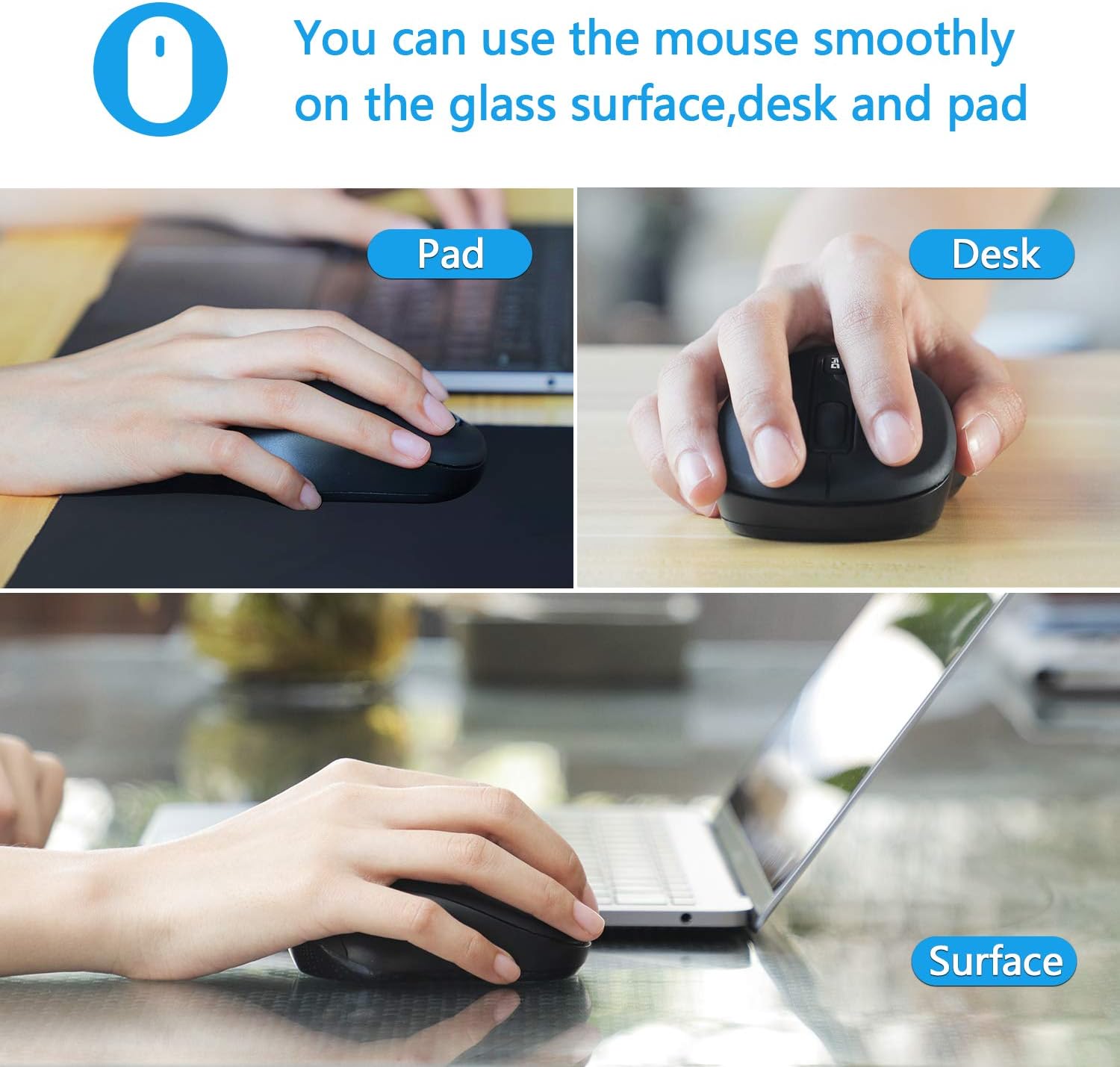
Image: A LeadsaiL wireless mouse demonstrated in use on three different surfaces: a mouse pad, a wooden desk, and a glass surface, highlighting its versatile tracking capabilities.
Maintenance
- Battery Replacement: When the mouse performance degrades or the indicator light (if present) signals low power, replace the AA battery. Ensure the mouse is switched off before replacing the battery.
- Power Saving Mode: To conserve battery life, the mouse will enter an energy-saving mode after 8 minutes of inactivity. To reactivate, simply move or click the mouse.
- Cleaning: Use a soft, dry cloth to clean the exterior of the mouse. Avoid using harsh chemicals or abrasive materials.
- Storage: When not in use for extended periods, switch off the mouse using the ON/OFF switch on the bottom. For transport, store the Nano USB receiver in its dedicated slot on the mouse's underside to prevent loss.
Troubleshooting
- Mouse Not Responding:
- Ensure the mouse is switched "ON".
- Check if the AA battery is correctly inserted and has sufficient charge. Replace if necessary.
- Verify that the USB receiver is securely plugged into a working USB port on your computer.
- Try plugging the USB receiver into a different USB port.
- Move the mouse closer to the USB receiver to rule out range issues.
- Intermittent Connection:
- Ensure there are no large metallic objects or other wireless devices operating on the 2.4GHz frequency between the mouse and the receiver, as these can cause interference.
- Try using the mouse on a different surface.
- Cursor Movement is Erratic or Slow:
- Adjust the DPI setting using the DPI button on the mouse.
- Clean the optical sensor on the bottom of the mouse with a soft, dry cloth.
- Ensure the surface you are using the mouse on is clean and suitable for optical tracking.
Specifications
| Model Number | LX005 |
| Connectivity Technology | 2.4 GHz Wireless (USB Receiver) |
| Movement Detection Technology | Optical |
| DPI Settings | 800 / 1200 / 1600 (Adjustable) |
| Number of Buttons | 4 |
| Hand Orientation | Ambidextrous |
| Wireless Range | Up to 10 meters |
| Power Source | 1 x AA Battery |
| Average Battery Life | 12 months (approximate) |
| Compatible Devices | Personal Computer, Laptop |
| Compatible Operating Systems | Windows 7/8/10/XP, Vista 7/8, Linux (Not compatible with Pro or other laptops with only Type-C ports) |
| Product Dimensions | 115 x 62 x 32 mm (4.5 x 2.4 x 1.3 inches) |
| Product Weight | 62g (2.2 oz) |
| Package Contents | Wireless Mouse, USB Receiver, User Manual |

Image: A top-down view of the LeadsaiL wireless mouse, showing its approximate dimensions of 11 cm in length and 6.6 cm in width.
Warranty and Support
Specific warranty information and direct support contact details are not provided in the product description. Please refer to the retailer or manufacturer's official website for warranty terms and customer support options.


