
WESECUU POE8
WESECUU POE Security Camera System Instruction Manual
Brand: WESECUU | Model: POE4 KIT
1. Introduction
This instruction manual provides detailed guidance for the installation, operation, and maintenance of your WESECUU 16-Channel Expandable POE Security Camera System. Designed for robust home and business surveillance, this system features 4K resolution, advanced AI human detection, two-way audio communication, and enhanced color night vision capabilities. With a built-in 3TB hard drive, it ensures 24/7 continuous recording and reliable data storage.
2. Package Contents
Verify that all items listed below are included in your package:
- 1 x 16-Channel NVR (Network Video Recorder)
- 8 x IP Home Security Cameras (4K resolution)
- 1 x 3TB Security Grade Hard Drive (pre-installed in NVR)
- 1 x USB Mouse
- 1 x DC48V 3A Power Adapter
- 1 x 1m Network Cable
- 4 x 20m Network Cables
- 4 x Positioning Stickers

Image: Detailed view of all components included in the WESECUU POE Security Camera System package.
3. Setup Guide
3.1 NVR (Network Video Recorder) Setup
- Connect Power: Plug the DC48V 3A Power Adapter into the NVR's power input and then into a power outlet.
- Connect to Display: Connect the NVR to a monitor or TV using an HDMI or VGA cable (not included).
- Connect Mouse: Plug the included USB mouse into one of the NVR's USB ports for navigation.
- Network Connection: Connect the NVR to your router using the 1m network cable for internet access and remote viewing capabilities.
3.2 Camera Installation
The cameras feature a durable metal shell and a versatile ball mount for flexible positioning. They are powered directly via the Ethernet cable (Power over Ethernet - PoE) from the NVR, simplifying wiring.
- Mount Cameras: Use the provided positioning stickers and mounting hardware to securely install each camera in your desired indoor or outdoor locations. Ensure the camera's view is unobstructed.
- Connect Ethernet Cables: Connect one end of the 20m network cables to each camera and the other end to the PoE ports on the NVR. The cameras will automatically power on and connect to the NVR.

Image: The NVR unit connected to cameras, illustrating the Power over Ethernet (PoE) setup.
3.3 Mobile App Setup (XMEye Pro)
For remote access and control, download the XMEye Pro mobile application.
- Download App: Scan the QR code displayed on the NVR's monitor or search for "XMEye Pro" in your device's app store.
- Register/Login: Follow the in-app instructions to register a new account or log in if you already have one.
- Add Device: Add your NVR to the app by scanning the device's QR code or manually entering its ID.
Video: An overview of the WESECUU 8-channel home security camera system, demonstrating initial setup and features.
4. Operating the System
4.1 AI Human Detection & Playback
The system utilizes advanced recognition algorithms to accurately detect human movement, significantly reducing false alarms compared to traditional motion detection. Notifications are sent in real-time via the mobile app. You can playback recorded video anytime, anywhere through the phone app or directly on your TV monitor.

Image: A security camera view showing a person detected with a blue outline, and a mobile phone displaying a notification for human detection.
4.2 Floodlight & Siren
Upon human detection, the PoE camera system can automatically activate its built-in floodlight and siren. This feature is designed to deter intruders before they can gain access to your property.

Image: A security camera view showing a person detected at night, with the floodlight activated and an alert message displayed.
4.3 Color Night Vision & Two-Way Audio
Unlike standard PoE security camera systems that only record in black and white at night, the WESECUU system provides clear color night vision when the floodlight is triggered. The integrated two-way audio function allows you to communicate with visitors or warn potential intruders directly through the camera.

Image: A split image demonstrating the difference between 3MP (2304x1296) and 1080P (1920x1080) resolution, highlighting the clarity of the higher resolution.

Image: A security camera view showing a delivery person at a door, with a speech bubble indicating two-way audio communication with a user on a mobile phone.
Video: A promotional video showcasing the features of the WESECUU POE Security Camera System, including night vision and two-way audio.
4.4 Remote Access
Access your surveillance system anytime, anywhere via the XMEye Pro mobile app on smartphones and tablets, or through a compatible web interface on personal computers. This allows for live viewing, playback, and system management on the go.
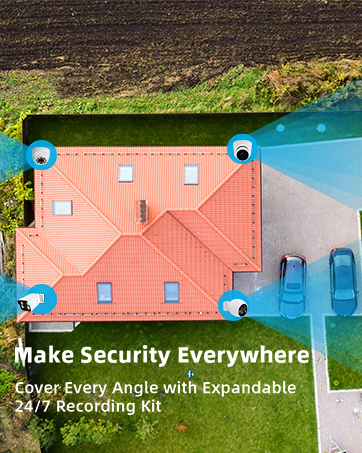
Image: A mobile phone screen showing the XMEye Pro app interface for remote viewing of camera feeds.
5. Maintenance
5.1 Hard Drive Management
The NVR comes with a built-in 3TB security-grade hard drive, supporting ultra-long continuous recording. The system can be configured to automatically overwrite the oldest internally stored footage to ensure continuous recording. You can also transfer video files to a USB memory stick or external hard drive for backup.
5.2 General Care
- Regularly clean camera lenses with a soft, damp cloth to ensure clear image quality.
- Ensure the NVR is placed in a well-ventilated area to prevent overheating.
- Periodically check cable connections for security and integrity, especially for outdoor cameras.
6. Troubleshooting
If you encounter any issues with your WESECUU security camera system, consider the following common troubleshooting steps:
- No Video/Offline Camera: Check power connections to the NVR and ensure Ethernet cables are securely plugged into both the camera and NVR ports. Verify network connectivity for the NVR.
- Poor Image Quality: Clean camera lenses. Check for obstructions in the camera's field of view. Ensure sufficient lighting for optimal night vision performance.
- Remote Access Issues: Verify your NVR is connected to the internet. Ensure the XMEye Pro app is updated to the latest version and your login credentials are correct. Check your router's firewall settings if necessary.
- False Alarms: Adjust the AI human detection sensitivity settings within the NVR interface or mobile app to minimize unwanted alerts.
For more complex issues, refer to the detailed user manual (PDF) available online or contact WESECUU customer support.
7. Specifications
| Feature | Specification |
|---|---|
| Brand | WESECUU |
| Connectivity Technology | Wired (PoE) |
| Video Capture Resolution | 4K |
| Special Features | Dual Detection Zone, Human Detection, Motion Sensor, Floodlight, Siren, 2-Way Audio, Color Night Vision |
| Number of Channels | 16 |
| Memory Storage Capacity | 3 TB HDD |
| Power Source | Corded Electric |
| Recommended Uses | Indoor, Outdoor |
| Compatible Devices | Smartphones, Personal Computers, Tablets, Cameras |
| Signal Format | Digital |
| Low Light Technology | Night Color |
| Frame Rate | 24 or 30 FPS |
| Recording Mode | 4K video, 2-way audio |
| Optical Sensor Technology | CMOS |
| Hardware Interface | 802.11 ac/b/g/n (for network connection) |
| Lens Type | Fixed |
| Video Input | RJ45 |
| Product Dimensions | 1 x 1 x 1 inches |
| Item Weight | 11.22 pounds |
| Date First Available | September 26, 2019 |
8. Warranty & Support
WESECUU offers a 60-day free return policy and a 12-month warranty for this product. For any issues, technical assistance, or warranty claims, please contact WESECUU customer support directly. Refer to the official WESECUU website or the contact information provided in your product packaging for support details.
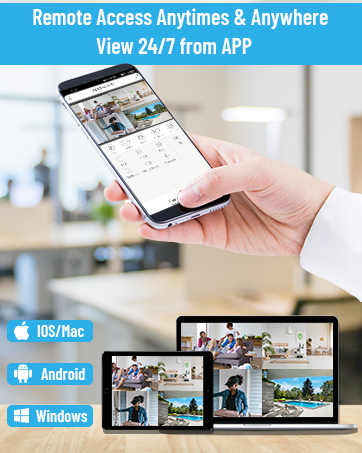
Image: An illustration representing professional technical team, quick response, and starting with customer needs, symbolizing WESECUU's commitment to support.
Related documentsPOE8


Ask a question about this manual
Ask about setup, troubleshooting, compatibility, parts, safety, or missing instructions. Manuals+ will review the question and use this page’s manual context to help answer it.