
KUNFINE 7010B
KUNFINE 7" Double Din Car Stereo Audio BT MP5 Player User Manual
Model: 7010B
Brand: KUNFINE
1. Introduction
This manual provides detailed instructions for the installation, operation, and maintenance of your KUNFINE 7" Double Din Car Stereo Audio BT MP5 Player. Please read this manual thoroughly before using the product to ensure proper functionality and safety. Keep this manual for future reference.
2. Safety Information
- Ensure professional installation to avoid damage to the unit or vehicle.
- Do not operate the unit in a manner that distracts you from driving.
- Avoid exposing the unit to extreme temperatures, moisture, or direct sunlight.
- Use only specified power voltage (DC 12V) for operation.
- Do not attempt to disassemble or modify the unit. This will void the warranty.
- Keep the unit away from children.
3. Package Contents
Verify that all items are present in the package:
- KUNFINE 7" Double Din Car Stereo (Model 7010B)
- Rear View Camera
- Power Cable
- Remote Control
- Instruction Manual

Figure 3.1: Main unit and included accessories.

Figure 3.2: Package contents and unit dimensions.
4. Setup
4.1 Physical Installation
The installation size of the unit is approximately 7.04 x 4.05 x 2.6 inches (17.9 x 10.3 x 6.5 cm). Ensure your vehicle's dashboard opening is compatible with these dimensions for a double DIN unit. Professional installation is highly recommended.
4.1.1 Wiring Diagram
Refer to the following diagrams for proper wiring connections. Incorrect wiring can cause damage to the unit or vehicle electrical system.

Figure 4.1: Main wiring connections for the car stereo.
- Red Wire: +12V Accessory/Switch (ACC Key Switch)
- Yellow Wire: +12V Constant Power Supply (Battery)
- Black Wire: Ground Wire
- Blue Wire: Power Antenna/Amplifier Turn On
- Orange/Black Wire: Illuminate Backlight
- Brown Wire: Brake Detect Wire
- Pink Wire: Reversing Camera Control Wire
- Speaker Wires (Green, White, Gray, Purple): Connect to corresponding vehicle speakers. Ensure correct polarity (+/-).
4.1.2 Reverse Camera Wiring
Connect the reverse camera as shown in the diagram. The unit automatically switches to the reverse image when the car is in reverse gear.

Figure 4.2: Reverse camera wiring diagram.
4.2 Initial Power On
After completing all wiring, turn on your vehicle's ignition. The car stereo should power on automatically. If not, check all connections and the vehicle's fuse box.
5. Operating Instructions
5.1 Basic Controls and Touchscreen Interface
The unit features a 7-inch touch screen for easy navigation and control. You can also use the physical buttons on the left side of the unit or the included remote control.

Figure 5.1: 7-inch Touch Screen Interface.
5.1.1 Remote Control Operation
The remote control allows for convenient operation of various functions from a distance, including volume, mode selection, and track changes.
Video 5.1: Demonstration of the 7010B car MP5 player's features, including app use and remote control functionality.
5.2 Radio Function (FM)
Access the "Radio" icon on the main screen to enter FM mode. You can manually tune frequencies, use auto-scan to find stations, or select from saved presets.
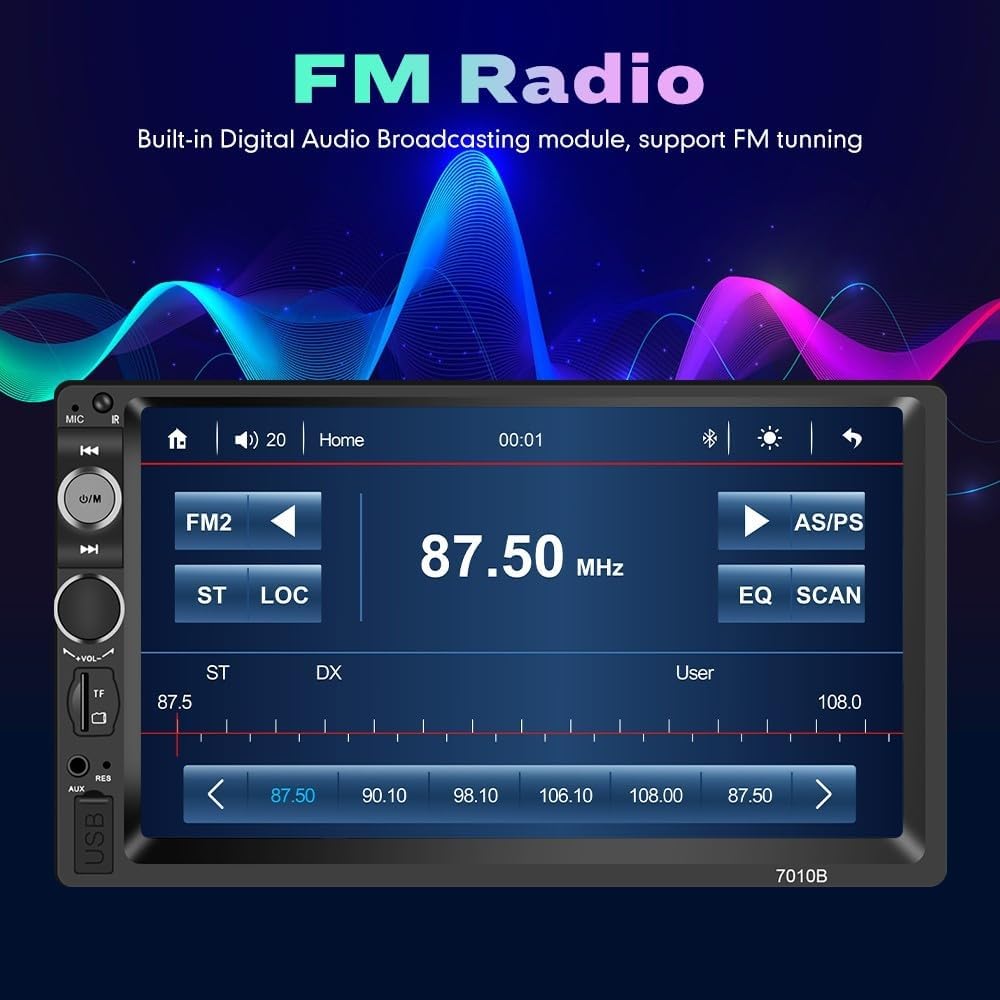
Figure 5.2: FM Radio Interface.
5.3 Bluetooth Function
The built-in Bluetooth allows for hands-free calling and wireless music streaming. Pair your smartphone with the unit via Bluetooth settings.
- Pairing: Go to the "BT" (Bluetooth) menu, enable Bluetooth on your phone, and search for "KUNFINE" or similar device name. Select to pair.
- Hands-Free Calling: Once paired, you can answer, make, and end calls directly from the stereo's screen.
- Music Playback: Stream audio from your phone to the car stereo.

Figure 5.3: Bluetooth Hands-Free Interface.
5.4 Mirror Link Function
The Mirror Link function allows you to synchronize your Android smartphone screen with the car stereo display via a USB cable. This enables viewing phone content on the larger screen.
- Connect your Android phone to the unit's USB port using its original USB cable.
- Follow the on-screen prompts to establish the Mirror Link connection.
- Note: This feature primarily supports Android phones.

Figure 5.4: Mirror Link in action, displaying a navigation map.
5.5 Media Playback (USB/SD/AUX)
The unit supports various media formats and input sources for audio and video playback.
- USB Disk: Insert a USB flash drive into the USB port to play MP3, WMA, WAV, FLAC, OGG, APE audio files, and RM, RMVB, DVD(VOB), DCD(DAT), MP1, MP2, DIVX, XVID, MP4, H263, H264, FLV, 3GP, SWF, AVI, ASF, MJPEG video files.
- SD/MMC Card: Insert a compatible memory card into the TF Card slot for media playback.
- AUX Input: Connect external audio devices via the AUX port using a 3.5mm audio cable.
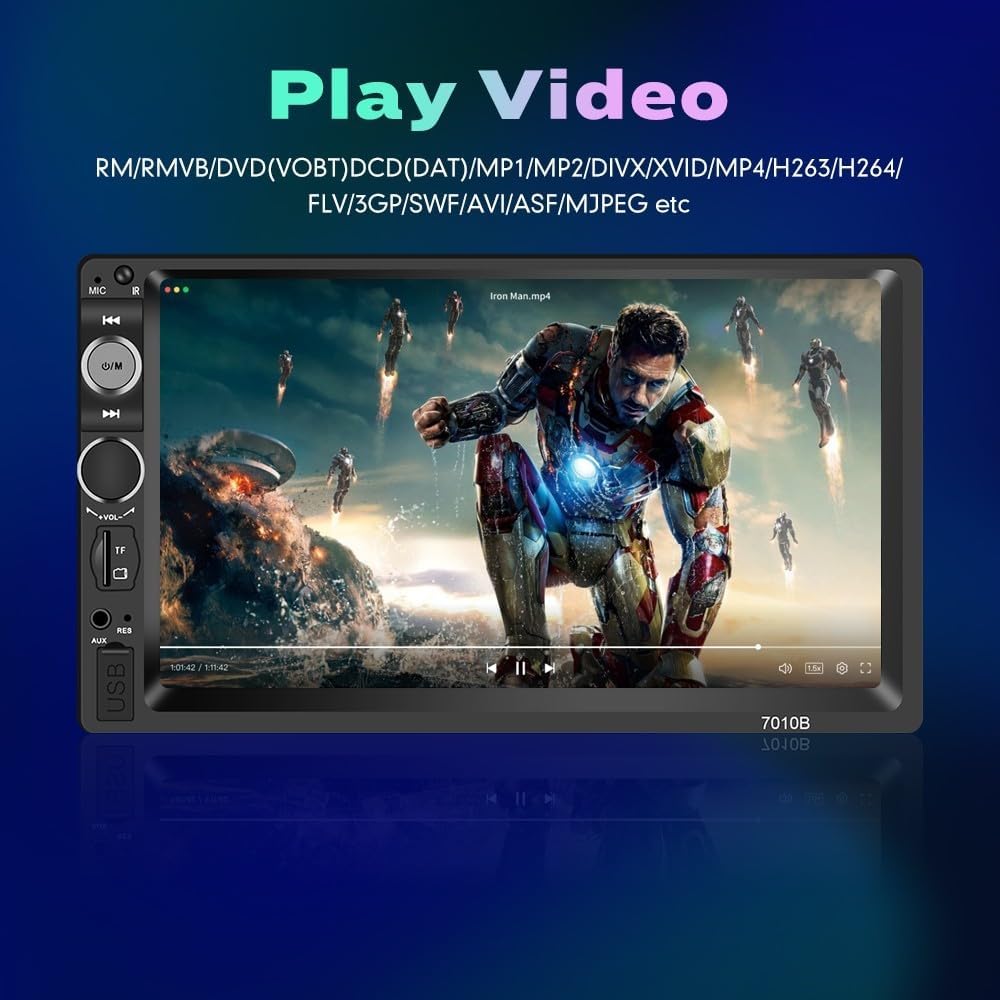
Figure 5.5: Video Playback Interface.

Figure 5.6: Music Playback Interface.

Figure 5.7: Supported Play Modes.
5.6 Steering Wheel Control
If your vehicle supports steering wheel controls, you can configure them to operate the car stereo. Navigate to the "Wheel" or "Steer" setting in the unit's menu to map functions like volume, track change, and mode selection to your steering wheel buttons.

Figure 5.8: Steering Wheel Control Setup.
5.7 Reverse Camera Input
When properly installed, the unit will automatically display the rear view camera feed when the vehicle is shifted into reverse gear, aiding in safer parking and maneuvering.
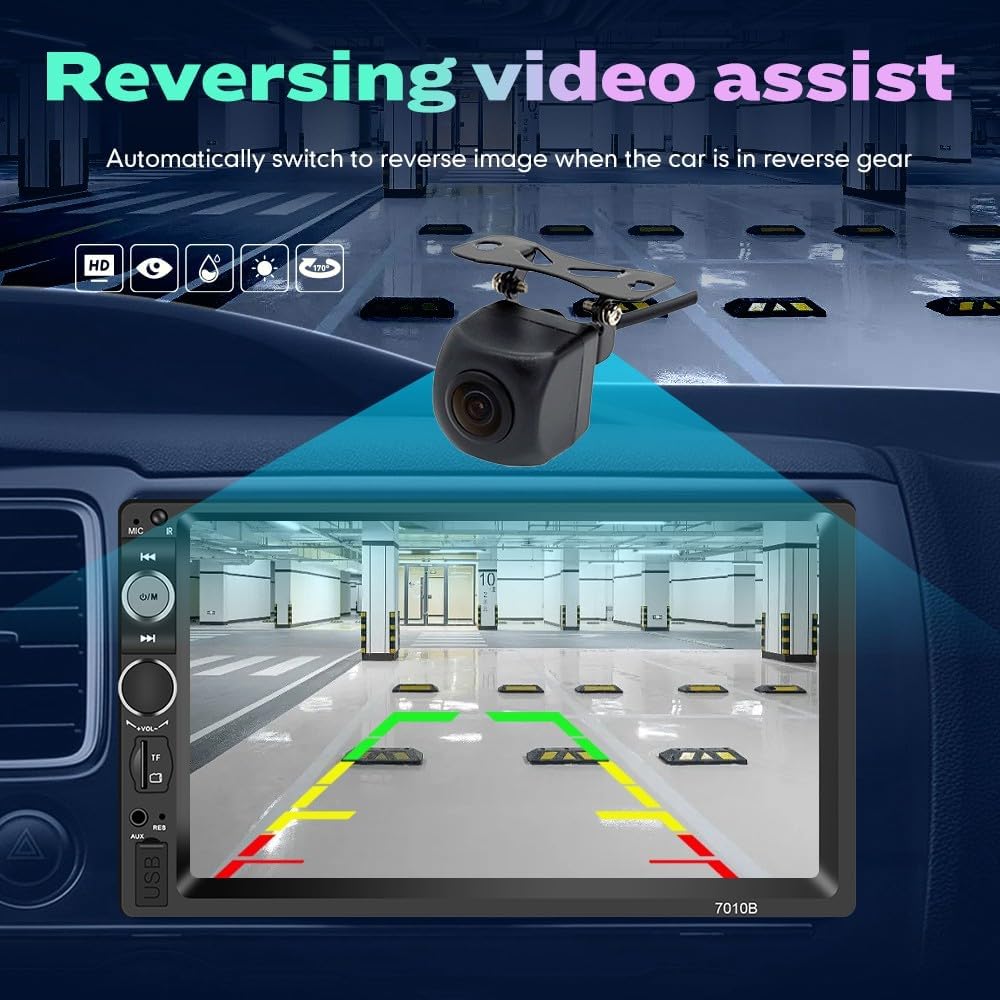
Figure 5.9: Reversing Video Assist.
6. Maintenance
- Cleaning: Use a soft, dry cloth to clean the screen and unit surface. Do not use abrasive cleaners or solvents.
- Temperature: Avoid prolonged exposure to direct sunlight or extreme temperatures, which can affect the unit's lifespan.
- Software Updates: Check the manufacturer's website periodically for any available firmware updates to ensure optimal performance.
7. Troubleshooting
| Problem | Possible Cause | Solution |
|---|---|---|
| Unit does not power on. | Incorrect wiring, blown fuse, no power supply. | Check power and ground connections. Verify vehicle fuse. Ensure ACC and Battery wires have power. |
| No sound. | Volume too low, incorrect audio source, speaker wiring issue. | Increase volume. Select correct audio source (FM, BT, USB, AUX). Check speaker connections and polarity. |
| Bluetooth not connecting. | Bluetooth not enabled, device not in pairing mode, interference. | Ensure Bluetooth is enabled on both devices. Put unit in pairing mode. Move closer to the unit. Delete previous pairings and try again. |
| Mirror Link not working. | Incorrect USB cable, unsupported phone, app issues. | Use original USB cable. Ensure phone is Android. Check phone settings for USB debugging or mirroring options. |
| Rear camera not displaying. | Incorrect wiring, camera malfunction, vehicle not in reverse. | Verify camera power and video input connections. Ensure pink reverse trigger wire is correctly connected to the reversing lamp. |
8. Specifications
| Feature | Detail |
|---|---|
| Model Number | 7010B |
| Display Size | 7 Inches |
| Resolution | 480 x 272 |
| Touch Screen Type | Capacitive |
| Product Dimensions | 9.06 x 5.12 x 6.3 inches (approx. 17.9 x 10.3 x 6.5 cm) |
| Item Weight | 1.43 pounds (0.65 kg) |
| Connectivity Technology | Bluetooth |
| Audio Output Mode | AUX, Stereo |
| Special Features | Bluetooth, Touchscreen, Mirror Link, FM Radio, USB/SD Playback, Reverse Camera Input, Steering Wheel Control |
| Vehicle Service Type | Car |
9. Warranty & Support
The KUNFINE 7" Double Din Car Stereo (Model 7010B) comes with a 1-Year Warranty (Non-human damage). For technical support, installation assistance, or warranty claims, please contact KUNFINE customer service. Refer to your purchase documentation for specific contact details.
Manufacturer: KUNFINE
Ask a question about this manual
Ask about setup, troubleshooting, compatibility, parts, safety, or missing instructions. Manuals+ will review the question and use this page’s manual context to help answer it.