
TECKNET M017
TECKNET Folding Wireless Mouse User Manual
Model: M017
Product Overview
The TECKNET Folding Wireless Mouse (Model M017) is a portable 2.4G travel mouse designed for convenience and comfort. It features 3 adjustable DPI settings (1000/1500/2000) allowing for easy cursor sensitivity changes to suit various activities. Its ergonomic, foldable design makes it highly portable, fitting comfortably in your hand and easily stored for travel. The mouse offers wide compatibility with various operating systems and devices, including Windows 11/10/8/7/XP/Vista/Chrome/Linux, and Mac (note: side buttons are not available for Mac OS). Powered by 2x AAA batteries (not included), it boasts a long battery life of up to 24 months with an auto power-off function to conserve energy. The USB Nano Receiver is conveniently stored within the mouse itself for easy transport.

Figure 1: TECKNET Folding Wireless Mouse and its USB Nano Receiver.
Package Contents
- 1 x TECKNET Folding Wireless Mouse
- 1 x USB Nano Receiver (stored inside the battery compartment)
- 1 x User Manual
Setup Guide
1. Installing Batteries
- Gently unfold the mouse to reveal the battery compartment and USB receiver slot.
- Open the battery cover.
- Insert two (2) AAA batteries (not included) into the compartment, ensuring correct polarity (+/-).
- Close the battery cover securely.
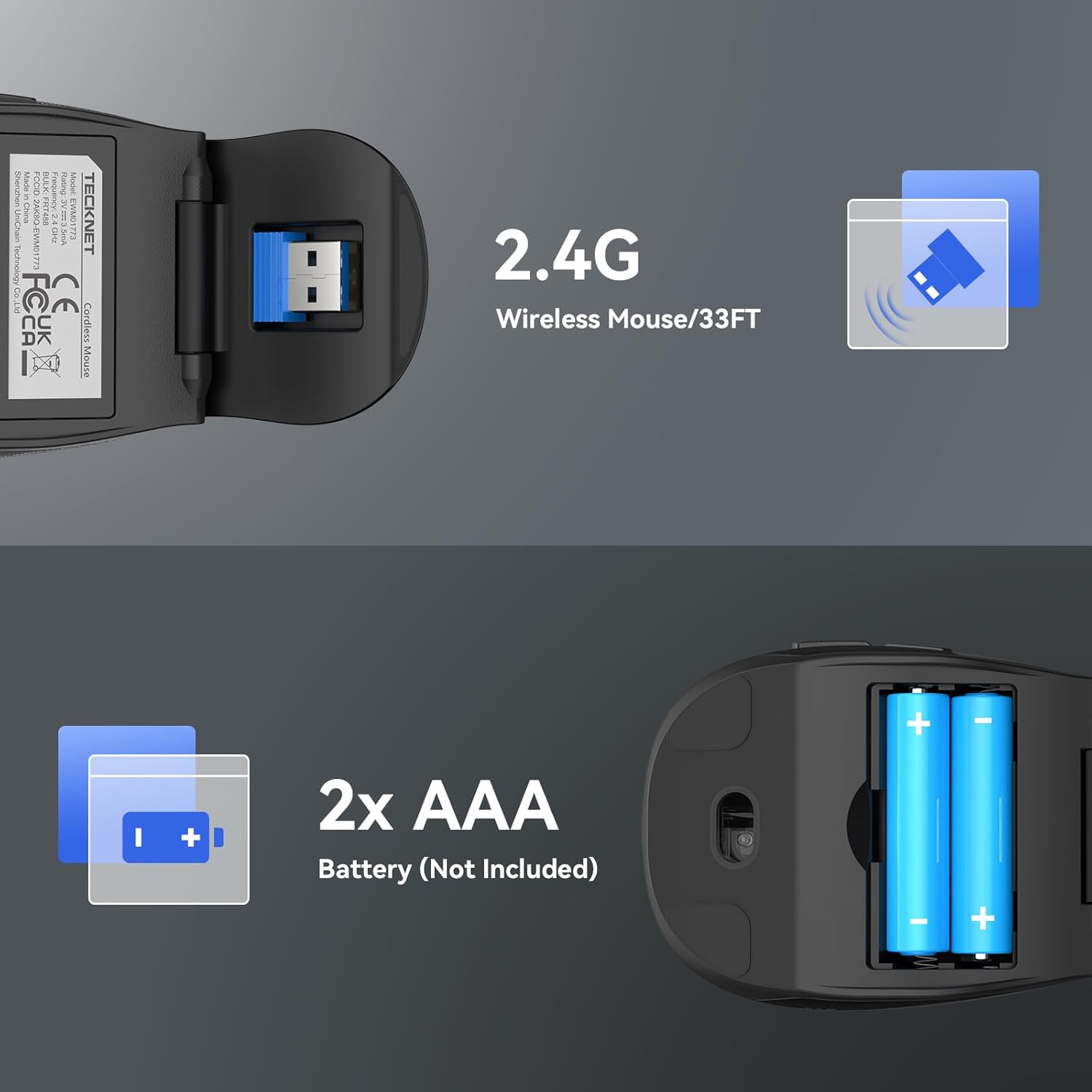
Figure 2: Battery installation and USB receiver storage.
2. Connecting the USB Nano Receiver
- Locate the USB Nano Receiver stored in its dedicated slot within the mouse's battery compartment.
- Carefully remove the receiver.
- Plug the USB Nano Receiver into an available USB port on your computer (laptop, PC, etc.).
- The mouse is plug-and-play; no additional drivers are required. Your computer should automatically detect and install the device.

Figure 3: Connecting the USB Nano Receiver to your device.
Operating Instructions
Power On/Off
The mouse automatically powers on when unfolded and powers off when folded. This intelligent design helps conserve battery life.
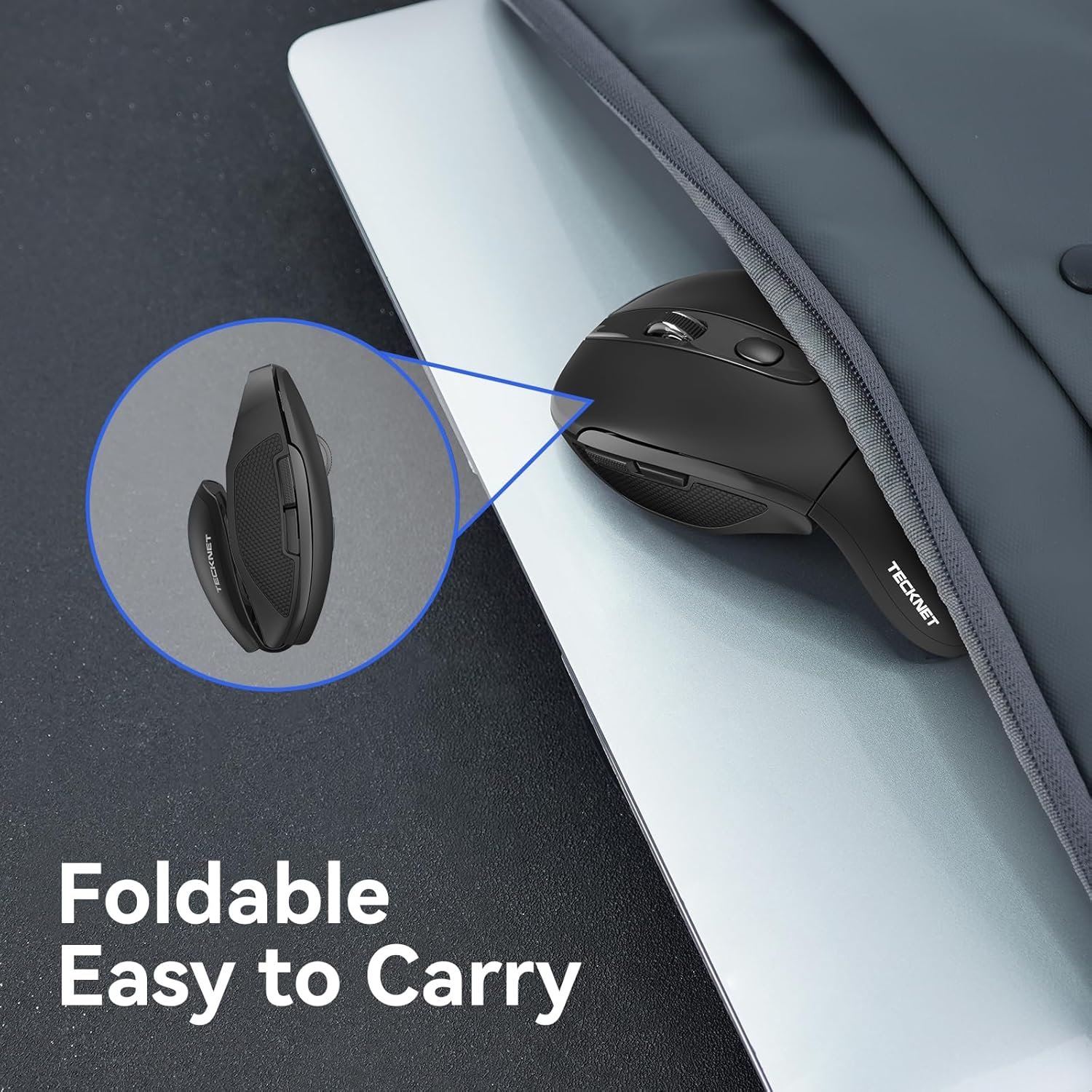
Figure 4: The mouse in its folded, compact state for easy portability.
Adjusting DPI Sensitivity
The mouse features a dedicated DPI switch button located near the scroll wheel. Press this button to cycle through the three adjustable DPI settings: 1000, 1500, and 2000 DPI. This allows you to instantly change the cursor speed and sensitivity to match your task, whether it's precise editing or fast-paced browsing.

Figure 5: Visual representation of the 3 adjustable DPI settings.
Ergonomic Design and Usage
The mouse is designed with an ergonomic contour and soft rubber grips to provide maximum comfort and support for both right and left hands. Its sweat-resistant and skin-friendly finish ensures a pleasant user experience during extended use.

Figure 6: The ergonomic design provides comfortable hand support.
Button Functions
| Button | Function |
|---|---|
| Left Button | Primary click function. |
| Right Button | Secondary click function (context menu). |
| Scroll Wheel | Scrolls up/down, middle click. |
| DPI Switch Button | Cycles through 1000/1500/2000 DPI settings. |
| Forward Button | Navigates forward in web browsers/applications (not available for Mac OS). |
| Backward Button | Navigates backward in web browsers/applications (not available for Mac OS). |

Figure 7: Labeled components of the mouse.
Maintenance
Battery Life and Power Saving
The TECKNET Folding Wireless Mouse is designed for extended battery life, offering up to 24 months of use on two AAA batteries. To maximize battery life, the mouse features an auto power-off function that puts it into sleep mode after a few minutes of inactivity. Simply press any button to wake the mouse up. A low power LED indicator will warn you when the battery is running low, prompting you to replace the batteries.
Cleaning
To clean your mouse, gently wipe it with a soft, dry cloth. Avoid using harsh chemicals or abrasive materials that could damage the surface.
Troubleshooting
Mouse Not Responding
- Ensure the mouse is unfolded and powered on.
- Check if the batteries are correctly installed and have sufficient charge. Replace if necessary.
- Verify that the USB Nano Receiver is securely plugged into a working USB port on your computer. Try a different USB port if available.
- Ensure the mouse is within the effective operating range of 10 meters (33ft) from the receiver.
- Restart your computer.
Cursor Movement is Erratic or Slow
- Adjust the DPI sensitivity using the DPI switch button on the mouse.
- Ensure the surface you are using the mouse on is clean and suitable for optical tracking.
- Check battery level; low batteries can affect performance.
Side Buttons Not Working on Mac OS
- As noted in the product description, the side buttons (Forward/Backward) are not available for Mac OS. This is a design limitation.
Specifications
| Feature | Detail |
|---|---|
| Model Number | M017 |
| Brand | TECKNET |
| Connectivity Technology | 2.4GHz Wireless (USB Nano Receiver) |
| Movement Detection Technology | Optical |
| Adjustable DPI | 1000 / 1500 / 2000 |
| Operating Range | Up to 10 meters (33 feet) |
| Power Source | 2 x AAA Batteries (not included) |
| Battery Life | Up to 24 months |
| Product Dimensions (Unfolded) | 2.68 x 1.52 x 4.21 inches (approx. 68 x 38.6 x 106.9 mm) |
| Item Weight | 1.87 ounces (approx. 53 grams) |
| Color | Black |
| Durability | 5,000,000 keystroke test passed |

Figure 8: Product dimensions.
Warranty and Support
TECKNET offers a 36-month warranty for this product (registration may be required). If you encounter any problems in using the product, please feel free to contact our professional customer service team for assistance.
For further support and contact information, please visit the official TECKNET website or refer to the contact details provided with your product packaging.
Ask a question about this manual
Ask about setup, troubleshooting, compatibility, parts, safety, or missing instructions. Manuals+ will review the question and use this page’s manual context to help answer it.