
1. Introduction
The Aruba AP-535 is a high-performance wireless access point designed to meet the demands of modern networks with a growing number of mobile and IoT devices. Utilizing 802.11ax (Wi-Fi 6) technology, it delivers exceptional data rates and efficiency, making it ideal for high-density environments such as educational institutions, retail branches, hotels, and digital workplaces.
This manual provides essential information for the proper installation, configuration, and maintenance of your Aruba AP-535 access point.
2. Key Features
- AI-powered features for wireless RF and client connectivity optimization.
- Dual-radio (dual 4x4 MIMO) 802.11ax AP with up-and downlink OFDMA and Multi-User MIMO (MU-MIMO).
- Supports all mandatory and several optional 802.11ax features, including up to 37 OFDMA Resource Units (RUs).
- Maximum data rates of 2.4Gbps in the 5GHz band and 1,150Mbps in the 2.4GHz band, for an aggregate peak data rate of 3.55Gbps.
- Supports up to 1,024 associated client devices per radio.
- Cost-effective and easy-to-manage universal IoT connectivity, including Bluetooth 5 and Zigbee radios.
- Aruba Intelligent Power Monitoring (IPM) for flexible power operation.
- State-of-the-art security with WPA3 and Enhanced Open.
3. Product Overview
The Aruba AP-535 is designed for discreet ceiling or wall mounting, featuring a clean, white aesthetic. Its robust internal components are engineered for optimal wireless performance and reliability.

Figure 3.1: Front view of the Aruba AP-535 Wireless Access Point, showing the clean, circular design with the 'aruba' logo centrally placed.
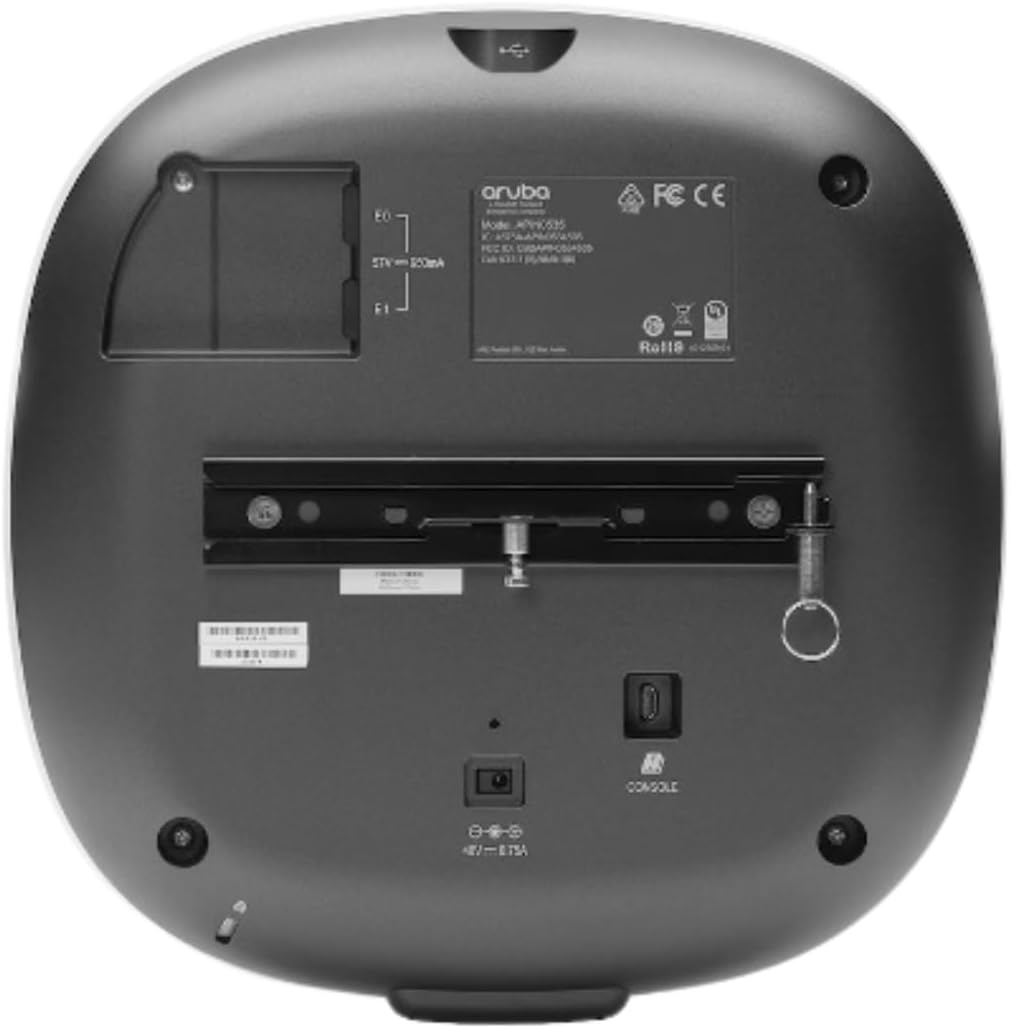
Figure 3.2: Rear view of the Aruba AP-535, detailing the mounting bracket, Ethernet ports (E0, E1), console port, and power input.
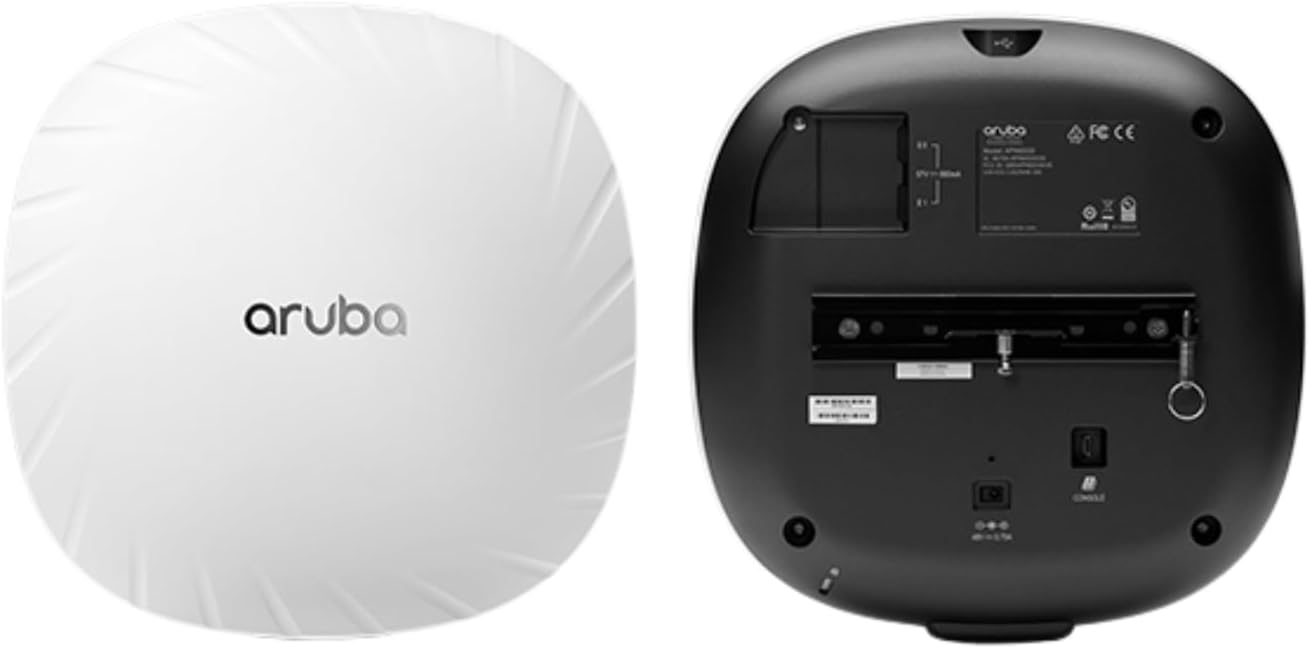
Figure 3.3: Combined view showing both the front and rear of the Aruba AP-535, highlighting its compact form factor and connectivity options.
4. Setup and Installation
Proper installation is crucial for optimal performance. Ensure you have the necessary mounting hardware and network cabling before beginning.
4.1. Mounting the Access Point
- Select a suitable location, preferably a central point within the desired coverage area, free from obstructions.
- Attach the mounting bracket to the ceiling or wall using appropriate screws and anchors.
- Align the AP-535 with the mounting bracket and twist to secure it in place.
4.2. Connecting to the Network and Power
- Connect an Ethernet cable from your network switch (preferably one supporting Power over Ethernet, PoE) to the E0 port on the AP-535. The AP-535 supports Aruba Intelligent Power Monitoring (IPM), allowing it to operate even with limited PoE power.
- If PoE is not available, connect an optional external power adapter (sold separately) to the DC power input.
- The AP will power on and begin its boot sequence. Observe the LED indicators for status.
5. Operating Principles
The Aruba AP-535 leverages advanced technologies to provide a superior wireless experience:
- 802.11ax (Wi-Fi 6): This standard significantly improves network capacity and efficiency, especially in dense environments, by allowing the AP to communicate with multiple devices simultaneously.
- Orthogonal Frequency Division Multiple Access (OFDMA): OFDMA divides a wireless channel into smaller sub-channels, enabling the AP to transmit data to multiple clients concurrently, reducing latency and improving efficiency for various traffic types, including IoT devices.
- Multi-User Multiple Input Multiple Output (MU-MIMO): This technology allows the AP to transmit data to multiple devices at the same time using multiple antennas, further enhancing network capacity and throughput.
- Aruba ClientMatch: This feature intelligently optimizes client connections by automatically detecting and classifying mobile devices, then matching them with the best APs and radios to maximize performance and ensure efficient utilization of 802.11ax capabilities.
6. Maintenance
Regular maintenance ensures the longevity and optimal performance of your AP-535.
- Cleaning: Periodically clean the exterior of the access point with a soft, dry cloth. Do not use liquid cleaners or aerosols.
- Firmware Updates: Regularly check for and apply the latest firmware updates from the official Aruba support portal. Firmware updates often include performance enhancements, security patches, and new features.
- Environmental Conditions: Ensure the access point operates within its specified temperature and humidity ranges to prevent damage.
7. Troubleshooting
This section provides solutions to common issues you might encounter.
7.1. No Power/LEDs Off
- Check Power Source: Verify that the Ethernet cable is securely connected to a PoE-enabled port on your switch, or that the external power adapter is properly connected and receiving power.
- Cable Integrity: Inspect the Ethernet cable for any damage. Try a different cable if necessary.
7.2. No Network Connectivity
- Verify Network Connection: Ensure the Ethernet cable from the AP is connected to an active network port on your switch/router.
- IP Address: Confirm the AP has obtained a valid IP address from your DHCP server, or that its static IP configuration is correct.
- Controller Connection: If managed by a controller, ensure the AP can reach the controller and is properly provisioned.
7.3. Poor Wireless Performance
- Interference: Check for sources of wireless interference (e.g., other Wi-Fi networks, cordless phones, microwaves).
- AP Placement: Ensure the AP is centrally located and not obstructed by dense materials.
- ClientMatch: Verify that Aruba ClientMatch is enabled and functioning correctly to optimize client connections.
- Firmware: Ensure the AP is running the latest firmware version.
8. Specifications
| Attribute | Value |
|---|---|
| Model Number | AP-535 |
| Product Dimensions | 12 x 11.25 x 4.1 inches |
| Item Weight | 3.92 pounds |
| Wireless Communication Technologies | Bluetooth, Wi-Fi |
| Connectivity Technologies | USB, Ethernet |
| Manufacturer | Hewlett Packard Enterprise |
| First Available Date | January 6, 2020 |
9. Warranty and Support
For detailed warranty information and technical support, please refer to the official Aruba (Hewlett Packard Enterprise) website or contact their customer service. Keep your purchase receipt and product serial number (located on the rear of the device) handy when seeking support.
Note: No official product videos were available for embedding based on the provided data.


