
RCA RCT6613W23PH6-Charcoal
RCA 11 Delta Pro 2-in-1 Tablet User Manual
Model: RCT6613W23PH6-Charcoal
1. Introduction
Welcome to the user manual for your new RCA 11 Delta Pro 2-in-1 Tablet. This device combines the portability of a tablet with the functionality of a laptop, featuring an 11.6-inch touchscreen display and a detachable keyboard. Powered by Android 9.0 Pie, it offers a versatile computing experience for both work and entertainment. This manual provides essential information on setting up, operating, maintaining, and troubleshooting your device to ensure optimal performance.
2. Product Overview
The RCA 11 Delta Pro is designed for flexibility, allowing seamless transition between tablet and laptop modes. Familiarize yourself with the main components and their functions.
2.1 Device Components
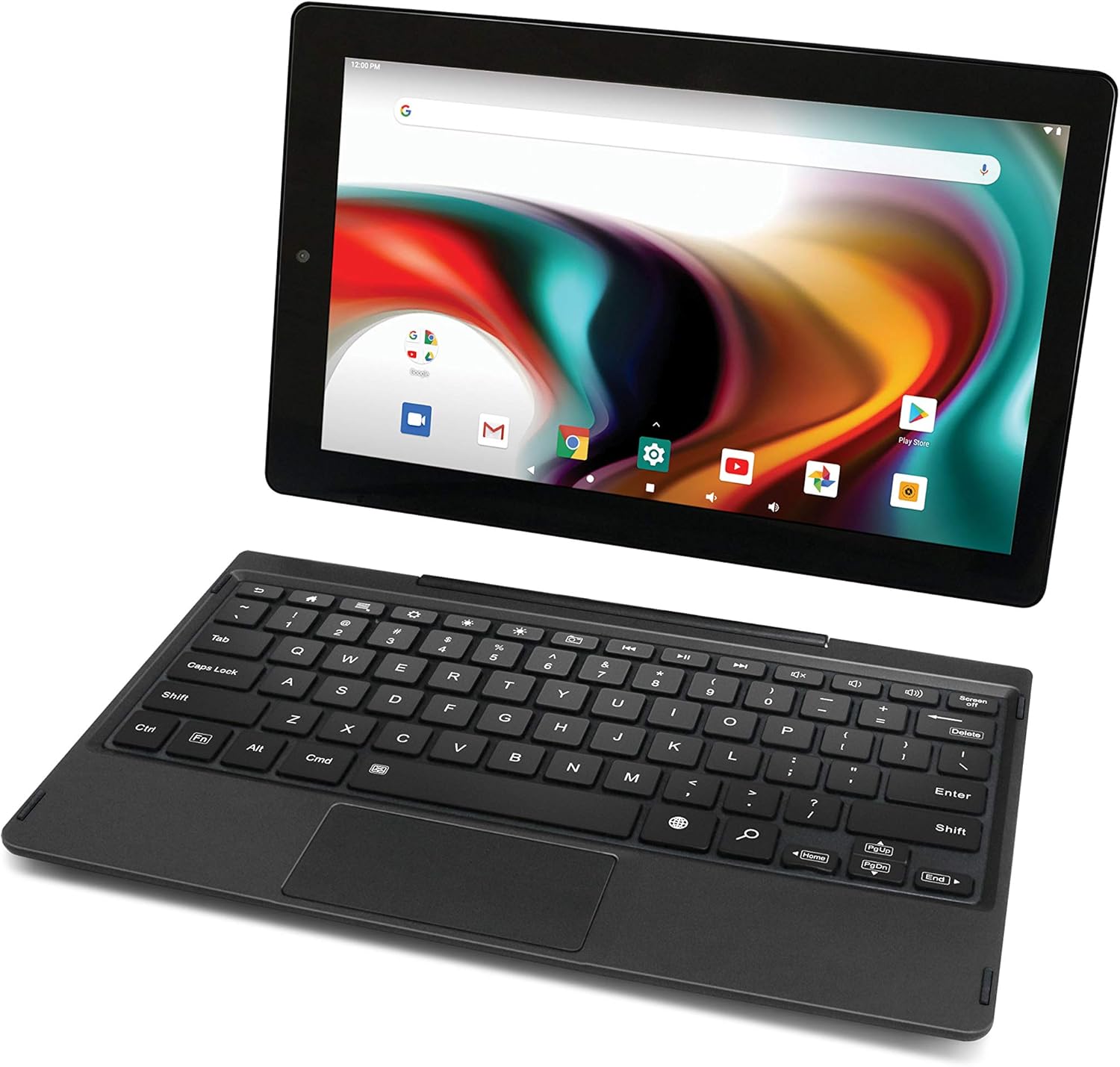
Image: The RCA 11 Delta Pro tablet shown with its detachable keyboard, illustrating the two main components of the device.

Image: The RCA 11 Delta Pro tablet with the keyboard attached, demonstrating its laptop configuration.

Image: The RCA 11 Delta Pro tablet shown in standalone portrait orientation, highlighting its use without the keyboard.
2.2 Ports and Buttons
- Power Button: Located on the side, used to turn the device on/off or put it to sleep.
- Volume Buttons: Adjust audio output.
- Micro USB Port: For charging and data transfer.
- Full USB Port: For connecting USB devices.
- MicroSD Card Slot: Expand storage up to 128GB.
- 3.5mm Headphone Jack: For audio output.
- DC Jack: Dedicated charging port.
- Front and Rear Cameras: For photos, videos, and video calls.
3. Setup
3.1 Initial Charging
Before first use, fully charge your RCA 11 Delta Pro tablet. Connect the included AC adapter to the DC jack on the tablet and plug it into a power outlet. The charging indicator will illuminate. A full charge typically takes several hours.
3.2 Powering On/Off
- To Power On: Press and hold the Power button until the RCA logo appears on the screen.
- To Power Off: Press and hold the Power button until a menu appears, then select "Power off."
- To Sleep/Wake: Briefly press the Power button.
3.3 Attaching and Detaching the Keyboard
The detachable keyboard connects magnetically to the tablet. Align the tablet with the keyboard's dock connector and gently push until it clicks into place. To detach, firmly pull the tablet away from the keyboard.

Image: The RCA 11 Delta Pro tablet with its keyboard folded back, demonstrating a flexible viewing mode.
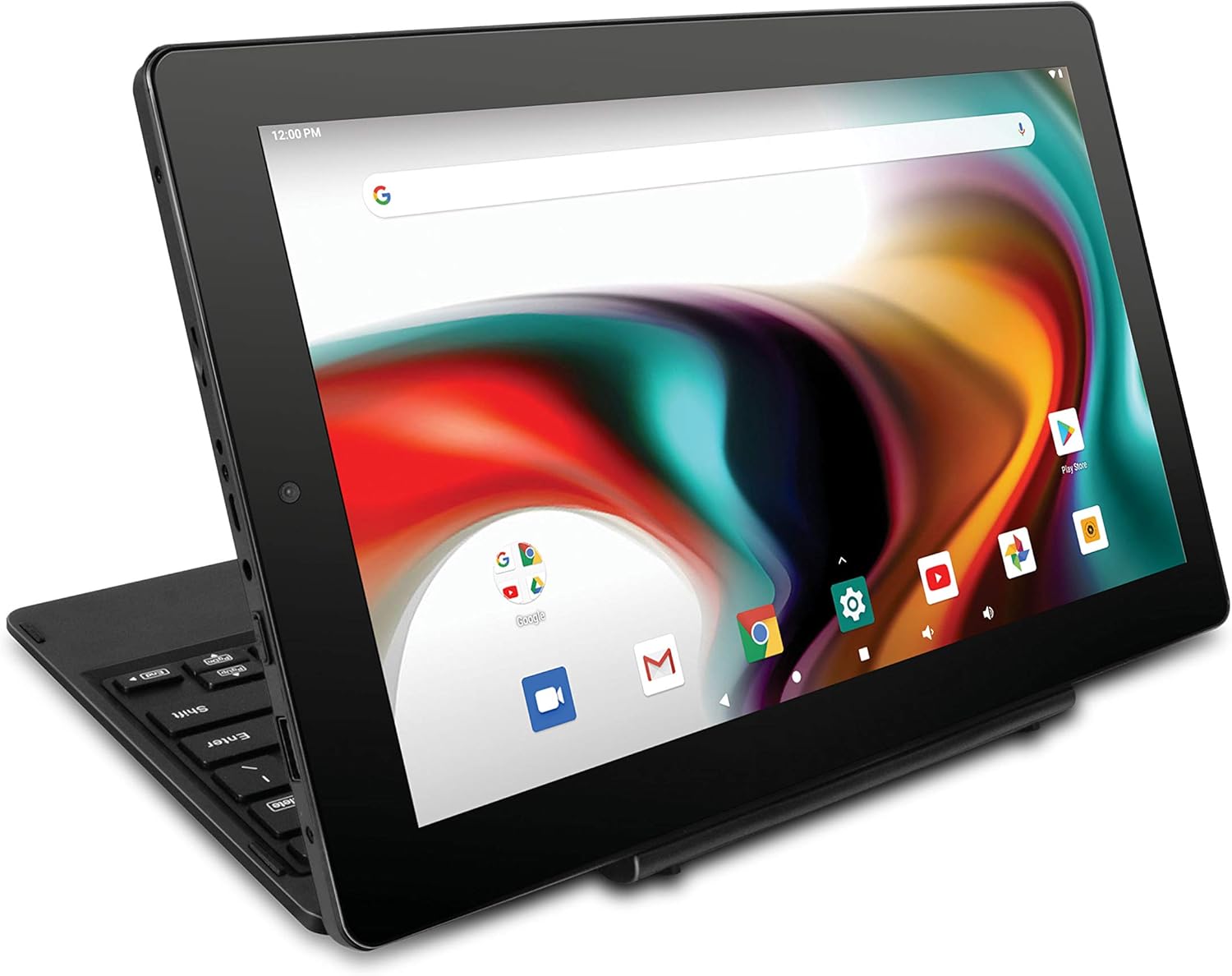
Image: The RCA 11 Delta Pro tablet configured in a stand mode, ideal for media consumption or presentations.
3.4 Initial Android Setup
Upon first power-on, the tablet will guide you through the Android setup wizard. Follow the on-screen prompts to select your language, connect to a Wi-Fi network, sign in with your Google account (or create one), and set up basic preferences.
4. Operating Instructions
4.1 Touchscreen Navigation
The 11.6-inch IPS display is touch-sensitive. Use standard Android gestures:
- Tap: Select an item or open an app.
- Touch & Hold: Access contextual menus or drag items.
- Swipe: Scroll through lists or switch screens.
- Pinch-to-Zoom: Zoom in or out on images and web pages.
4.2 Android 9.0 Pie Overview
Your tablet runs on Android 9.0 Pie, offering an intuitive user interface. The home screen provides quick access to apps and widgets. Swipe down from the top for notifications and quick settings. Access all installed applications by swiping up from the bottom of the home screen.
4.3 Connecting to Wi-Fi
- Go to Settings > Network & internet > Wi-Fi.
- Toggle Wi-Fi On.
- Select your desired network from the list.
- Enter the password if prompted, then tap Connect.
4.4 Bluetooth Pairing
Pair your tablet with Bluetooth-enabled devices like headphones or speakers.
- Go to Settings > Connected devices > Bluetooth.
- Toggle Bluetooth On.
- Ensure your Bluetooth device is in pairing mode.
- Select the device name from the list to pair.
4.5 Using the Detachable Keyboard and Trackpad
When the keyboard is attached, it functions like a standard laptop keyboard. The integrated trackpad allows for precise cursor control. You can use the trackpad for clicking, scrolling, and multi-touch gestures similar to a laptop touchpad.
4.6 Camera Usage
Open the Camera app from your home screen or app drawer. You can switch between the front and rear 2MP cameras. Tap the shutter button to take photos or switch to video mode to record. Adjust settings like flash and timer within the app.
5. Maintenance and Care
5.1 Cleaning Your Device
- Screen: Use a soft, lint-free cloth, preferably microfiber, to gently wipe the screen. For stubborn smudges, slightly dampen the cloth with water or a screen cleaner designed for electronics. Avoid harsh chemicals.
- Body: Wipe the tablet and keyboard body with a soft, dry cloth.
- Ensure all ports are free of dust and debris.
5.2 Storage
When not in use for extended periods, store the tablet in a cool, dry place away from direct sunlight and extreme temperatures. It is advisable to store the battery at around 50% charge to prolong its lifespan.
5.3 Battery Care
- Avoid completely draining the battery frequently.
- Do not expose the device to extreme heat or cold, as this can degrade battery performance.
- Use only the original charger or a certified compatible charger.
6. Troubleshooting
This section addresses common issues you might encounter with your RCA 11 Delta Pro tablet.
6.1 Device Will Not Turn On
- Ensure the battery is charged. Connect the AC adapter and allow it to charge for at least 30 minutes before attempting to power on.
- Press and hold the Power button for 10-15 seconds to perform a forced restart.
6.2 Wi-Fi Connection Issues
- Ensure Wi-Fi is enabled in Settings.
- Restart your Wi-Fi router and the tablet.
- Forget the network in Wi-Fi settings and reconnect.
- Check if other devices can connect to the same Wi-Fi network.
6.3 Bluetooth Pairing Problems
- Ensure Bluetooth is enabled on both the tablet and the device you are trying to pair.
- Make sure the other device is in pairing mode and within range.
- Try restarting both devices.
6.4 Slow Performance
- Close unused applications running in the background.
- Clear cache data for frequently used apps.
- Ensure sufficient storage space is available.
- Restart the tablet regularly.
6.5 Battery Drains Quickly
- Reduce screen brightness.
- Disable Wi-Fi, Bluetooth, and GPS when not in use.
- Close background apps.
- Limit push notifications.
6.6 Factory Reset (Last Resort)
If issues persist, a factory reset can resolve many software-related problems. Warning: This will erase all data on your tablet. Back up important files before proceeding.
- Go to Settings > System > Reset options.
- Select Erase all data (factory reset).
- Confirm your choice and follow the on-screen instructions.
7. Specifications
| Feature | Specification |
|---|---|
| Model Number | RCT6613W23PH6-Charcoal |
| Operating System | Android 9 Pie |
| Screen Display Size | 11.6 Inches |
| Display Resolution | 1366 x 768 |
| Processor | 1.3 GHz Quad-Core |
| RAM | 2 GB DDR_SDRAM |
| Internal Storage | 32 GB Flash Memory |
| Expandable Storage | MicroSD (up to 128GB) |
| Wireless Standard | Wi-Fi, Bluetooth |
| Cameras | Dual 2 MP Front/Rear |
| Battery Life (Average) | Up to 6 Hours |
| Ports | Micro USB, Full USB, MicroSD card slot, 3.5mm Headphone jack, Microphone, DC jack |
| Color | Charcoal |
8. Warranty and Support
8.1 Product Warranty
Your RCA 11 Delta Pro tablet is covered by a limited manufacturer's warranty. Please refer to the warranty card included in your product packaging for specific terms, conditions, and duration. Keep your proof of purchase for warranty claims.
8.2 Customer Support
For further assistance, technical support, or service inquiries, please visit the official RCA support website or contact their customer service department. Contact information can typically be found on the manufacturer's website or in your product documentation.
Related documentsRCT6613W23PH6-Charcoal


Ask a question about this manual
Ask about setup, troubleshooting, compatibility, parts, safety, or missing instructions. Manuals+ will review the question and use this page’s manual context to help answer it.