
Everycom X7
Everycom X7 LED Projector User Manual
Model: X7
Introduction
This manual provides comprehensive instructions for the safe and efficient operation of your Everycom X7 LED Projector. Please read this manual thoroughly before using the projector and retain it for future reference. The Everycom X7 is designed to deliver a large display projection experience with support for Full HD 1080p content, featuring 1800 lumens brightness and versatile connectivity options.
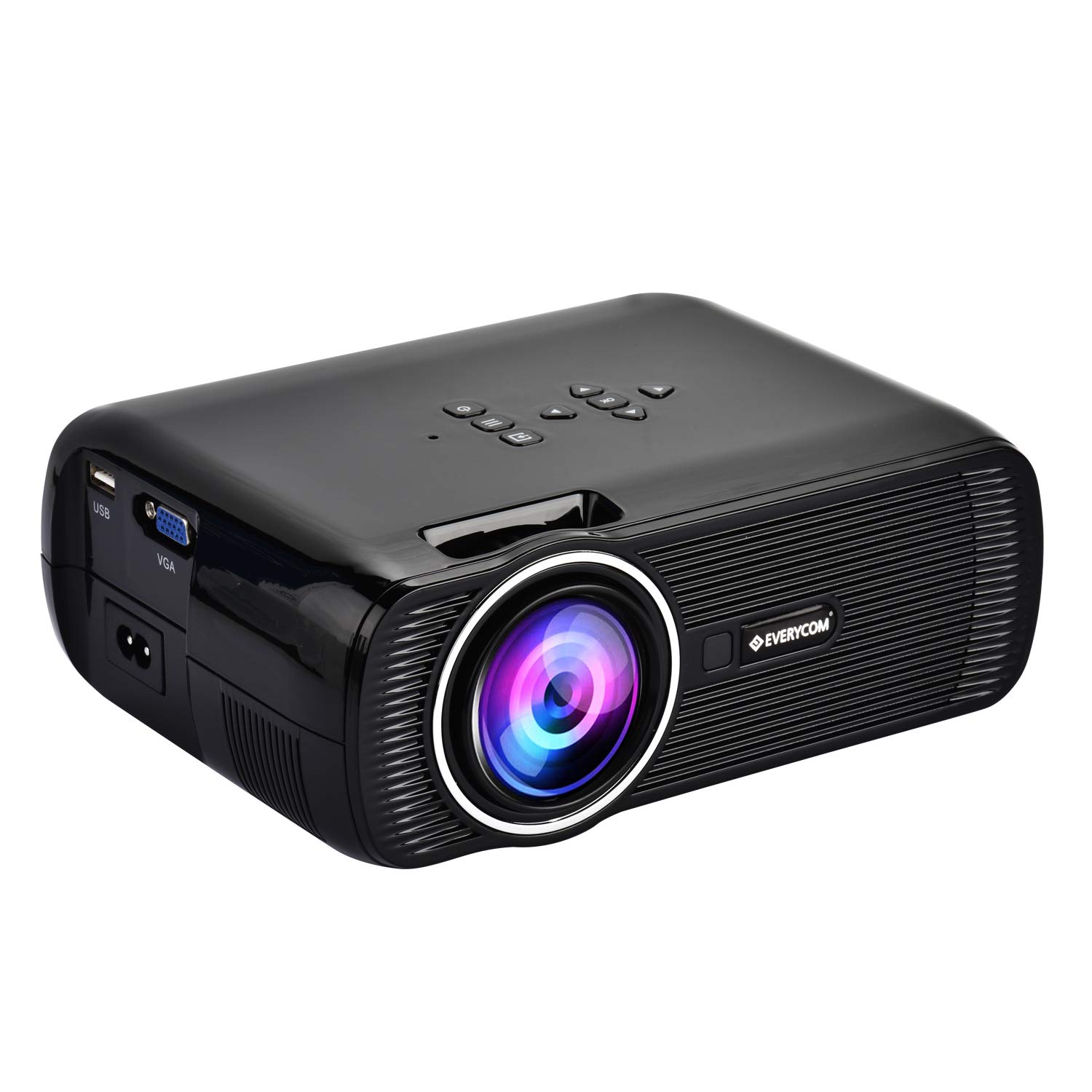
Image: Front view of the Everycom X7 LED Projector, showcasing its lens and sleek black design.
Package Contents
Verify that all items listed below are included in your package. If any items are missing or damaged, please contact Everycom customer support.
- 1 x Everycom X7 Projector
- 1 x Remote Control
- 1 x Power Cable
- 1 x AV Cable
- 1 x Lens Cap
- 1 x User Manual (this document)

Image: The Everycom X7 projector and its included accessories, such as the remote control, power cable, AV cable, and user manual, laid out next to the product box.
Product Features
The Everycom X7 LED Projector offers a range of features designed for an enhanced viewing experience:
- Full HD 1080p Support: Capable of displaying content up to 1920x1080 pixels for detailed image quality.
- 1800 Lumens Brightness: Provides clear and vibrant images.
- Large Display Projection: Projects images up to 120 inches.
- Multiple Connectivity Options: Includes HDMI, USB, SD card, VGA, and AV ports for wide device compatibility.
- Built-in Speaker: Integrated audio for convenience.
- Keystone Correction: Adjusts image distortion for optimal viewing angles.
- LED Lamp Life: Long-lasting LED lamp with up to 20,000 hours of operation.
- IR Remote Control: For convenient operation from a distance.

Image: A visual representation of the Everycom X7 projector's key features, including 1800 lumens, 120-inch large image, 1080p input, HDMI, VGA, D-TV ready, USB plug and play, SD card ready, 3.5mm audio out, LED lamp 20000hrs, keystone correction, and IR remote control.
Setup
1. Placement
Position the projector on a stable, flat surface such as a tabletop. Ensure there is adequate ventilation around the unit. The projector can also be mounted on a tripod or installed on a wall/ceiling (mounting hardware sold separately).

Image: Demonstrates the Everycom X7 projector's versatility, showing it mounted on a tripod and also indicating wall/ceiling mountable options.
2. Power Connection
- Connect the power cable to the projector's power input port.
- Plug the other end of the power cable into a standard electrical outlet.
3. Connecting Devices
The Everycom X7 offers various input ports:
- HDMI: Connect to laptops, gaming consoles, Blu-ray players, or media players using an HDMI cable.
- VGA: Connect to computers or laptops using a VGA cable.
- USB: Insert a USB flash drive for direct media playback.
- SD Card: Insert an SD card for direct media playback.
- AV: Use the provided AV cable to connect to devices with composite video and stereo audio outputs.

Image: A detailed view of the Everycom X7 projector's rear and side panels, highlighting the various connectivity ports including USB, SD card slot, HDMI, VGA, and AV inputs.
4. Focus and Keystone Correction
- Focus: Rotate the focus ring on the projector lens until the image appears sharp and clear.
- Keystone: Use the keystone correction dial (usually located near the lens) to adjust the image shape if it appears trapezoidal. This corrects for projection at an angle.
Operating
1. Powering On/Off
- Power On: Press the power button on the projector or the remote control. The indicator light will change.
- Power Off: Press the power button again. Allow the projector to cool down before unplugging it.
2. Input Source Selection
After powering on, use the "Source" button on the projector or remote control to cycle through available input sources (HDMI, VGA, USB, SD, AV) until your desired input is selected.
3. Menu Navigation
Use the arrow keys and "OK" button on the projector or remote control to navigate the on-screen display (OSD) menu. Adjust settings such as picture mode, aspect ratio, sound, and other preferences.
4. Audio Output
The projector has a built-in speaker. For enhanced audio, connect external speakers or headphones to the 3.5mm audio output jack.
Maintenance
- Lens Cleaning: Use a soft, lint-free cloth specifically designed for optical lenses to gently wipe the projector lens. Avoid abrasive materials or harsh chemicals.
- Dust Removal: Regularly clean the projector's ventilation openings to prevent dust buildup, which can affect performance and lifespan. Use a soft brush or compressed air.
- Storage: When not in use, store the projector in a cool, dry, and dust-free environment. Use the lens cap to protect the lens.
Troubleshooting
If you encounter issues with your Everycom X7 projector, refer to the following common problems and solutions:
- No Image Displayed:
- Ensure the projector is powered on and the power cable is securely connected.
- Verify that the input source is correctly selected (HDMI, VGA, USB, etc.).
- Check the connection cable between the projector and the source device. Try a different cable if possible.
- Ensure the source device is powered on and outputting a signal.
- Image is Blurry:
- Adjust the focus ring on the projector lens.
- Ensure the projection distance is within the recommended range.
- Clean the projector lens if it is dirty.
- Image is Trapezoidal (Distorted):
- Adjust the keystone correction dial on the projector.
- Ensure the projector is placed perpendicular to the projection surface as much as possible.
- No Sound:
- Increase the volume on the projector and the source device.
- Check if external speakers are properly connected to the 3.5mm audio output.
- Ensure the audio output setting on the source device is correct.
- Remote Control Not Working:
- Ensure there are fresh batteries in the remote control.
- Point the remote directly at the IR receiver on the projector.
- Remove any obstacles between the remote and the projector.
Specifications
| Brand | Everycom |
| Model | X7 |
| Display Technology | LED |
| Image Brightness | 1800 Lumens |
| Native Resolution | 800 x 600 Pixels |
| Supported Resolution | Full HD 1080p (1920 x 1080 Pixels) |
| Aspect Ratio | 16:9 |
| Connectivity Technology | HDMI, USB, VGA, AV |
| Hardware Interface | USB |
| Compatible Devices | Laptops, Smartphones, Gaming Consoles, Blu-ray Players, Media Players |
| Special Features | Built-In Speaker, Keystone Correction |
| Product Dimensions | 21.2 x 7.2 x 15 cm |
| Item Weight | 1 kg |
| Mounting Type | Tabletop Mount |
| Maximum Operating Distance | 7 Feet |
Warranty
The Everycom X7 LED Projector comes with a 1 Year Warranty from the date of purchase. This warranty covers manufacturing defects and malfunctions under normal use. Please retain your proof of purchase for warranty claims. For detailed terms and conditions, refer to the warranty card included in your package or contact Everycom customer support.
Support
For technical assistance, troubleshooting, or warranty inquiries, please contact Everycom customer support:
- Customer Service Hotline: 1800 121 4480
- Manufacturer: Everycom Electronics
- Address: J-21 Wing B Udyog Nagar Industrial Area, New Delhi-110041
Related documentsX7


Ask a question about this manual
Ask about setup, troubleshooting, compatibility, parts, safety, or missing instructions. Manuals+ will review the question and use this page’s manual context to help answer it.