
1. Introduction
The DEWENWILS Wireless Remote Control Outlet (Model DHRSO01A) is designed to provide convenient wireless control for your electrical appliances. This device operates on a 433.92 MHz frequency, allowing you to switch connected devices on or off remotely. It is compatible with specific DEWENWILS remote control systems, including models DHRS104A, DHRS203A, DHRS205A, and DHRSR05A. This manual provides essential information for safe and effective use.
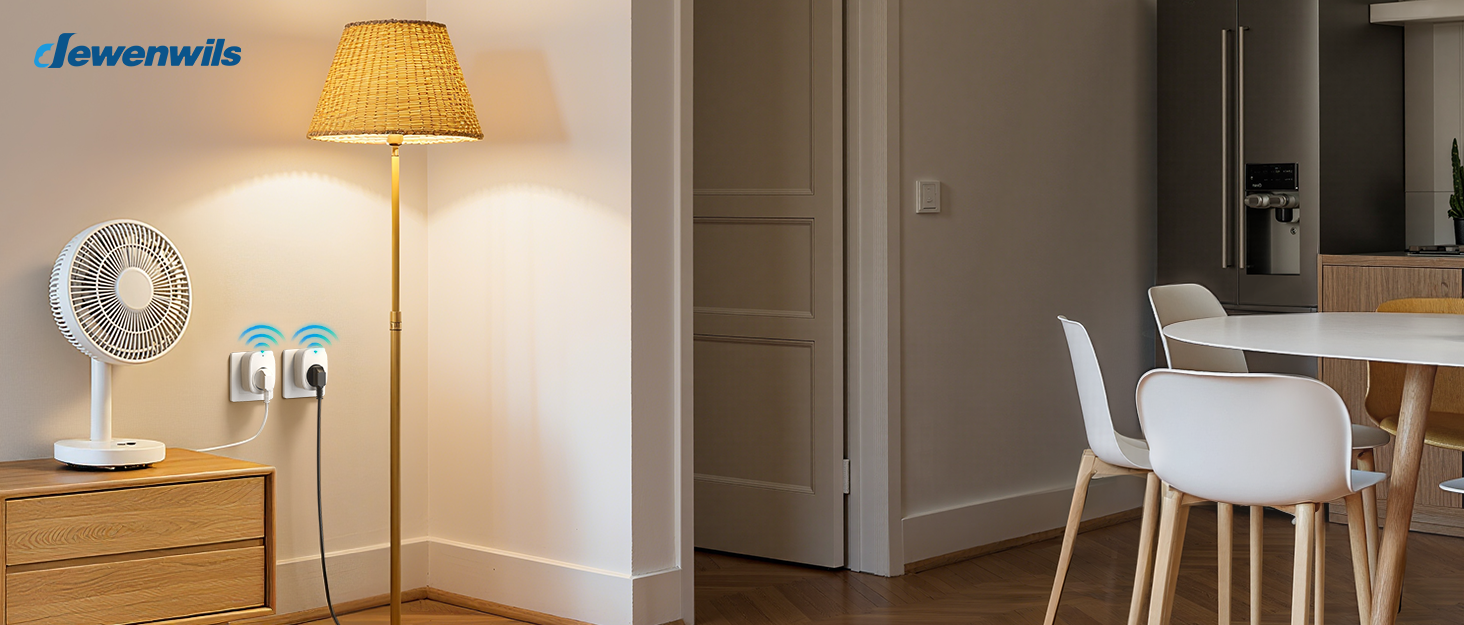
Image: DEWENWILS Wireless Remote Control Outlets in a typical home environment.
2. Safety Information
- For indoor use only. Do not expose to rain or moisture.
- Do not exceed the maximum load rating of 10A / 2300W.
- Ensure the outlet is fully inserted into the wall socket.
- Do not disassemble or modify the device.
- Keep out of reach of children. The outlet features integrated child safety shutters.
- Disconnect from power before cleaning.
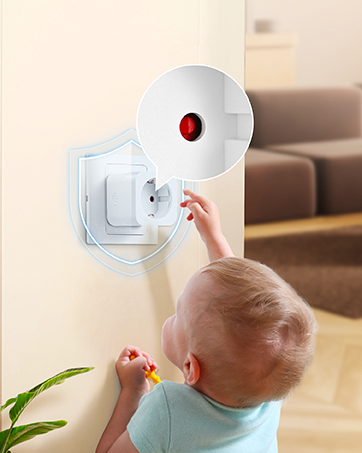
Image: Illustration of the integrated child safety feature in the outlet.
3. Package Contents
- 1 x DEWENWILS Wireless Remote Control Outlet (Model DHRSO01A)
4. Specifications
| Feature | Specification |
|---|---|
| Model Number | DHRSO01A |
| Input Voltage | 230 V AC 50 Hz |
| Max. Power | 10 A / 2300 W |
| Transmission Frequency | 433.92 MHz |
| Remote Control Range | 30 m (open air without obstacles) |
| Dimensions (L x W x H) | 5.6 x 3.9 x 7.9 cm |
| Weight | 136 grams |
| Certification | CE |
| Special Functions | Wireless control, Child safety, Power outage memory |
| Usage | Indoor use only |
| Plug Type | Type F (Schuko) |

Image: Dimensions of the DEWENWILS Wireless Remote Control Outlet.
5. Setup
- Unpacking: Carefully remove the DEWENWILS Wireless Remote Control Outlet from its packaging.
- Placement: Plug the outlet into a standard 230V AC 50Hz wall socket. Ensure the wall socket is compatible with a Type F (Schuko) plug.
- Connecting an Appliance: Plug the appliance you wish to control into the DEWENWILS outlet. Ensure the appliance's power consumption does not exceed 2300W.
- Pairing with a Remote Control: The outlet features a self-learning function for pairing with compatible DEWENWILS remote controls (e.g., DHRS104A, DHRS203A, DHRS205A, DHRSR05A). Follow the specific pairing instructions provided with your DEWENWILS remote control unit. Typically, this involves pressing a pairing button on the outlet and then activating the desired button on the remote.
Note: This outlet is designed to work exclusively with specific DEWENWILS remote control models and is not a universal remote control receiver.

Image: Programmable and expandable functionality of the DEWENWILS wireless system.
6. Operating Instructions
- Manual Control: The outlet is equipped with a manual ON/OFF button. Press this button to toggle the power to the connected appliance directly at the outlet.
- Remote Control: Use your paired DEWENWILS remote control to switch the connected appliance ON or OFF. The wireless signal allows for control up to 30 meters (approximately 98 feet) in open areas without significant obstacles.
- Energy Saving Features: The outlet is designed to minimize standby power consumption when switched off. It also features a power outage memory, meaning it will remain in its last state (OFF) after a power interruption, preventing unexpected activation and contributing to energy savings. Standby power consumption is approximately 0.6 W.

Image: Manual operation of the DEWENWILS Mini Socket with its integrated switch.
7. Maintenance
- Cleaning: Always disconnect the outlet from the power supply before cleaning. Wipe the exterior with a soft, dry cloth. Do not use liquid cleaners, solvents, or abrasive materials, as these can damage the device.
- Storage: When not in use for extended periods, store the outlet in a cool, dry place, away from direct sunlight and moisture.
- Inspection: Periodically inspect the outlet for any signs of damage, such as cracks in the casing or frayed wires. Do not use the device if it appears damaged.
8. Troubleshooting
- Appliance not turning ON/OFF:
- Ensure the outlet is securely plugged into the wall socket and the appliance is securely plugged into the outlet.
- Verify that the wall socket is receiving power by testing it with another appliance.
- Check if the remote control batteries are functional and correctly inserted.
- Confirm that the outlet is correctly paired with your DEWENWILS remote control. Refer to the "Pairing with a Remote Control" section in this manual.
- Ensure the remote control is within the specified 30-meter operating range and that there are no significant physical obstructions (e.g., thick walls, metal objects) between the remote and the outlet.
- Unexpected behavior or interference: The DEWENWILS wireless system is designed to operate without interference from Wi-Fi networks. If you experience unexpected behavior, ensure no other 433.92 MHz devices in the vicinity are causing signal interference.
9. Warranty and Support
For detailed warranty information regarding your DEWENWILS Wireless Remote Control Outlet, please refer to the documentation included with your original purchase. You may also find warranty terms and conditions on the official DEWENWILS website.
For technical support, product inquiries, or further assistance, please contact DEWENWILS customer service through their official website or the contact information provided with your product. When contacting support, please have your product model number (DHRSO01A) and purchase details readily available.


