
1. Introduction
This manual provides detailed instructions for the operation and maintenance of your Fosmon 7-Day Digital Outdoor Timer. This device is designed to automate the power supply to outdoor electrical appliances, offering convenience, energy savings, and enhanced security.
The timer features three grounded outlets, a weatherproof design, and up to 16 programmable ON/OFF settings per day across a 7-day cycle. It also includes a countdown function, a random mode for security, and a built-in backup battery to retain settings during power outages.

Image 1.1: The Fosmon 7-Day Digital Outdoor Timer, showcasing its main unit with three grounded outlets and a flexible power cord.
2. Safety Information
Please read all safety instructions before using this product. Failure to follow these instructions may result in electric shock, fire, or serious injury.
- Electrical Rating: Do not exceed the electrical rating of 1875W (15A) or 1/2 HP. Overloading the timer can cause damage or fire.
- Grounding: Ensure the timer is plugged into a properly grounded 3-prong outlet.
- Outdoor Use: This timer is designed for outdoor use and features weatherproof construction. However, avoid submerging it in water or exposing it to extreme weather conditions beyond its rating.
- Children: Keep out of reach of children.
- Maintenance: Do not attempt to open or repair the unit. Refer all servicing to qualified personnel.
- ETL Listed: This product is ETL listed, ensuring it meets recognized safety standards.
3. Package Contents
- Fosmon 7-Day Digital Outdoor Timer (Model C-10736US)
- Instruction Manual
4. Product Overview
Familiarize yourself with the timer's display and control buttons:

Image 4.1: Close-up view of the timer's digital display and control panel, highlighting the 7-day schedule screen, 12/24 hours mode, and 16 custom ON/OFF programs.
- Display Screen: Shows current time, day, program status (ON/OFF), and mode.
- PROG Button: Used to enter and exit program setting mode.
- SET Button: Used to confirm settings and advance through options.
- ON/OFF Button: Manually turns the connected devices ON or OFF, or selects AUTO mode.
- MODE Button: Cycles through different operating modes (Timer, Countdown, Random).
- + / - Buttons: Adjust time, program settings, and other values.
- RCL Button: Recalls or clears program settings.
- Reset Button (Recessed): Clears all settings and restores factory defaults. Use a pointed object to press.
5. Setup
Before initial use, follow these steps to prepare your timer:
- Initial Charge: Plug the timer into a standard electrical outlet for at least 30 minutes to charge the internal backup battery. This ensures the display is visible and settings can be retained.
- Reset Device: Using a small pointed object (like a pen tip), press the recessed Reset button. This clears any previous settings and ensures a fresh start.
- Set Current Time and Day:
- Press the SET button once. The hour will flash. Use the + or - buttons to adjust the hour (note AM/PM). Press SET to confirm.
- The minute will flash. Use the + or - buttons to adjust the minutes. Press SET to confirm.
- The day of the week will flash. Use the + or - buttons to select the current day. Press SET to confirm.
- 12/24 Hour Mode: To switch between 12-hour (AM/PM) and 24-hour (military) format, press the ON/OFF button while the time is displayed normally (not in setting mode).
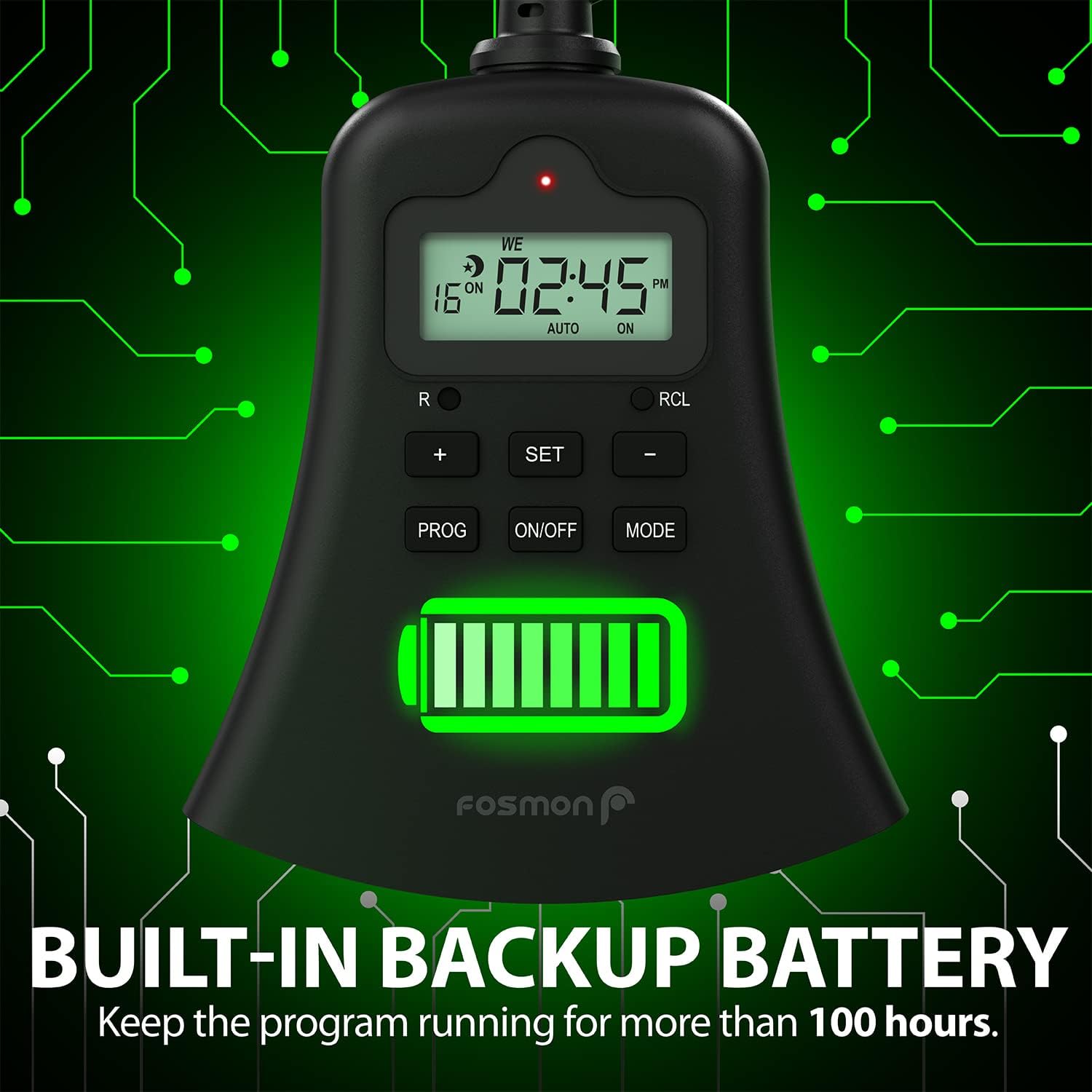
Image 5.1: A hand pressing the ON/OFF button on the timer, demonstrating manual operation.
6. Operating Instructions
6.1 Programming ON/OFF Cycles (Timer Mode)
The timer allows for up to 16 distinct ON/OFF programs. Each program can be set for specific days or groups of days.
- Press the PROG button. The display will show "1 ON" and the hour will flash.
- Use + or - to set the desired ON hour. Press SET.
- Use + or - to set the desired ON minute. Press SET.
- The day(s) of the week will flash. Use + or - to cycle through day options (e.g., every day, weekdays, weekends, specific days). Press SET.
- The display will now show "1 OFF" and the hour will flash. Repeat steps 2-4 to set the desired OFF time and day(s) for Program 1.
- After setting Program 1 OFF, the display will show "2 ON". Repeat the process for up to 16 programs.
- To exit programming mode, press the PROG button. Ensure the timer is in AUTO mode for programs to execute.

Image 6.1: The timer shown automating a sprinkler system, demonstrating its capability for up to 16 ON/OFF programs.
6.2 Countdown Function
The countdown function allows you to turn a device ON or OFF after a specified duration.
- Press the MODE button until "COUNTDOWN" appears on the display.
- Press SET. The hour will flash. Use + or - to set the desired countdown hours. Press SET.
- The minute will flash. Use + or - to set the desired countdown minutes. Press SET.
- The display will show "ON" or "OFF" flashing. Use + or - to select whether the device should turn ON or OFF at the end of the countdown. Press SET to start the countdown.
- To cancel the countdown, press MODE to switch to another mode.

Image 6.2: The timer in an outdoor party setting, illustrating the convenience of the countdown timer for temporary lighting or appliances.
6.3 Random Function
The random function can enhance home security by turning connected lights or devices ON and OFF at irregular intervals within a programmed window, simulating occupancy.
- Press the MODE button until "RANDOM" appears on the display.
- The timer will now activate connected devices randomly within a 30-minute window around your set ON/OFF programs.
- To deactivate, press MODE to switch to another mode.
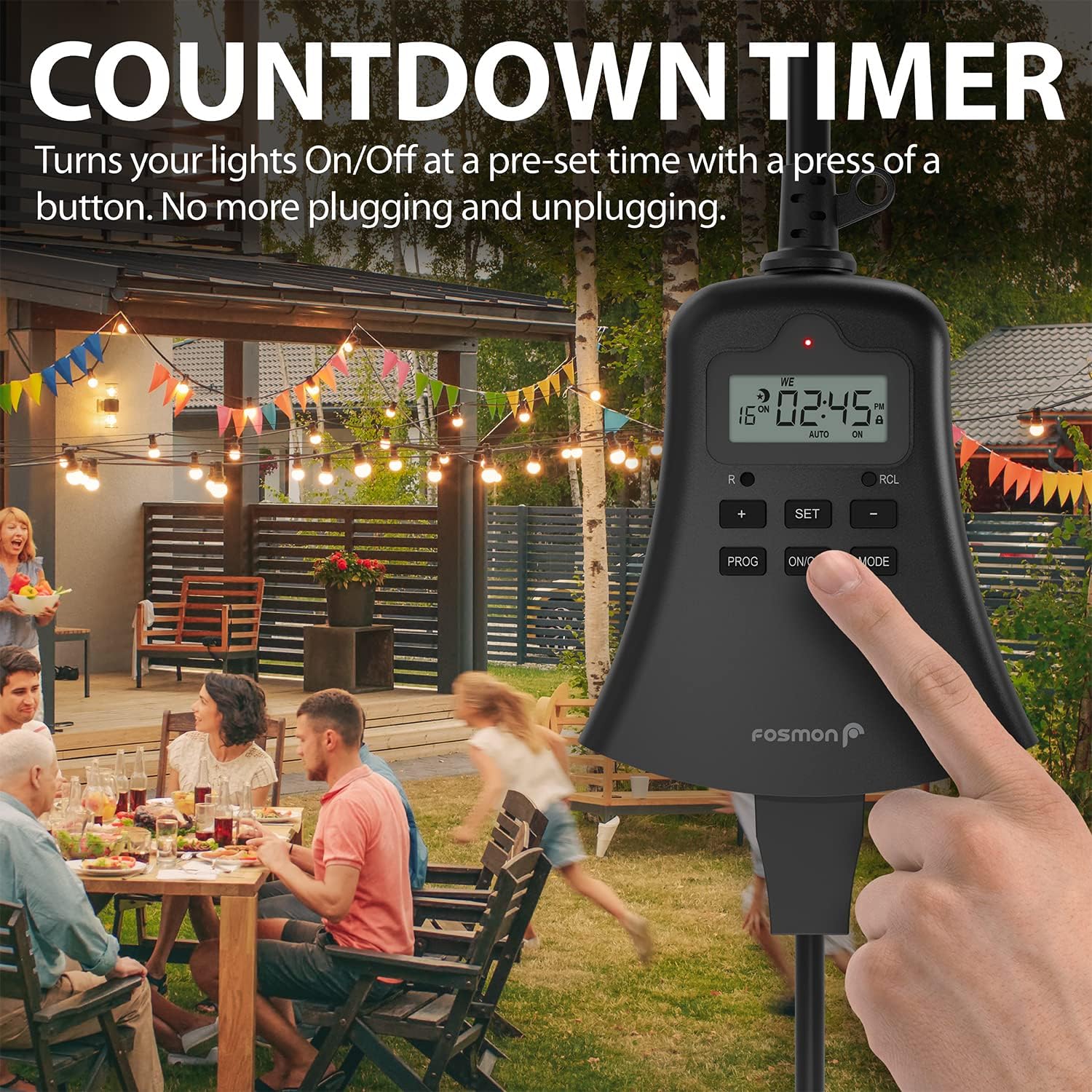
Image 6.3: The timer positioned near a family leaving their home, illustrating how the random function can enhance security by simulating occupancy.
6.4 Manual ON/OFF Control
You can manually override programmed settings at any time:
- Press the ON/OFF button to cycle through ON (always on), OFF (always off), and AUTO (follows programs) modes.
- When in ON or OFF mode, the timer will ignore all programmed settings.
6.5 Mode Selection
The MODE button allows you to switch between the primary operating modes:
- Timer Mode (AUTO): Executes programmed ON/OFF cycles.
- Countdown Mode: Activates a single ON/OFF event after a set duration.
- Random Mode: Randomizes programmed ON/OFF times for security.
7. Maintenance
To ensure the longevity and proper functioning of your timer:
- Cleaning: Disconnect the timer from the power outlet before cleaning. Wipe the exterior with a soft, damp cloth. Do not use harsh chemicals or abrasive cleaners.
- Storage: When not in use for extended periods, store the timer in a cool, dry place away from direct sunlight.
- Backup Battery: The timer has a built-in rechargeable battery that maintains settings during power outages. If the display becomes dim or settings are lost frequently, ensure the timer is plugged in for several hours to fully recharge the internal battery.

Image 7.1: The timer displaying a full battery icon, signifying its built-in backup battery feature that retains settings during power interruptions.
8. Troubleshooting
If you encounter issues with your Fosmon Digital Outdoor Timer, refer to the following common problems and solutions:
| Problem | Possible Cause | Solution |
|---|---|---|
| Display is blank or dim. | Internal backup battery is low or depleted. | Plug the timer into a live outlet for at least 30 minutes to charge the internal battery. |
| Timer is not turning ON/OFF at programmed times. |
|
|
| Cannot set time or programs. | Device may be in an incorrect mode or requires a reset. | Press the recessed Reset button with a pointed object, then follow the setup instructions from Section 5. |
| Connected device is not receiving power. |
|
|
If problems persist after attempting these solutions, please contact Fosmon customer support.
9. Specifications
| Feature | Detail |
|---|---|
| Model Number | C-10736US |
| Electrical Rating | 125V AC, 60Hz, 15A, 1875W, 1/2 HP |
| Number of Outlets | 3 Grounded Outlets |
| Programs | Up to 16 ON/OFF Programs |
| Programmable Days | 7-Day Cycle (Individual days, weekdays, weekends, etc.) |
| Features | Countdown Function, Random Function, Manual Override |
| Backup Battery | Built-in (1 AA battery required for internal clock/memory, typically pre-installed) |
| Construction | Weatherproof, Heavy Duty |
| Certifications | ETL Listed |
| Dimensions | 4"D x 7.2"W x 1.9"H |
| Weight | 9.9 ounces |
10. Warranty and Support
Fosmon products are backed by a Limited Lifetime Warranty. This warranty covers defects in materials and workmanship under normal use. For warranty claims or technical assistance, please contact Fosmon customer service.
For further support, please visit the official Fosmon website or contact their customer service department directly. Contact information can typically be found on the product packaging or the manufacturer's website.


