
1. Introduction
The DNT Grabstar AV is a standalone video digitizer designed to convert analog video signals from sources like VCRs, camcorders, and DVD players into digital MP4 files. This device allows you to preserve your old video memories by saving them directly to an SD card, USB flash drive, or external USB hard drive without requiring a computer. It features a built-in 3.5-inch color display for monitoring and playback, and supports both Composite (RCA) and S-Video inputs for optimal quality.
Important: Always ensure your device is running the latest firmware. You can check your current firmware version in the device menu. The recommended firmware version is v210317dnt (dated 17.03.2021).
2. Package Contents
Please verify that all items listed below are included in your package:
- 1 x DNT Grabstar AV Video Digitizer
- 1 x USB Power Adapter (5V DC/1A)
- 1 x USB Charging Cable (Micro USB)
- 1 x AV Cable (3 x RCA male to 3 x RCA male)
- 1 x User Manual

Image: DNT Grabstar AV device with its power adapter, USB cable, and RCA cable.
3. Device Overview
Familiarize yourself with the various components and controls of your DNT Grabstar AV.

Image: Front view of the DNT Grabstar AV, displaying the 3.5-inch screen and control panel with Menu, Back, OK, directional buttons, Mode, and Rec/Stop buttons.
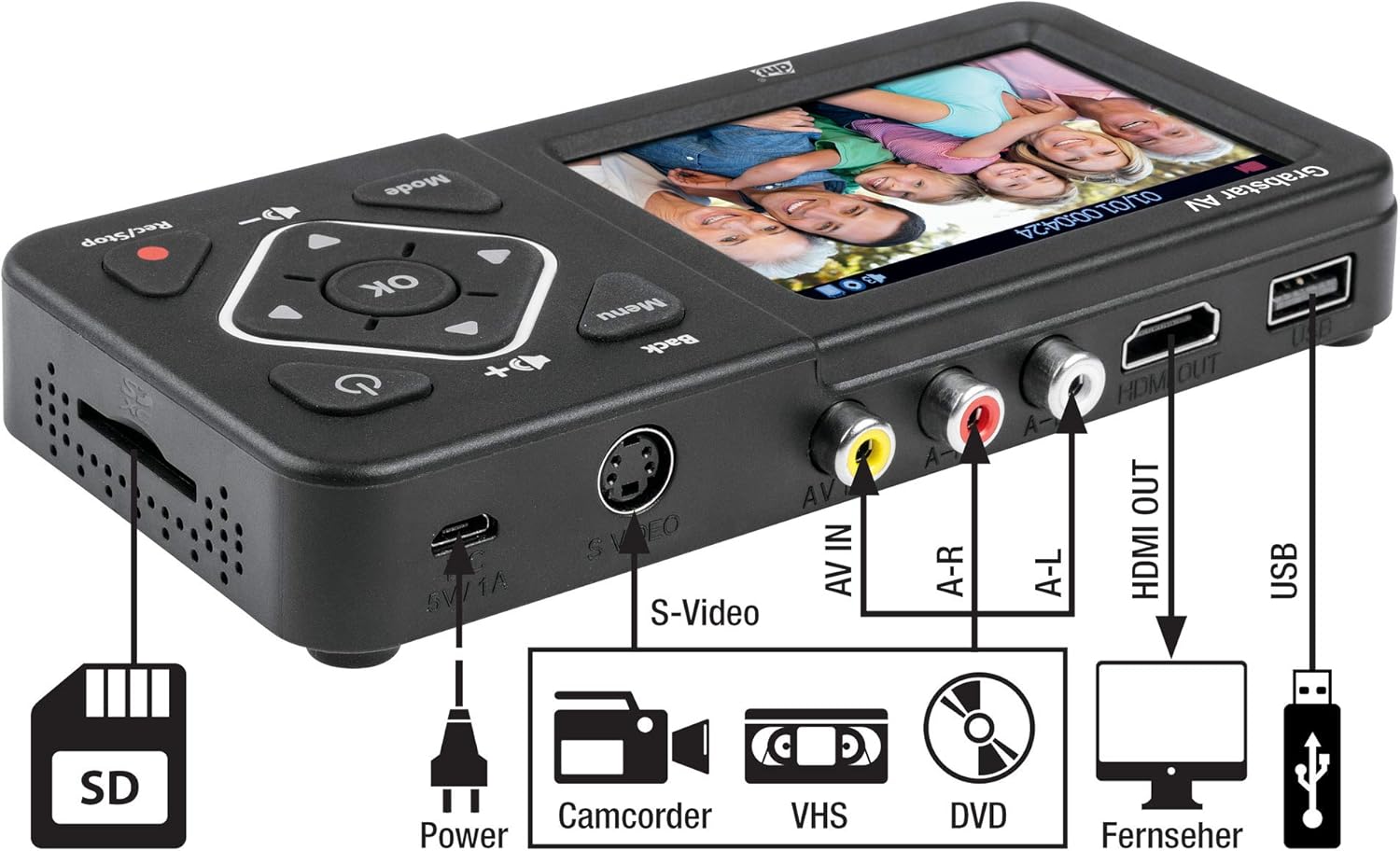
Image: Angled view of the DNT Grabstar AV, highlighting the S-Video input, AV IN (RCA) ports, HDMI OUT, USB port, Micro USB power input, and SD card slot.
Controls and Ports:
- 3.5-inch Color Display: For live monitoring and playback of recordings.
- Menu Button: Accesses the device settings and options.
- Back Button: Returns to the previous menu or screen.
- Directional Buttons (Up, Down, Left, Right): Navigate through menus and adjust settings.
- OK Button: Confirms selections.
- Mode Button: Switches between recording and playback modes.
- Rec/Stop Button: Initiates and terminates video recording.
- Volume Buttons (+/-): Adjusts the built-in speaker volume.
- Power Button: Turns the device on or off.
- DC 5V/1A (Micro USB): Power input port.
- S-Video Input: For connecting video sources with S-Video output.
- AV IN (RCA): Composite video (yellow) and stereo audio (red/white) input ports.
- HDMI OUT: Connects to a TV or monitor for external display.
- USB Port: For connecting USB flash drives or external USB hard drives.
- SD Card Slot: For inserting SD/SDHC memory cards.
4. Setup
Follow these steps to prepare your DNT Grabstar AV for use:
- Power Connection: Connect the supplied USB power adapter to the Micro USB port (DC 5V/1A) on the device and plug it into a power outlet.
- Insert Storage Media: Insert an SD/SDHC memory card (Class 10 or higher, up to 128 GB) into the SD card slot, or connect a USB flash drive (up to 128 GB) or an external USB hard drive (up to 4 TB) to the USB port. Ensure the storage media is formatted to FAT32, NTFS, or exFAT.
- Connect Analog Video Source:
- Composite (RCA): Use the supplied AV cable to connect the yellow video output from your source device (VCR, camcorder, DVD player) to the yellow AV IN port on the Grabstar AV. Connect the red and white audio outputs from your source to the corresponding red (A-R) and white (A-L) AV IN audio ports.
- S-Video: If your source device has an S-Video output, connect an S-Video cable to the S-Video port on the Grabstar AV. For audio, you must still connect the red and white audio RCA cables from your source to the Grabstar AV's A-R and A-L ports. S-Video only transmits video.
- (Optional) Connect to TV: To view the input signal or recorded videos on a larger screen, connect an HDMI cable from the HDMI OUT port on the Grabstar AV to an HDMI input on your television or monitor.
5. Operating Instructions
5.1 Powering On/Off
Press and hold the Power button (⑁) on the device for a few seconds to turn it on or off.
5.2 Recording Video
- Select Input: Ensure your analog video source is connected and powered on. The Grabstar AV will automatically detect the input signal (Composite or S-Video). The live video feed should appear on the 3.5-inch display.
- Start Source Playback: Begin playing the video on your source device (e.g., press Play on your VCR).
- Start Recording: Press the Rec/Stop (●) button on the Grabstar AV. A red recording indicator will appear on the screen, and the recording duration will be displayed.
- Monitor Recording: Observe the recording on the device's screen or an external TV connected via HDMI.
- Stop Recording: Press the Rec/Stop (●) button again to stop the recording. The device will save the video file to your inserted storage media.
Automatic Recording Function: The device supports automatic recording durations of 60, 90, 120, or 150 minutes. This can be configured in the device's menu settings.
Note on File Size: Due to file system limitations (especially FAT32), individual recorded files are limited to a maximum size of 4 GB. If a recording exceeds this limit, the device will automatically split it into multiple 4 GB files.
Recording Resolution: The Grabstar AV supports recording resolutions of 720x576p, 720x480p, and 640x480p. For analog sources, higher recording resolutions do not necessarily improve the visual quality, as the native resolution of analog material is inherently low. Selecting a higher resolution than the source material may not yield better results and can sometimes lead to less optimal digitization.
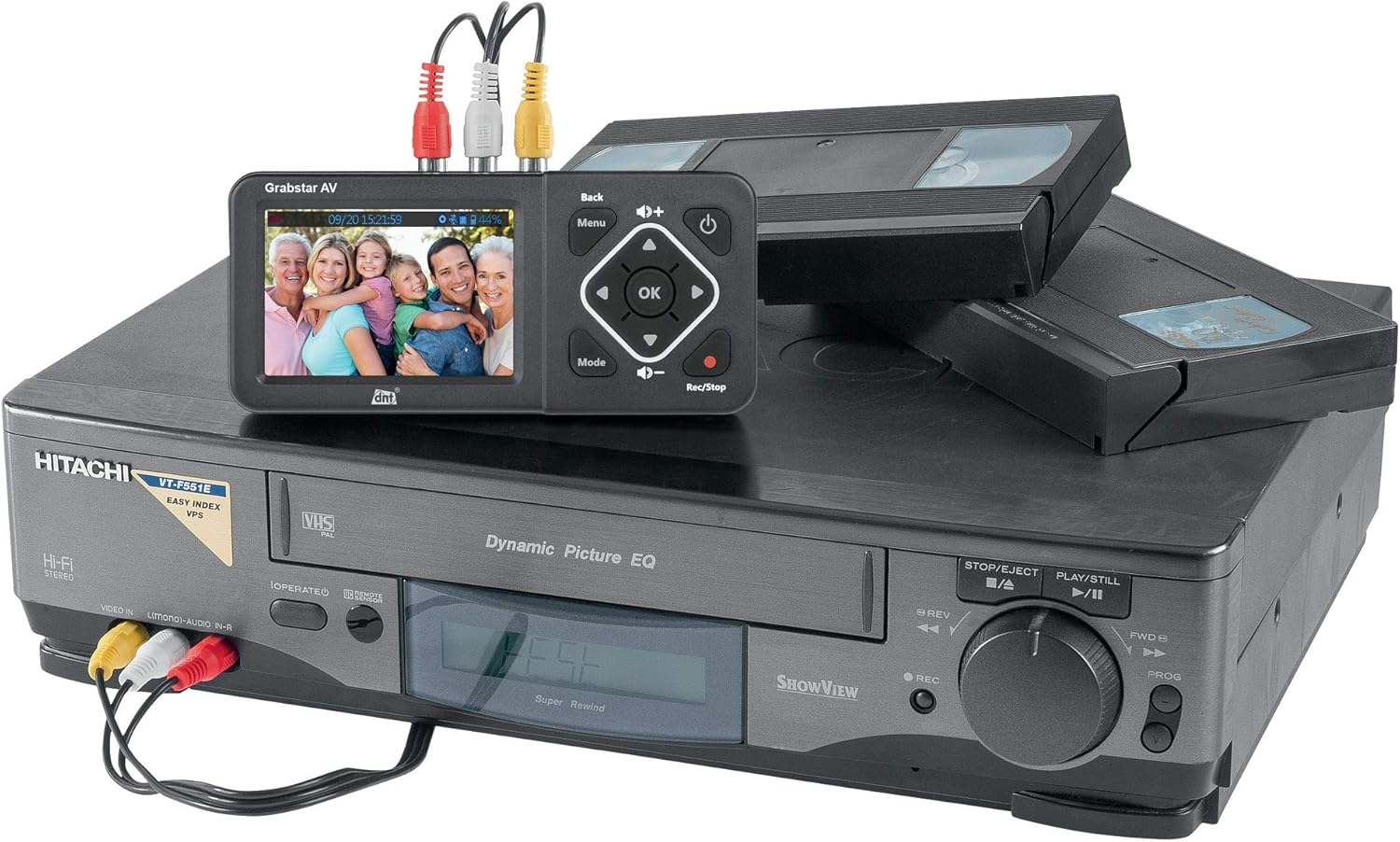
Image: The DNT Grabstar AV connected to a VHS player, demonstrating the process of digitizing old video tapes.
5.3 Playback
To play back recorded videos:
- Press the Mode button to switch to playback mode.
- Use the directional buttons to navigate through your recorded files.
- Press the OK button to start playback of the selected file.
- If connected to a TV via HDMI, the video will be displayed on the external screen.
5.4 File Management
You can access and manage your recorded MP4 files directly on the inserted SD card or USB storage device. Connect the storage media to a computer to transfer, edit, or back up your digitized videos.
6. Maintenance
6.1 Cleaning
Wipe the device with a soft, dry cloth. Do not use liquid cleaners or abrasive materials, as they may damage the screen or casing.
6.2 Firmware Updates
Periodically check the DNT website for available firmware updates. Updates can improve performance, add features, or resolve issues. Firmware updates are typically performed via USB or SD card. Refer to the DNT support resources for detailed instructions on how to update your device's firmware.
7. Troubleshooting
If you encounter issues with your DNT Grabstar AV, refer to the following common problems and solutions:
- No Signal Displayed:
- Ensure your source device (VCR, camcorder) is powered on and playing video.
- Verify that all video cables (Composite or S-Video) are securely connected to both the source device and the Grabstar AV.
- Check the input selection on the Grabstar AV if there is an option to manually switch.
- Inspect cables for damage.
- No Audio During Recording or Playback:
- Ensure the red (A-R) and white (A-L) audio RCA cables are correctly connected from your source device to the Grabstar AV. Even when using S-Video for video, audio must be connected via RCA cables.
- Check the volume level on the Grabstar AV using the volume buttons.
- Verify the audio output settings on your source device.
- Recording Not Starting or Stopping Unexpectedly:
- Ensure a compatible storage device (SD card, USB drive) is inserted and has sufficient free space.
- Check the formatting of your storage media (FAT32, NTFS, exFAT).
- Confirm that a stable video signal is present before pressing the record button. The device will only record if it detects an active input signal.
- For external hard drives, ensure they have their own power supply if required.
- Poor Video Quality:
- The quality of the digitized video is highly dependent on the quality of the original analog source material and playback device.
- Ensure video tapes or other media are clean and in good condition.
- Use S-Video connection if available on your source device for potentially better video quality compared to Composite (RCA).
- Storage Media Not Recognized:
- Ensure the SD card or USB drive is inserted correctly.
- Verify the storage media is formatted to a supported file system (FAT32, NTFS, exFAT).
- Try a different SD card or USB drive to rule out media issues.
8. Specifications
| Feature | Specification |
|---|---|
| Product Type | Analog Video Digitizer |
| Display | 3.5-inch (8.9 cm) Color Screen |
| Video Standard | PAL, NTSC |
| Supported Input Resolutions | 720x576i/50Hz (625 lines), 720x480i/60Hz (525 lines) |
| Recording Resolutions | 720x576p, 720x480p, 640x480p |
| Recording Format | MP4 (H.264) |
| Recording Size | Up to 150 MB/minute |
| Inputs | 1 x FBAS/RCA (3 x RC), 1 x S-Video |
| Outputs | 1 x HDMI Out |
| Storage Ports | 1 x USB, 1 x SD/SDHC slot |
| Supported Storage Types | SD/SDHC memory card (up to 128 GB), USB flash drive (up to 128 GB), USB hard drive (up to 4 TB) |
| Supported File Systems | FAT32/NTFS/exFAT (max. 4 GB/file) |
| Power Supply | 5V DC/1A (via USB power adapter) |
| Built-in Speaker | Yes, 1 W RMS |
| Dimensions (W x H x D) | 160 x 75 x 25 mm |
| Weight | 156 g (approx. 5.5 ounces) |
9. Warranty and Support
The DNT Grabstar AV comes with a standard manufacturer's warranty. Please refer to the warranty information provided with your purchase for specific terms and conditions. For technical support, firmware updates, or further assistance, please visit the official DNT website or contact their customer service department.


