
1. Introduction
This manual provides instructions for the setup, operation, and maintenance of your Blurams A10C Home Pro 1080P WiFi IP Camera. Please read this manual thoroughly before using the product to ensure proper functionality and safety.

Figure 1: Blurams A10C Home Pro Camera, front view, showing the lens, status indicator light, and base.
2. Package Contents
Verify that all items are present in your package:
- 1 x Blurams A10C Home Pro IP Camera
- 1 x Installation Kit (screws, wall anchors)
- 1 x Power Adapter and Cable
- 1 x User Manual (this document)
3. Setup Guide
3.1 Initial Placement
The Blurams A10C Home Pro camera is designed for indoor use. Choose a location with a stable 2.4 GHz Wi-Fi signal and a power outlet nearby. The camera can be placed on a flat surface or mounted on a wall.
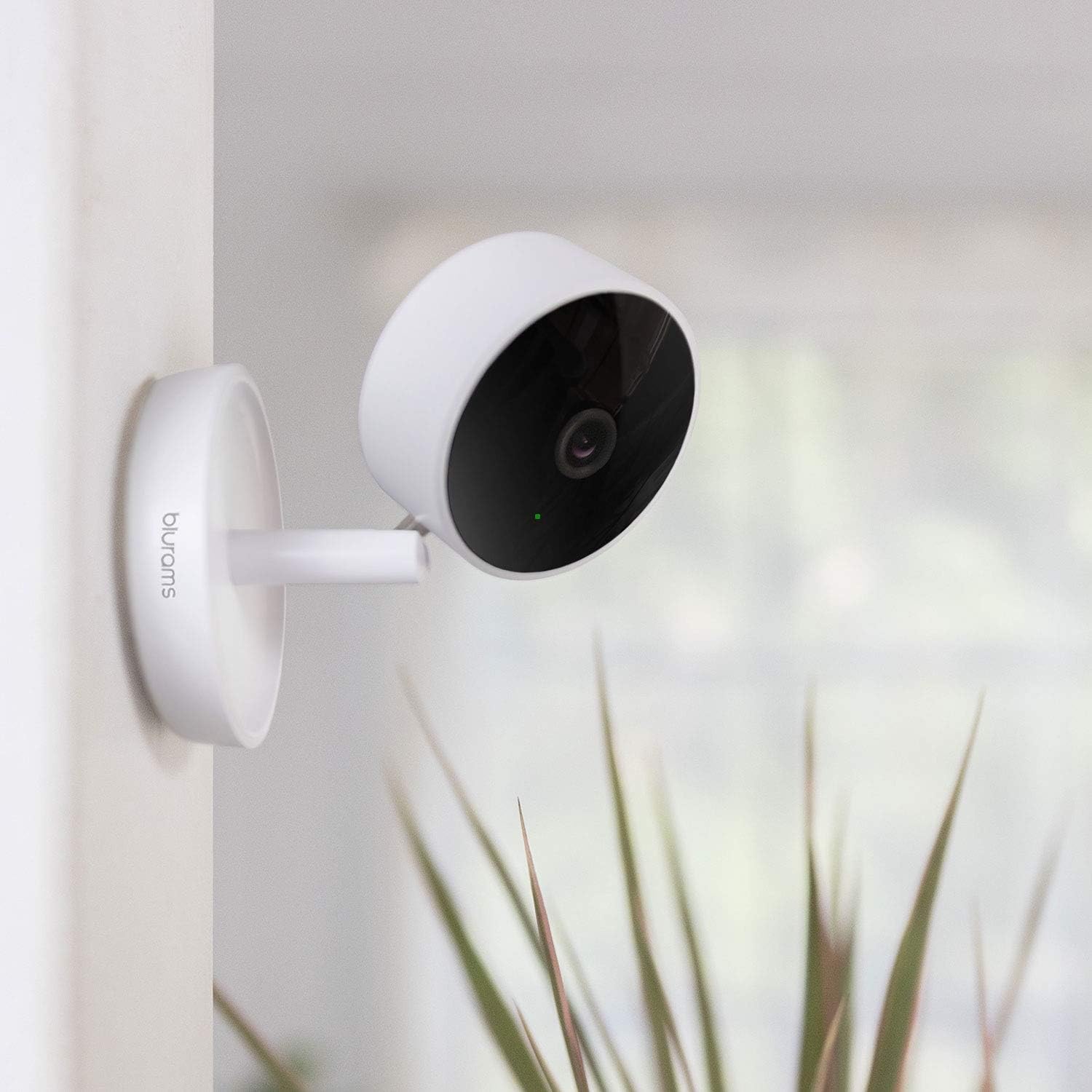
Figure 2: Blurams A10C Home Pro Camera mounted on a wall, demonstrating flexible placement options.
3.2 Powering On
- Connect the power cable to the camera's power port.
- Plug the power adapter into a wall outlet.
- The camera's status indicator light will illuminate, indicating it is powering on. Wait for the light to flash blue, signifying it is ready for pairing.
3.3 App Installation and Pairing
- Download the "Blurams" app from your smartphone's app store (iOS App Store or Google Play Store).
- Open the Blurams app and create an account or log in.
- Tap the "+" icon to add a new device.
- Select the A10C Home Pro model from the list.
- Follow the on-screen instructions to connect the camera to your 2.4 GHz Wi-Fi network. This typically involves scanning a QR code generated by the app with the camera's lens.
- Once connected, the status indicator light will turn solid blue.
4. Operating Instructions
4.1 Live View and Two-Way Audio
From the Blurams app, select your camera to access the live video feed. You can use the microphone icon to speak through the camera and the speaker icon to hear audio from the camera's location.
4.2 Motion Detection and Notifications
The camera features intelligent motion detection. To enable or adjust settings:
- Navigate to the camera settings within the Blurams app.
- Locate "Motion Detection" or "Alert Settings."
- Enable motion detection and customize sensitivity levels.
- Ensure push notifications are enabled on your smartphone for the Blurams app to receive real-time alerts.
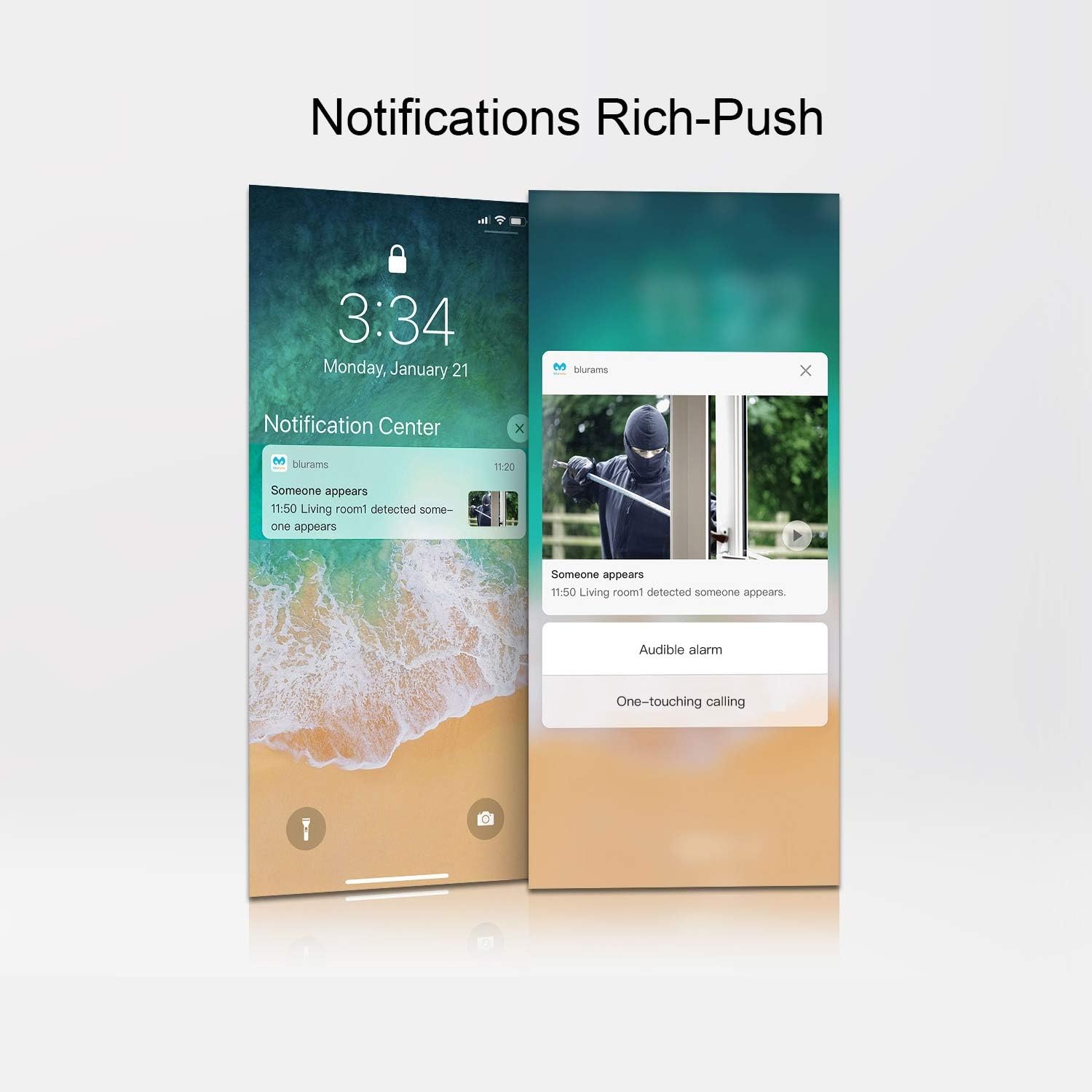
Figure 3: Example of rich push notifications from the Blurams app on a smartphone, displaying an alert with an image preview.
4.3 Video Recording and Storage
The Blurams A10C Home Pro supports two primary storage methods:
- Micro SD Card Storage: Insert a Micro SD card (up to 128GB, not included) into the designated slot on the camera. The camera will automatically begin recording based on your settings (e.g., continuous, event-triggered).
- Cloud Storage: An optional cloud storage service is available through Blurams. Subscribe via the app to store recordings securely in the cloud.

Figure 4: Screenshot of the Blurams app displaying a timeline of cloud-recorded events, including human, sound, and motion detection.
4.4 Privacy Zone
To protect privacy, you can define specific areas within the camera's view that will be excluded from recording or live viewing. This feature is configurable within the Blurams app settings.
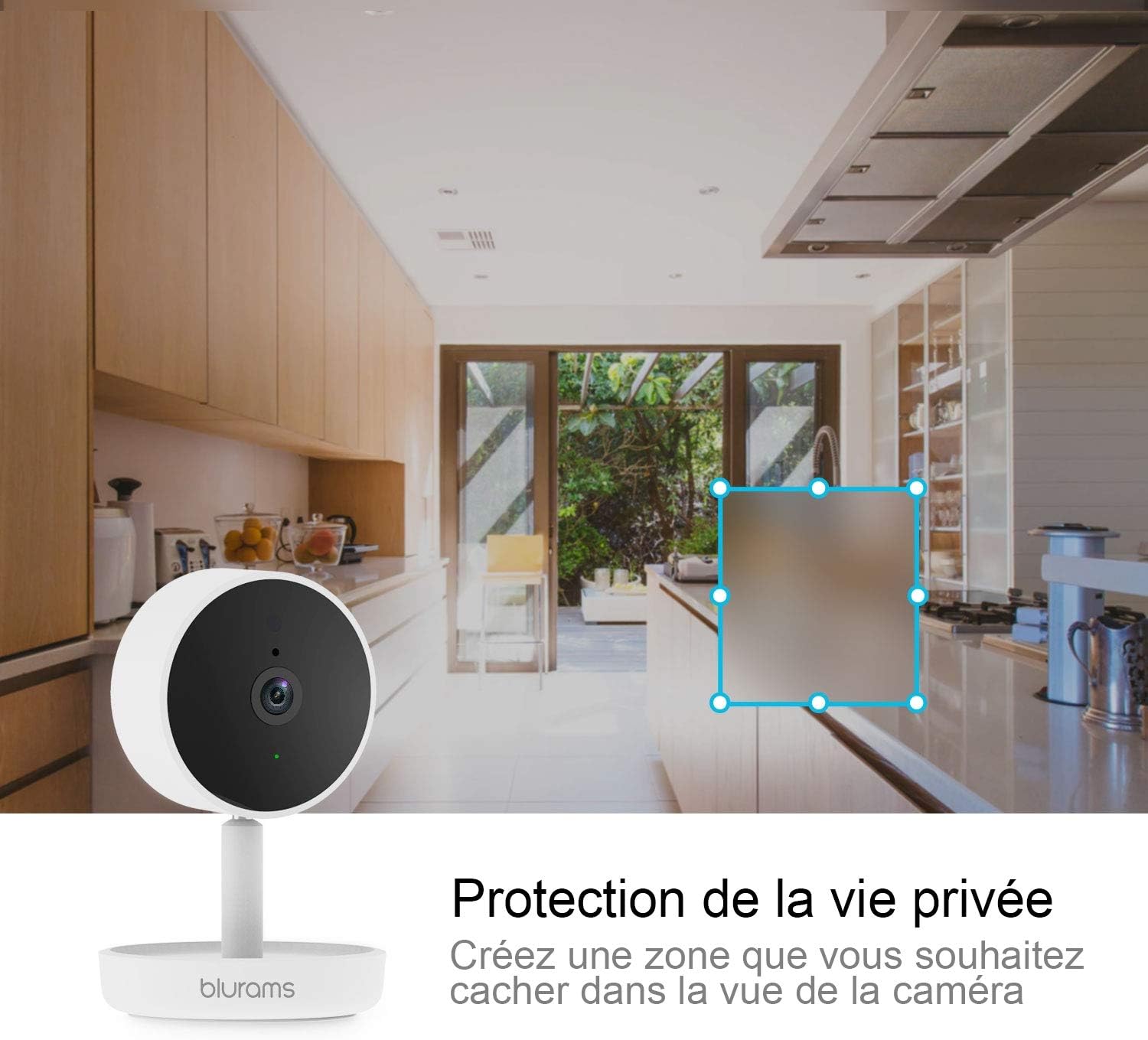
Figure 5: Blurams A10C Home Pro Camera in a kitchen setting, illustrating how a privacy zone can be created to obscure a specific area from view.
4.5 Multi-Camera View
If you have multiple Blurams cameras, the app allows you to view feeds from several cameras simultaneously on a single screen.

Figure 6: A smartphone displaying live feeds from four different Blurams cameras simultaneously, demonstrating the multi-camera viewing feature.
4.6 Amazon Alexa Integration
The Blurams A10C Home Pro is compatible with Amazon Alexa. You can use voice commands to view your camera's live feed on compatible Alexa-enabled devices with screens (e.g., Echo Show).
- Enable the Blurams skill in the Alexa app.
- Link your Blurams account.
- Use commands such as "Alexa, show me the [camera name]" to view the feed.

Figure 7: Blurams A10C Home Pro Camera positioned next to an Amazon Echo Show, which is displaying the camera's live feed, illustrating Alexa compatibility.
5. Maintenance
- Cleaning: Use a soft, dry cloth to clean the camera lens and body. Avoid abrasive cleaners or solvents.
- Firmware Updates: Regularly check the Blurams app for available firmware updates to ensure optimal performance and security.
- Network Stability: Ensure your Wi-Fi network is stable and strong for uninterrupted camera operation.
6. Troubleshooting
| Problem | Possible Solution |
|---|---|
| Camera fails to connect to Wi-Fi. |
|
| No live video feed. |
|
| Motion detection alerts are not received. |
|
| Two-way audio not working. |
|
7. Specifications
| Feature | Detail |
|---|---|
| Model Name | A10C Home Pro |
| Brand | Blurams |
| Video Resolution | 1080p |
| Wireless Technology | Wi-Fi (2.4 GHz only) |
| Form Factor | Dome |
| Dimensions (L x W x H) | 14.3 x 9.3 x 7.4 cm |
| Weight | 280 grams |
| Special Features | Motion Detection, Two-Way Audio, Privacy Zone |
| Storage Options | Micro SD Card (up to 128GB), Cloud Storage (optional) |
| Power Source | Electric Cable |
| Compatibility | Smartphone (iOS/Android), Amazon Alexa |
| Usage Environment | Indoor |
8. Warranty and Support
For warranty information and technical support, please refer to the official Blurams website or contact their customer service directly. Keep your purchase receipt for warranty claims.
Online Support: www.blurams.com/support


