
LC-dolida usb c to hdmi vga ethernet
LC-dolida USB C to HDMI VGA USB3.0 Adapter User Manual
Model: usb c to hdmi vga ethernet
Brand: LC-dolida
1. Introduction
The LC-dolida USB C Hub Adapter is a versatile 7-in-1 device designed to expand the connectivity of your USB-C enabled laptop, tablet, or smartphone. It provides multiple ports including HDMI, VGA, Ethernet, USB 3.0, 3.5mm audio, and Power Delivery (PD) charging, enhancing your device's capabilities for various applications such as external display connections, high-speed data transfer, and network access.
2. Key Features
- Multiport Connectivity: Equipped with HDMI, VGA, RJ45 Ethernet, 3.5mm audio jack, 2x USB 3.0 ports, and a Power Delivery (PD) charging port.
- High-Resolution Video Output: HDMI supports resolutions up to 4K@30Hz, and VGA supports up to 1080P@60Hz. Both can be used simultaneously for dual display at 1080P.
- Fast and Stable Network: RJ45 Ethernet port supports up to 1000Mbps for reliable wired internet connection.
- Efficient Power Delivery: USB-C PD charging port supports up to 87W to keep your device charged while using the hub.
- High-Speed Data Transfer: Two USB 3.0 ports offer data transfer speeds up to 5Gbps, allowing connection of external USB devices.
- Audio Output: Integrated 3.5mm audio jack for connecting headphones or speakers.
- Wide Compatibility: Compatible with various USB-C devices including 2018/17/16 MacBook/Pro/Air, Google Chromebook Pixel, Surface Book 2, and supports Samsung Dex for compatible smartphones.
3. Package Contents
- LC-dolida USB C Hub Adapter (Model: usb c to hdmi vga ethernet)
- User Manual
4. Specifications
| Feature | Detail |
|---|---|
| Brand | LC-dolida |
| Model Number | usb c to hdmi vga ethernet |
| Hardware Platform | Laptop, PC |
| Operating System Compatibility | Windows 10 (and above for some features), macOS, Android (for Samsung Dex) |
| Item Weight | 3.8 ounces |
| Package Dimensions | 6.69 x 3.7 x 0.71 inches |
| HDMI Output | Up to 4K@30Hz, 1080P@60Hz (backward compatible) |
| VGA Output | Up to 1080P@60Hz |
| Simultaneous Display | HDMI and VGA can be used simultaneously (both at 1080P) |
| Ethernet Port | RJ45, supports up to 1000Mbps |
| USB 3.0 Ports | 2 ports, data transfer up to 5Gbps |
| Power Delivery (PD) Port | USB-C, max 87W charging |
| Audio Jack | 3.5mm |
| Compatible Devices | Laptops, Monitors, Projectors, Smartphones (with USB-C video output support) |
5. Setup Instructions
- Connect the Hub: Plug the USB-C connector of the LC-dolida hub into the USB-C port of your host device (laptop, tablet, or smartphone).
- Connect External Displays (HDMI/VGA):
- For HDMI output, connect an HDMI cable from the hub's HDMI port to your monitor or TV.
- For VGA output, connect a VGA cable from the hub's VGA port to your monitor or projector.
- For audio output via VGA, connect a 3.5mm audio cable from the hub's audio jack to your speakers or headphones.
Note: HDMI and VGA can be used simultaneously, but both displays will output at 1080P resolution.

Figure 1: Connecting to HDMI and VGA displays. HDMI supports up to 4K, VGA up to 1080P. 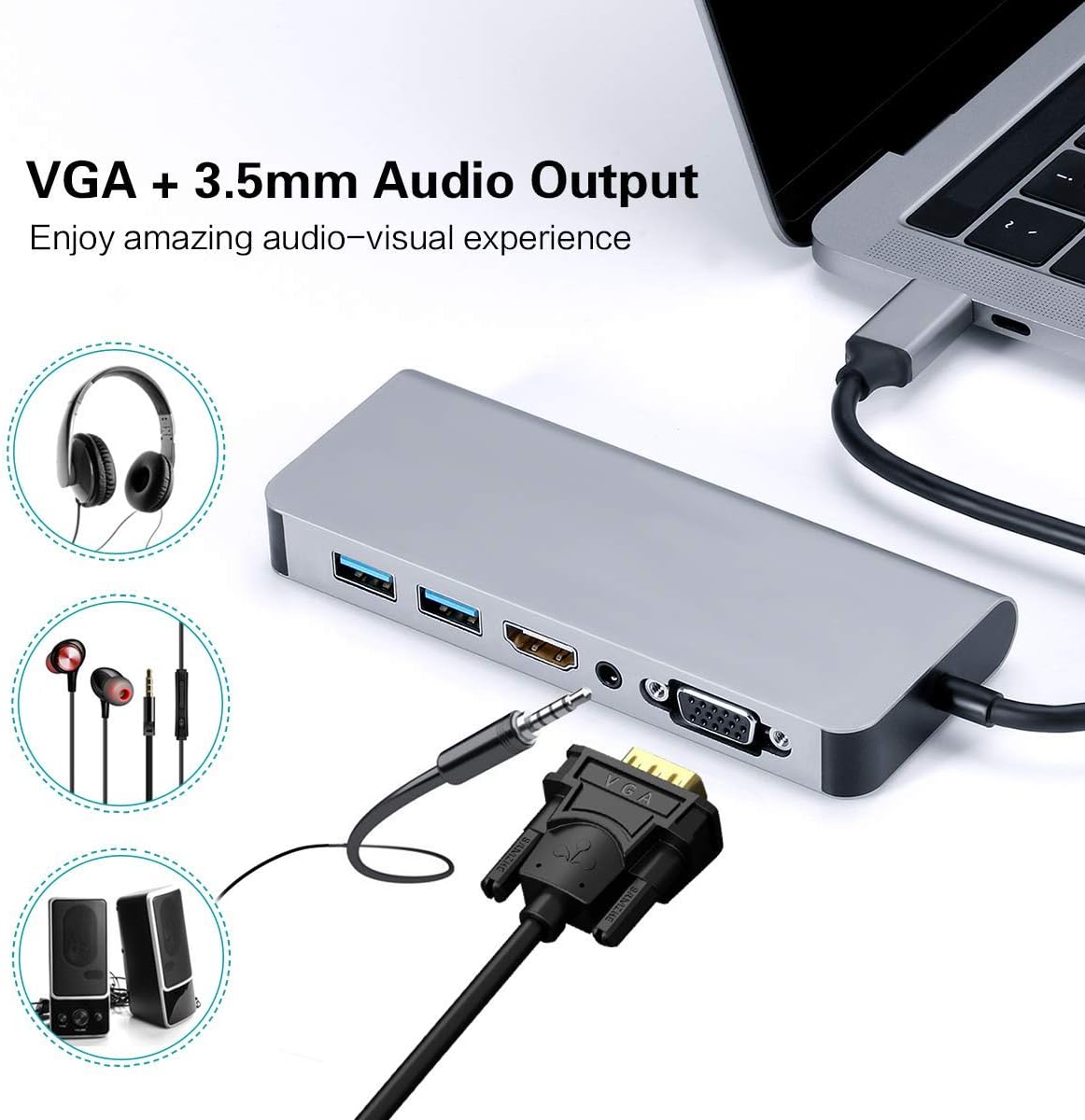
Figure 2: VGA and 3.5mm Audio Output for an enhanced audio-visual experience. - Connect to Network: For a stable wired internet connection, plug an Ethernet cable into the RJ45 port on the hub.
- Connect USB Devices: Plug your USB peripherals (e.g., mouse, keyboard, USB drive) into the USB 3.0 ports.
- Power the Host Device: If your host device requires charging, connect your USB-C power adapter to the Power Delivery (PD) port on the hub. This allows your device to charge while using the hub's other functions.

Figure 3: Power Delivery and Data Transfer via USB 3.0 ports.
6. Operating Instructions
6.1 Display Modes
The hub supports both Mirror Mode and Extend Mode when connecting to external displays.
- Mirror Mode: Duplicates your host device's screen onto the external display(s). This is ideal for presentations or sharing content.
- Extend Mode: Extends your desktop across multiple screens, allowing for increased workspace. This mode is typically supported by laptops.
Note: Extend Mode functionality is primarily for laptops. For smartphones, it typically mirrors the display or activates specific desktop environments like Samsung Dex.

6.2 Samsung Dex Experience
For compatible Samsung smartphones (S10/S10+/S10e/S9/S9+/S8/S8+/S8 Active/Huawei Mate10/Pro), the hub can enable a PC-like desktop experience via Samsung Dex. To activate Dex mode, ensure external power is supplied to the hub via the PD charging port.
Note: Samsung Dex functionality may require your phone's operating system to be upgraded to Windows 10 or above. Always ensure your device is compatible and updated.


6.3 Official Product Video
Video 1: An official demonstration of the 7-in-1 USB C Multiport Hub by LC-Dolida, showcasing its various functions and connectivity options.
7. Troubleshooting
- No Display Output:
- Ensure your host device's USB-C port supports video output (DisplayPort Alternate Mode).
- Check all cable connections (USB-C to hub, HDMI/VGA to display).
- Verify the input source on your monitor/TV is set correctly (e.g., HDMI 1, VGA).
- Try restarting your host device.
- For Samsung Dex, ensure external power is connected to the hub.
- USB Devices Not Recognized:
- Ensure the hub is securely connected to your host device.
- Try connecting the USB device directly to your host device to confirm it's functional.
- If using high-power USB devices, ensure external power is supplied to the hub via the PD port.
- Slow Ethernet Speed:
- Check your Ethernet cable for damage.
- Ensure your network drivers are up to date on your host device.
- Verify your router/modem is functioning correctly.
- Charging Issues:
- Ensure your USB-C power adapter is connected to the hub's PD port and is functional.
- Verify your host device supports USB-C Power Delivery.
- Some devices, like the Samsung S8+, may not charge fully or quickly through the hub if the power input is insufficient for both the hub and the device.
8. Care and Maintenance
- Keep the hub away from water, fire, and corrosive materials.
- Avoid dropping or subjecting the hub to strong impacts.
- Do not attempt to disassemble or repair the device yourself. Contact customer support for assistance.
- Clean the hub with a soft, dry cloth. Avoid using harsh chemicals or abrasive cleaners.
- Store the hub in a cool, dry place when not in use.
9. Warranty and Support
LC-dolida products are designed for reliability and performance. For any issues or questions regarding your LC-dolida USB C Hub Adapter, please contact our customer support team. We are committed to providing assistance and ensuring your satisfaction.
Please refer to the product packaging or the official LC-dolida website for specific warranty details and contact information.
Ask a question about this manual
Ask about setup, troubleshooting, compatibility, parts, safety, or missing instructions. Manuals+ will review the question and use this page’s manual context to help answer it.