
O OCEAN DIGITAL WR-336N
Ocean Digital WR-336N WiFi Internet Radio User Manual
Model: WR-336N | Brand: O OCEAN DIGITAL
1. Introduction
The Ocean Digital WR-336N is a portable WiFi Internet Radio designed to provide access to a vast array of internet radio stations worldwide. It features a built-in rechargeable battery for portability, Bluetooth connectivity for streaming from personal devices, and UPnP/DLNA support. The radio includes a 2.4-inch color display and four customizable preset buttons for quick access to your favorite stations. This manual provides detailed instructions for setting up, operating, and maintaining your WR-336N radio.

Figure 1.1: Ocean Digital WR-336N WiFi Internet Radio with included remote control.
2. What's in the Box
Please check the package contents to ensure all items are present and in good condition:
- Ocean Digital WR-336N WiFi Internet Radio
- Power Cord
- USB Charging Cable
- Remote Control
- User Manual (this document)
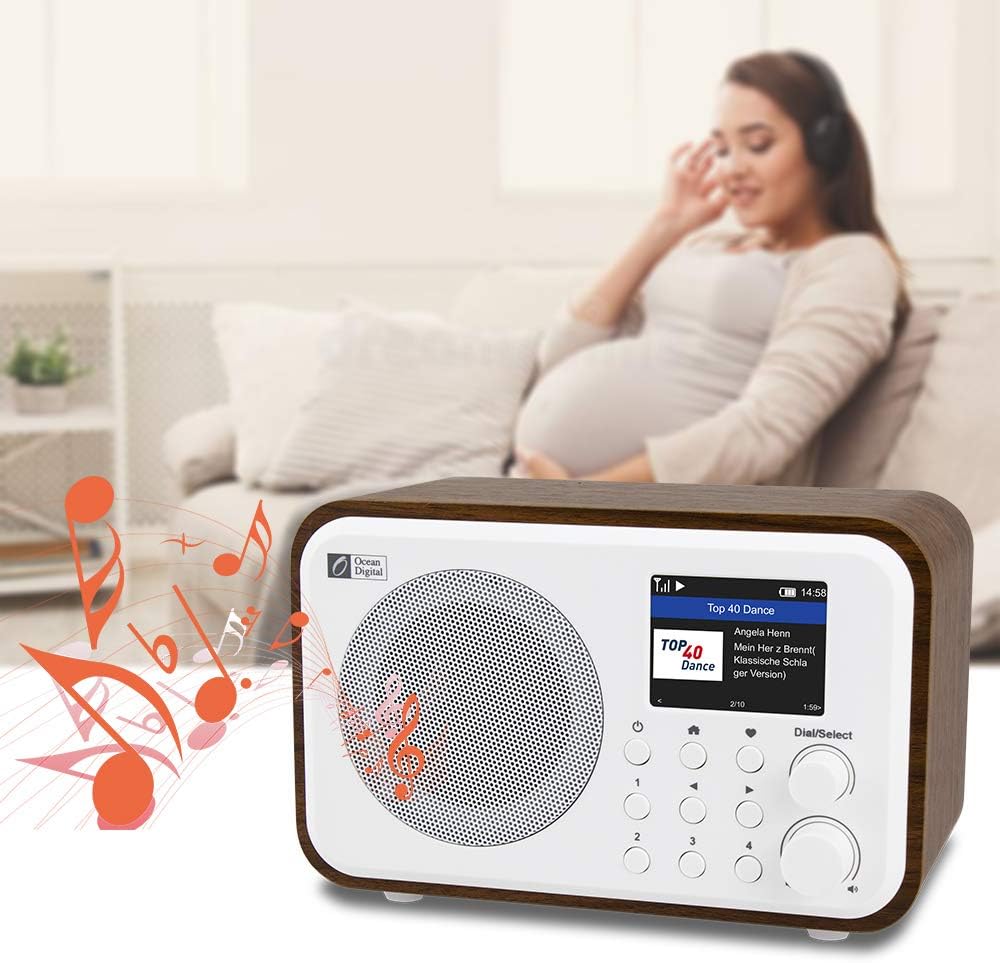
Figure 2.1: Package contents of the WR-336N radio.
3. Key Features
The Ocean Digital WR-336N offers a range of features for an enhanced listening experience:
- Internet WiFi Radio: Access over 28,000 internet radio stations categorized by region, genre, and popularity.
- Built-in Rechargeable Battery: Provides extended playtime for portable use in various locations.
- Bluetooth Connectivity: Stream audio wirelessly from your Bluetooth-enabled devices.
- UPnP/DLNA Compatible: Play music files from compatible devices on your local network.
- 2.4-inch Color Display: Clear and informative display for station information, time, and settings.
- 4 Preset Buttons: Quickly access your top 4 favorite internet radio stations with a single press.
- Station Search Function: Easily find specific stations by inputting partial names.
- Dual Alarm & Sleep Timer: Convenient functions for daily use.

Figure 3.1: Visual representation of the radio's main features.
4. Setup
4.1 Charging the Battery
Before first use, it is recommended to fully charge the radio's built-in rechargeable battery. Connect the provided USB charging cable to the DC IN 5V port on the back of the radio and the other end to a USB power adapter (not included) or a computer USB port. The charging indicator will show the charging status.
4.2 Powering On/Off
Press and hold the Power button (usually marked with a circle and a vertical line) on the front panel or remote control to turn the radio on or off.
4.3 Initial Setup Wizard & Wi-Fi Connection
Upon first power-on, the radio will guide you through an initial setup wizard:
- Language Selection: Use the Dial/Select knob to scroll through languages and press to confirm.
- Time/Date Setting: Follow the on-screen prompts to set the correct time and date.
- Network Configuration: The radio will scan for available Wi-Fi networks. Select your network from the list.
- Enter Password: Use the Dial/Select knob to navigate the on-screen keyboard and enter your Wi-Fi password. Press the knob to confirm each character and again to confirm the entire password.
- Connection: The radio will attempt to connect to your Wi-Fi network. Once connected, it will display a confirmation message.

Figure 4.1: Rear panel connections of the WR-336N.
5. Operating Instructions
5.1 Basic Controls
The radio features several buttons and knobs for navigation and control:
- Power Button: Turns the radio on/off.
- Dial/Select Knob: Rotate to scroll through menus/stations, press to select an option or confirm.
- Volume Knob: Rotate to adjust the volume level.
- Home Button: Returns to the main menu.
- Back Button: Goes back to the previous menu or screen.
- Preset Buttons (1-4): Directly access saved favorite stations.
5.2 Internet Radio Mode
To access internet radio stations:
- From the main menu, select "Internet Radio".
- You can browse stations by:
- Location: Explore stations from different countries or regions.
- Genre: Find stations based on music genre (e.g., Pop, Rock, Classical).
- Popular: Listen to the most popular stations globally.
- Search: Use the search function to find specific stations by name.
- Use the Dial/Select knob to navigate and select a station. Press the knob to start playback.
5.3 Saving and Accessing Presets
The radio allows you to save up to 99 favorite stations and assign the top 4 to dedicated preset buttons.
- To Save a Favorite: While a station is playing, press and hold the Heart button (or similar favorite icon) until the 'Add to Favorites' option appears. Select a position to save.
- To Assign to Preset Buttons (1-4): Navigate to your saved favorites list. Select a station, then press and hold one of the 1, 2, 3, or 4 buttons until the station is assigned.
- To Access Presets: Simply press the corresponding preset button (1-4) to instantly tune into the saved station.
5.4 Bluetooth Mode
To use the radio as a Bluetooth speaker:
- From the main menu, select "Bluetooth". The radio will enter pairing mode.
- On your Bluetooth-enabled device (smartphone, tablet, etc.), search for available devices and select "WR-336N".
- Once paired, you can play audio from your device through the radio.
5.5 UPnP/DLNA Playback
The radio supports UPnP (Universal Plug and Play) and DLNA (Digital Living Network Alliance) for streaming music from compatible devices on your home network (e.g., a media server or computer with UPnP enabled).
- Ensure your media server or device is set up and sharing content via UPnP/DLNA on the same network as the radio.
- From the radio's main menu, select "Media Center" or "UPnP/DLNA".
- The radio will scan for available media servers. Select your server and browse for music files to play.
5.6 Alarm and Sleep Timer
Access these functions from the main menu under "Alarm" or "Sleep Timer" to set wake-up alarms or a timer for the radio to automatically turn off.
5.7 Using the Remote Control
The included remote control provides convenient access to all radio functions from a distance. Refer to the button layout on the remote for specific functions such as power, volume, navigation, mode selection, and preset access.

Figure 5.1: WR-336N radio with its remote control.
6. Maintenance
To ensure the longevity and optimal performance of your Ocean Digital WR-336N radio, follow these maintenance guidelines:
- Cleaning: Use a soft, dry cloth to clean the exterior of the radio. Do not use abrasive cleaners, waxes, or solvents as they may damage the finish.
- Avoid Liquids: Keep the radio away from water and other liquids. Do not expose it to rain or moisture.
- Temperature: Operate and store the radio within recommended temperature ranges. Avoid extreme heat or cold.
- Battery Care: If storing the radio for an extended period, charge the battery periodically (e.g., every 3-6 months) to maintain its health.
- Ventilation: Ensure the radio has adequate ventilation and do not block any ventilation openings.
7. Troubleshooting
If you encounter issues with your WR-336N radio, refer to the following common problems and solutions:
| Problem | Possible Cause | Solution |
|---|---|---|
| Radio does not power on. | Battery is depleted; Power adapter not connected or faulty. | Charge the battery; Ensure power adapter is securely connected and functional. |
| Cannot connect to Wi-Fi. | Incorrect Wi-Fi password; Router too far; Network issue. | Verify password; Move radio closer to router; Restart router; Check network settings. |
| No sound from radio. | Volume too low; Mute activated; Station not broadcasting. | Increase volume; Check if muted; Try a different station. |
| Bluetooth device won't pair. | Radio not in pairing mode; Device too far; Interference. | Ensure radio is in Bluetooth pairing mode; Move devices closer; Turn off other Bluetooth devices. |
| Display is blank or frozen. | System error. | Perform a soft reset by holding the power button for 10 seconds, or disconnect power and reconnect. |
8. Specifications
Technical specifications for the Ocean Digital WR-336N WiFi Internet Radio:
| Feature | Detail |
|---|---|
| Model Number | WR-336N |
| Product Dimensions | 8.66 x 5.31 x 5.51 inches (220 x 135 x 140 mm) |
| Item Weight | 2.64 pounds (1.2 kg) |
| Connectivity Technology | Bluetooth, USB, Wi-Fi |
| Tuner Technology | Internet Radio |
| Radio Bands Supported | FM, Internet |
| Power Source | Battery Powered (1 Lithium Ion battery included) |
| Display | 2.4-inch Color Display |
| Special Feature | Portable |
| Color | White |
| Manufacturer | Ocean Digital |

Figure 8.1: Dimensions of the WR-336N radio.
9. Warranty and Support
9.1 Limited Warranty
Ocean Digital products are manufactured to the highest quality standards. This product is covered by a limited warranty against defects in materials and workmanship. Please refer to the warranty card included in your product packaging for specific terms and conditions, including the warranty period and coverage details. Keep your purchase receipt as proof of purchase.
9.2 Customer Support
For technical assistance, troubleshooting, or warranty inquiries, please contact Ocean Digital customer support. Contact information can typically be found on the official Ocean Digital website or on the warranty card provided with your product. When contacting support, please have your product model number (WR-336N) and purchase details ready.
Ask a question about this manual
Ask about setup, troubleshooting, compatibility, parts, safety, or missing instructions. Manuals+ will review the question and use this page’s manual context to help answer it.