
QFX BT-41-FL
QFX BT-41-Flamingo Bluetooth Speaker User Manual
Model: BT-41-FL
1. Introduction
Thank you for purchasing the QFX BT-41-Flamingo Bluetooth Speaker. This portable speaker offers high-quality audio streaming, True Wireless System (TWS) functionality for stereo sound, hands-free calling, and multiple playback options including Bluetooth, USB, TF card, and FM radio. Please read this manual carefully to ensure proper use and to maximize your enjoyment of the product.
2. Package Contents
Please check the box for the following items:
- QFX BT-41-Flamingo Bluetooth Speaker
- USB Charging Cable
- AUX Cable
- User Manual (this document)
3. Product Overview
Familiarize yourself with the speaker's components and controls.

Figure 3.1: Front View - This image displays the front of the QFX BT-41-Flamingo speaker, highlighting its distinctive pink, yellow, green, and blue geometric pattern. The two circular speaker grilles are prominent on either side, and a handle is visible at the top.
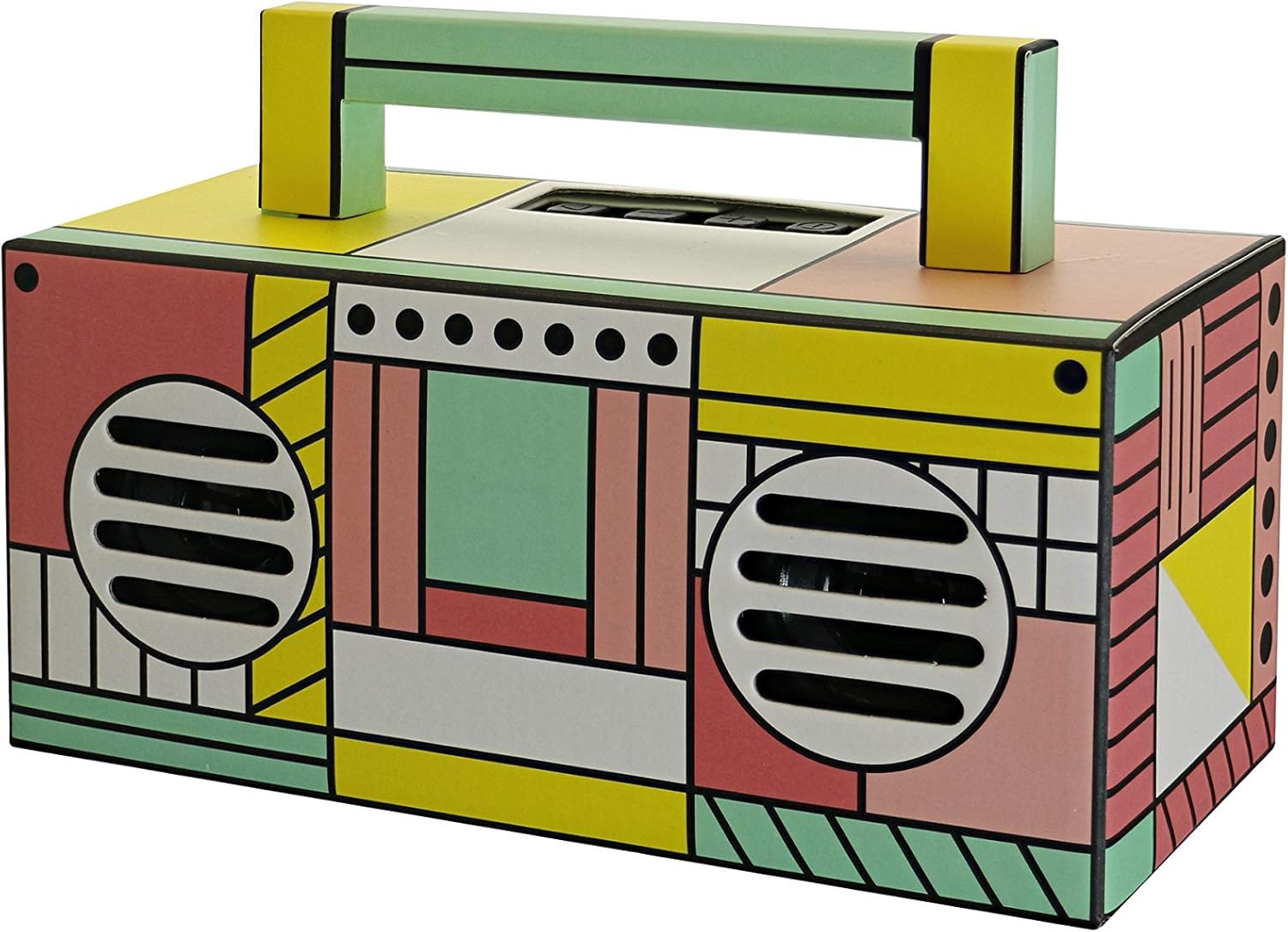
Figure 3.2: Angled Top View - This image provides an angled view of the speaker from the top-front, revealing the control panel located on the top surface. The carry handle is also clearly visible, extending across the top.
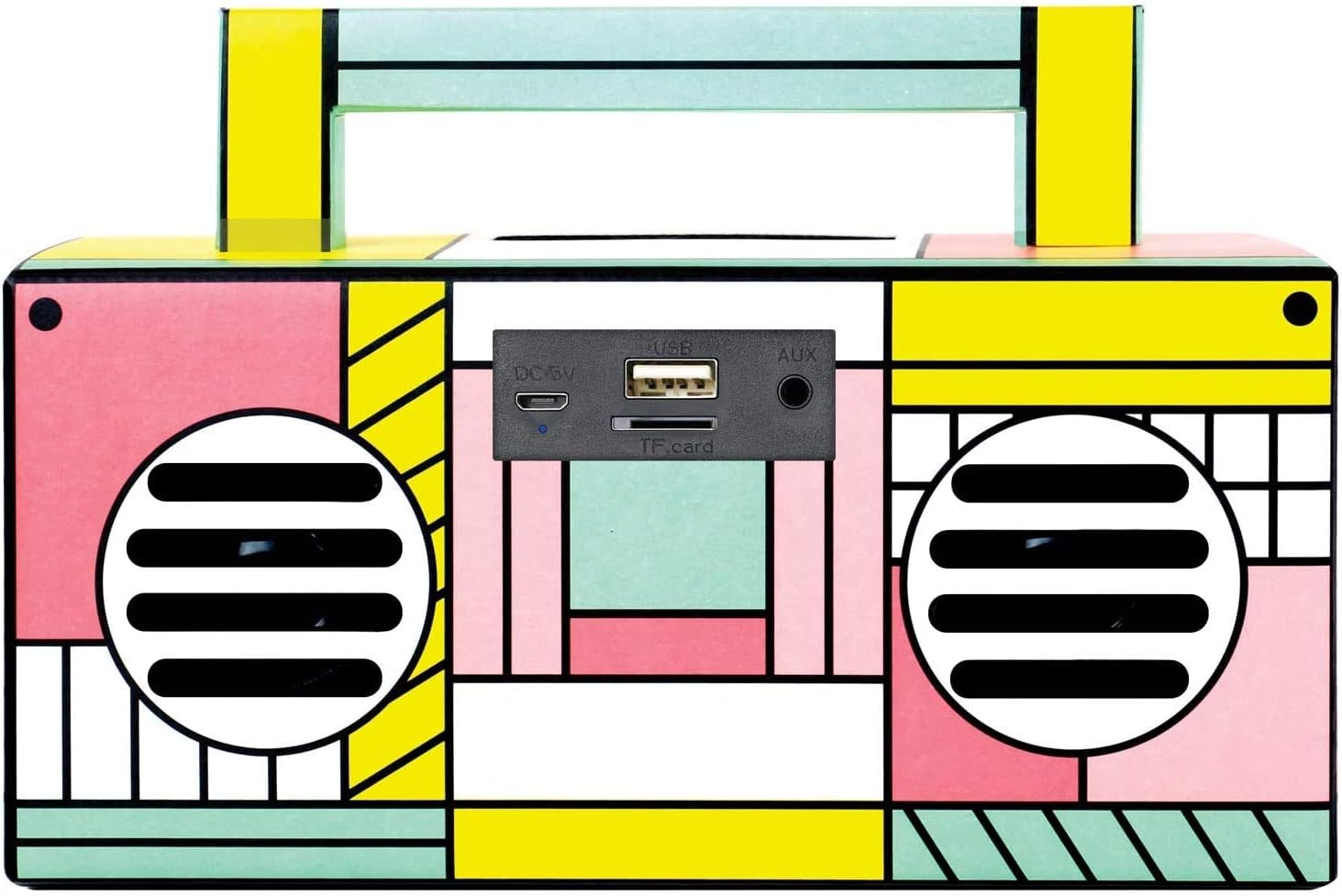
Figure 3.3: Rear Port Panel - This image focuses on the rear of the speaker, detailing the various input ports. From left to right, these include the DC 5V charging port, a USB port for media playback, a TF (Micro-SD) card slot, and an AUX input jack.
4. Setup
4.1 Charging the Speaker
- Connect the supplied USB charging cable to the DC 5V port on the back of the speaker.
- Connect the other end of the USB cable to a USB power adapter (not included) or a computer's USB port.
- The charging indicator light will illuminate. Once fully charged, the light may change color or turn off, depending on the unit.
- A full charge provides several hours of playback.
4.2 Powering On/Off
- To power on, press and hold the Power button (usually located on the top panel) until the speaker activates.
- To power off, press and hold the Power button again until the speaker shuts down.
5. Operating Instructions
5.1 Bluetooth Pairing
- Power on the speaker. It will automatically enter Bluetooth pairing mode, indicated by a flashing LED light and an audible prompt.
- Enable Bluetooth on your smartphone or other Bluetooth-enabled device.
- Search for available Bluetooth devices. Select "QFX BT-41" from the list.
- Once paired, the speaker will emit an audible confirmation, and the LED light will stop flashing.
- You can now play audio from your device through the speaker.
5.2 True Wireless System (TWS) Pairing
TWS allows two BT-41 speakers to connect wirelessly for a stereo sound experience. You will need two QFX BT-41 speakers for this feature.
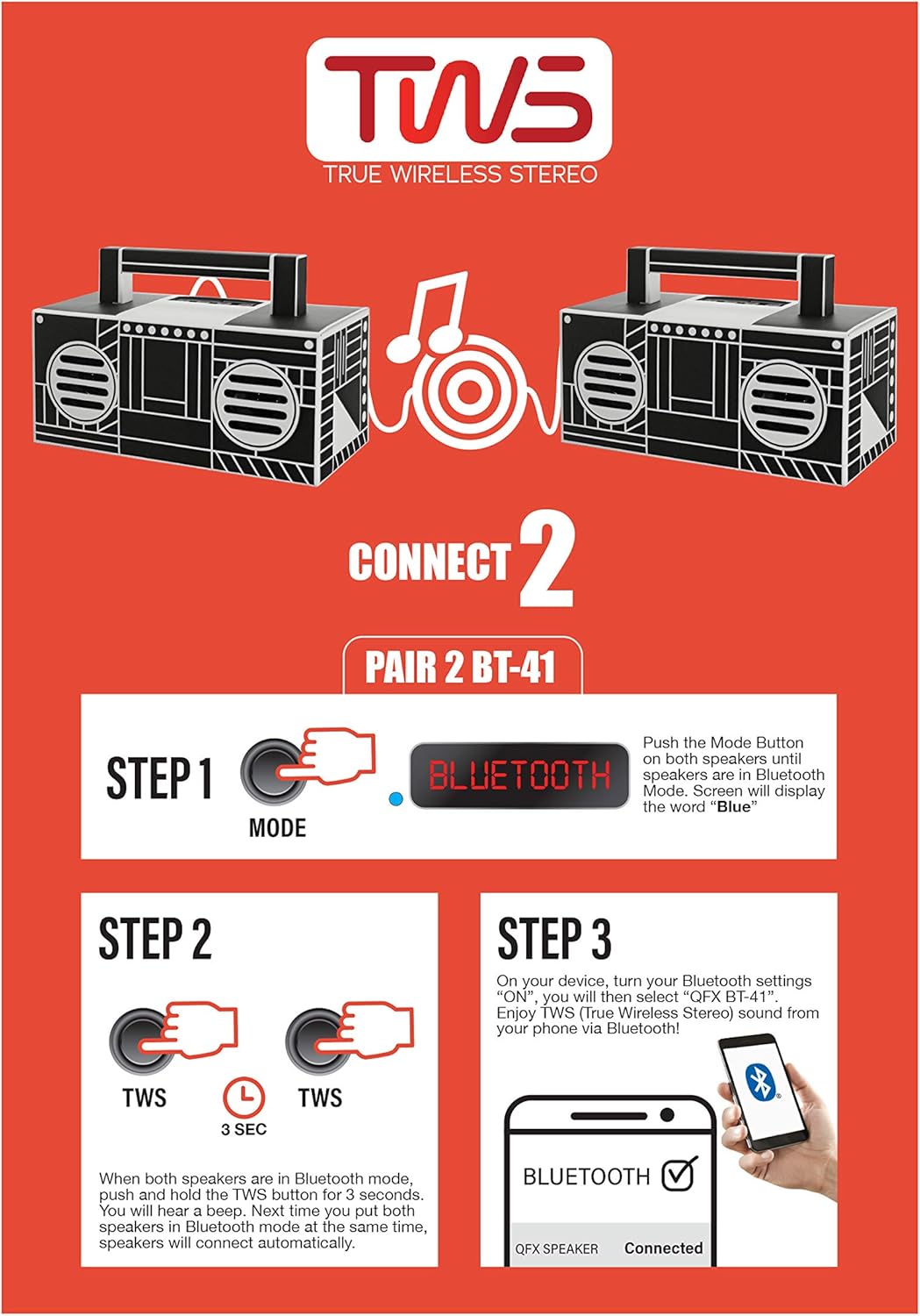
Figure 5.1: TWS Pairing Guide - This diagram visually explains the three steps to connect two BT-41 speakers in True Wireless Stereo mode. It shows pressing the Mode button to enter Bluetooth, then holding the TWS button on both speakers, and finally connecting via a smartphone's Bluetooth settings.
- Step 1: Power on both BT-41 speakers. Press the Mode button on each speaker until they are both in Bluetooth mode. The display on each speaker should show "Blue".
- Step 2: With both speakers in Bluetooth mode, press and hold the TWS button on one of the speakers for approximately 3 seconds. You will hear a beep. Then, press and hold the TWS button on the second speaker for 3 seconds. The speakers will automatically connect to each other.
- Step 3: On your Bluetooth-enabled device, go to your Bluetooth settings. Search for and select "QFX BT-41". Once connected, you will enjoy True Wireless Stereo sound from your device.
5.3 USB/TF Card Playback
- Insert a USB flash drive or TF (Micro-SD) card into the corresponding port on the speaker.
- The speaker will automatically detect the storage device and begin playing audio files.
- Use the playback controls (Play/Pause, Next/Previous Track) on the speaker to manage your music.
5.4 FM Radio
- Press the Mode button to switch to FM radio mode.
- Press and hold the Play/Pause button to automatically scan and save available FM stations.
- Use the Next/Previous Track buttons to navigate between saved stations.
5.5 AUX Input
- Connect one end of the supplied AUX cable to the AUX input port on the speaker.
- Connect the other end of the AUX cable to the headphone jack or audio output of your external audio device.
- Press the Mode button to switch to AUX input mode.
- Control playback and volume from your external device.
5.6 Hands-Free Calling
When connected via Bluetooth to a smartphone:
- To answer an incoming call, press the Play/Pause button.
- To end a call, press the Play/Pause button again.
- The built-in microphone allows for clear communication.
6. Maintenance
6.1 Cleaning
- Ensure the speaker is powered off and disconnected from any power source before cleaning.
- Use a soft, dry, lint-free cloth to wipe the exterior surfaces of the speaker.
- Do not use abrasive cleaners, waxes, or solvents as they may damage the finish.
- Avoid getting moisture into any openings.
6.2 Storage
- Store the speaker in a cool, dry place away from direct sunlight and extreme temperatures.
- If storing for an extended period, charge the battery periodically (e.g., every 3-6 months) to maintain battery health.
7. Troubleshooting
If you encounter issues with your speaker, refer to the following common problems and solutions:
- No Power:
Ensure the speaker is fully charged. Connect the USB charging cable and allow it to charge for at least 30 minutes before attempting to power on again. - No Sound:
Check the volume level on both the speaker and your connected device. Ensure the correct input mode (Bluetooth, AUX, USB/TF, FM) is selected. If using Bluetooth, ensure the device is properly paired. - Bluetooth Not Connecting:
Make sure the speaker is in Bluetooth pairing mode. Turn off Bluetooth on your device and then turn it back on. Forget "QFX BT-41" from your device's Bluetooth list and attempt to re-pair. Ensure no other devices are currently connected to the speaker. - TWS Pairing Fails:
Ensure both speakers are in Bluetooth mode before attempting TWS pairing. Make sure you are pressing and holding the TWS button on both speakers as instructed. Try powering both speakers off and on again, then repeat the TWS pairing steps. - Poor FM Reception:
Relocate the speaker to an area with better signal. Extend the AUX cable (if connected) as it can sometimes act as an antenna.
8. Specifications
| Feature | Specification |
|---|---|
| Model Name | QFX |
| Item Model Number | BT-41-FL |
| Speaker Type | Multimedia |
| Special Feature | Radio |
| Recommended Uses | Music |
| Compatible Devices | Smartphone |
| Subwoofer Diameter | 2 Inches |
| Surround Sound Channel Configuration | 2.0 |
| Color | Pink Flamingo |
| Product Dimensions (D x W x H) | 7.83" x 3.5" x 3.66" |
| Item Weight | 1.4 Pounds (approximately 0.63 kg) |
| Waterproof | No |
| Number of Items | 1 |
| Speaker Size | 2 Inches |
| Power Source | Battery Powered |
| Battery Type | 1 Lithium Ion battery (included) |
| UPC | 606540039236 |
| Manufacturer | QFX |
| Speaker Maximum Output Power | 10 Watts |
| Connectivity Technology | Bluetooth, USB |
| Audio Output Mode | Stereo |
| Mounting Type | Freestanding, Plug Mount |
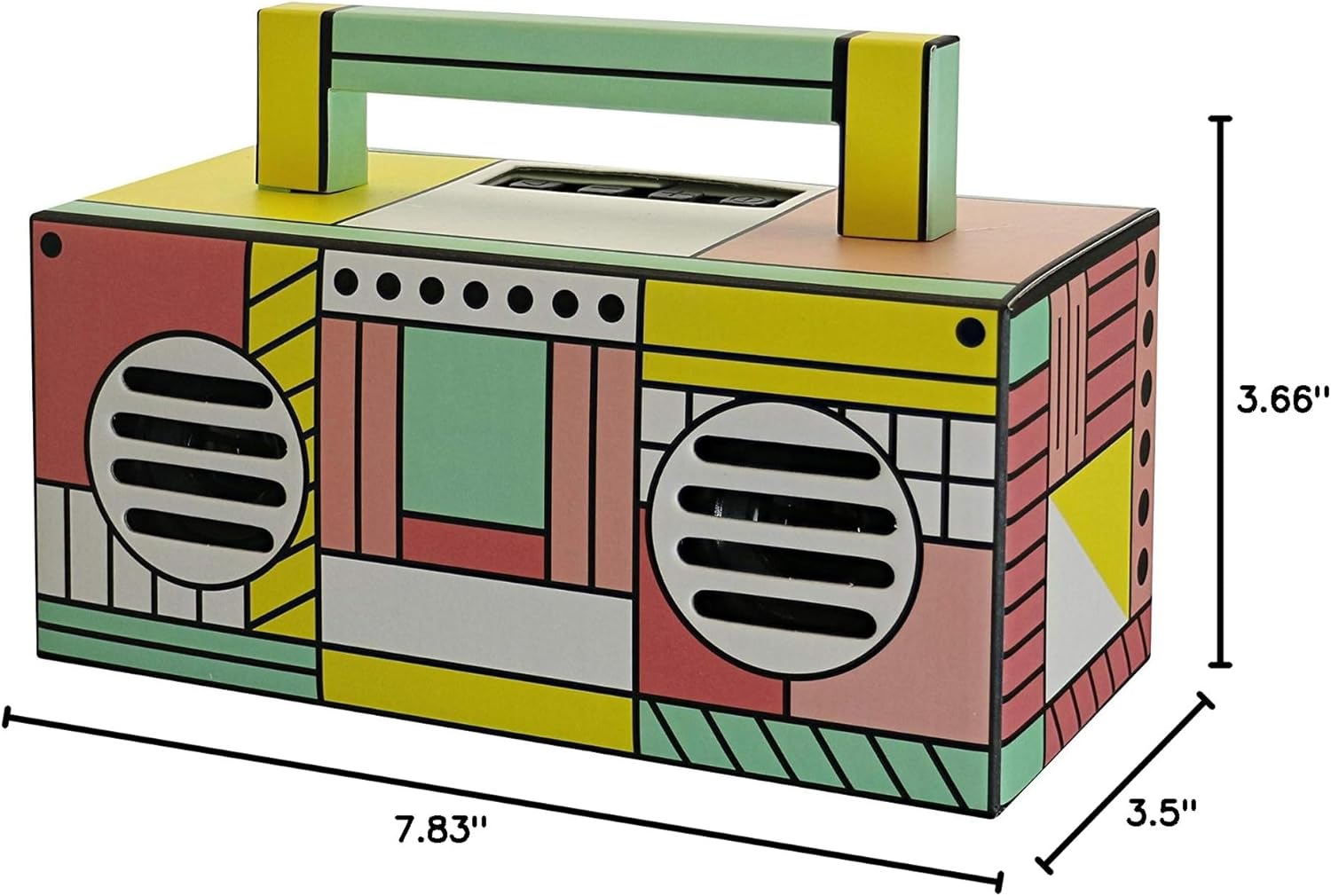
Figure 8.1: Product Dimensions - This image provides a clear visual representation of the speaker's physical dimensions, indicating a depth of 7.83 inches, a width of 3.5 inches, and a height of 3.66 inches.
9. Warranty and Support
For warranty information and customer support, please refer to the warranty card included with your product or visit the official QFX website. Keep your purchase receipt as proof of purchase for any warranty claims.
Related documentsBT-41-FL


Ask a question about this manual
Ask about setup, troubleshooting, compatibility, parts, safety, or missing instructions. Manuals+ will review the question and use this page’s manual context to help answer it.