
OnePlus N200
OnePlus Nord N200 5G User Manual
Model: N200 | Brand: OnePlus
1. Introduction
This manual provides comprehensive instructions for the safe and efficient use of your OnePlus Nord N200 5G smartphone. Please read this manual thoroughly before operating the device and retain it for future reference. The OnePlus Nord N200 5G is designed to offer blazing fast 5G speeds, a large 90Hz Full HD display, and a powerful 5000mAh battery for all-day use.
2. What's in the Box
- OnePlus Nord N200 5G Smartphone
- Charge Adapter
- Type-C Cable
- Safety Information Guide
- SIM Tray Ejector
3. Product Overview
The OnePlus Nord N200 5G features a sleek design and powerful components for an optimal user experience.
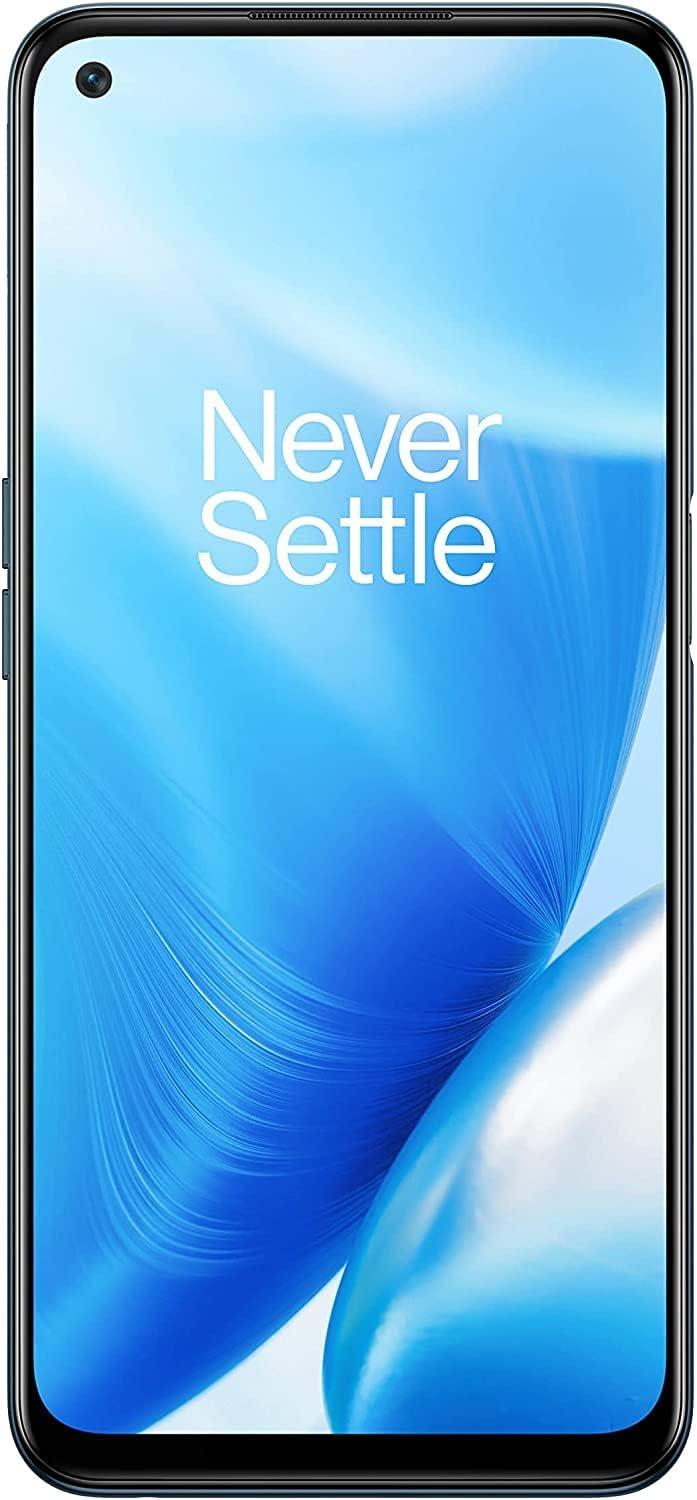
Figure 3.1: Front view of the OnePlus Nord N200 5G, showcasing its full display.
Key Features:
- 5G Unlocked: Compatible with T-Mobile and Google Fi for blazing fast download and upload speeds. Also 4G compatible with T-Mobile, AT&T, and Verizon.
- 6.49" Full HD+ LCD Display: Provides a crystal-clear viewing experience for multimedia content.
- 90Hz Smooth Display: Offers a 50% faster refresh rate than standard displays, ensuring smooth navigation and scrolling.
- Large 5000mAh Battery: Designed to provide extensive power for all-day usage, supporting hours of streaming, gaming, and browsing.
- 18W Fast Charging: Enables quick recharging of the device battery.
- Triple Camera System: Allows for high-quality photo and video capture.

Figure 3.2: Diagram illustrating key product specifications including camera, fingerprint sensor, memory, processor, fast charge, battery, ports, and network capabilities.

Figure 3.3: Visual representation of the device's lightning-fast 5G capabilities, emphasizing quick downloads and streaming.

Figure 3.4: Image highlighting the immersive 6.49-inch Full HD display with a 90Hz refresh rate for smooth interactions.

Figure 3.5: Illustration of the device's powerful 5000mAh battery, ensuring extended usage throughout the day.
4. Setup
4.1 Initial Charging
Before first use, fully charge your OnePlus Nord N200 5G using the provided charge adapter and Type-C cable. Connect the Type-C cable to the phone's charging port and the adapter to a power outlet. The battery indicator will show charging progress.
4.2 Inserting SIM Card
- Locate the SIM card tray on the side of the phone.
- Insert the SIM tray ejector tool into the small hole next to the tray.
- Gently push until the tray pops out.
- Place your Nano-SIM card(s) into the tray with the gold contacts facing down. Ensure proper orientation.
- Carefully reinsert the tray into the phone until it clicks into place.
4.3 Powering On/Off
- To Power On: Press and hold the Power button (located on the side) until the OnePlus logo appears.
- To Power Off: Press and hold the Power button until the power options menu appears, then select "Power off".
- Restart: From the power options menu, select "Restart".
5. Operating Instructions
5.1 Basic Navigation
- Touchscreen Gestures: Tap to select, swipe to scroll, pinch to zoom.
- Home Screen: Access apps, widgets, and notifications.
- App Drawer: Swipe up from the home screen to view all installed applications.
- Quick Settings: Swipe down from the top of the screen to access quick toggles for Wi-Fi, Bluetooth, etc.
5.2 Calls and Messages
- Making Calls: Open the Phone app, enter the number, and tap the call icon.
- Sending Messages: Open the Messages app, tap the new message icon, enter recipient and text, then send.
5.3 Camera Usage
The OnePlus Nord N200 5G features a triple camera system for versatile photography.
- Open the Camera app.
- Select your desired mode (Photo, Video, Portrait, etc.).
- Tap the shutter button to capture an image or start/stop video recording.
- Use the zoom controls on the screen to adjust magnification.
5.4 Connectivity
- Wi-Fi: Go to Settings > Wi-Fi, turn on Wi-Fi, and select a network to connect.
- Bluetooth: Go to Settings > Bluetooth, turn on Bluetooth, and pair with desired devices.
- Mobile Data: Ensure your SIM card is active and mobile data is enabled in Quick Settings or Network & Internet settings.
6. Maintenance
6.1 Cleaning Your Device
- Use a soft, lint-free cloth to clean the screen and body of the phone.
- Avoid using harsh chemicals, abrasive cleaners, or aerosol sprays.
- Do not expose the phone to excessive moisture.
6.2 Software Updates
Regularly check for software updates to ensure optimal performance and security. Go to Settings > System > System updates to check for and install available updates.
6.3 Battery Care
- Use only original or certified chargers and cables.
- Avoid extreme temperatures, as they can degrade battery life.
- Do not leave the phone charging for extended periods after it reaches 100%.
7. Troubleshooting
| Issue | Possible Solution |
|---|---|
| Phone not turning on | Ensure the battery is charged. Press and hold the Power button for at least 10 seconds. |
| Apps crashing or freezing | Clear app cache (Settings > Apps > [App Name] > Storage > Clear cache). Restart the phone. |
| Poor network signal | Check SIM card insertion. Move to an area with better coverage. Restart the phone. |
| Battery draining quickly | Reduce screen brightness. Close unused apps. Disable unnecessary background processes. |
| Fingerprint sensor not working | Ensure your finger is clean and dry. Re-register your fingerprint in Settings > Security & lock screen. |
8. Specifications
| Feature | Detail |
|---|---|
| Model Number | DE2117 |
| Operating System | Android 11.0, OxygenOS 11 |
| Display Size | 6.49 Inches |
| Display Resolution | 1920 x 1080 (Full HD+) |
| Refresh Rate | 90 Hz |
| RAM | 4 GB |
| Internal Storage | 64 GB (Expandable) |
| CPU Model | Qualcomm Snapdragon 480 5G |
| CPU Speed | 2 GHz |
| Battery Capacity | 5000 mAh |
| Charging | 18W Fast Charging |
| Audio Jack | 3.5 mm |
| Connectivity | 5G, Bluetooth 5.1, Wi-Fi |
| Camera Features | Triple Rear Camera, Front Camera |
| Color | Blue Quantum |
| Item Weight | 0.176 ounces |
9. Warranty and Support
Your OnePlus Nord N200 5G comes with a standard manufacturer's warranty. For detailed warranty terms and conditions, please refer to the official OnePlus website or the warranty card included with your product. For technical support, troubleshooting assistance, or service inquiries, please visit the official OnePlus support page or contact their customer service.
An official User Manual (PDF) is also available for download: Download User Manual (PDF)
Related documentsN200


Ask a question about this manual
Ask about setup, troubleshooting, compatibility, parts, safety, or missing instructions. Manuals+ will review the question and use this page’s manual context to help answer it.