1. Product Overview
The Epson EH-TW7100 is a 4K PRO-UHD home cinema projector designed to deliver an immersive viewing experience. It supports the latest 4K content with exceptional image quality, offering a large screen diagonal of up to 500 inches (12.7 meters). Its advanced features like zoom and keystone correction ensure optimal image alignment in various environments.

Figure 1: Front view of the Epson EH-TW7100 projector, showcasing its lens and sleek white design.
Key Features:
- 4K PRO-UHD1 Home Cinema System
- Easy installation with frame interpolation
- Audio connection via Bluetooth
- Advanced image adjustments: 3D depth adjustment, 4K enhancement, image interpolation, horizontal and vertical keystone correction, Quick Corner function
- Wireless LAN compatible
- Utilizes 3LCD technology with RGB liquid crystal shutter for vibrant colors
2. Setup and Connections
Before operating your projector, ensure it is properly set up and connected to your desired devices.
2.1. Unpacking and Initial Inspection
Carefully remove all components from the packaging. Verify that all items listed below are present and undamaged.

Figure 2: Contents of the Epson EH-TW7100 package, including the projector, power cable, remote control, and documentation.
- Epson EH-TW7100 Projector
- Power Cable
- Remote Control with Batteries
- Warranty Document and User Guide (on CD or printed)
2.2. Connecting Devices
The EH-TW7100 offers various connectivity options for your home cinema setup.

Figure 3: Rear panel of the Epson EH-TW7100, showing various input and output ports.
| Port | Description | Usage |
|---|---|---|
| HDMI x2 | High-Definition Multimedia Interface inputs | Connect Smart TV, laptop, game console, and other HDMI-enabled devices. |
| Audio Out | Audio output jack | Connect to an external home theater audio system. |
| Trigger Out | 12V Trigger output | Control a motorized screen. |
| USB Mini-B | Mini-B USB port | For firmware updates. |
| USB-A (DC 2.0A) | USB Type-A port with power output | Power mobile devices directly from the projector. |
| RS-232C | Serial port | Control the projector from a PC. |
| Power Input | AC power input | Connect the supplied power cable. |
| Kensington Lock | Security slot | Secure your projector with a Kensington lock. |
3. Operating Instructions
This section provides guidance on operating your Epson EH-TW7100 projector.
3.1. Powering On/Off
- To Power On: Press the power button on the projector or the remote control. The power indicator light will turn blue.
- To Power Off: Press the power button again. A confirmation message may appear; press the power button once more to confirm shutdown. The cooling fan will run briefly before the projector fully powers off.
3.2. Image Adjustment
Achieve the best possible image quality by adjusting the projector settings.
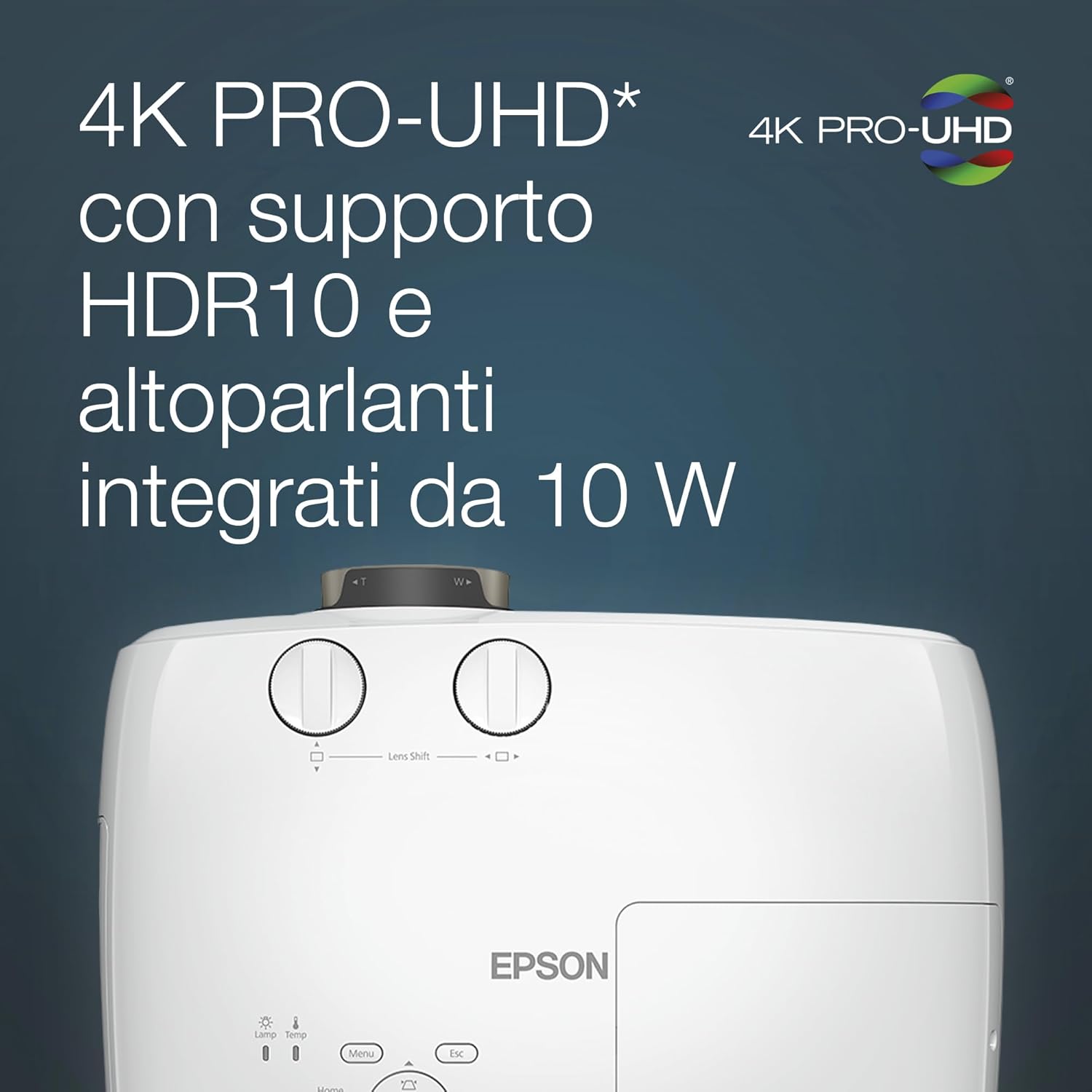
Figure 4: Detail of the projector highlighting 4K PRO-UHD support with HDR10 and integrated 10W speakers.
- Focus Ring: Rotate the focus ring around the lens to sharpen the image.
- Zoom Lever: Use the zoom lever to adjust the image size without moving the projector.
- Lens Shift: The EH-TW7100 features lens shift controls (horizontal and vertical) to adjust the image position without distorting it. These controls are typically located near the lens.
- Keystone Correction: If the image appears trapezoidal, use the keystone correction function (horizontal and vertical) via the remote control or projector menu to square the image.
- Quick Corner: This feature allows you to adjust the shape of each corner of the image independently, useful for irregular projection surfaces.

Figure 5: The projector boasts 3,000 lumens brightness and a 100,000:1 contrast ratio for vivid images.
3.3. Source Selection
Use the "Source Search" or dedicated input buttons on the remote control to switch between connected devices (e.g., HDMI1, HDMI2).
3.4. Audio Output
The projector has integrated speakers. For enhanced audio, connect external speakers or a sound system to the "Audio Out" port or use the Bluetooth audio connection feature.
4. Maintenance
Regular maintenance ensures optimal performance and extends the lifespan of your projector.
4.1. Lamp Replacement
The projector lamp has a limited lifespan. When the lamp indicator light turns orange or the image becomes dim, it's time to replace the lamp. Refer to the full user manual for detailed instructions on safe lamp replacement.
Warning: Allow the projector to cool down completely before attempting to replace the lamp. Lamps operate at high temperatures and can cause severe burns.
4.2. Filter Cleaning/Replacement
The air filter prevents dust from entering the projector and affecting performance. Clean the filter regularly (e.g., every 100 hours of use) or replace it if it's heavily soiled. Consult the full user manual for filter access and cleaning procedures.
4.3. General Cleaning
- Projector Casing: Wipe the exterior with a soft, dry, lint-free cloth. Do not use abrasive cleaners or solvents.
- Lens: Gently clean the lens with a lens cleaning cloth or lens paper. Avoid touching the lens directly with your fingers.
5. Troubleshooting
This section addresses common issues you might encounter with your Epson EH-TW7100 projector.
| Problem | Possible Cause | Solution |
|---|---|---|
| No image displayed | Incorrect input source selected; Loose cable connection; Projector in standby mode. | Verify the correct input source is selected. Check all cable connections (HDMI, power). Press the power button to wake from standby. |
| Image is blurry | Lens out of focus; Projector too close/far from screen. | Adjust the focus ring on the lens. Use the zoom lever to adjust image size, or reposition the projector. |
| Image is trapezoidal | Projector not perpendicular to screen. | Use horizontal and vertical keystone correction. Utilize the Quick Corner function for fine adjustments. |
| No audio | Volume too low; Incorrect audio output selected; External audio system not connected/powered. | Increase projector volume. Ensure external audio system is properly connected and powered on. Check audio settings in the projector menu. |
| Projector overheats or shuts down | Blocked air vents; Dirty air filter; High ambient temperature. | Ensure proper ventilation around the projector. Clean or replace the air filter. Operate in a well-ventilated room. |
If the problem persists after trying these solutions, please refer to the comprehensive user manual or contact Epson customer support.
6. Specifications
Detailed technical specifications for the Epson EH-TW7100 projector.

Figure 6: Overview of the EH-TW7100's main characteristics and dimensions.
| Attribute | Value |
|---|---|
| Brand | Epson |
| Model Number | V11H959040 |
| Color | White |
| Product Type | Portable Projector |
| Connectivity Technology | HDMI, Wi-Fi |
| Special Features | HDMI Connectivity, 4K Enhancement, HDR10/HLG Support, Bluetooth Audio |
| Total USB Ports | 3 (1x USB-A for power, 1x USB-A, 1x USB Mini-B) |
| Compatible Devices | Laptops, Smartphones, Game Consoles, Media Players, etc. |
| Display Resolution | 1920 x 1200 (WUXGA) |
| Maximum Display Resolution | WUXGA (1920x1200) Pixels |
| Display Type | 3LCD |
| Brightness | 3,000 Lumens |
| Contrast Ratio | 100,000:1 |
| Product Dimensions | 41L x 31W x 16H cm |
| Form Factor | Portable |
| Mounting Type | Table Mount |
| Recommended Uses | Home Cinema, Video Games, Professional, Education |
7. Warranty and Support
Your Epson EH-TW7100 projector comes with a manufacturer's warranty and access to customer support.
7.1. Manufacturer Warranty
The product is covered by a 2-year manufacturer's warranty. Please retain your proof of purchase for warranty claims. The warranty covers defects in materials and workmanship under normal use.
Note: Specific terms and conditions apply. Refer to the warranty document included in your product packaging for full details.
7.2. Customer Support
For technical assistance, troubleshooting beyond this manual, or warranty inquiries, please contact Epson customer support. Visit the official Epson website for contact information, FAQs, and additional resources.
Epson Official Website: www.epson.com
Spare parts availability and software update guarantees are subject to manufacturer policies and may vary by region. Please check the official Epson website for the most current information.