
1. Introduction
This manual provides essential information for the proper use and maintenance of your BoxWave Micro USB DuraCable. This durable braided cable is designed for both charging and data synchronization, offering reliable connectivity for your compatible devices.
The BoxWave Micro USB DuraCable is compatible with devices featuring a Micro USB port, including the Nexgo G2 Wireless POS system.

Image: The BoxWave Micro USB DuraCable shown alongside a Nexgo G2 Wireless POS device, illustrating its intended use.
2. Product Features
- Dual-Functionality: Combines charging and data synchronization capabilities.
- Durable Construction: Features a braided nylon exterior for enhanced durability and resistance to kinking and splitting.
- Reinforced Strain Relief: Rubberized grommet strain reliefs at the connectors prevent wear and tear.
- Universal Compatibility: Standard USB-A connector on one end for use with any USB port or charger.
- Optimal Length: 3-foot (approximately 0.91 meters) cable length for flexible use.
- High-Speed Data Transfer: Supports USB 2.0 standards for data transfer speeds up to 480Mbps.

Image: A detailed view of the cable's braided nylon construction, highlighting its durable design.
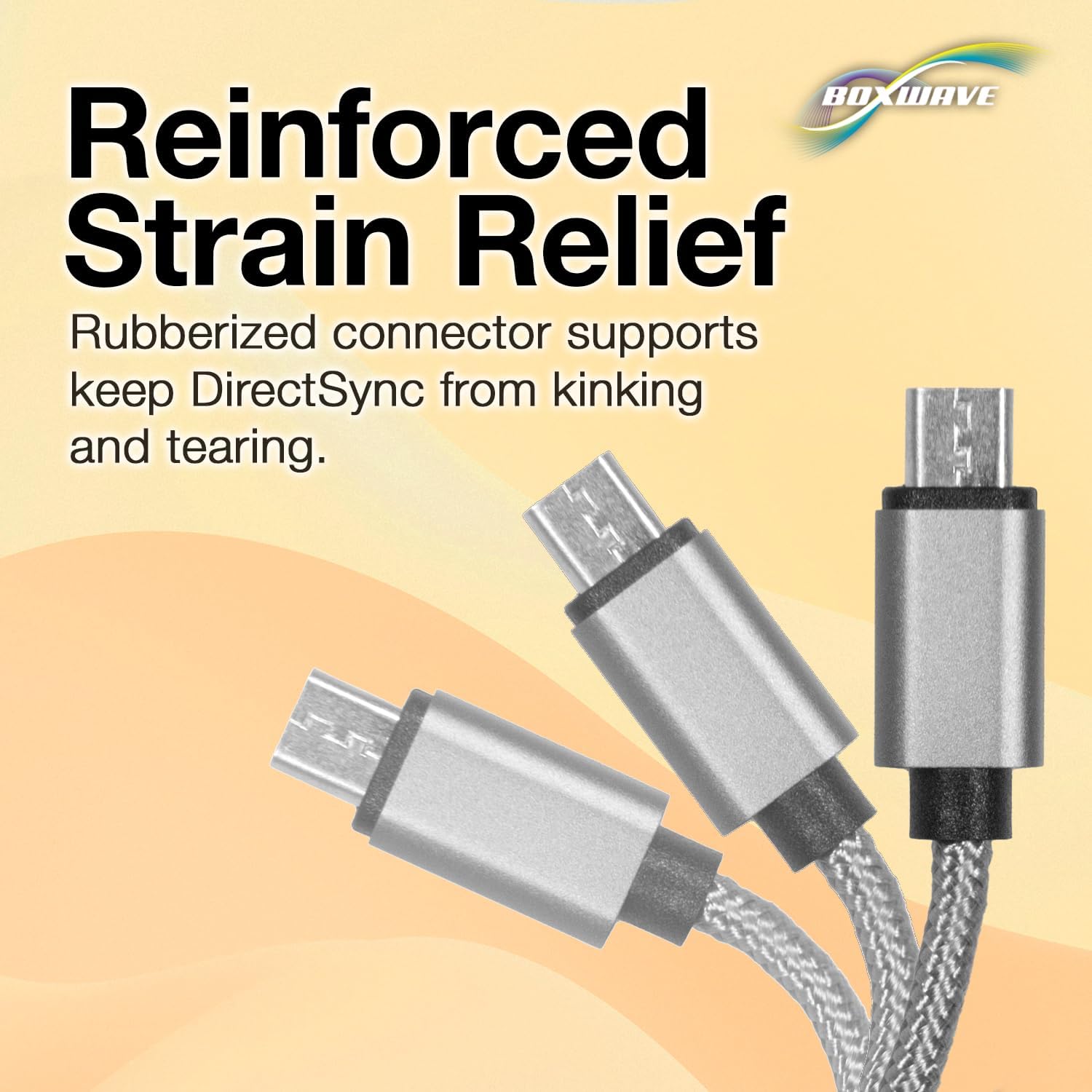
Image: An illustration demonstrating the reinforced strain relief at the cable's connectors, designed to prevent kinking and tearing.
3. Setup and Connection
Connecting your BoxWave Micro USB DuraCable is a straightforward process.
- Identify Ports: Locate the Micro USB port on your device (e.g., Nexgo G2 Wireless POS) and an available USB-A port on your charging adapter, computer, or power bank.
- Connect to Device: Gently insert the Micro USB connector end of the DuraCable into the Micro USB port of your device. Ensure it is fully seated.
- Connect to Power/Data Source: Insert the standard USB-A connector end of the DuraCable into a compatible USB-A port on your charging adapter, computer, or power bank.
Once connected, your device should begin charging or be recognized by your computer for data transfer, depending on the connected source.
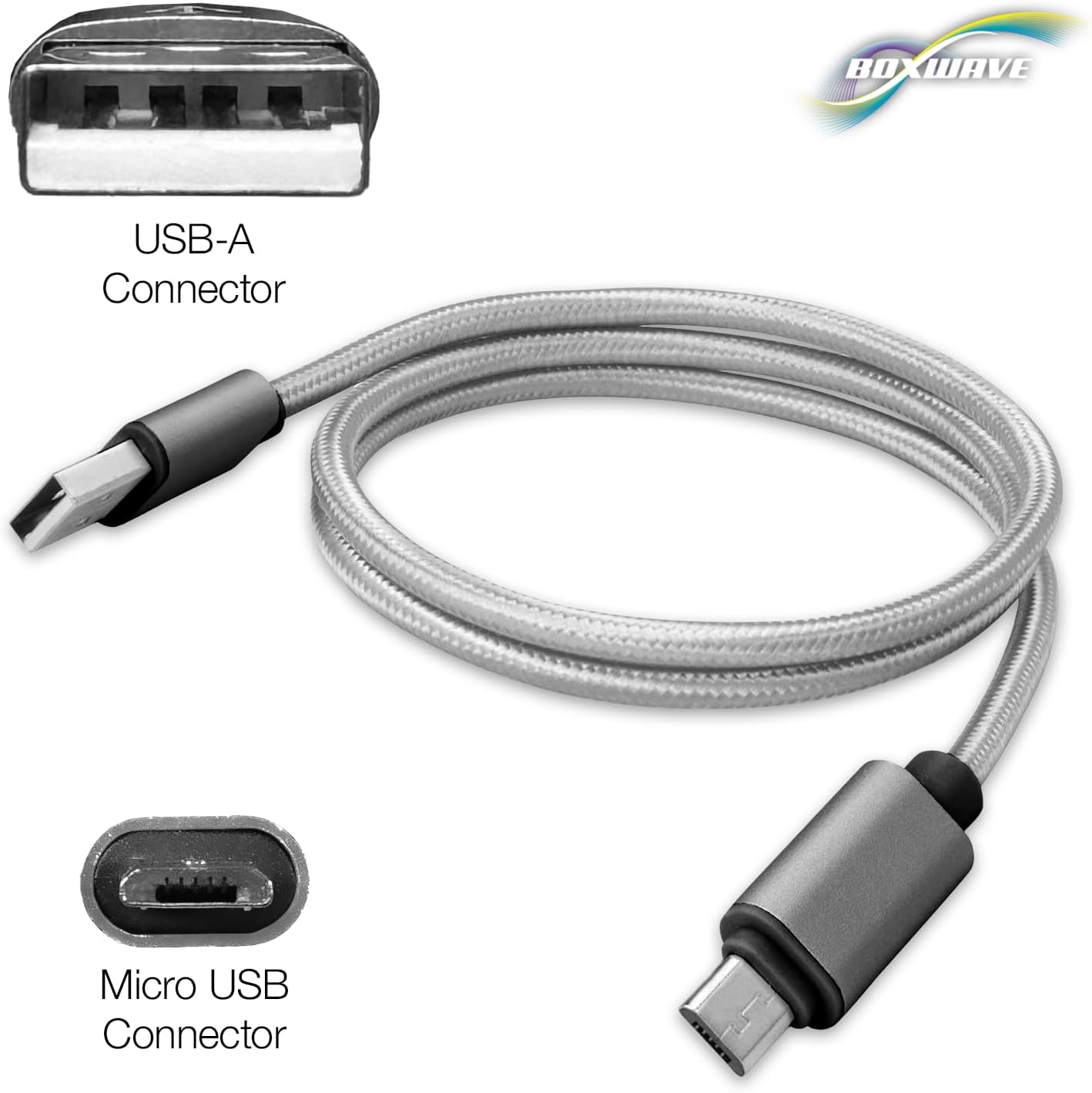
Image: A clear view of both the USB-A and Micro USB connectors of the DuraCable, indicating their respective shapes for proper connection.
4. Operating Instructions
4.1. Charging Your Device
To charge your device using the BoxWave Micro USB DuraCable:
- Connect the Micro USB end to your device.
- Connect the USB-A end to a USB wall charger, car charger, or power bank.
- Ensure the power source is active. Your device's charging indicator should activate.
4.2. Data Synchronization
To transfer data between your device and a computer:
- Connect the Micro USB end to your device.
- Connect the USB-A end to an available USB port on your computer.
- Your computer should recognize the device. Follow the on-screen prompts or use your device's file management software to access and transfer files.
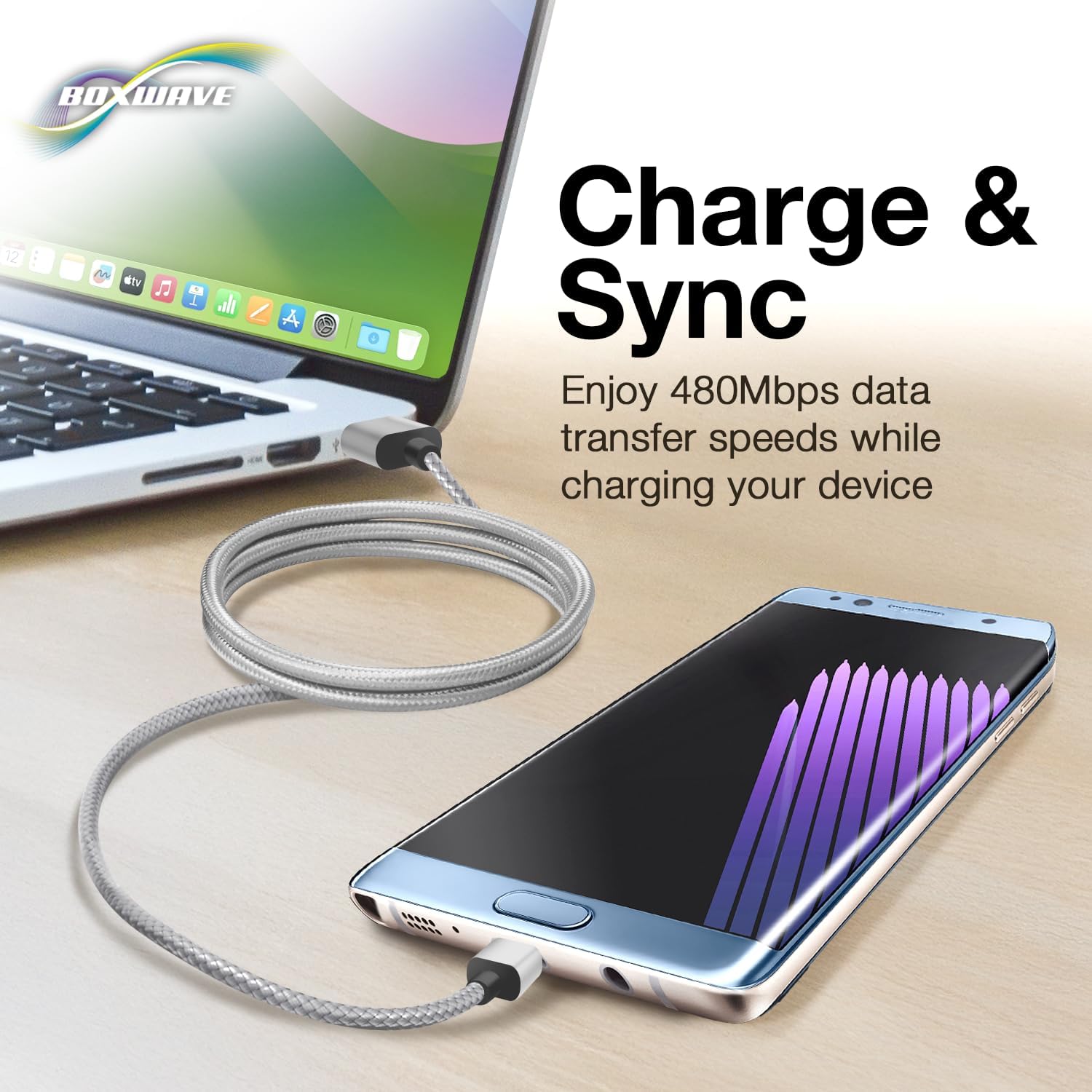
Image: The DuraCable actively connecting a laptop to a smartphone, demonstrating its simultaneous charging and data synchronization capabilities.
5. Maintenance and Care
Proper care will extend the lifespan of your BoxWave Micro USB DuraCable:
- Avoid Extreme Bending: While durable, avoid sharp bends or kinks, especially near the connectors, to prevent internal wire damage.
- Proper Disconnection: Always pull from the connector housing, not the cable itself, when unplugging.
- Keep Clean: If connectors become dirty, gently wipe them with a dry, lint-free cloth. Do not use liquids or abrasive cleaners.
- Storage: Store the cable loosely coiled in a dry, cool place when not in use. Avoid tangling with other cables.
6. Troubleshooting
If you encounter issues with your BoxWave Micro USB DuraCable, consider the following:
6.1. Device Not Charging
- Check Connections: Ensure both ends of the cable are securely plugged into the device and the power source.
- Verify Power Source: Test the power adapter or USB port with another known working cable/device to confirm it is supplying power.
- Inspect Cable: Visually inspect the cable for any signs of damage, such as cuts, fraying, or bent connectors.
- Restart Device: Sometimes, a simple device restart can resolve charging issues.
6.2. Data Transfer Issues
- Check Connections: Ensure the cable is firmly connected to both your device and the computer.
- Computer Recognition: Verify that your computer recognizes the device. You may need to select a "File Transfer" or "MTP" mode on your device after connecting.
- Try Different USB Port: Connect the cable to a different USB port on your computer.
- Update Drivers: Ensure your computer's USB drivers are up to date.
- Inspect Cable: As with charging issues, check for any physical damage to the cable.
7. Specifications
| Feature | Detail |
|---|---|
| Product Name | BoxWave Micro USB DuraCable |
| Model | Micro USB DuraCable |
| Brand | BoxWave |
| Connector Type 1 | Micro USB |
| Connector Type 2 | USB-A |
| Cable Length | 3 feet (approx. 0.91 meters) |
| Data Transfer Speed | Up to 480 Mbps (USB 2.0 Standard) |
| Material | Braided Nylon (cable jacket), Rubberized (strain reliefs) |
| Color | Space Grey |
| Item Weight | 0.7 ounces (approx. 19.8 grams) |
| ASIN | B07XSN46YD |
8. Warranty and Support
For information regarding warranty coverage and technical support for your BoxWave Micro USB DuraCable, please refer to the official BoxWave website or contact BoxWave customer service directly.
Manufacturer: BoxWave
Seller: BoxWave Corporation
For further assistance, you may visit the BoxWave support page or contact their customer service team through the contact information provided on their official website.