Introduction
The LaCie Rugged Mini is a portable external hard drive designed for robust data storage on the go. It offers a substantial 5TB capacity within a compact form factor, making it suitable for users requiring high-capacity storage in various environments.
This device features USB 3.0 connectivity for fast data transfer, while also maintaining compatibility with USB 2.0. Its construction provides resistance against shock, dust, and rain, ensuring data protection in challenging conditions.

Image: The LaCie Rugged Mini 5TB Portable External Hard Drive, showcasing its distinctive orange protective bumper and grey casing.
What's in the Box
- LaCie Rugged Mini USB 3.0 5TB Portable Hard Drive
- USB-C Cable (for connection to compatible devices)
Key Features
- Durability: Engineered to withstand shock, drops from up to 4 feet, dust, and rain, providing all-terrain use.
- Capacity: 5TB of storage for extensive data needs.
- Connectivity: USB 3.0 interface for high-speed data transfer, backward compatible with USB 2.0.
- Compatibility: Works with both Mac and PC systems. Note: Reformatting may be required for Mac compatibility.
- Security: Built-in password protection for data security.
- Included Cable: Comes with a USB-C cable for modern device connectivity.
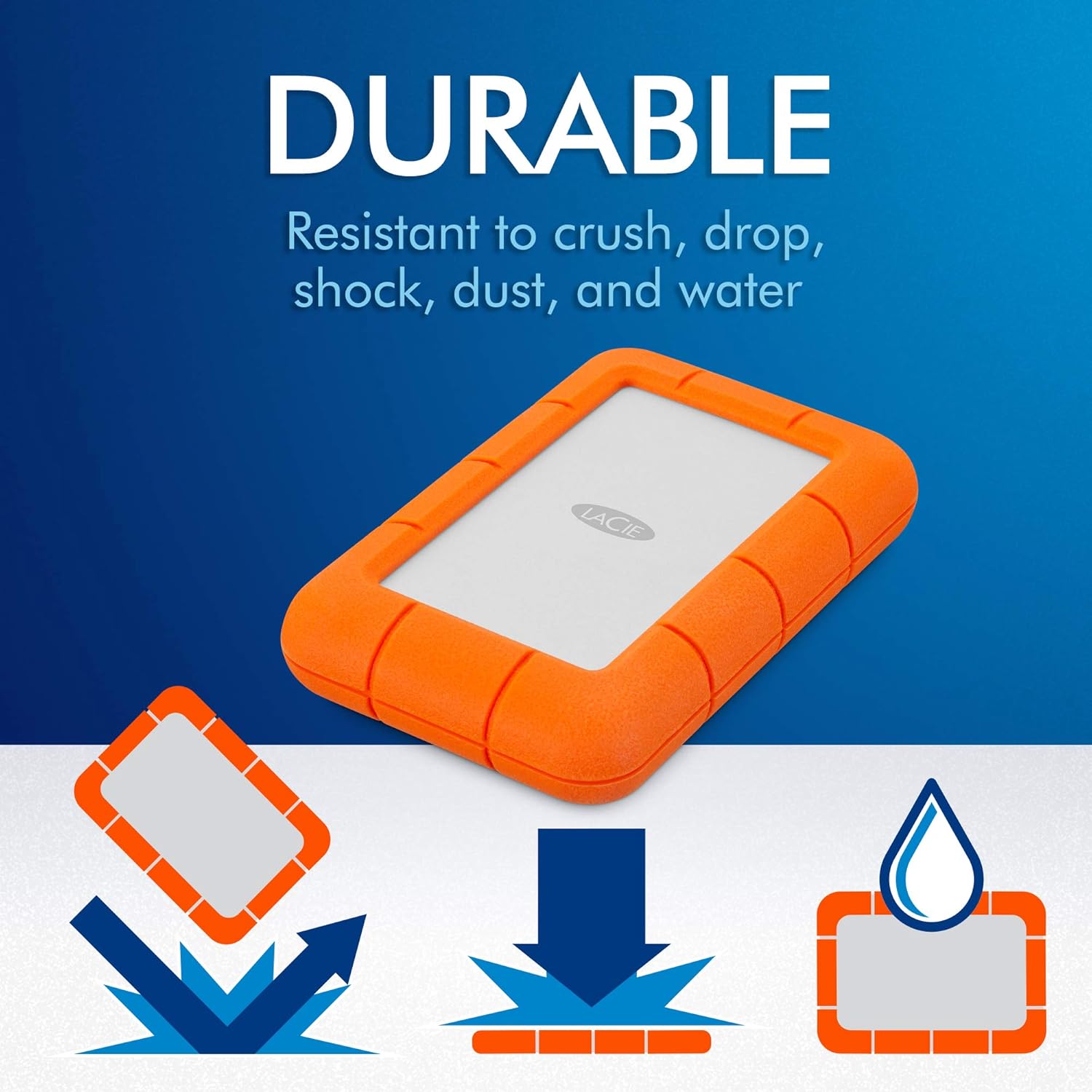
Image: Visual representation of the LaCie Rugged Mini's resistance to drops, crushing, and water splashes, highlighting its robust design.

Image: The LaCie Rugged Mini connected to a laptop, illustrating its seamless USB 3.0 connectivity for Mac and Windows systems.
Setup and Connection
Connecting to Your Computer
- Locate the USB-C port on your LaCie Rugged Mini drive.
- Connect one end of the included USB-C cable to the drive's port.
- Connect the other end of the USB-C cable to an available USB 3.0 or USB 2.0 port on your computer (Mac or PC).
- The drive should be automatically detected by your operating system.
Initial Setup for Mac and PC
The LaCie Rugged Mini comes pre-formatted for general compatibility.
For optimal performance and full compatibility with Mac systems, reformatting the drive may be necessary. Refer to your operating system's disk utility for reformatting instructions. For Windows, the drive is typically ready for use upon connection.
For detailed instructions on reformatting or partitioning, please visit the official LaCie support website.
Operation
Data Transfer
To transfer files, simply drag and drop them to and from the LaCie Rugged Mini drive icon or assigned drive letter in your computer's file explorer (Windows) or Finder (Mac).
The USB 3.0 interface allows for transfer speeds up to 130MB/s, significantly faster than USB 2.0.
Password Protection
The drive includes built-in password protection. To enable and manage this feature, install the LaCie software typically found on the drive itself or available for download from the LaCie support website. Follow the on-screen prompts to set up your password.
Care and Maintenance
The LaCie Rugged Mini is designed for durability, but proper care can extend its lifespan.
- Cleaning: Use a soft, dry cloth to clean the exterior. Avoid harsh chemicals or abrasive materials.
- Environmental Protection: While resistant to dust and rain, avoid prolonged exposure to extreme conditions or submersion in water.
- Handling: Despite its shock resistance, avoid intentionally dropping the drive. Ensure it is placed on stable surfaces during operation.
- Safe Ejection: Always safely eject the drive from your computer before disconnecting the cable to prevent data corruption.
Troubleshooting
Drive Not Detected
- Check Connections: Ensure the USB cable is securely connected to both the drive and the computer's USB port. Try a different USB port.
- Restart Computer: Sometimes a simple restart can resolve detection issues.
- Check Disk Management (Windows) / Disk Utility (Mac): Verify if the drive appears in your operating system's disk management tools. If it appears but is unformatted, you may need to format it (this will erase all data).
- Try Another Computer: Test the drive on a different computer to determine if the issue is with the drive or your original computer.
Slow Transfer Speeds
- USB Port: Ensure you are connected to a USB 3.0 port on your computer for optimal speeds. USB 2.0 ports will result in slower transfers.
- Cable: Use the original LaCie USB-C cable provided with the drive.
- File Size: Transferring many small files can be slower than transferring a few large files of the same total size.
Password Protection Issues
- Software Installation: Ensure the LaCie password protection software is correctly installed and updated.
- Forgot Password: If you forget your password, data recovery may be complex or impossible without the correct credentials. Refer to LaCie's support for options.
Technical Specifications
| Attribute | Detail |
|---|---|
| Model Number | STJJ5000400 |
| Capacity | 5 TB |
| Hard Drive Type | Mechanical Hard Disk |
| Interface | USB 3.0 (USB 2.0 compatible) |
| Rotational Speed | 5400 RPM |
| Dimensions (LxWxH) | 3.39 x 5.31 x 1.02 inches |
| Weight | 14.1 ounces |
| Color | Orange, Grey |
| Manufacturer | Seagate |
| First Available Date | September 10, 2019 |

Image: The LaCie Rugged Mini with its length, width, and height dimensions clearly indicated.
Warranty and Support
Limited Warranty
The LaCie Rugged Mini 5TB Portable External HDD comes with a two-year limited warranty from the date of purchase. This warranty covers defects in materials and workmanship under normal use. For full terms and conditions, please refer to the warranty documentation included with your product or visit the official LaCie website.
Data Recovery Services
This product includes 2 years of Rescue Data Recovery Services. These services are designed to help recover data in the event of unexpected data loss due to mechanical failure, accidental damage, or natural disaster.
For more information on how to activate or utilize these services, please visit the LaCie support portal or the Seagate Rescue Data Recovery Services website.

Image: The 'Rescue Services' graphic, highlighting the inclusion of two years of data recovery services with the product.
Additional Resources
For further assistance, driver downloads, or frequently asked questions, please visit the official LaCie Support page: LaCie Support.


