
1. Introduction
The SABRENT Rocket XTRM 2TB Thunderbolt 3 External SSD (SB-XTRM-2TB) provides high-speed, portable storage for demanding tasks such as video editing, content creation, and large file transfers. Featuring Thunderbolt 3 technology, it delivers exceptional read and write speeds without requiring an external power supply. This manual provides essential information for setting up, operating, maintaining, and troubleshooting your device.

Image: The SABRENT Rocket XTRM 2TB Thunderbolt 3 External SSD, a sleek, silver-colored portable solid-state drive.
2. What's in the Box
Upon unboxing your SABRENT Rocket XTRM SSD, you should find the following items:
- SABRENT Rocket XTRM 2TB Thunderbolt 3 External SSD
- Thunderbolt Cable

Video: An unboxing video showcasing the SABRENT Rocket XTRM and Rocket Pro SSDs, detailing the contents of the packaging.
3. Setup
Setting up your SABRENT Rocket XTRM SSD is a straightforward process. Follow these steps to get started:
- Compatibility Check: Ensure your computer has a Thunderbolt 3-equipped interface. This SSD does NOT support standard USB-C connections that do not feature Thunderbolt 3.
- Connect the SSD: Use the provided Thunderbolt cable to connect the SABRENT Rocket XTRM SSD to a Thunderbolt 3 port on your computer. The device is plug-and-play, requiring no external power supply or additional drivers for basic functionality.
- Operating System Support: The SSD supports macOS Sierra and later, and Windows 10, 8.1, or 7. Bootcamp is not supported.
- Initialization (First Use): For first-time use, your operating system may prompt you to initialize or format the drive. Follow the on-screen instructions to prepare the SSD for use. It is recommended to use the default formatting options for your operating system.
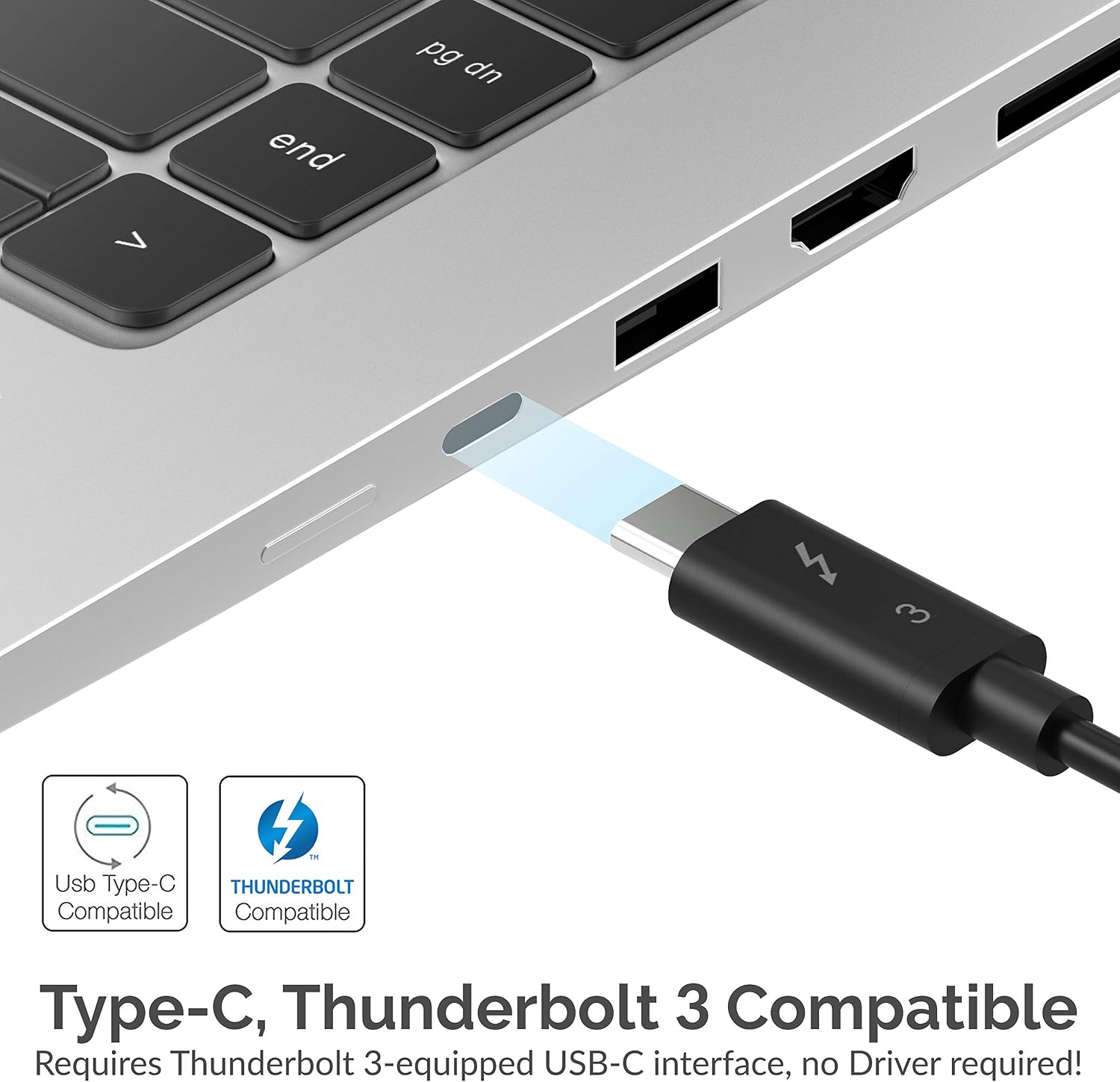
Image: A close-up view of the SABRENT Rocket XTRM SSD connected to a laptop via a Thunderbolt 3 cable, highlighting the connection port.
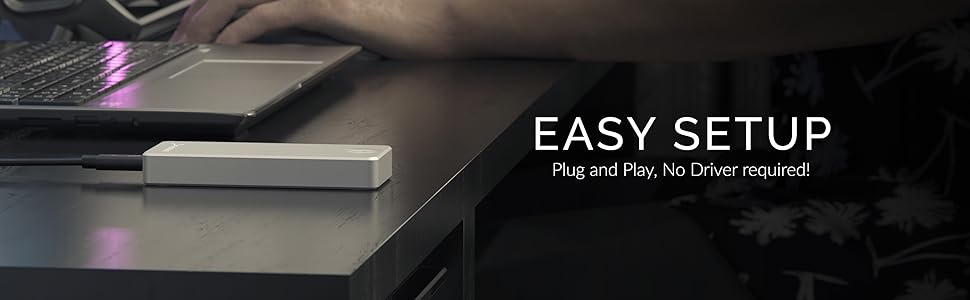
Image: A graphic illustrating the easy plug-and-play setup of the SABRENT Rocket XTRM SSD with a laptop, emphasizing no driver requirement.
4. Operating
The SABRENT Rocket XTRM SSD is designed for high-performance data transfer and storage. Here’s how to operate it effectively:
- File Transfer: Drag and drop files or folders to and from the SSD as you would with any other external drive. The Thunderbolt 3 interface allows for speeds up to 2400+ MB/sec read and 2400+ MB/sec write, making large transfers quick and efficient.
- Performance: This SSD is ideal for tasks requiring significant storage space and high data throughput, such as video editing, running virtual machines, or storing large game libraries.
- Heat Management: Due to its high-speed operation, the SSD enclosure may become warm to the touch during prolonged heavy use. This is normal and indicates efficient heat dissipation. Ensure adequate airflow around the device.
- Safe Removal: Always safely eject the SSD from your computer before disconnecting the cable to prevent data corruption.
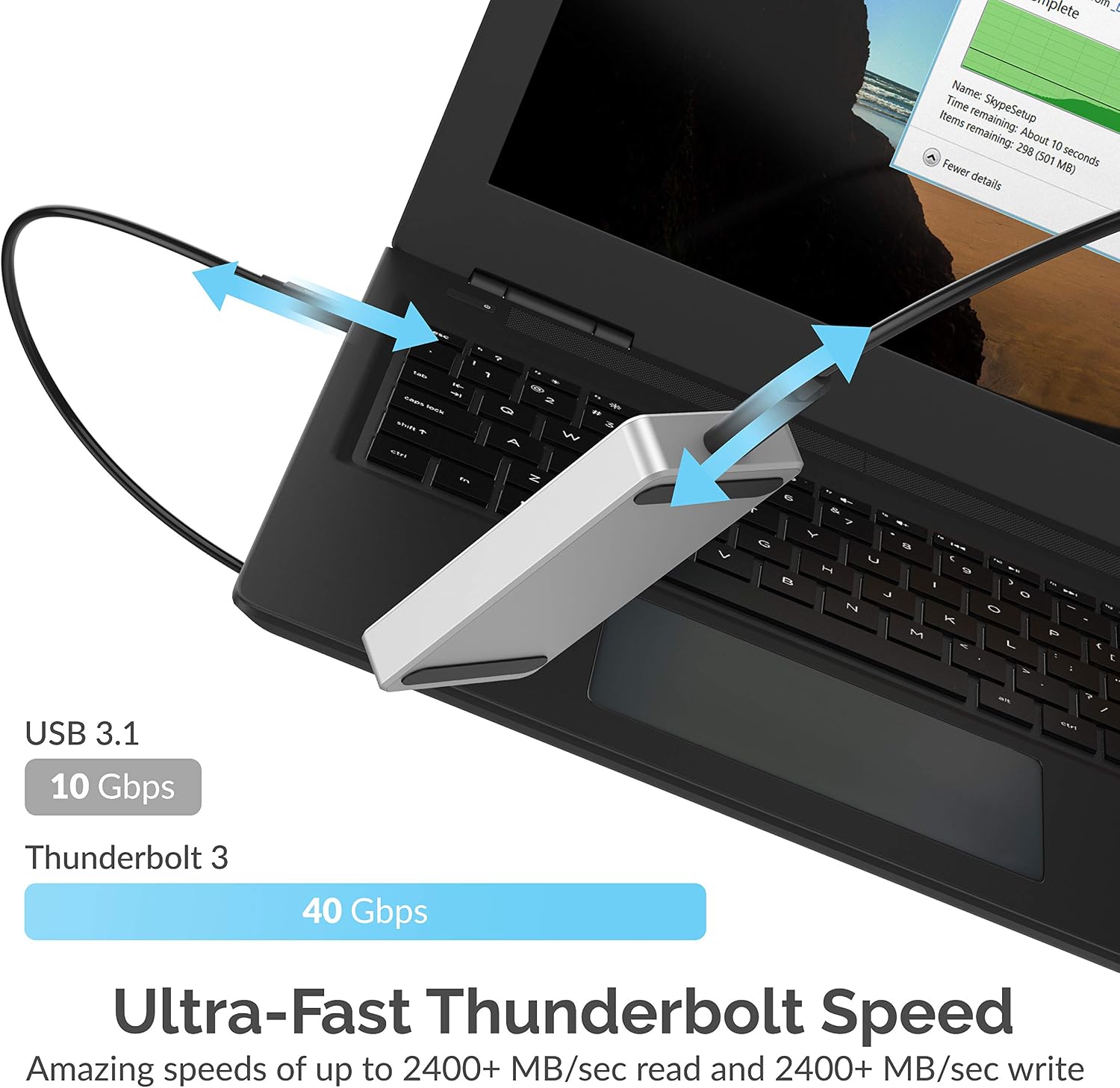
Image: A visual comparison of USB 3.1 (10 Gbps) versus Thunderbolt 3 (40 Gbps) speeds, illustrating the ultra-fast performance of the SABRENT Rocket XTRM SSD.
Image: A graphic highlighting the SABRENT Thunderbolt 3 SSD, emphasizing simple and efficient access to massive data.
5. Maintenance
To ensure the longevity and optimal performance of your SABRENT Rocket XTRM SSD, consider the following maintenance tips:
- Keep it Clean: Gently wipe the exterior of the SSD with a soft, dry cloth to remove dust and smudges. Avoid using harsh chemicals or abrasive materials.
- Protect from Drops: While durable, avoid dropping the SSD. Physical impact can potentially damage the internal components.
- Temperature Control: Operate the SSD within recommended environmental temperatures. Although designed for heat dissipation, extreme temperatures can affect performance and lifespan.
- Firmware Updates: Periodically check the SABRENT website for any available firmware updates for your SSD model. Updates can improve performance, stability, and compatibility.
6. Troubleshooting
If you encounter issues with your SABRENT Rocket XTRM SSD, refer to the following troubleshooting steps:
- SSD Not Recognized:
- Ensure the Thunderbolt cable is securely connected to both the SSD and a Thunderbolt 3 port on your computer.
- Verify your computer's port is indeed Thunderbolt 3, not just standard USB-C.
- Try connecting the SSD to a different Thunderbolt 3 port or another compatible computer to rule out port-specific issues.
- Check your operating system's Disk Management (Windows) or Disk Utility (macOS) to see if the drive is detected but uninitialized or unformatted.
- Slow Performance:
- Confirm you are connected to a Thunderbolt 3 port. Lower speeds will occur on non-Thunderbolt connections.
- Close any unnecessary applications running in the background that might be consuming system resources.
- Ensure your computer's drivers, especially for Thunderbolt, are up to date.
- Monitor the SSD's temperature during heavy use. While normal for it to get warm, extreme heat can sometimes lead to performance throttling.
- Drive Gets Hot:
- High-speed SSDs generate heat. The aluminum casing is designed to dissipate this heat.
- Ensure the SSD is placed on a flat, open surface with good airflow, not covered or in an enclosed space.
- If the heat is excessive and causing performance issues, consider reducing the workload or allowing the drive to cool down between intensive tasks.
- Data Corruption/Loss:
- Always safely eject the SSD from your operating system before physically disconnecting it. Unplugging without ejecting can lead to data loss or corruption.
- Regularly back up important data to multiple locations.
7. Specifications
| Brand | SABRENT |
| Model Number | SB-XTRM-2TB |
| Digital Storage Capacity | 2 TB |
| Hard Disk Interface | Thunderbolt 3 |
| Connectivity Technology | Thunderbolt |
| Special Feature | Thunderbolt certified |
| Hard Disk Description | Solid State Drive |
| Compatible Devices | Laptop, PC |
| Installation Type | External Hard Drive |
| Color | Grey |
| Read Speed | 2400 Megabytes Per Second |
| Data Transfer Rate | 2400 Megabytes Per Second |
| Form Factor | 2280 |
| Hardware Connectivity | Thunderbolt |
| Enclosure Material | NAND flash |
8. Warranty & Support
Your SABRENT Rocket XTRM SSD comes with a 1 Year Limited Warranty. You can extend this to a 5 Year Limited Warranty by registering your product at Sabrent.com.
For additional support, product information, or to explore other innovative consumer electronics, please visit the SABRENT Store on Amazon.