
1. Introduction
Welcome to the user manual for your Tera Pro (Extreme Performance) Industrial Wireless Barcode Scanner. This manual provides comprehensive instructions for setting up, operating, maintaining, and troubleshooting your Model 8100 scanner. Please read this manual thoroughly to ensure optimal performance and longevity of your device.
The Tera Pro 8100 is designed for robust industrial use, offering advanced 2D QR and 1D barcode reading capabilities with versatile connectivity options including 2.4G wireless, Bluetooth, and USB wired connections. Its durable construction ensures reliability in demanding environments.
2. Product Overview
Key Features
- Extreme Drop Resistance & Dust-proof: Built for superior durability in harsh environments.
- Versatile Connectivity: Supports Bluetooth, 2.4G Wireless, and USB Wired connections.
- Advanced Symbology Support: Customizable settings for specific barcode types like Code 39, Interleaved 2 of 5, QR, Data Matrix, Codabar, etc.
- Vibration/Sound Alert: User-selectable feedback for successful scans.
- Broad Compatibility: Works with Windows 11/10/8/7/XP, Mac OS, iOS, Android, and Linux.
- Comprehensive Decode Capability: Reads 1D (Codabar, Code 11, Code93, MSI, Code 128, UPC/EAN, etc.) and 2D (QR, PDF417, Data Matrix, Aztec, Maxi Code) barcodes.
Package Contents
- Barcode Scanner x1
- Barcode Scanner Stand x1
- USB Cable x1
- Dongle x1
- User Manual x1

Figure 1: Tera Pro Industrial Wireless Barcode Scanner with included accessories.
3. Setup
Charging the Scanner
Before first use, fully charge the scanner. Connect the provided USB cable to the scanner and a 5V1A power adapter (not included). Avoid using quick charge adapters as they are not compatible and may damage the device. A full charge typically takes 3-4 hours.
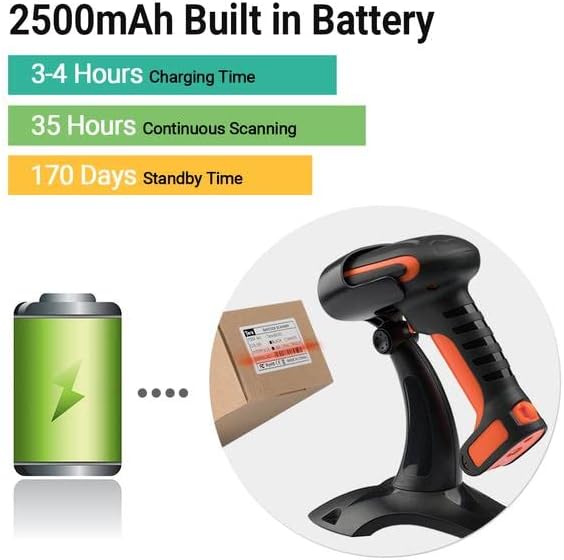
Figure 2: Battery specifications including 3-4 hours charging time, 35 hours continuous scanning, and 170 days standby time.
Connecting the Scanner
The Tera 8100 offers three connection methods:
- Bluetooth: Pair with smartphones, computers, POS systems, iPhones, or iPads.
- 2.4G Wireless: Use the included USB dongle for a transmission distance of up to 100m in barrier-free environments and 35m with obstacles.
- USB Wired: Connect directly via the USB cable for a stable wired connection.

Figure 3: Illustration of the 3-in-1 connection modes: Bluetooth, 2.4GHz Wireless, and USB Wired.
Stand Assembly
The included stand allows for hands-free operation and can be adjusted up to 45 degrees for optimal scanning angles. Simply place the scanner into the cradle of the stand.

Figure 4: The scanner can be used with its 45-degree adjustable stand for hands-free operation.
4. Operating Instructions
Scanning Modes
The scanner supports two primary scanning modes:
- Key Trigger Mode: Press the trigger button to initiate a scan.
- Continuous Scan Mode: The scanner continuously emits a scan beam, allowing for hands-free scanning when placed on the stand.
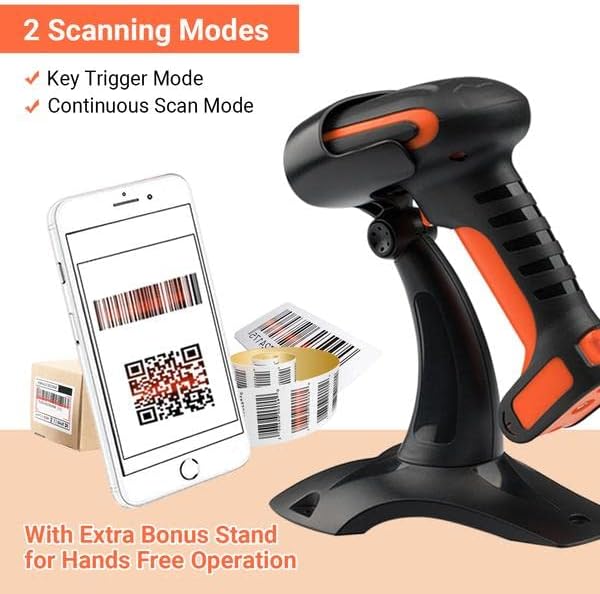
Figure 5: The scanner supports both key trigger and continuous scan modes, with an extra bonus stand for hands-free operation.
Symbology Settings
The Tera 8100 allows for advanced customization of barcode symbologies. For example, you can configure the scanner to modify data when scanning specific barcode types, such as deleting the first 2 characters and adding 2 TAB-characters for Code39 barcodes, while leaving other barcode types unedited. Refer to the full user manual (PDF) for detailed instructions on configuring these settings using control barcodes.
Vibration/Sound Alert
The scanner provides feedback for successful scans through either vibration or an audible sound. You can switch between these modes to suit your working environment. If a quiet environment is required, simply change the setting to vibration mode. A vibration alert will confirm a successful scan.

Figure 6: The scanner offers vibration or sound alerts and supports multiple keyboard languages.
Multi-Language Keyboard Support
The Tera 8100 supports multiple keyboard languages, including English, Spanish, German, Japanese, French, and Italian, ensuring compatibility with various international systems.
Video 1: An overview of the Tera 8100 Heavy Duty Industrial Barcode Scanner, highlighting its stable stand, global shutter technology for fast and accurate scanning, and its dustproof, waterproof, and shockproof design with IP66 protection and extreme drop resistance.
5. Maintenance
Cleaning
To maintain optimal performance, regularly clean the scanner's lens and body. Use a soft, lint-free cloth. For stubborn dirt, a slightly damp cloth can be used, but ensure no liquid enters the device. Avoid abrasive cleaners or solvents.
Battery Care
To prolong battery life, avoid fully discharging the scanner frequently. Charge the device using the provided USB cable and a 5V1A power source. Do not use USB Power Delivery (USB PD) standard power adapters or data cables, as they are not compatible with this product.
6. Troubleshooting
If you encounter issues with your Tera Pro 8100 scanner, please refer to the following common problems and solutions:
| Problem | Possible Cause | Solution |
|---|---|---|
| Scanner not connecting via Bluetooth/2.4G | Out of range, low battery, incorrect pairing mode, interference. | Ensure scanner is charged and within range. Re-enter pairing mode. Check for other wireless devices causing interference. |
| Slow scanning speed or missed scans | Incorrect typing speed setting, damaged barcode, reflective surface. | Adjust the 'typing' speed setting using control barcodes in the full user manual. Ensure barcodes are clear and flat. |
| No response from scanner | Battery depleted, device frozen. | Charge the scanner. If unresponsive, perform a factory reset (refer to full user manual for control barcode). |
| Cannot scan certain barcode types | Symbology disabled, barcode damaged or non-standard. | Enable the specific symbology using control barcodes. Ensure barcode quality. |
For more detailed troubleshooting steps or advanced configurations, please consult the complete User Manual PDF available online.
7. Specifications
| Feature | Detail |
|---|---|
| Product Dimensions | 3.7 x 5.3 x 9 inches |
| Item Weight | 1.53 pounds |
| Model Number | 8100 |
| Batteries | 1 Lithium Ion battery required (included) |
| Connectivity Technology | 2.4G Wireless, Bluetooth, USB Cable |
| Power Source | Battery Powered |
| Compatible Devices | Desktop, Laptop, Smartphone, Tablet |
| Decode Capability (1D) | Codabar, Code 11, Code93, MSI, Code 128, UCC/EAN-128, Code 39, EAN-8, EAN-13, UPC-A, ISBN, Industrial 25, Interleaved 25, Standard 25, 2/5 Matrix, ITF-14 |
| Decode Capability (2D) | QR, PDF417, Data Matrix, Aztec code, Maxi Code |
8. Warranty and Support
For detailed warranty information and customer support, please refer to the official Tera website or contact your point of purchase. Additional protection plans may be available for extended coverage.
You can download the complete User Manual (PDF) for your Tera Pro Industrial Wireless Barcode Scanner from the following link: Download User Manual (PDF)


