
1. Introduction
Thank you for choosing the Intoval Z5 3-in-1 Wireless Charging Station. This device is designed to simplify your charging experience by powering your iPhone, Apple Watch, and AirPods simultaneously with a single, compact unit. This manual provides essential information for safe and efficient use of your charging station.

Image 1.1: The Intoval Z5 3-in-1 Wireless Charging Station, black model, with an iPhone, Apple Watch, and AirPods charging.
2. Package Contents
Please check the package for the following items:
- 1 x Intoval Z5 3-in-1 Wireless Charging Station
- 1 x 18W Power Adapter
- 1 x USB-C Charging Cable
- 1 x Service Card / User Manual
3. Product Overview & Features
The Intoval Z5 is designed for convenience and efficiency, allowing you to charge three devices simultaneously.
3.1 Simultaneous Charging
Charge your iPhone, Apple Watch, and AirPods all at once, eliminating the need for multiple cables and adapters.

Image 3.1: The charging station powering an iPhone, Apple Watch, and AirPods simultaneously on a desk.
3.2 Clutter-Free Design
Reduce cable clutter with this integrated charging solution, providing a neat and organized charging area.

Image 3.2: A visual comparison showing the organized setup with the charging station versus a cluttered setup with multiple cables and adapters.
3.3 Quality Construction
Built with high-quality materials and internal components for durability and reliable performance.

Image 3.3: An exploded view of the charging station, highlighting its internal coils and circuitry, demonstrating its robust construction.
3.4 Versatile Viewing Angles
The phone charging pad supports both portrait and landscape orientations, ideal for video calls, media consumption, or facial recognition while charging.

Image 3.4: Two charging stations demonstrating an iPhone charging in portrait mode (left) and landscape mode (right).
3.5 Touch Control Light
Features a touch-sensitive light control to adjust or turn off the indicator light, ensuring no disturbing light at night, perfect for bedside use.
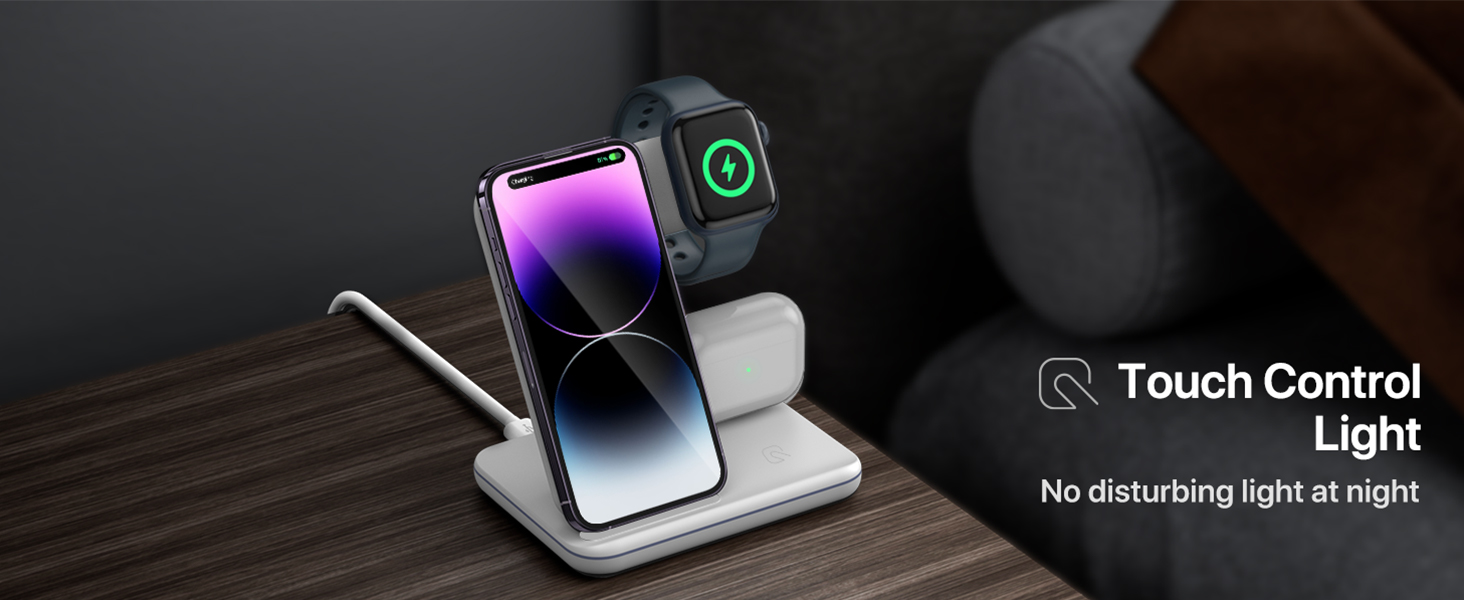
Image 3.5: The charging station on a nightstand, illustrating the subtle glow of the touch-controlled indicator light.
4. Setup Guide
Follow these simple steps to set up your Intoval Z5 Charging Station:
- Unpack: Carefully remove all components from the packaging.
- Connect Power: Insert the USB-C end of the provided charging cable into the USB-C port on the back of the charging station.
- Plug In: Connect the USB-A end of the cable to the included 18W power adapter, then plug the adapter into a wall outlet.
- Placement: Place the charging station on a flat, stable surface, such as a desk or nightstand.

Image 4.1: The charging station connected to a wall outlet via its power adapter and cable.
5. Operating Instructions
Using your Intoval Z5 is straightforward:
5.1 Charging Your iPhone
- Place your iPhone vertically or horizontally onto the phone charging stand. Ensure the phone is centered on the charging area for optimal connection.
- The charging indicator light on the base will illuminate to confirm charging has begun.
5.2 Charging Your Apple Watch
- Place your Apple Watch onto the magnetic charging module on the side of the station. The watch will snap into place magnetically.
- Ensure the watch face is visible and charging is indicated on the watch screen.
5.3 Charging Your AirPods
- Place your AirPods charging case (with wireless charging capability) onto the flat charging pad at the base of the station.
- The indicator light on the AirPods case will show its charging status.
6. Compatibility
The Intoval Z5 Wireless Charging Station is compatible with a wide range of Qi-enabled devices:

Image 6.1: A visual representation of the charging station's compatibility with various Apple devices.
| Device Type | Compatible Models |
|---|---|
| iPhone | iPhone 14/14 Plus/14 Pro/14 Pro Max, 13/13 Pro/13 Pro Max, 12/12 Pro/12 Pro Max, 11/11 Pro/11 Pro Max, XS/XR/XS MAX/X/8/8 Plus (Note: 12 Mini and 13 Mini are NOT supported. Not compatible with A3058/A3059 USB-C models.) |
| Apple Watch | iWatch 8/Ultra/7/6/SE/5/4/3/2 (Note: Series 1/Original are NOT supported.) |
| AirPods | AirPods Pro2/Pro1/3/2/1 (with wireless charging case) |
| Other Devices | Other 100+ popular Qi-enabled wireless charging phones. |
7. Safety Information
To ensure safe and optimal performance, please observe the following:
- Use only the included 18W power adapter and cable. Using other adapters may affect charging performance or damage the device.
- Avoid placing metal objects, credit cards, or other foreign objects on the charging pads, as this can interfere with charging or cause overheating.
- Do not use phone cases thicker than 5mm, as this may prevent proper wireless charging.
- Keep the device away from water, moisture, and extreme temperatures.
- Do not disassemble, modify, or attempt to repair the charging station yourself. Contact customer service for assistance.
- This product incorporates intelligent protection technology against temperature control, surge protection, and short-circuit prevention.
8. Troubleshooting
If you encounter issues with your charging station, please refer to the table below:
| Problem | Possible Cause | Solution |
|---|---|---|
| Device not charging | 1. Device not properly aligned. 2. Phone case too thick. 3. Non-compatible device. 4. Power adapter/cable issue. | 1. Re-position device on the charging pad. 2. Remove phone case or use a thinner one (<5mm). 3. Verify device compatibility (refer to Section 6). 4. Ensure adapter is 18W and cable is securely connected. Try a different outlet. |
| Slow charging | 1. Using a non-18W adapter. 2. Background apps on device. 3. Device overheating. | 1. Use the included 18W adapter. 2. Close unnecessary apps on your device. 3. Ensure proper ventilation; remove device temporarily if hot. |
| Indicator light not on | 1. No power connection. 2. Light turned off by touch control. | 1. Check power cable and adapter connection to outlet. 2. Tap the touch control area on the base to turn the light on. |
| Intermittent charging | 1. Device misalignment. 2. Foreign objects on pad. 3. Unstable power supply. | 1. Adjust device position. 2. Remove any metal or foreign objects. 3. Ensure power outlet is stable. |
9. Specifications
Key technical specifications for the Intoval Z5 Charging Station:
| Feature | Detail |
|---|---|
| Model Number | Z5 |
| Product Dimensions | 15.99 x 8.99 x 1 inches |
| Item Weight | 0.023 ounces |
| Connectivity Technology | Wireless |
| Connector Type | USB Type C |
| Input Voltage | 9 Volts (AC) |
| Special Feature | Multi Device Charging |
| Mounting Type | Tabletop Mount |
| Color | Black |
10. Maintenance
To maintain your charging station in optimal condition:
- Cleaning: Disconnect the power before cleaning. Use a soft, dry cloth to wipe the surface. Do not use abrasive cleaners or solvents.
- Storage: When not in use for extended periods, store the charging station in a cool, dry place away from direct sunlight.
11. Warranty and Support
Intoval provides a 360-day warranty for the Z5 Wireless Charging Station, covering manufacturing defects and issues arising from normal use. For warranty claims, technical support, or any inquiries, please contact Intoval customer service through the contact information provided on your service card or via the official Intoval website.
We are committed to providing exceptional customer service and ensuring your satisfaction with our products.