
1. Introduction
Thank you for choosing the AZEUS Digital Kitchen Scale. This high-precision scale is designed to provide accurate measurements for various ingredients, making your cooking, baking, and meal preparation easier and more precise. Please read this manual thoroughly before use to ensure proper operation and maintenance.

Image 1: AZEUS Digital Kitchen Scale in use with a glass bowl and fresh ingredients.
2. Key Features
- High Precision: Equipped with a high-precision sensor, providing quick and accurate measurements in 0.04oz/1g increments. Measures from 3g up to 5kg (11lbs).
- Multifunction Units: Easily switch between multiple units including ounces (oz), grams (g), pounds:ounces (lb:oz), milliliters (ml), and fluid ounces (fl'oz). Includes specific modes for water and milk volume measurement.
- Easy to Operate: Features a user-friendly design with two touch-sensitive buttons for simple control.
- Tare Function: Allows you to zero out the weight of a container, ensuring accurate measurement of ingredients only.
- USB Rechargeable: Built-in rechargeable battery provides approximately 2 months of use on a single charge, offering convenience and environmental benefits.
- Durable Design: The weighing platform is made of tempered glass, which is anti-print and easy to clean.
- Slim & Compact: Designed for easy storage without taking up excessive counter space.

Image 2: The slim and compact design of the AZEUS Digital Kitchen Scale, ideal for easy storage.
3. Setup
3.1. Charging the Scale
The AZEUS Digital Kitchen Scale is equipped with a USB rechargeable battery. Before first use, or when the battery indicator shows low power, connect the scale to a USB power source using the provided USB cable. A full charge can last up to 2 months with daily use.

Image 3: The AZEUS Digital Kitchen Scale with its USB charging cable.
3.2. Power Options
The scale supports two power modes:
- Directly Rechargeable: Use the USB cable to charge the internal lithium polymer battery.
- AAA Batteries: The scale can also be powered by 2 AAA batteries (included) as an alternative.

Image 4: The underside of the scale, illustrating both USB charging and AAA battery options.
4. Operating Instructions
4.1. Power On/Off
- To power on, gently touch the ON/OFF button. The display will illuminate.
- To power off, press and hold the ON/OFF button for a few seconds, or the scale will automatically shut off after a period of inactivity to conserve power.
4.2. Changing Units
The scale offers multiple measurement units. To cycle through the available units (oz, g, lb:oz, ml, fl'oz), press the UNIT button repeatedly until your desired unit is displayed.

Image 5: The scale displaying different measurement units for versatile use.
4.3. Tare Function (Zeroing the Scale)
The tare function allows you to subtract the weight of a container or previous ingredients, so you only measure the new item being added.
- Place an empty container on the scale. The display will show its weight.
- Press the TARE button. The display will reset to zero.
- Add your ingredients to the container. The display will now show only the weight of the ingredients.
- To clear the tare and return to normal weighing, remove all items from the scale and press TARE again if the display does not automatically return to zero.
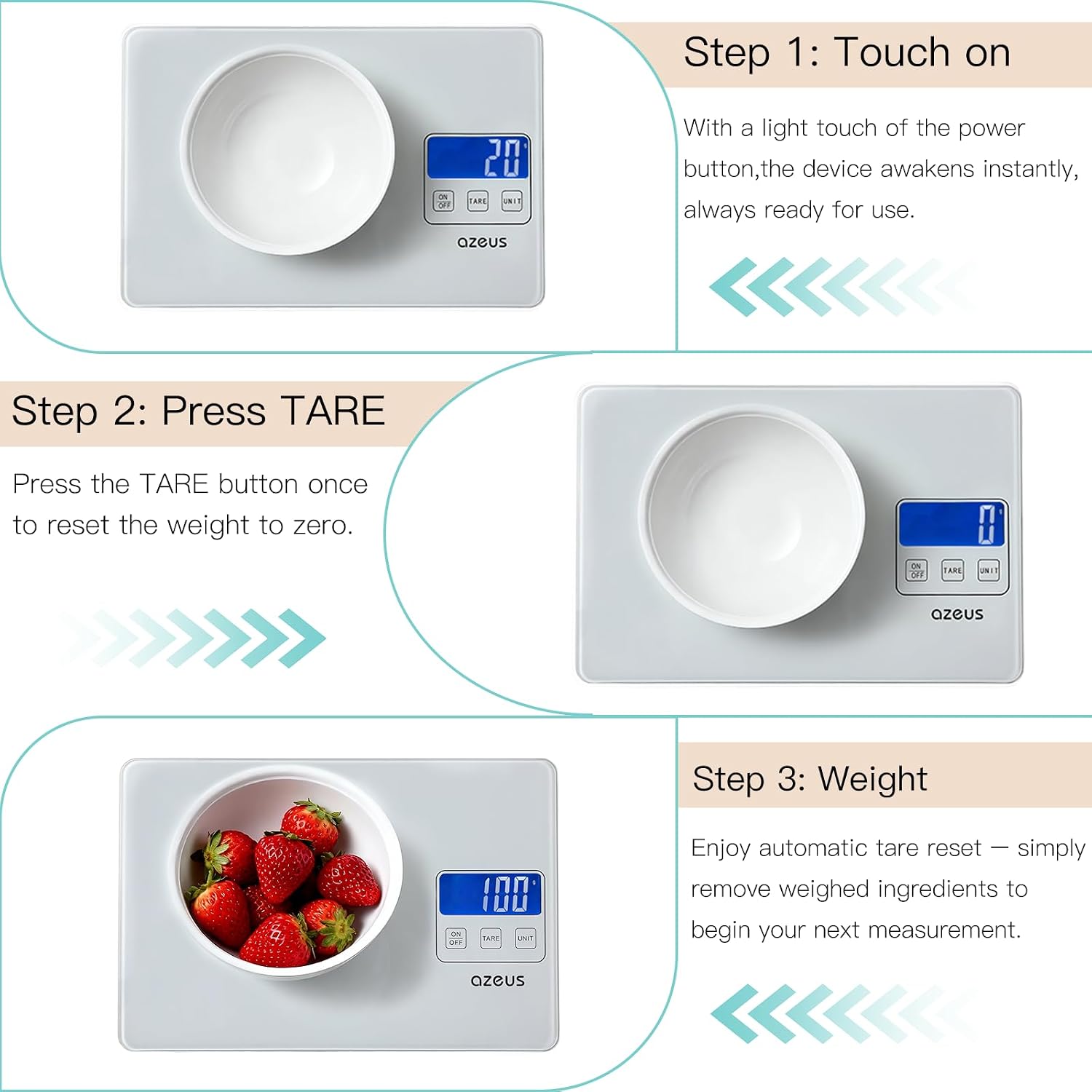
Image 6: Step-by-step guide on utilizing the tare function for accurate measurements.
4.4. Weighing Items
Once the scale is powered on and set to your desired unit (and tared if using a container), simply place the item(s) to be weighed on the center of the tempered glass platform. The weight will be displayed instantly.
5. Maintenance
5.1. Cleaning
The tempered glass surface of the AZEUS Digital Kitchen Scale is designed for easy cleaning. Wipe the surface with a soft, damp cloth. Avoid using abrasive cleaners or submerging the entire scale in water, as this may damage internal components.
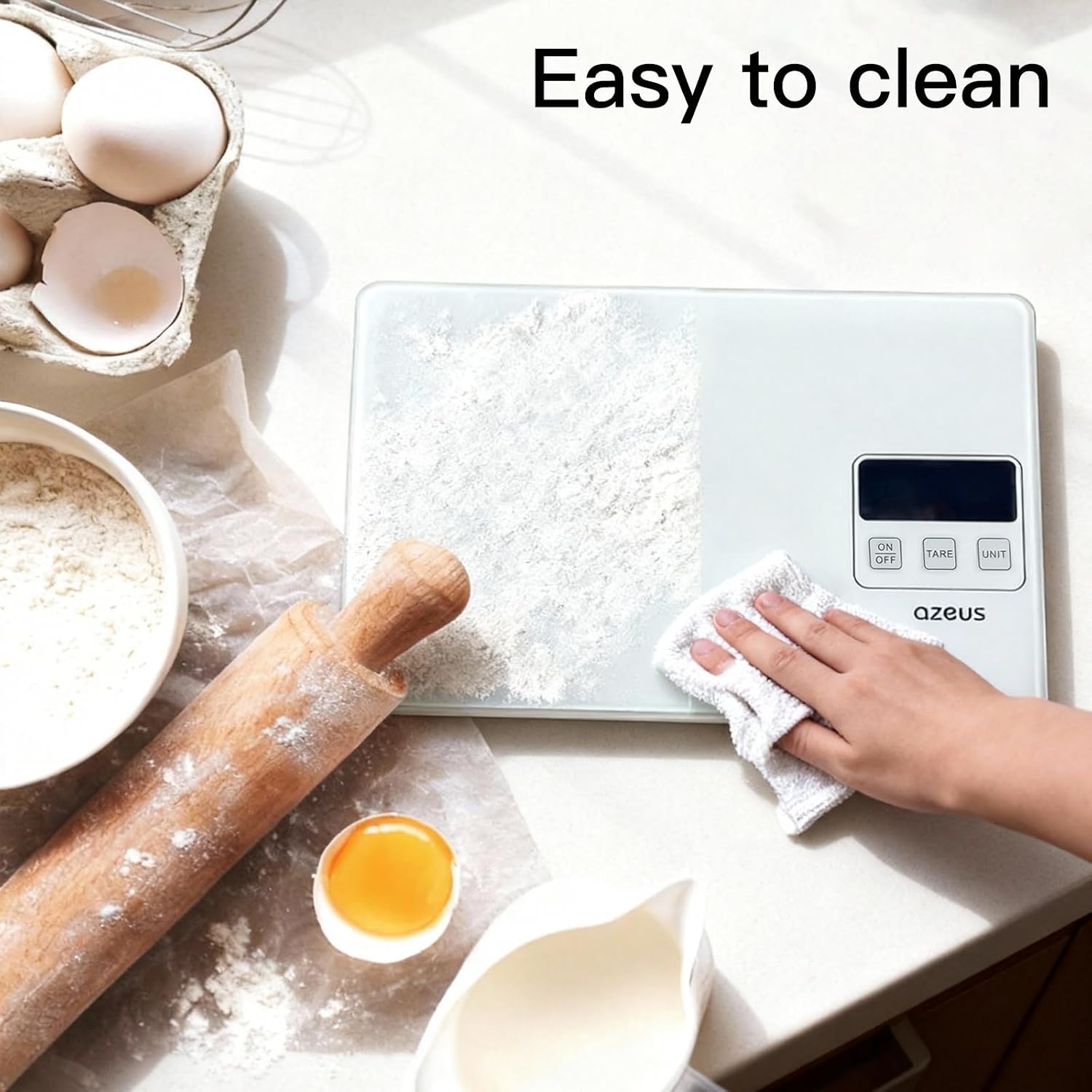
Image 7: Demonstrating the easy-to-clean tempered glass surface of the scale.
5.2. Storage
Store the scale in a dry, cool place. Its slim design allows it to be stored easily in drawers or cabinets.
6. Troubleshooting
If you encounter any issues with your AZEUS Digital Kitchen Scale, please try the following general troubleshooting steps:
- No Display/Low Battery: Ensure the scale is fully charged via USB or that the AAA batteries are correctly installed and not depleted.
- Inaccurate Readings: Place the scale on a flat, stable surface. Ensure no objects are touching the scale during power-on or weighing. Recalibrate by turning off and on, then performing a tare function.
- Display Error: If an error message appears, try turning the scale off and then on again. If the issue persists, contact customer support.
7. Specifications
| Product Dimensions | 9.5 x 6.3 x 0.7 inches |
| Item Weight | 1.26 Pounds |
| Item Model Number | B07XKSRH95 |
| Batteries | 1 Lithium Polymer battery (included) or 2 AAA batteries (included) |
| Maximum Capacity | 11 lbs / 5 kg |
| Measurement Increments | 0.04 oz / 1 g |
| Manufacturer | AZEUS |
| Date First Available | September 9, 2019 |
8. Warranty and Support
AZEUS is committed to providing a pleasant shopping experience and stands by the quality of its products. If you have any questions or require assistance with your Digital Kitchen Scale, please do not hesitate to contact our customer support team. We offer 24/7 live chat support to help resolve any issues you may encounter.
For further assistance, please refer to the contact information provided with your product packaging or visit the official AZEUS website.