
DEATTI DE-DET-8Na2M8WCa2M1TB
DEATTI 8-Channel 2K Wireless Security Camera System User Manual
Model: DE-DET-8Na2M8WCa2M1TB
1. Introduction
This manual provides detailed instructions for the installation, operation, and maintenance of your DEATTI 8-Channel 2K Wireless Security Camera System. Please read this manual thoroughly before using the product to ensure proper setup and functionality.

Image 1.1: Overview of the DEATTI 8-Channel 2K Wireless Security Camera System, showing the NVR unit, eight cameras, and a 1TB hard drive.
The DEATTI 2K wireless surveillance system features an integrated router and Wi-Fi antenna for stable and long-range wireless connectivity. It supports motion detection, P2P remote access, and offers a true plug-and-play setup experience.
2. Package Contents
Verify that all items listed below are present in your package. If any items are missing or damaged, please contact customer support.

Image 2.1: Visual representation of the complete package contents, including the NVR, cameras, and accessories.
- 1 x 8-Channel Network Video Recorder (NVR)
- 8 x 3MP Wireless IP Cameras
- 1 x 1TB Hard Disk Drive (Pre-installed)
- 1 x USB Mouse
- 8 x Camera Power Adapters
- 1 x NVR Power Adapter
- 8 x Screw Bags (for camera mounting)
- 1 x Antenna (for NVR, if not pre-attached)
- 1 x Quick Start Guide
3. System Setup
3.1 Initial Connection
Follow these steps for the initial setup of your security system:
- Connect the NVR to a monitor using an HDMI or VGA cable.
- Connect the USB mouse to the NVR's USB port.
- Connect the NVR to a power source using the provided NVR power adapter.
- Connect each camera to its respective power adapter and plug them into an electrical outlet. The cameras will automatically pair with the NVR.
- For internet access and remote viewing, connect the NVR to your router using an Ethernet cable.

Image 3.1: NVR system connection ports for monitor, internet, mouse, and power.
3.2 Wireless Connection and Range
The system utilizes a wireless connection between the cameras and the NVR. Each camera can also function as a Wi-Fi repeater to extend the wireless range.
- Open Space Range: Up to 1000 feet (approximately 300 meters).
- With Obstacles: Up to 200 feet (approximately 60 meters), depending on the type and number of obstacles (e.g., walls).

Image 3.2: Illustration of the auto-pairing feature between a camera and the NVR.

Image 3.3: Wireless signal range comparison: up to 1000ft in open space and up to 200ft with obstacles.
4. Remote Access Setup
The system supports P2P (Peer-to-Peer) remote access, allowing you to view live footage and recordings from your mobile device or computer without complex network configurations.
4.1 Mobile App Setup
To access your system remotely via a smartphone or tablet:
- Download the recommended mobile application (e.g., 'IP Pro' or 'EseeCloud') from your device's app store.
- Register an account and log in.
- Add your NVR device by scanning the QR code displayed on your NVR's monitor or by manually entering the device ID.
- Once added, you can view live feeds and manage settings from your mobile device.
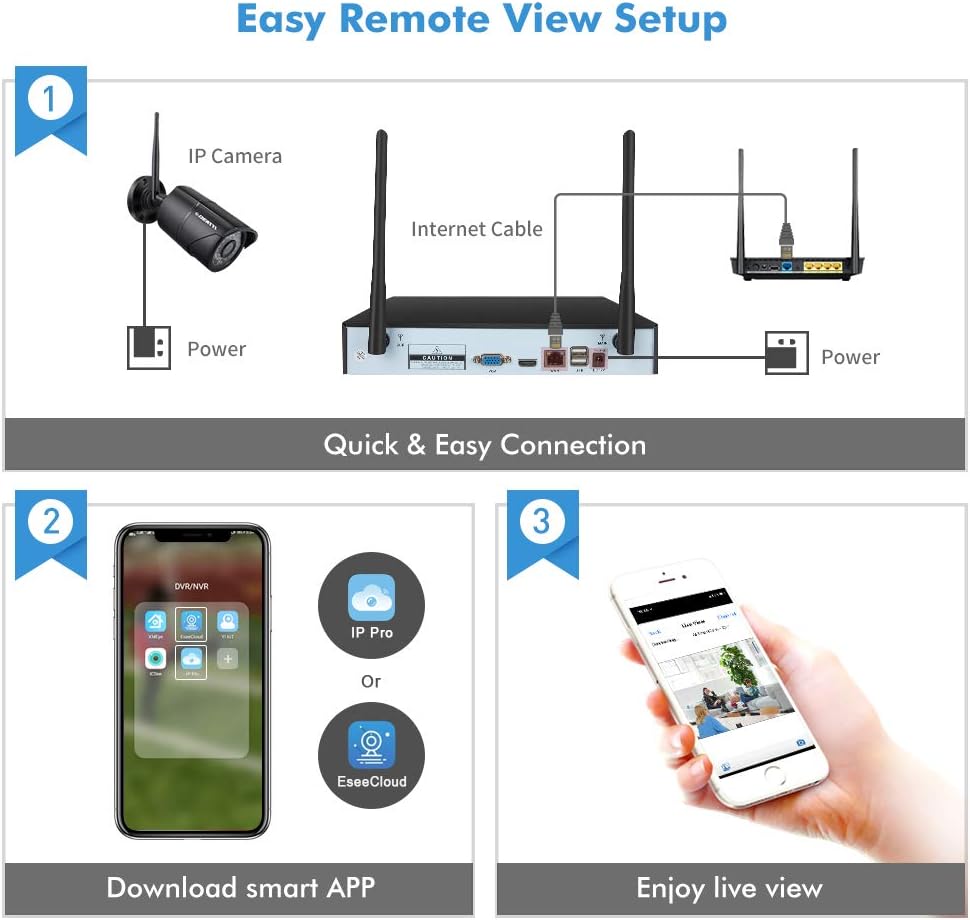
Image 4.1: Guide for setting up remote viewing, including NVR-router connection, app download, and live monitoring.
5. Operating Instructions
5.1 Live View and Recording
After successful setup, the NVR will display live feeds from all connected cameras. The pre-installed 1TB HDD will automatically begin recording based on default settings (typically continuous recording or motion-triggered recording).
- Viewing: Use the connected monitor and USB mouse to navigate the NVR interface. You can switch between single-camera view and multi-camera grid view.
- Playback: Access recorded footage through the NVR's playback menu. You can search by date, time, and event type.
5.2 Motion Detection and Alerts
The system features integrated motion detection. When motion is detected in a camera's field of view, it can trigger recording and send alerts.
- Configuration: Access the NVR's menu to configure motion detection zones, sensitivity, and recording schedules for each camera.
- Alerts: Enable email notifications or push notifications to your mobile app to receive instant alerts when motion is detected.

Image 5.1: Example of an instant email alert received on a smartphone after motion detection.
5.3 Day and Night Vision
The cameras are equipped with infrared (IR) LEDs for night vision, providing clear surveillance in low-light or no-light conditions. The system automatically switches between day (color) and night (black and white IR) modes.

Image 5.2: Visual comparison of camera performance in daylight and nighttime conditions.
6. Maintenance
6.1 Camera Care
- Cleaning: Regularly clean the camera lenses with a soft, damp cloth to ensure clear image quality. Avoid abrasive cleaners.
- Weather Protection: The cameras are IP66 weatherproof, designed to withstand various outdoor conditions. However, extreme weather may affect performance.

Image 6.1: An outdoor camera operating in snowy conditions, highlighting its weatherproof construction.
6.2 NVR Maintenance
- Ventilation: Ensure the NVR is placed in a well-ventilated area to prevent overheating.
- Firmware Updates: Periodically check for and install firmware updates to ensure optimal performance and security.
- Hard Drive Management: The 1TB hard drive will overwrite older footage once full. Back up important recordings regularly.
7. Troubleshooting
- No Image on Monitor:
- Check power connections for both NVR and monitor.
- Verify HDMI/VGA cable connection.
- Ensure the correct input source is selected on your monitor. - Cameras Not Connecting:
- Ensure cameras are powered on.
- Check the distance between cameras and NVR; reduce obstacles if possible.
- Re-pair cameras with the NVR if necessary (refer to the Quick Start Guide for pairing instructions). - No Remote Access:
- Ensure the NVR is connected to your router via Ethernet cable.
- Verify your internet connection.
- Check app settings and device ID for accuracy. - Poor Night Vision:
- Clean the camera lens.
- Ensure there are no obstructions blocking the IR LEDs.
- Adjust camera angle to avoid reflective surfaces.
8. Specifications
| Brand | DEATTI |
| Model Number | DE-DET-8Na2M8WCa2M1TB |
| Connectivity Technology | Wired, Wireless |
| Video Recording Resolution | 1440p (2K) |
| Special Feature | Motion Detection |
| Number of Channels | 8 |
| Color | Black |
| Power Source | Power Adapter Operated |
| Dimensions (L x W x H) | 33.3 x 29.9 x 29 cm |
| Recommended Uses | Motion Detection, Surveillance |
| Compatible Devices | Smartphones, Tablets, Laptops, Personal Computers |
9. Warranty and Support
Your DEATTI 8-Channel 2K Wireless Security Camera System comes with the following:
- 30-Day Money-Back Guarantee: If you are not satisfied with your purchase, you may return it within 30 days for a full refund.
- 1-Year Manufacturer Warranty: This product is covered by a 1-year manufacturer warranty against defects in materials and workmanship.
For technical assistance or warranty claims, please contact DEATTI customer support via email. Support is available in English and German.
Ask a question about this manual
Ask about setup, troubleshooting, compatibility, parts, safety, or missing instructions. Manuals+ will review the question and use this page’s manual context to help answer it.