
Introduction
This manual provides detailed instructions for the installation, setup, and operation of your Zmodo 1080p Full HD Outdoor Wireless Security Camera System. This camera is designed for both indoor and outdoor use, offering high-resolution video, night vision, and smart motion detection capabilities. Please read this guide thoroughly to ensure proper use and to maximize the camera's performance.
What's Included
- 1080p Full HD Wireless Camera
- Power Supply for Camera
- Quick Guide
Setup Guide
1. Physical Installation
The Zmodo camera is designed for easy installation. Choose a location that provides a clear view of the area you wish to monitor and has access to a power outlet. The camera can be wall-mounted using the included hardware.

Image: Zmodo camera mounted on a wall, connected to a power outlet.
Steps:
- Mounting: Securely mount the camera to a wall or desired surface using the provided screws and anchors. Ensure the mounting is stable.
- Power Connection: Connect the camera to the power supply and plug it into a standard electrical outlet.
- Antenna Attachment: Attach the wireless antenna to the designated port on the camera. Ensure it is securely fastened for optimal signal reception.
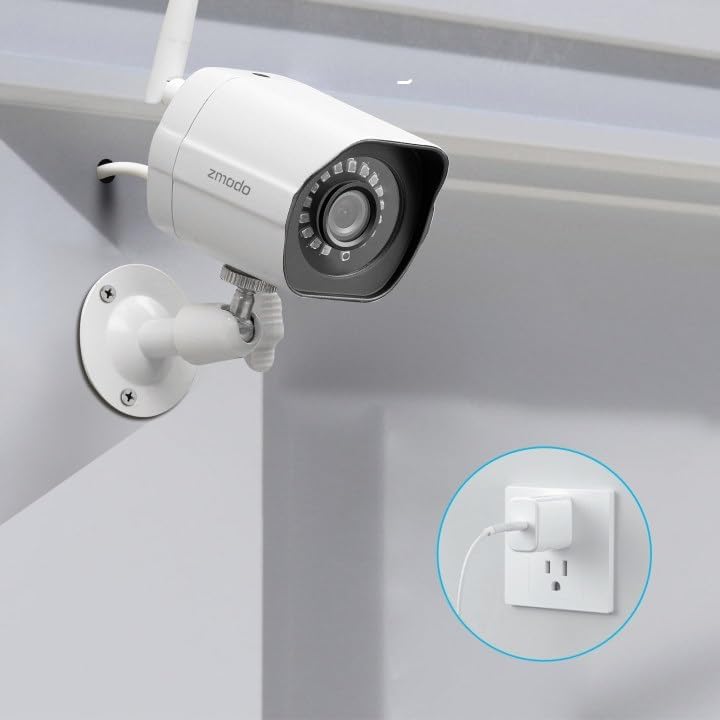
Image: Back view of the Zmodo camera with its antenna and power cable.
2. App Installation & Initial Configuration
The Zmodo camera requires the Zmodo app for setup and operation. Ensure your mobile device is connected to a 2.4GHz WPA/WPA2 WiFi network with a minimum upload speed of 2Mbps.
Steps:
- Download the App: Download and install the 'Zmodo' app from your device's app store (available on iOS v9.0+ and Android v4.0+).
- Create Account: Launch the app and sign up for a new Zmodo account.
- Add Device: Follow the in-app instructions to add your camera. This typically involves scanning a QR code displayed on your phone with the camera lens.
- Network Connection: Ensure your camera is connected to your 2.4GHz WiFi network.

Image: Smartphone displaying the Zmodo app interface with motion alerts.
3. Alexa Integration
The Zmodo camera is compatible with Amazon Alexa, allowing for voice control and live view on compatible devices like Echo Show or Fire TV.
Steps:
- Enable Zmodo Skill: Open the Amazon Alexa app, navigate to 'Skills & Games', and search for 'Zmodo'. Enable the Zmodo skill.
- Link Account: Log in with your Zmodo account credentials to link it with Alexa.
- Discover Devices: Once linked, ask Alexa to 'Discover devices' or use the app's discovery function. Your Zmodo camera will then be added to your Alexa devices.
- Voice Commands: You can now use commands like, "Alexa, show me the front door" to view the live feed from your camera.

Image: Amazon Echo Show displaying a live feed from the Zmodo camera.
Video: Instructions on how to use your Zmodo camera with Amazon Alexa and FireTV.
Key Features & Operation
1. 1080p Full HD Live View
Access crystal clear 1080p Full HD video of your property from anywhere using the Zmodo app. The wide 90-degree viewing angle provides extensive coverage.

Image: Smartphone showing a multi-camera live view in the Zmodo app.
2. Night Vision
The camera features infrared night vision, allowing you to see up to 65 feet in complete darkness. Adjustable IR sensitivity enables color images even in dim environments.

Image: Tablet displaying night vision footage from the Zmodo camera.
3. Motion Detection & Alerts
Receive instant notifications on your smartphone when motion is detected. The system uses smart motion detection to identify humans, pets, and vehicles accurately, reducing false alarms. You can also define specific areas for motion detection using masking features.

Image: AI-powered motion detection for humans, pets, and vehicles.
4. Secured Cloud Storage
Zmodo offers bank-level encrypted cloud service to back up your video footage, ensuring privacy and security. A free 30-day cloud storage trial is included to review important moments without missing details.
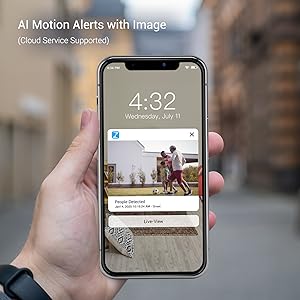
Image: Secured cloud storage concept.
5. Weatherproof Design
The camera features a weather-resistant design (IP65 rated) and can operate in temperatures ranging from -10°C to 50°C, making it suitable for both indoor and outdoor environments in various weather conditions.

Image: Zmodo camera demonstrating weatherproof design in various conditions.
Video: Overview of the Zmodo 1080p Outdoor Security Camera, highlighting wireless and remote viewing features.
Specifications
| Feature | Value |
|---|---|
| Indoor/Outdoor Usage | Indoor, Outdoor |
| Compatible Devices | Smartphone, Amazon Alexa |
| Power Source | Corded Electric |
| Connectivity Protocol | Ethernet, Wi-Fi (2.4GHz WPA/WPA2) |
| Video Capture Resolution | 1080p |
| Mounting Type | Wall Mount |
| Viewing Angle | 90 Degrees |
| Night Vision | Infrared (up to 65ft), Adjustable IR sensitivity |
| Material | Plastic |
| Item Dimensions (L x W x H) | 3.4 x 2.1 x 2.2 inches |
| Item Weight | 7.5 ounces |
| International Protection Rating | IP65 |
| Model Number | SD-H1080P-Z-1 |
Maintenance
To ensure optimal performance and longevity of your Zmodo camera, regular maintenance is recommended:
- Cleaning: Periodically wipe the camera lens and body with a soft, damp cloth to remove dust and debris. Avoid harsh chemicals.
- Firmware Updates: Keep the camera's firmware updated through the Zmodo app to access the latest features and security enhancements.
- Power Supply: Ensure the power supply and cable are free from damage and properly connected.
Troubleshooting
If you encounter issues with your Zmodo camera, refer to the following common solutions:
- No Live View/Offline: Check your Wi-Fi connection and ensure the camera is powered on. Verify that your mobile device is connected to a 2.4GHz Wi-Fi network. Restart the camera and your router if necessary.
- Poor Video Quality: Ensure the camera lens is clean. Check your internet upload speed (minimum 2Mbps recommended).
- Motion Detection Issues: Verify motion detection settings in the app. Adjust sensitivity and masking areas as needed.
- Alexa Integration Problems: Confirm the Zmodo skill is enabled and your account is linked in the Alexa app. Try rediscovering devices.
Support & Warranty
For any problems or questions regarding your Zmodo camera, please do not hesitate to contact Zmodo customer support. Information on how to contact support can typically be found within the Zmodo app or on the official Zmodo website.
The product includes a free 30-day cloud storage trial. Please refer to the product packaging or the Zmodo website for specific warranty details.


