
1. Introduction
The FOXWELL BT780 is an advanced 12V/24V battery load tester and automotive cranking/charging system analyzer designed for comprehensive vehicle diagnostics. It features a built-in thermal printer for instant report generation and supports a wide range of battery types and applications, from motorcycles to heavy-duty trucks. This manual provides detailed instructions for setup, operation, maintenance, and troubleshooting to ensure optimal performance and accurate results.
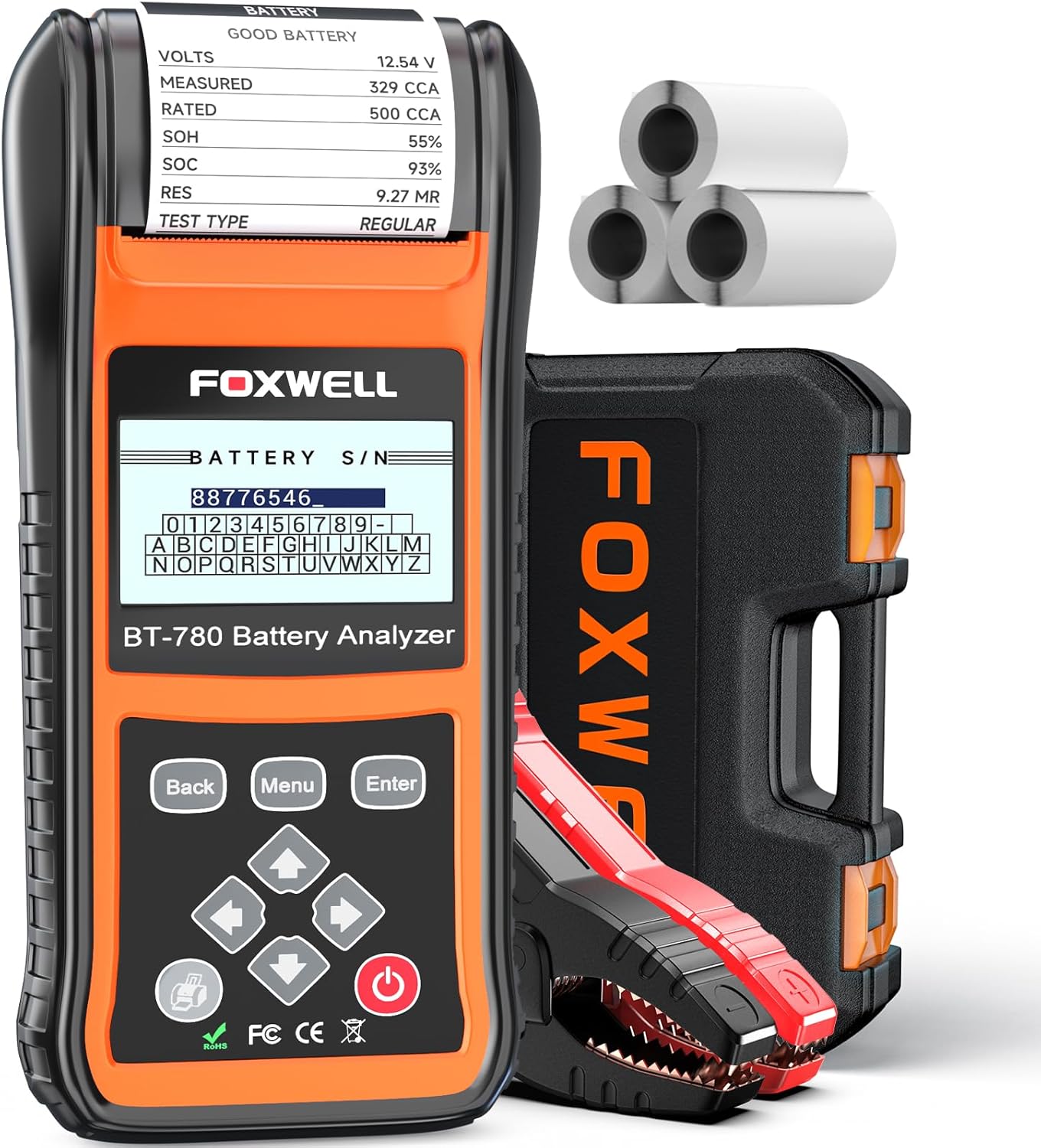
Figure 1: FOXWELL BT780 Battery Tester and included accessories.
2. Safety Information
Always observe the following safety precautions when operating the FOXWELL BT780 to prevent personal injury or damage to the device or vehicle:
- Wear appropriate eye protection and protective clothing.
- Ensure the vehicle is in a well-ventilated area.
- Avoid sparks, flames, or smoking near the battery.
- Keep the tester away from moving engine parts.
- Ensure proper polarity connection (red clamp to positive, black clamp to negative) to avoid damage to the tester or battery. The BT780 features reverse-polarity protection.
- Turn off all electronic equipment in the vehicle before testing.
- If testing inside a vehicle, ensure all accessory loads are cut off, the key is not in the ON position, and doors are closed.
- For new or recently charged batteries, wait at least 30 minutes before testing for accurate results.
- Ensure clamps are perpendicular to the terminal post for secure connection.
3. What's in the Box
The FOXWELL BT780 package includes the following items:
- 1 x FOXWELL BT780 Battery Tester
- 1 x 6.5ft Test Cable with Insulated Alligator Clips
- 3 x Rolls of 57*30mm Thermal Paper
- 1 x TF Card Reader
- 1 x Instruction Manual
- 1 x Portable Toolbox

Figure 2: All items included in the FOXWELL BT780 package.
4. Setup and Initial Use
Follow these steps to set up your FOXWELL BT780 and perform your first battery test:
- Connect the Test Cable: Insert the circular connector of the 6.5ft test cable into the port at the bottom of the BT780 unit. Ensure it is securely screwed in.
- Prepare the Battery: Ensure the battery terminals are clean and free of corrosion.
- Connect Clamps:
- Connect the red positive (+) clamp to the positive battery terminal.
- Connect the black negative (-) clamp to the negative battery terminal.
The device will power on automatically once connected to a battery.
- Navigate the Menu: Use the directional arrows (Up, Down, Left, Right) and the "Enter" button to navigate the main menu. The "Back" button returns to the previous screen.

Figure 3: Easy operation steps for connecting the BT780 to a battery.
Video 1: Overview of the 2023 Upgraded Foxwell BT780 and its capabilities for 6V/12V/24V systems.
5. Operating Instructions
The BT780 offers various testing functions for comprehensive battery and system analysis.
5.1. Battery Test
This function tests the overall health of the battery, including voltage, measured CCA, resistance, State of Health (SOH), and State of Charge (SOC).
- From the Main Menu, select "Battery Test" and press "Enter".
- Select "Technician" (Tech-1 to Tech-4) if applicable, then press "Enter".
- Choose "Location" (In Vehicle or Out of Vehicle) and press "Enter".
- Select "Test Type" (Regular or Start-Stop) and press "Enter".
- Choose "Post Type" (Top Post or Side Post) and press "Enter".
- Select "Battery Type" (Regular Flooded, AGM Flat Plate, AGM Spiral, Gel, EFB) and press "Enter".
- Select "Battery Standard" (CCA, BCI, MCA, JIS, DIN, IEC, EN, SAE) and press "Enter".
- Input the "Rating" (CCA value) of the battery and press "Enter".
- Optionally, input the "Battery S/N" for precise tracking and press "Enter".
- The tester will display the battery test results.
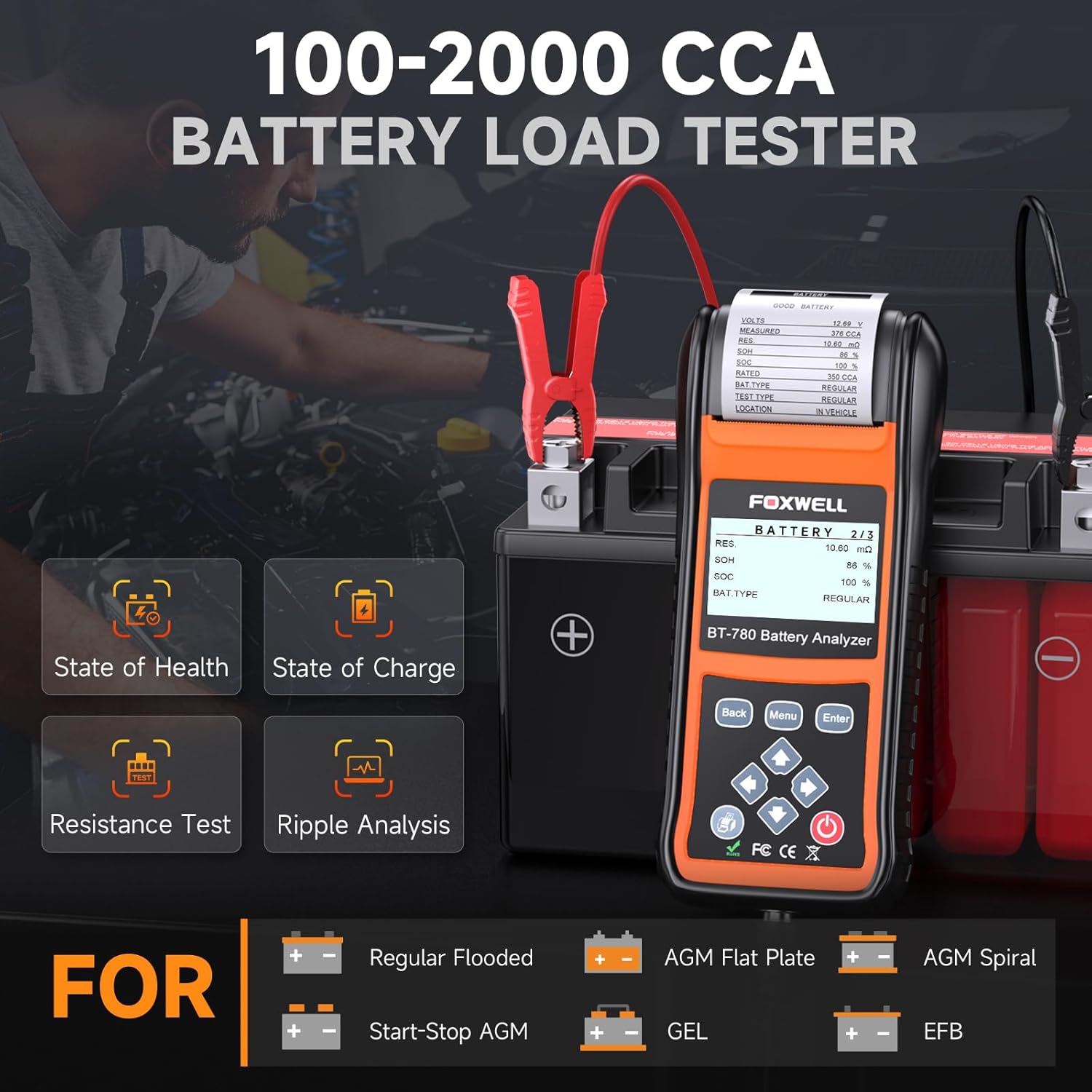
Figure 4: The BT780 performing a battery load test, showing State of Health, State of Charge, Resistance Test, and Ripple Analysis.
Video 2: Demonstrating the main functions of the FOXWELL BT780 Battery Tester, including battery health, cranking, and charging tests.
5.2. Cranking System Test
This test analyzes the vehicle's starting system, measuring cranking voltage and time.
- After the Battery Test, the device will prompt "Press ⮞ to Starter Test". Press the Right arrow button.
- Follow the on-screen instructions to start the engine.
- The tester will display the cranking test results (Cranking Normal, Cranking Voltage, Time).
5.3. Charging System Test
This function checks the alternator output and charging system performance, including no-load voltage, loaded voltage, and ripple voltage.
- After the Cranking Test, the device will prompt "Press ⮞ to Charging Test". Press the Right arrow button.
- Follow the on-screen instructions to turn off loads and engine, then press "Enter".
- The tester will display the charging system test results (No Load, Loaded, Ripple).
5.4. Printing Test Reports
The built-in thermal printer allows for immediate printing of test results.
- After completing a test, navigate to "View/Print" from the Main Menu or press the Print button (printer icon).
- The device will display "PRINTING..." and the report will emerge from the top slot.
- Tear off the report along the serrated edge.

Figure 5: The BT780's built-in thermal printer provides jam-free, clear, and fast test reports.
Video 3: Demonstrating the steps to print out battery test results, including customizing the serial number.
Video 4: Short demonstration of the BT780's smooth printing capability without paper jams.
5.5. Customizing Reports and Language
You can personalize test reports with your shop name, technician ID, and battery serial numbers. The device also supports multiple languages.
- Store Name/Technician ID: From the Main Menu, navigate to "Store Name" or "Technician" to input custom information using the alphanumeric keypad.
- Battery S/N: This can be input during the Battery Test setup.
- Language: From the Main Menu, select "Language" to choose from available languages (English, Spanish, Russian, etc.).
6. Maintenance
Proper maintenance ensures the longevity and accuracy of your BT780.
- Printer Paper Replacement: When the printer runs out of paper, open the printer cover, remove the old roll, and insert a new 57*30mm thermal paper roll, ensuring the paper feeds correctly through the slot.
- Cleaning: Use a soft, dry cloth to clean the device. Avoid abrasive cleaners or solvents.
- Storage: Store the device in its portable toolbox in a cool, dry place when not in use.
7. Troubleshooting
If you encounter issues with your FOXWELL BT780, refer to the following common problems and solutions:
| Problem | Possible Cause | Solution |
|---|---|---|
| Device does not power on. | Loose or incorrect battery connection. | Ensure clamps are securely connected to the correct battery terminals (red to positive, black to negative). |
| Inaccurate test results. | Battery not fully charged or recently charged; dirty terminals; incorrect CCA input. | Ensure battery is fully charged and rested for 30 minutes. Clean terminals. Verify correct CCA input. |
| Printer not printing or paper jams. | Paper incorrectly loaded; empty paper roll; debris in printer. | Reload paper correctly. Replace paper roll. Clean printer mechanism. |
| Incorrect date/time on printout. | Date/time settings not adjusted. | Refer to the "Adjust print date and time on BT780 battery load analyzer" video (if available from official sources) or contact support for specific instructions. |
| Cannot save technician/store name. | Software issue or incorrect input method. | Ensure correct input method is followed. If issue persists, consider firmware update. |
8. Specifications
- Brand: FOXWELL
- Model: BT780 (Foxwell BT780 Digital Battery Analyzer)
- Power Source: Built-in Battery; Battery Health & Cranking & Charging Test
- Voltage Compatibility: 6V, 12V, 24V Battery Systems; 12V & 24V Starting and Charging Systems
- CCA Range: 100-2000 CCA
- Supported Battery Types: Regular flooded, AGM flat plate, AGM spiral, Gel, EFB, Start-Stop AGM
- Supported Rating Systems: CCA, BCI, MCA, JIS, DIN, IEC, EN, SAE
- Display: 3.2" LCD
- Printer: Built-in Thermal Printer (uses 57*30mm thermal paper)
- Operating Temperature: -20°C to 60°C (-4°F to 140°F)
- Item Weight: 16 ounces (approx. 1 pound)
- Cable Length: 6.5 feet
- Special Features: Ripple voltage test, Quick starter analysis, Multilingual menu, Replaceable test lines, 99.9% testing accuracy.
9. Firmware Update
To ensure your BT780 has the latest features and bug fixes, regularly update its firmware:
- Step 1: On the BT780 Main Menu, navigate to "FORMAT CARD" and press "Enter".
- Step 2: Remove the TF card from the tester and connect it to your computer via the provided card reader.
- Step 3: Download the latest BT780 firmware from the official FOXWELL website.
- Step 4: Put the TF card back into the analyzer.
- Step 5: From the Main Menu, select "FIRMWARE UPDATE", input "1234", and press "Enter". The tester will restart automatically, and the update will be complete.

Figure 6: Detailed steps for updating the BT780 firmware.
10. Warranty and Support
FOXWELL is committed to providing high-quality products and excellent customer service.
- Lifetime Pro Support: Access professional technical support for the lifetime of your product.
- 30-Day Free Return: Enjoy a 30-day free return policy.
- 12-Month Maintenance: The product includes 12 months of maintenance support.
- For any questions or problems, contact FOXWELL customer support via Amazon messages for prompt assistance.


