
GPX PJ609B
GPX Mini Projector PJ609B User Manual
Model: PJ609B | Brand: GPX
Introduction
Thank you for purchasing the GPX Mini Projector PJ609B. This compact and versatile projector is designed to bring your favorite movies, games, and presentations to life on a large screen. Featuring multiple connectivity options including HDMI, USB, AV, and Bluetooth, it offers flexible usage for home entertainment, education, and business. This manual provides detailed instructions for setup, operation, maintenance, and troubleshooting to ensure you get the most out of your new projector.
Package Contents
Please check the package carefully to ensure all items are present:
- GPX Mini Projector (PJ609B)
- Remote Control (2 AAA batteries not included)
- 3.5mm to 3 x RCA Audio/Video Cable
- AC/DC Power Cable
- User Manual (this document)
Product Features
The GPX Mini Projector PJ609B comes equipped with a range of features for an enhanced viewing experience:
- Projects images up to a 150-inch screen size.
- Multiple inputs: 2 HDMI, VGA PC video input, USB port, and SD card slot.
- Built-in Bluetooth wireless transmitter for audio output.
- Long-life LED bulb with 20,000 hours of life.
- Aspect ratio: 16:9.
- Integrated full-range speaker.
- Focus adjust and keystone angle correction for optimal image clarity.
- Compact and portable design.
Product Overview

Figure 1: Front and top view of the GPX Mini Projector PJ609B, showing the lens, focus/keystone dials, and top control buttons, alongside its remote control.

Figure 2: Left side view of the projector, highlighting the VGA input port and the IR receiver for the remote control.
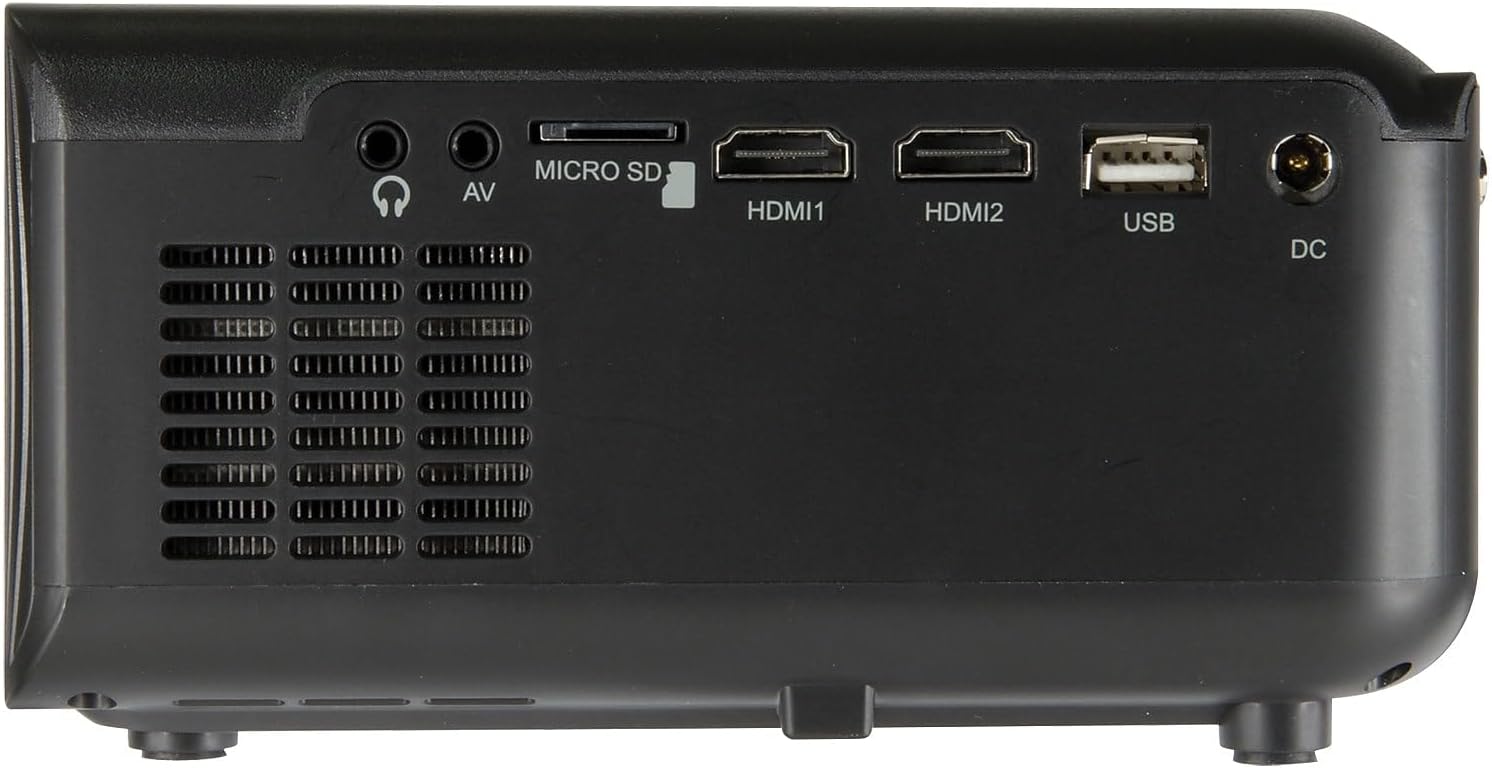
Figure 3: Right side view of the projector, displaying the AV, Micro SD, HDMI1, HDMI2, USB, and DC power input ports.
Setup
1. Placement
Place the projector on a flat, stable surface. Ensure there is adequate ventilation around the unit. For optimal viewing, position the projector directly in front of your screen or wall.
2. Power Connection
- Connect the AC/DC power cable to the DC input port on the projector.
- Plug the other end of the power cable into a standard wall outlet.
- The power indicator light on the projector will illuminate.
3. Connecting Devices
The projector supports various input sources:
- HDMI: Connect an HDMI cable from your device (e.g., laptop, game console, Blu-ray player) to either HDMI1 or HDMI2 port on the projector.
- USB: Insert a USB flash drive into the USB port to play media files directly.
- SD Card: Insert an SD card into the SD card slot to play media files.
- AV: Use the included 3.5mm to 3 x RCA audio/video cable to connect older devices (e.g., DVD player, VCR) to the AV port.
- VGA: Connect a VGA cable from your computer to the VGA port for PC video input.
4. Bluetooth Audio Output
To connect to a Bluetooth speaker or headphones:
- Ensure your Bluetooth audio device is in pairing mode.
- On the projector, navigate to the Bluetooth settings (refer to Operating Instructions for menu navigation).
- Select your Bluetooth device from the list to pair.
5. Image Adjustment
- Focus: Rotate the focus dial near the lens until the image appears sharp and clear.
- Keystone: Use the keystone correction dial to adjust the image shape if it appears trapezoidal (wider at the top or bottom).
Operating Instructions
1. Power On/Off
- Press the Power button on the projector or remote control to turn the unit on.
- Press the Power button again to turn the unit off.
2. Source Selection
Press the Source button on the projector or remote control to cycle through available input sources (HDMI1, HDMI2, USB, SD, AV, VGA).
3. Menu Navigation
- Press the Menu button to access the projector's settings menu.
- Use the Arrow buttons (Up/Down/Left/Right) on the projector or remote to navigate through menu options.
- Press the OK or Enter button to confirm a selection.
- Press the Menu or Exit button to exit the menu.
4. Media Playback (USB/SD)
When a USB drive or SD card is inserted and selected as the source, the projector will display a media browser. Use the arrow keys and OK button to navigate and select files for playback.
5. Volume Control
Use the Volume Up (+) and Volume Down (-) buttons on the remote control to adjust the audio output level from the built-in speaker or connected Bluetooth device.
Maintenance
- Cleaning the Lens: Use a soft, lint-free cloth specifically designed for optical lenses. Do not use abrasive cleaners or solvents.
- Cleaning the Casing: Wipe the projector's exterior with a soft, dry cloth. For stubborn marks, a slightly damp cloth can be used, followed by a dry wipe.
- Ventilation: Ensure the ventilation vents are not blocked to prevent overheating. Periodically clean dust from the vents using a soft brush or compressed air.
- Storage: When not in use for extended periods, store the projector in a cool, dry place, away from direct sunlight and extreme temperatures.
Troubleshooting
| Problem | Possible Cause | Solution |
|---|---|---|
| No image on screen |
|
|
| Image is blurry |
|
|
| Image is trapezoidal |
|
|
| No sound |
|
|
| Remote control not working |
|
|
Specifications
| Feature | Detail |
|---|---|
| Brand | GPX |
| Model | PJ609B |
| Display Resolution | 1280 x 720 (Native) |
| Connectivity Technology | VGA, Bluetooth, USB, HDMI, AV, SD Card |
| Light Source | LED |
| LED Bulb Life | 20,000 hours |
| Aspect Ratio | 16:9 |
| Max. Screen Size | Up to 150 inches |
| Special Features | Portable, Bluetooth, Focus Adjust, Keystone Correction, Built-in Speaker |
Warranty and Support
GPX products are designed and manufactured to the highest quality standards. This product is covered by a limited warranty from the date of original purchase. For detailed warranty information, product registration, and technical support, please visit the official GPX website or contact their customer service department. Keep your purchase receipt as proof of purchase.
For further assistance, please refer to the contact information provided on the GPX official website: www.gpx.com
Related documentsPJ609B


Ask a question about this manual
Ask about setup, troubleshooting, compatibility, parts, safety, or missing instructions. Manuals+ will review the question and use this page’s manual context to help answer it.