
1. Introduction
Thank you for purchasing the DURGOD HK Venus RGB Mechanical Gaming Keyboard. This 60% layout keyboard features durable doubleshot PBT keycaps, Cherry MX Blue switches, and a robust aluminum chassis. It offers customizable RGB backlighting and advanced functionality through the DURGOD Hera Engine software. This manual provides detailed instructions for setup, operation, maintenance, and troubleshooting to ensure optimal performance and longevity of your keyboard.
2. Package Contents
Please verify that all items are present in your package:
- DURGOD HK Venus RGB Mechanical Gaming Keyboard
- USB Type-C to Type-A Cable (5.9 ft / 1.8 m)
- USB Type-C to Type-C Cable (3.3 ft / 1 m)
- Keycap Puller
- User Manual (this document)
3. Setup
3.1 Connecting the Keyboard
- Select the appropriate USB cable (Type-C to Type-A for standard USB ports, or Type-C to Type-C for compatible devices).
- Connect the USB Type-C end of the cable to the port on the back of the DURGOD HK Venus keyboard.
- Connect the other end of the cable to an available USB port on your computer.
- The keyboard will be automatically detected by your operating system.

Figure 3.1: USB Type-C Interface for Keyboard Connection. This image shows a close-up of the USB Type-C port located on the side of the DURGOD HK Venus keyboard, highlighting its modern and reversible connector for reliable connectivity.
3.2 Software Installation (DURGOD Hera Engine)
To unlock the full potential of your DURGOD HK Venus keyboard, including macro programming, key remapping, and advanced RGB lighting customization, download and install the DURGOD Hera Engine software.
- Visit the official DURGOD website to download the latest version of the Hera Engine software.
- Follow the on-screen instructions to complete the installation.
- Once installed, launch the software to configure your keyboard settings.

Figure 3.2: Customization with DURGOD Hera Engine. This image illustrates the extensive customization options available through the DURGOD Hera Engine software, including personalized macros and dynamic RGB lighting effects.
4. Operating Instructions
4.1 Basic Keyboard Functions
The DURGOD HK Venus is a 60% layout keyboard, meaning some functions are accessed via a combination of keys. The primary function layer is standard QWERTY.
4.2 RGB Backlighting Control
The keyboard features 16.8 million color RGB backlighting with multiple effects. Basic lighting adjustments can be made directly on the keyboard:
- Change Lighting Mode: Use Fn + [Key Combination] (refer to keyboard legends or software for specific combinations).
- Adjust Brightness: Use Fn + Up/Down Arrow (if available, otherwise via software).
- Adjust Speed/Direction: Use Fn + Left/Right Arrow (if available, otherwise via software).
For advanced customization, including specific color settings, effects, and per-key lighting, use the DURGOD Hera Engine software.

Figure 4.1: DURGOD HK Venus RGB Backlighting. This image displays the DURGOD HK Venus keyboard illuminated with its customizable RGB backlighting, showcasing the vibrant color combinations across the keys.
4.3 Tap Mode for Arrow Keys
The DURGOD HK Venus features a "Tap Mode" which allows you to access arrow key functionality without a dedicated arrow cluster. This is typically achieved by tapping specific modifier keys:
- Up Arrow: Tap Shift
- Left Arrow: Tap Fn1
- Down Arrow: Tap Fn2
- Right Arrow: Tap Ctrl
Note: The exact key combinations for Tap Mode may be configurable via the Hera Engine software.
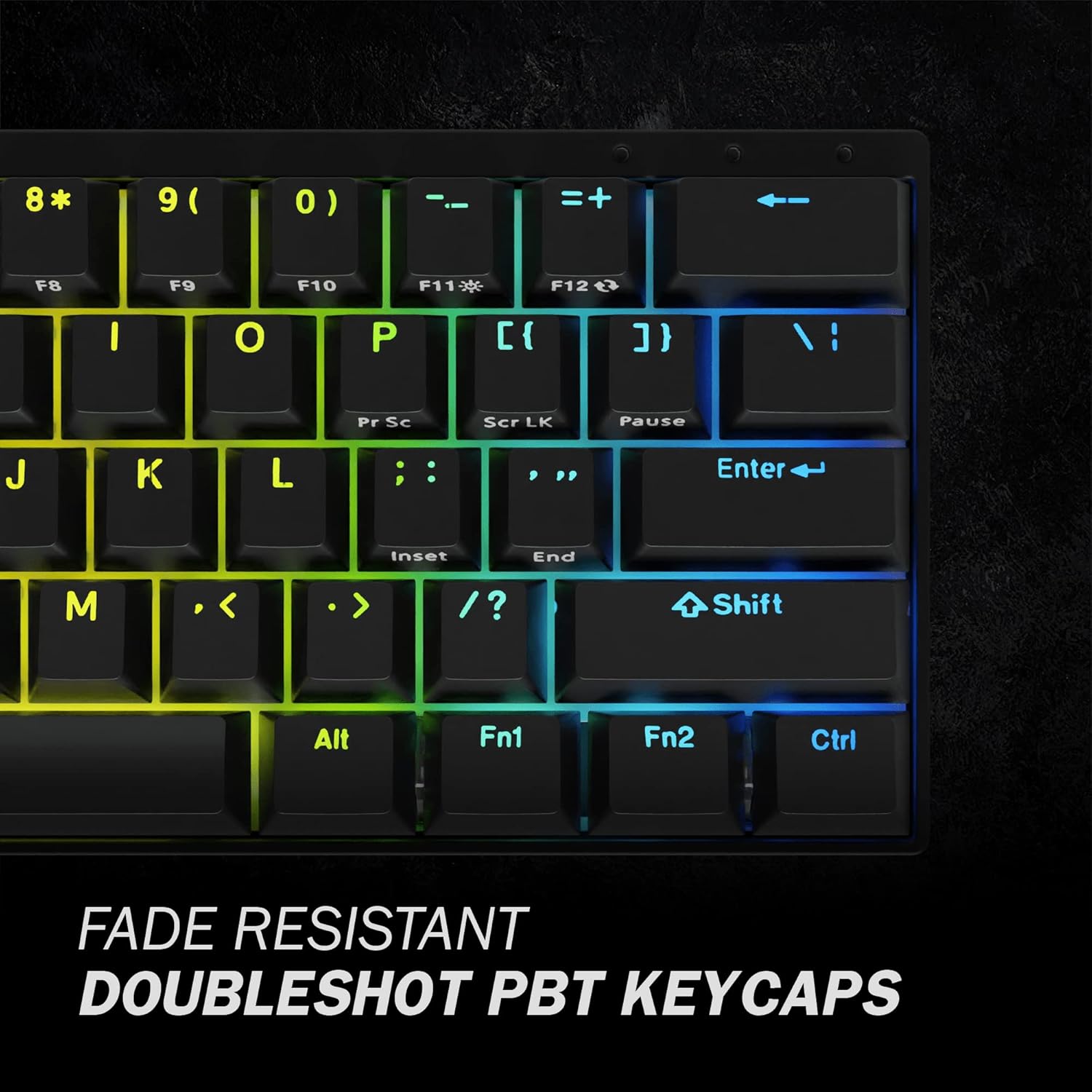
Figure 4.2: Tap Mode Key Legends. This image provides a close-up view of the keycaps, specifically highlighting the secondary legends on the Shift, Fn1, Fn2, and Ctrl keys, which indicate their function as arrow keys in Tap Mode.
4.4 N-Key Rollover (NKRO)
The DURGOD HK Venus supports N-Key Rollover (NKRO), which means every key press is registered independently, regardless of how many keys are pressed simultaneously. This prevents "ghosting" or "key jamming" and is crucial for fast-paced typing and gaming.
5. Maintenance
5.1 Cleaning the Keyboard
Regular cleaning helps maintain the keyboard's appearance and functionality.
- Disconnect the keyboard from your computer before cleaning.
- Use a can of compressed air to remove dust and debris from between the keycaps.
- Wipe the keycaps and chassis with a soft, slightly damp, lint-free cloth. Avoid excessive moisture.
- Do not use harsh chemicals, abrasive cleaners, or solvents.
5.2 Keycap Removal and Replacement
The included keycap puller can be used to safely remove keycaps for cleaning or replacement.
- Gently place the keycap puller over the keycap you wish to remove.
- Ensure the puller's wires hook under opposite sides of the keycap.
- Pull straight up with even pressure until the keycap detaches from the switch stem.
- To replace, align the keycap with the switch stem and press down firmly until it clicks into place.
Caution: Be gentle when removing keycaps to avoid damaging the switch stems.

Figure 5.1: Cherry MX Blue Switches. This image provides a detailed view of the Cherry MX Blue mechanical switches beneath the keycaps, illustrating the mechanism that provides tactile and audible feedback.
6. Troubleshooting
If you encounter issues with your DURGOD HK Venus keyboard, refer to the following common solutions:
6.1 Keyboard Not Responding
- Check Cable Connection: Ensure the USB cable is securely connected to both the keyboard and the computer. Try a different USB port.
- Try a Different Cable: Use the alternative USB cable provided (Type-C to Type-C or Type-C to Type-A) to rule out a faulty cable.
- Restart Computer: A system restart can often resolve connectivity issues.
- Test on Another Computer: If possible, test the keyboard on another computer to determine if the issue is with the keyboard or the original computer's setup.
6.2 Keys Not Registering or Repeating
- Clean Under Keycaps: Remove the affected keycap(s) using the keycap puller and clean any debris around the switch stem using compressed air.
- Software Interference: Ensure no other keyboard software or macro programs are conflicting with the DURGOD Hera Engine.
- Firmware Update: Check the DURGOD website for any available firmware updates for your keyboard model, as these often address performance issues.
6.3 RGB Lighting Not Working Correctly
- Check Software Settings: Open the DURGOD Hera Engine software and verify that lighting effects are enabled and configured as desired.
- Reset Lighting: Some keyboards have a factory reset option for lighting (refer to software or manufacturer's website).
- Reinstall Software: If issues persist, try uninstalling and reinstalling the Hera Engine software.
7. Specifications
| Model | Venus 60% US |
| Layout | 60% (61 keys) |
| Switch Type | Cherry MX Blue Mechanical Switches |
| Keycaps | Doubleshot PBT, Translucent |
| Backlighting | RGB (16.8 Million Colors) |
| Connectivity | USB Type-C Wired |
| N-Key Rollover | Supported (NKRO) |
| Chassis Material | Aluminum |
| Dimensions (L x W x H) | 11.45 x 4.13 x 1.15 inches (29.08 x 10.49 x 2.92 cm) |
| Weight | 1.98 pounds (0.9 kg) |
| Compatibility | Windows 11/10/8/7/Vista/XP, Mac OS |
8. Warranty Information
DURGOD products are manufactured to the highest quality standards. For detailed warranty information, including terms, conditions, and duration, please refer to the official DURGOD website or the warranty card included with your product. Keep your proof of purchase for warranty claims.
9. Customer Support
If you require further assistance or have questions not covered in this manual, please contact DURGOD customer support:
- Official Website: www.durgod.com (Check for support section or contact page)
- Email: Refer to the official website for specific support email addresses.
When contacting support, please have your product model (Venus 60% US) and purchase information ready.
