
WONNIE W-1012
WONNIE W-1012 10.5'' Dual DVD Player User Manual
Model: W-1012 | Brand: WONNIE
1. Introduction
Thank you for purchasing the WONNIE W-1012 10.5'' Dual DVD Player. This manual provides essential information for the safe and efficient operation of your device. Please read this manual thoroughly before using the product and retain it for future reference.
The WONNIE W-1012 is designed to provide portable entertainment, featuring a 10.5-inch LCD screen and the capability to connect to a second screen for dual viewing. It supports various media formats, making it ideal for travel and home use.
2. Safety Precautions
To ensure safe operation and prevent damage to the device, please observe the following precautions:
- Do not expose the device to rain, moisture, or extreme temperatures.
- Avoid placing the device near heat sources such as radiators, heat registers, stoves, or other apparatus (including amplifiers) that produce heat.
- Use only the power adapter supplied with the unit. Using unauthorized adapters may cause damage or fire.
- Do not block any ventilation openings. Install in accordance with the manufacturer's instructions.
- Protect the power cord from being walked on or pinched, particularly at plugs, convenience receptacles, and the point where they exit from the apparatus.
- Unplug this apparatus during lightning storms or when unused for long periods of time.
- Refer all servicing to qualified service personnel. Servicing is required when the apparatus has been damaged in any way, such as power-supply cord or plug is damaged, liquid has been spilled or objects have fallen into the apparatus, the apparatus has been exposed to rain or moisture, does not operate normally, or has been dropped.
3. Package Contents
Please check the box for the following items:
- WONNIE W-1012 10.5'' Dual DVD Player (Main Unit)
- Second Screen (Slave Monitor)
- AC Power Adapter
- Car Charger
- Remote Control
- AV Cable
- Headrest Mount Straps (2 sets)
- User Manual
4. Product Overview
Familiarize yourself with the main components and controls of your WONNIE DVD player.
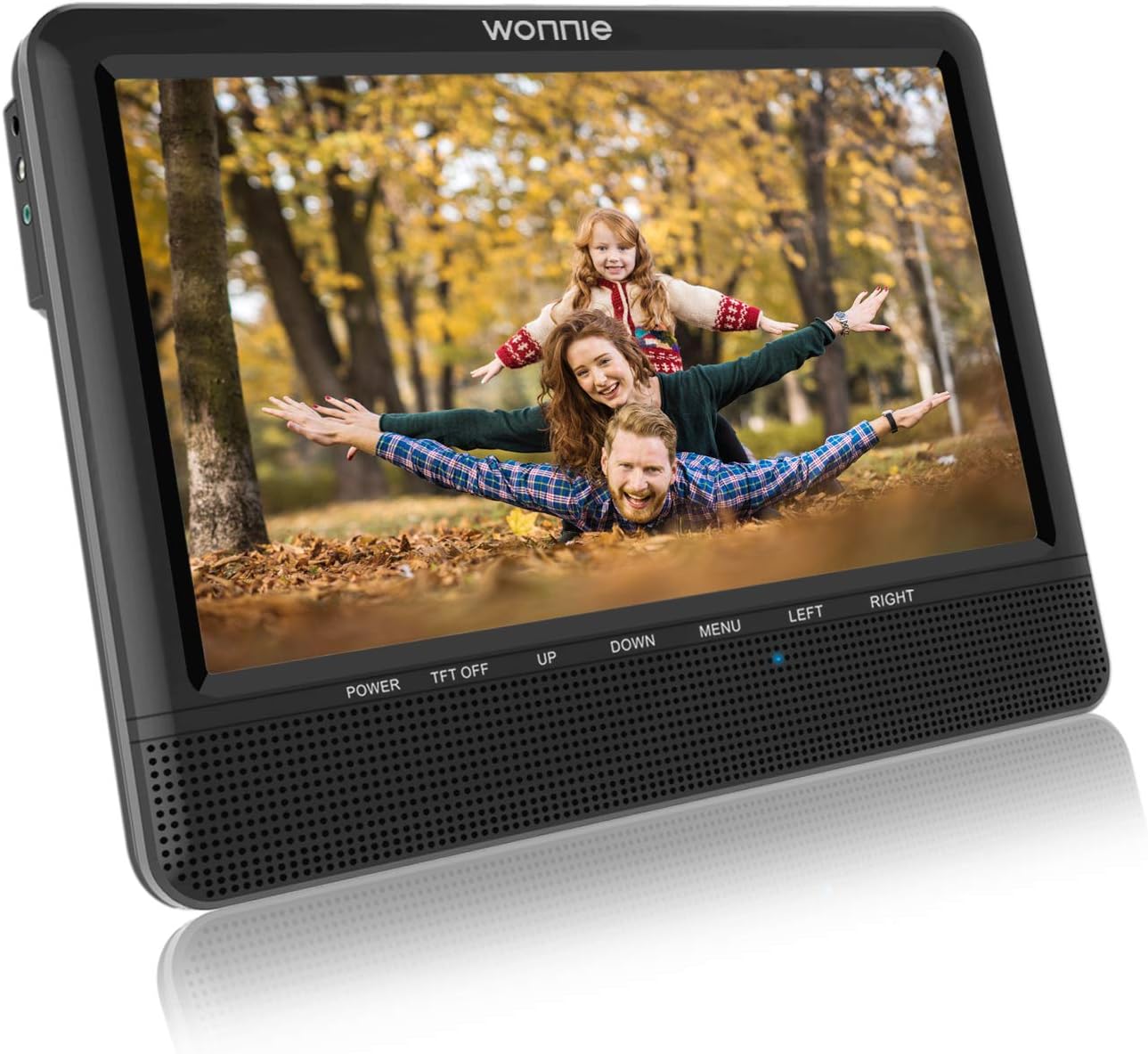
Image: Front view of the WONNIE 10.5'' Dual DVD Player main unit, showing the screen, control buttons (Power, TFT Off, Up, Down, Menu, Left, Right), and speakers.
Main Unit Controls and Ports:
- POWER Button: Turns the player on/off.
- TFT OFF Button: Turns the screen display on/off while audio continues.
- UP/DOWN/LEFT/RIGHT Buttons: Navigation buttons for menu selection.
- MENU Button: Accesses the system menu.
- DISC Tray: For inserting DVDs/CDs.
- USB Port: For connecting USB flash drives.
- SD Card Slot: For inserting SD memory cards.
- AV IN/OUT Port: For connecting to external devices or a TV.
- DC IN 12V Port: For connecting the AC adapter or car charger.
- HEADPHONE Jack: For connecting headphones.
- SLAVE OUT Port: For connecting the second screen.
Second Screen (Slave Monitor):
- SLAVE IN Port: Connects to the main unit's SLAVE OUT port.
- Adjustable Stand: Allows for tabletop viewing.
5. Setup
5.1 Powering the Device
- Using AC Power: Connect the AC power adapter to the DC IN 12V port on the main unit, then plug the adapter into a standard wall outlet.
- Using Car Charger: Connect the car charger to the DC IN 12V port on the main unit, then plug the other end into your vehicle's cigarette lighter socket.
5.2 Connecting the Second Screen
To enable dual screen viewing:
- Ensure both the main unit and the second screen are powered off.
- Connect one end of the provided AV cable to the SLAVE OUT port on the main DVD player unit.
- Connect the other end of the AV cable to the SLAVE IN port on the second screen.
- Power on the main unit. The second screen will automatically display the content from the main unit.

Image: The WONNIE DVD player in use, showing its adjustable stand and screen displaying content for two viewers.
5.3 Mounting in a Vehicle
Use the provided headrest mount straps to secure the main unit and the second screen to the back of car seats. Ensure they are securely fastened and do not obstruct the driver's view or airbag deployment.
6. Operating Instructions
6.1 Playing a DVD/CD
- Press the POWER button to turn on the player.
- Gently open the disc tray and insert a DVD or CD with the label side facing up.
- Close the disc tray. The player will automatically detect and begin playing the disc.
- Use the remote control or the player's buttons (Play/Pause, Stop, Next/Previous, Volume) to control playback.
6.2 Playing Media from USB/SD Card
- Insert a USB flash drive into the USB Port or an SD card into the SD Card Slot.
- The player will usually prompt you to select the media source. If not, press the SOURCE button on the remote or navigate through the menu to select USB or SD.
- Browse the files using the navigation buttons and press OK/PLAY to start playback.
6.3 Connecting to a TV (AV OUT)
You can connect the DVD player to a larger TV screen:
- Connect one end of the AV cable (yellow, white, red) to the AV OUT port on the DVD player.
- Connect the other end of the AV cable to the corresponding AV IN ports on your television.
- Select the correct AV input source on your TV. The DVD player's content will now be displayed on the TV.
6.4 System Settings
Press the MENU button on the player or remote to access system settings. Here you can adjust:
- Video Settings: Aspect ratio, brightness, contrast.
- Audio Settings: Volume, audio output.
- Language Settings: OSD language, audio language, subtitle language.
- Parental Control: Set rating limits for discs.
7. Maintenance and Care
- Cleaning the Screen: Use a soft, lint-free cloth to gently wipe the screen. For stubborn marks, slightly dampen the cloth with water or a screen cleaner. Do not spray liquid directly onto the screen.
- Cleaning the Unit: Wipe the exterior of the player with a soft, dry cloth. Avoid using abrasive cleaners or solvents.
- Disc Care: Handle discs by their edges. Keep them clean and free of scratches. Store discs in their cases when not in use.
- Storage: When not in use for extended periods, store the player in a cool, dry place away from direct sunlight and extreme temperatures.
8. Troubleshooting
If you encounter issues with your WONNIE DVD player, refer to the following common problems and solutions:
| Problem | Possible Cause | Solution |
|---|---|---|
| No power | Power adapter not connected properly; power outlet issue. | Check power connections. Try a different outlet. Ensure the power button is pressed. |
| No picture on screen | TFT OFF button pressed; incorrect AV connection (for TV); disc issue. | Press TFT OFF button again. Check AV cables and TV input source. Clean or replace disc. |
| No sound | Volume too low; mute activated; audio settings incorrect. | Increase volume. Check if mute is on. Adjust audio settings in the menu. |
| Disc not playing/Disc error | Disc is dirty, scratched, or incompatible format. | Clean the disc. Try a different disc. Ensure the disc format is supported (DVD, CD, VCD). |
| Remote control not working | Batteries are dead or inserted incorrectly; obstruction. | Replace batteries (1 AAA required). Ensure line of sight to the player's IR sensor. |
9. Specifications
- Model Number: W-TH1012B
- Screen Size: 10.5 Inches (LCD)
- Media Type: DVD, CD, VCD, MP3, JPEG, AVI, MPG, MP4, FLV, VOB, DIVX, XVID
- Product Dimensions: 15 x 8 x 1.5 inches
- Item Weight: 1.37 pounds
- Power Input: DC 12V
- Battery: 1 AAA batteries required (for remote control)
- Connectivity: USB, SD Card, AV IN/OUT, Headphone Jack, Slave Out
10. Warranty and Customer Support
WONNIE products come with a standard manufacturer's warranty. Please refer to the warranty card included in your package for specific terms and conditions, including the warranty period and coverage details.
For technical support, troubleshooting assistance, or warranty claims, please contact WONNIE customer service. Contact information can typically be found on the warranty card or on the official WONNIE website.
When contacting support, please have your product model number (W-TH1012B) and purchase information ready.
Ask a question about this manual
Ask about setup, troubleshooting, compatibility, parts, safety, or missing instructions. Manuals+ will review the question and use this page’s manual context to help answer it.