
1. Product Overview
The GoorDik Professional Lavalier Lapel Microphone (Model GS44SR) is an omnidirectional condenser microphone designed for clear audio capture in various recording scenarios. Its compact design and 16-foot cable make it suitable for interviews, video production, YouTube content creation, and more. The microphone features noise cancellation technology to enhance sound quality.

Figure 1.1: The GoorDik lavalier microphone in use for vlogging, demonstrating its discreet placement and long cable for flexible recording.
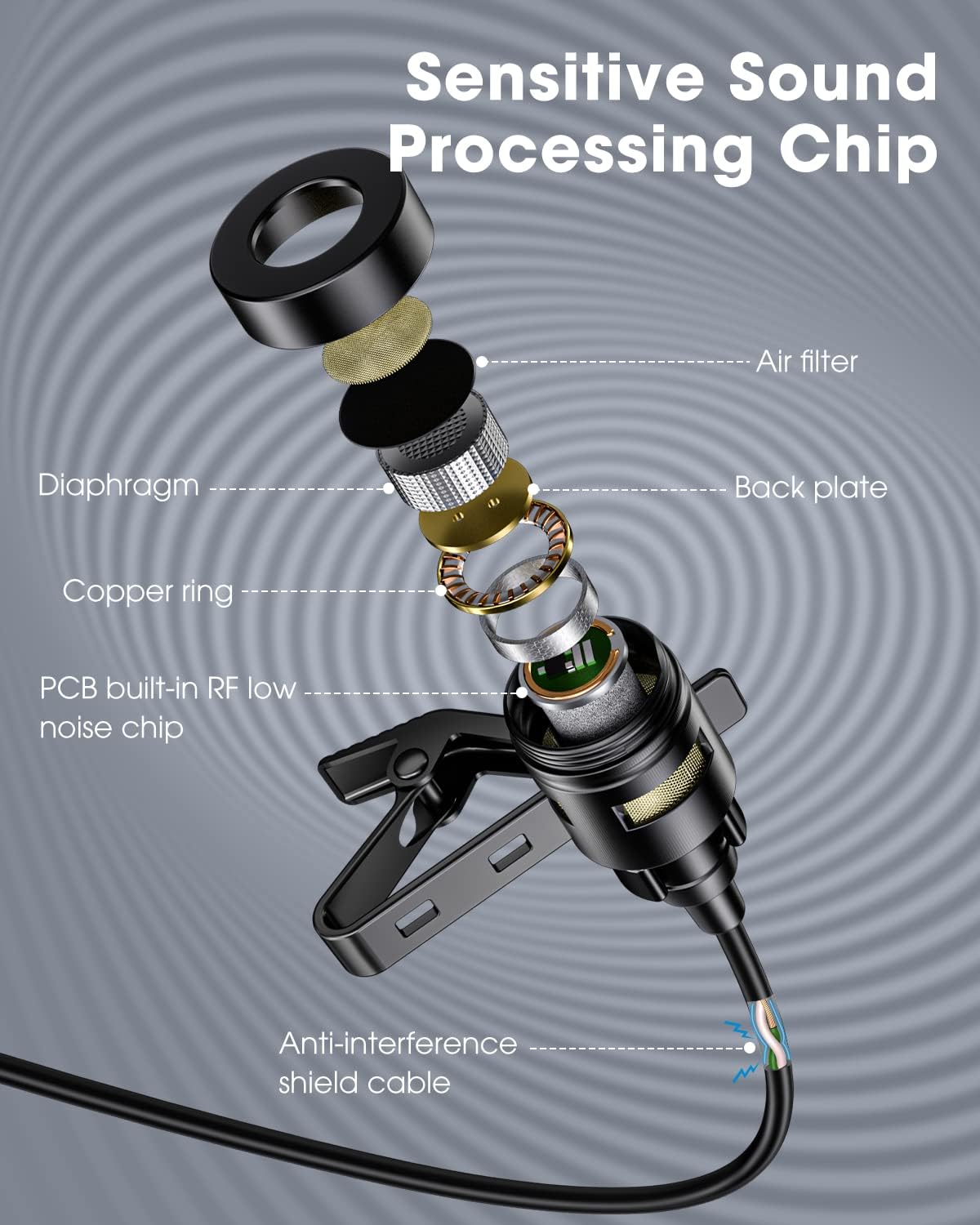
Figure 1.2: An exploded view illustrating the internal components of the microphone, including the sensitive sound processing chip, air filter, diaphragm, back plate, copper ring, PCB built-in RF low noise chip, and anti-interference shield cable, all contributing to its performance.
2. What's in the Box
Upon opening your GoorDik Professional Lavalier Lapel Microphone package, you should find the following items:
- 1 x GoorDik Lavalier Microphone (with 16-foot cable)
- 1 x Black EVA Case
- 2 x Wind Muffs
- 1 x Handy Velcro cable tie
- 1 x PC Adapter
- 1 x User Manual
- 1 x Warranty Card
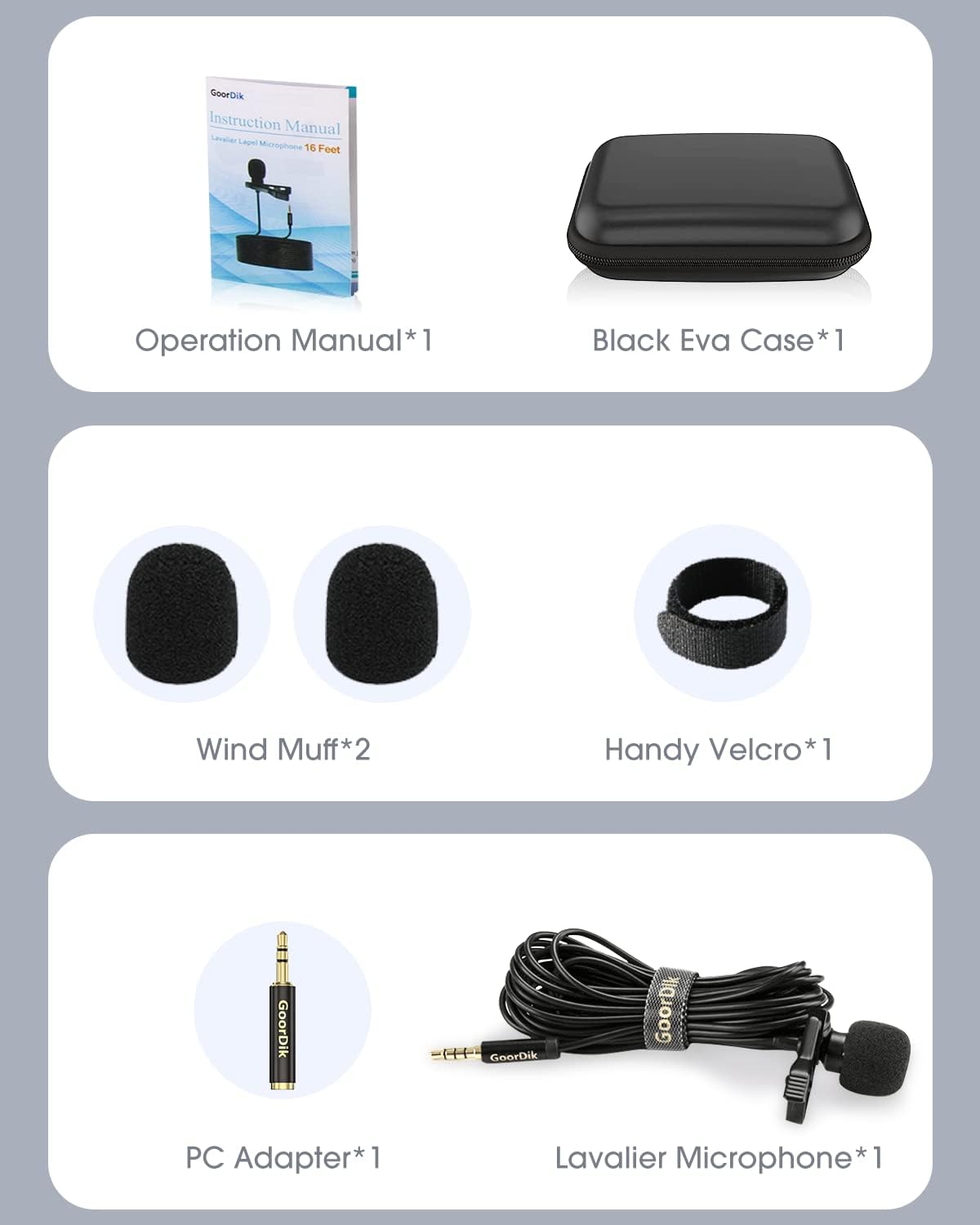
Figure 2.1: All included accessories: the instruction manual, black EVA case, two wind muffs, a handy Velcro strap, a PC adapter, and the lavalier microphone itself.
3. Setup Instructions
3.1 Connecting to Devices
The GoorDik lavalier microphone features a standard 3.5mm jack for broad compatibility. Follow these steps to connect it to your recording device:
- For Smartphones/Tablets: Plug the 3.5mm jack directly into your device's headphone/microphone port.
- For iPhones (7 and above): An original Apple adapter (not included) is required to connect the microphone to your device.
- For PCs/Laptops: If your computer has separate microphone and headphone jacks, use the included PC adapter to split the signal correctly. Plug the microphone's 3.5mm jack into the microphone input of the adapter, then plug the adapter into your computer's microphone port.
- For Cameras/Camcorders: Plug the 3.5mm jack directly into the microphone input port of your camera or camcorder.

Figure 3.1: A visual guide demonstrating the microphone's compatibility with a wide range of devices, including iPhones, iPads, Android smartphones and tablets, cameras, camcorders, and PCs. Note that iPhone 7 and above require an additional adapter.
3.2 Wearing the Microphone
For optimal sound capture, position the microphone correctly:
- Attach the microphone clip to your clothing, typically near your chest area (e.g., shirt collar, lapel).
- Ensure the microphone head is facing towards your mouth for the clearest audio.
- Use the included wind muff to reduce unwanted wind noise, especially when recording outdoors.
4. Operating Instructions
4.1 Basic Usage
Once connected, the GoorDik lavalier microphone operates automatically. Most devices will recognize it as an external audio input. Begin your recording as usual with your chosen application or camera settings.
- The microphone's omnidirectional polar pattern captures sound equally from all directions, making it versatile for various speaking positions.
- The 16-foot (5-meter) cable provides ample length for movement and flexible placement during recording.

Figure 4.1: The lavalier microphone clipped to clothing, with a graphic illustrating its omnidirectional sound pickup for crisp recording from all angles.

Figure 4.2: A user demonstrating the microphone's 16.40ft (5m) cable length, allowing for freedom of movement while recording, such as playing an instrument.
4.2 Compatibility Notes
When the microphone is plugged into your device, it will typically occupy the device's built-in speaker output. This means you may not hear sound output directly from your device's speakers while the microphone is connected. To monitor audio, use headphones connected to your device's headphone jack (if available and separate from the mic input) or review the recording after disconnecting the microphone.
5. Care and Maintenance
To ensure the longevity and optimal performance of your GoorDik lavalier microphone, follow these care and maintenance guidelines:
- Storage: Always store the microphone and its accessories in the provided black EVA case when not in use. This protects it from dust, moisture, and physical damage.
- Cleaning: Gently wipe the microphone body with a soft, dry cloth. Do not use liquid cleaners or abrasive materials.
- Wind Muffs: The foam wind muffs can be gently cleaned with mild soap and water if they become dirty. Ensure they are completely dry before reattaching them to the microphone.
- Cable Care: Avoid sharp bends or kinks in the cable. Use the handy Velcro strap to neatly coil the cable for storage, preventing tangles and damage.
- Handling: Handle the microphone and its connectors with care. Avoid pulling on the cable to disconnect it; always grasp the plug.
6. Troubleshooting
If you encounter issues with your GoorDik lavalier microphone, refer to the following common problems and solutions:
- No Sound or Low Volume:
- Ensure the microphone's 3.5mm jack is fully inserted into the correct port on your device.
- If using a PC, verify that the included PC adapter is correctly connected and that your computer's audio settings are configured to use the external microphone as the input device.
- Check your device's recording software or app settings to ensure the correct microphone input is selected and the input volume is not muted or set too low.
- For iPhones 7 and above, confirm that you are using an original Apple adapter and that it is functioning correctly.
- Poor Sound Quality (Muffled, Distorted, or Excessive Noise):
- Ensure the microphone is positioned correctly, not too far from your mouth, and not covered by clothing.
- If recording outdoors or in windy conditions, attach the wind muff to reduce environmental noise.
- Check for any physical damage to the microphone cable or connector.
- Test the microphone with a different device or recording application to rule out software or device-specific issues.
- Microphone Not Recognized by Device:
- Restart your recording device (smartphone, computer, camera).
- Ensure all connections are secure.
- Verify that your device's operating system or recording software is up to date.
7. Technical Specifications
| Feature | Specification |
|---|---|
| Brand | GoorDik |
| Model Name | GS44SR |
| Connectivity Technology | Auxiliary |
| Connector Type | 3.5 mm Jack |
| Special Feature | Clip |
| Compatible Devices | Camera, Laptop, PC, Smartphone |
| Color | Black |
| Polar Pattern | Omnidirectional |
| Audio Sensitivity | 30 Decibels |
| Microphone Form Factor | Lavalier |
| Power Source | Corded Electric |
| Signal-to-Noise Ratio | 78 dB |
| Number of Channels | 1 |
| Item Dimensions | 4.72 x 2.8 x 1.97 inches |
8. Warranty and Support
Your GoorDik Professional Lavalier Lapel Microphone (Model GS44SR) comes with a warranty. Please refer to the included warranty card for detailed information regarding coverage, terms, and conditions.
For technical support, troubleshooting assistance beyond this manual, or warranty claims, please contact GoorDik customer service through the contact information provided on your warranty card or the official GoorDik website.
