
1. Introduction
This manual provides essential information for the setup, operation, and maintenance of your Acer Predator XB273K Gpbmiipprzx 27-inch Ultra HD (3840 x 2160) IPS NVIDIA G-SYNC Compatible Monitor. This display is designed to deliver high-performance visuals with a 4K resolution, 144Hz refresh rate, and VESA Certified DisplayHDR 400 technology.
2. Key Features
- 27-inch UHD 4K (3840 x 2160) Widescreen IPS Display
- NVIDIA G-SYNC Compatible for smooth, tear-free gaming
- Refresh Rate: 120Hz (OverClocking to 144Hz) using 2 Display Ports
- VESA Certified DisplayHDR 400 for enhanced brightness and contrast
- DCI-P3 90% Wide Color Gamut with Quantum Dot technology for accurate colors
- Delta E<1 for precise color accuracy
- Connectivity: 2 x Display Port v1.4, 2 x HDMI v2.0, and 4 x USB 3.0 Ports

Image: NVIDIA G-SYNC technology ensures a smooth gaming experience by synchronizing the monitor's refresh rate with the GPU's output, eliminating screen tearing and minimizing stutter.

Image: A visual comparison demonstrating the clarity of 144Hz refresh rate versus lower refresh rates, highlighting reduced motion blur.

Image: A visual representation of VESA Certified DisplayHDR 400, illustrating improved contrast and vibrant colors compared to standard displays.
Video: This video provides an overview of the Acer Predator XB273K monitor's key features, including G-SYNC compatibility, 4K resolution, high refresh rates, and DisplayHDR 400 technology.
3. Package Contents
Verify that all items are present in the package:
- Acer Predator XB273K Monitor
- Monitor Stand (Base and Neck)
- Power Cord
- DisplayPort Cable
- USB 3.0 Cable
- Documentation (Quick Start Guide, Warranty Card)
4. Setup Instructions
4.1 Unpacking the Monitor
- Carefully remove the monitor and all components from the packaging.
- Place the monitor face down on a soft, clean surface to prevent scratches.
4.2 Assembling the Stand
- Attach the stand neck to the monitor panel. Ensure it clicks securely into place.
- Attach the stand base to the stand neck. Tighten the screw at the bottom of the base to secure it.

Image: Front view of the Acer Predator XB273K monitor fully assembled with its stand.
4.3 Connecting Cables
Connect the necessary cables to the monitor and your computer.
- Power Connection: Connect the power cord to the monitor's power input and then to a power outlet.
- Video Connection: For optimal performance (144Hz refresh rate), connect two DisplayPort cables from your computer's graphics card to the monitor's DisplayPort inputs. Alternatively, connect one DisplayPort or HDMI cable for standard use.
- USB Connection: Connect the USB 3.0 upstream cable from your computer to the monitor's USB upstream port to enable the monitor's USB 3.0 ports.
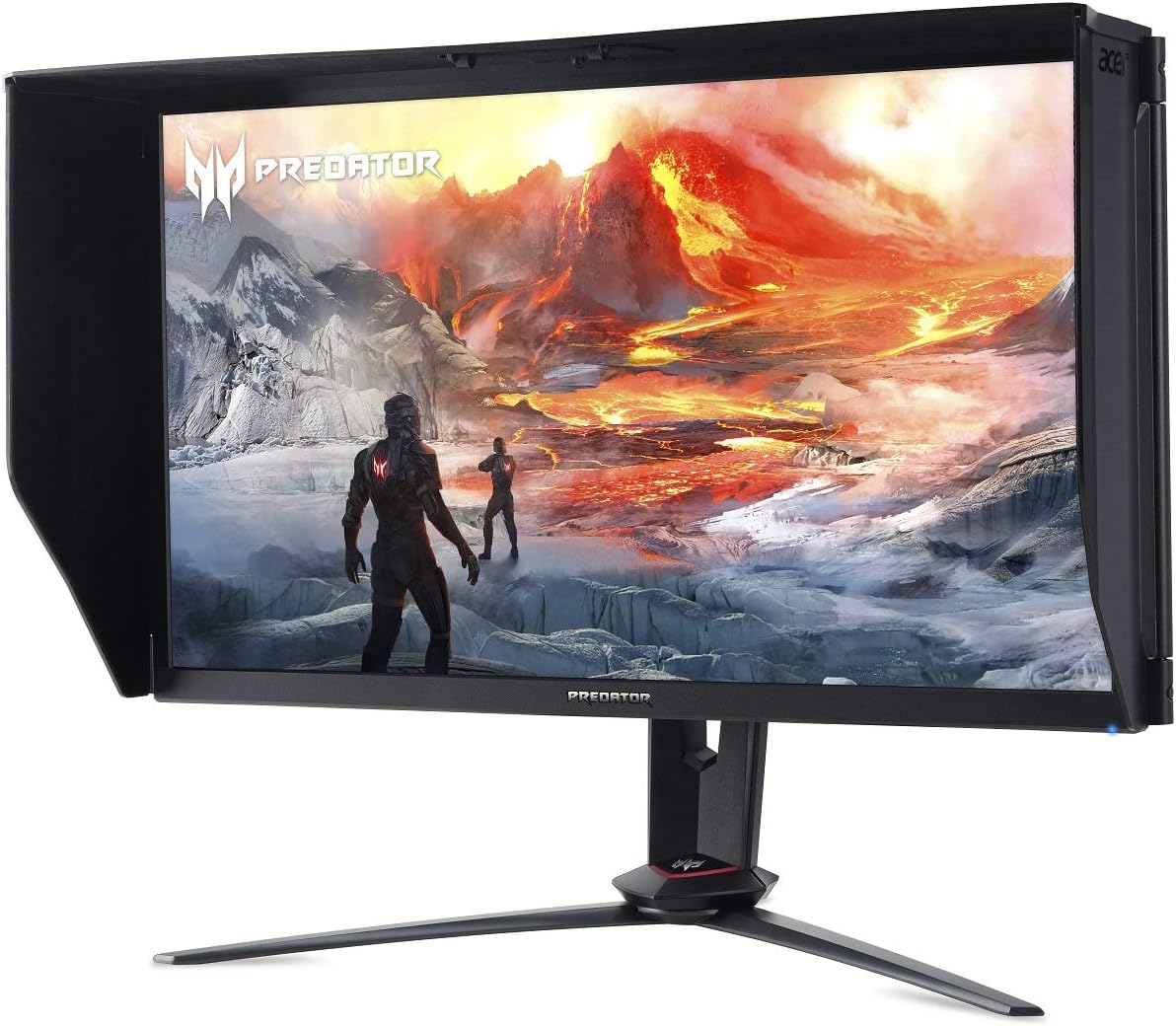
Image: Rear view of the Acer Predator XB273K monitor, highlighting the various input and output ports for connectivity.
4.4 Initial Power-On
- Press the power button on the monitor.
- Turn on your computer. The monitor should automatically detect the input signal.
- If no image appears, ensure all cables are securely connected and the correct input source is selected via the On-Screen Display (OSD) menu.

Image: The Acer Predator XB273K monitor with its physical dimensions labeled, useful for desk space planning.
5. Operating the Monitor
5.1 On-Screen Display (OSD) Menu
The OSD menu allows you to adjust various monitor settings. Access it using the control buttons located on the back or side of the monitor.

Image: Side view of the Acer Predator XB273K monitor, indicating the location of the OSD control buttons.
5.2 Adjusting Settings
- Brightness/Contrast: Adjust these settings to suit your viewing environment.
- Color Settings: Fine-tune color temperature, gamma, and saturation.
- Refresh Rate: Ensure your operating system and graphics card settings are configured to utilize the monitor's maximum refresh rate (120Hz or 144Hz with dual DisplayPort).
- G-SYNC: Enable NVIDIA G-SYNC in your NVIDIA Control Panel for adaptive synchronization.
- HDR: Activate VESA Certified DisplayHDR 400 through the OSD menu and your operating system's display settings.

Image: Side view of the Acer Predator XB273K monitor, showing the conveniently located USB 3.0 ports for peripheral connections.
6. Maintenance
6.1 Cleaning the Monitor
- Always power off the monitor and unplug the power cord before cleaning.
- Use a soft, lint-free cloth lightly dampened with water or a mild, non-abrasive screen cleaner.
- Do not spray cleaner directly onto the screen.
- Avoid using benzene, thinner, ammonia-based cleaners, or abrasive materials.
7. Troubleshooting
| Problem | Possible Cause / Solution |
|---|---|
| No image on screen | Ensure power cord is connected. Verify video cables are securely connected to both monitor and computer. Select correct input source via OSD. |
| Image is blurry or distorted | Check display resolution settings on your computer. Ensure it matches the monitor's native resolution (3840x2160). Adjust refresh rate. |
| Monitor does not wake from sleep | This can sometimes occur with specific driver or system configurations. Try updating graphics drivers. Disconnect and reconnect video cables. Adjust power management settings in your OS. |
| 144Hz refresh rate not available | Ensure two DisplayPort v1.4 cables are connected from your graphics card to the monitor. Verify your graphics card supports 4K at 144Hz. Check display settings in your OS and graphics card control panel. |
| Colors appear washed out (especially after waking from sleep) | This can be a Windows HDR issue. Try toggling HDR off and on again in Windows display settings. Ensure HDR is enabled in the monitor's OSD. |
| Backlight bleed visible | Some IPS panels may exhibit minor backlight bleed, particularly in dark environments. This can sometimes diminish with regular use over a few weeks. If severe, contact support. |
8. Specifications
| Feature | Detail |
|---|---|
| Screen Size | 27 Inches |
| Screen Resolution | 3840 x 2160 (4K UHD) |
| Panel Type | IPS |
| Refresh Rate | 120Hz (OverClocking to 144Hz with 2 Display Ports) |
| HDR Certification | VESA Certified DisplayHDR 400 |
| Color Gamut | DCI-P3 90% |
| Color Accuracy | Delta E<1 |
| G-SYNC Compatibility | NVIDIA G-SYNC Compatible |
| Connectivity | 2 x Display Port v1.4, 2 x HDMI v2.0, 4 x USB 3.0 Ports |
| Item Weight | 24 pounds |
| Product Dimensions (LxWxH) | 24.76 x 12.09 x 21.3 inches |
9. Warranty and Support
For warranty information, please refer to the warranty card included in your product package or visit the official Acer support website. If you encounter any issues not covered in this manual, please contact Acer customer support for assistance.
Acer Support Website: https://www.acer.com/support


